
Vibe Coding course · lesson 11 of 26
- 1What Is Vibe Coding? A Beginner's Guide
- 2The Vibe Coder Mindset: Build Small, Check Often
- 3Choosing Your Vibe Coding Tool: A Beginner's Guide
- 4Set Up Your Workspace for Vibe Coding
- 5Your First Vibe-Coded App in 30 Minutes
- 6From Idea to MVP: Plan a Small First Version
- 7Spec-Driven Development: Give AI a Clear Plan to Build From
- 8Mockups and Examples as Input: Show AI What You Mean
- 9Choose a Tech Stack: Pick Tools You Can Keep Using
- 10Prompts That Build Things: Give AI a Clear Task
- 11Context Documents: Give AI Lasting Project Instructions
- 12Managing Context and Sessions: Keep AI on the Right Task
- 13Set Standards Early and Review AI Output
- 14Build the Skeleton: Start the BookmarkBox App
- 15Add Data and a Database: Save Real Bookmarks
- 16Add Accounts Safely: Sign In and Protect Each User's Data
- 17Design and Polish: Improve the App One Pass at a Time
- 18Version Control with AI: Keep a Safe History of Your Work
- 19Debugging with AI: Find the Cause Before You Fix It
- 20Test by Default: Make Sure Each Feature Keeps Working
- 21Refactor and Keep Your Code Healthy
- 22Security for Vibe Coders: Protect Your App and Its Users
- 23Deploy Your App: Put BookmarkBox Online
- 24Monitor and Maintain Your App After Launch
- 25Where Vibe Coding Stops: Know When to Change Your Approach
- 26Capstone: Ship a Project from Idea to Production
After this lesson, you will be able to write a short project context document that helps an AI coding tool follow the same stack, commands and conventions from one task to the next. It saves you from repeating stable instructions, but it cannot make the AI follow them perfectly. Review its changes as you normally would.
In Prompts that build things, you learned to include context in each request. A context document keeps useful project facts available between requests and sessions.
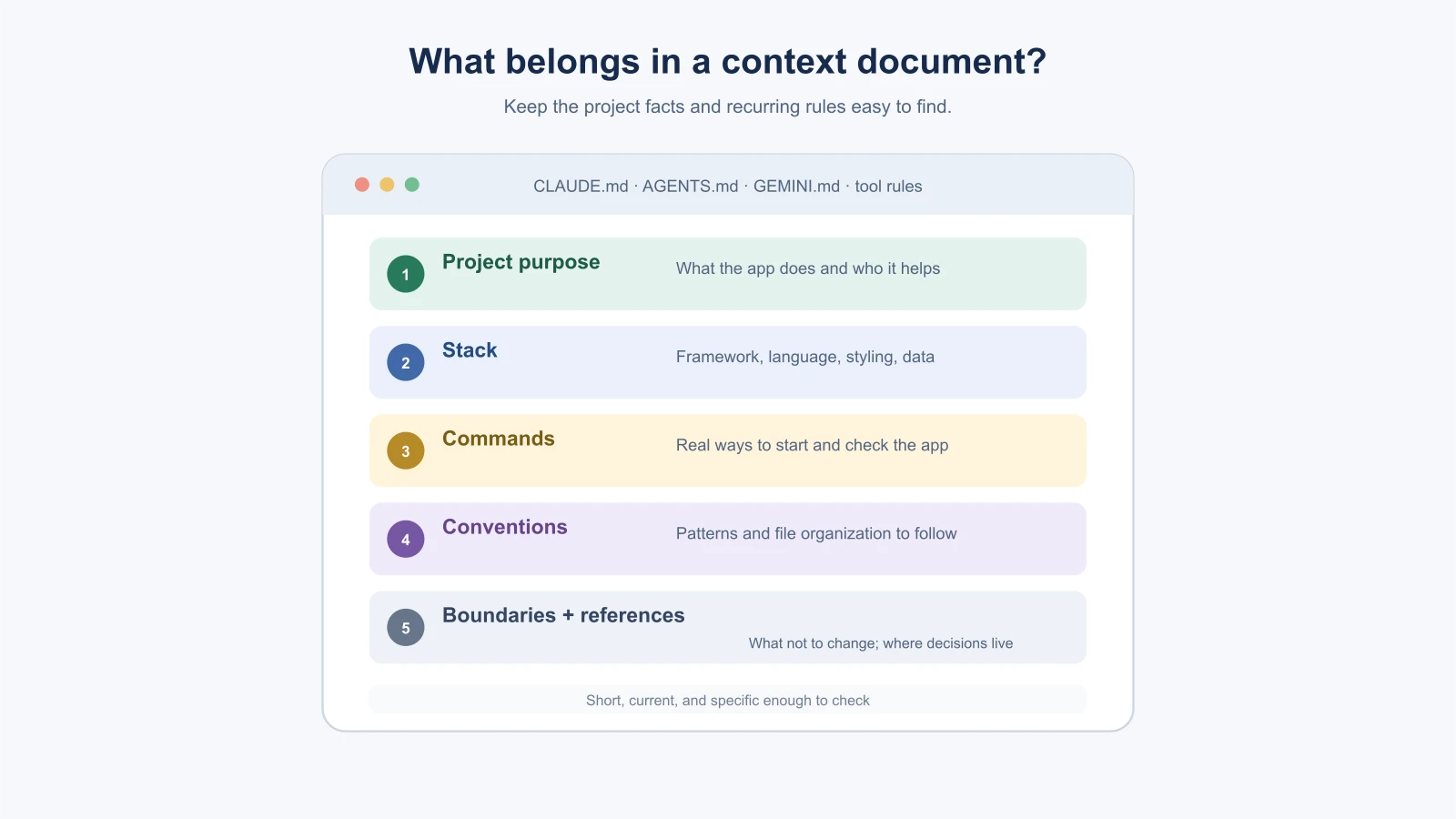
What is a context document?
A context document is a text file with instructions and facts about a project. A coding tool may read it automatically, or you may need to point the tool to it. It gives the AI a place to learn how this project is organized and how you want it to work.
Different tools use different names and formats. Claude Code reads CLAUDE.md and can also use AGENTS.md; Cursor supports project rules in .cursor/rules and AGENTS.md; Gemini CLI uses GEMINI.md by default. The exact loading behavior and supported formats can change, so use your tool's current documentation. (Claude Code memory files, Cursor rules, Gemini CLI context files).
Some tools look for files from the project root or in directories above or below the files they work on. Others support different levels for personal preferences and shared project rules. Check what your tool loads, then confirm the file is active. A file that sits in your repository but is never read by the tool cannot guide it.
What belongs in the file?
Put stable information there that the AI cannot reliably infer from one file, or that you keep repeating:
- Project purpose: one or two lines about what the app does and who uses it.
- Stack: the frameworks, language, styling system and database already chosen.
- Useful commands: how to start the app and run the checks this project uses.
- Conventions: naming, file organization or design patterns that matter in this codebase.
- Boundaries: important rules such as “do not add a dependency without explaining why.”
- Where decisions live: paths to the spec, design notes or other source-of-truth documents.
For BookmarkBox, a small shared file could look like this:
1# BookmarkBox
2
3BookmarkBox helps people save useful web pages and find them again.
4
5## Stack
6- Next.js App Router and TypeScript
7- Tailwind CSS for styling
8- Postgres for persistent bookmark data when the database phase begins
9
10## Project guidance
11- Read `drafts/bookmarkbox-spec.md` before changing feature behavior.
12- Follow existing patterns; explain why before adding a package or second styling system.
13- Keep each change focused on the task in the current prompt.
14
15## Commands
16- Start locally: `npm run dev`
17- Run checks: use the scripts listed in `package.json`
The command names above are examples. In a real project, copy the actual commands from its package.json or README. Do not guess: an inaccurate instruction wastes time and can lead the tool to run the wrong command.
Keep it short and specific
Context files are included in the information available to the AI, and long or conflicting instructions can make the important parts harder to use. Prefer concrete directions. “Use the existing Tailwind patterns in this app” is more useful than “make the code nice.” “The add-bookmark spec is in docs/add-bookmark.md” is more useful than pasting a long spec into a file that loads for every task.
Do not repeat information the code and project documentation already make clear. Avoid putting passwords, API keys or private customer data in a context file. Shared instructions may be committed with the project, so write them as if a teammate will read them.
Some tools support separate, path-specific rule files or instructions that load only for part of a project. That can help when a rule applies to one folder but would distract from other tasks. For a small app, one concise file is usually enough. Claude Code’s CLAUDE.md guide explains its project instructions in detail; the rules files lesson covers splitting rules by topic or file path.
Update it from what you learn
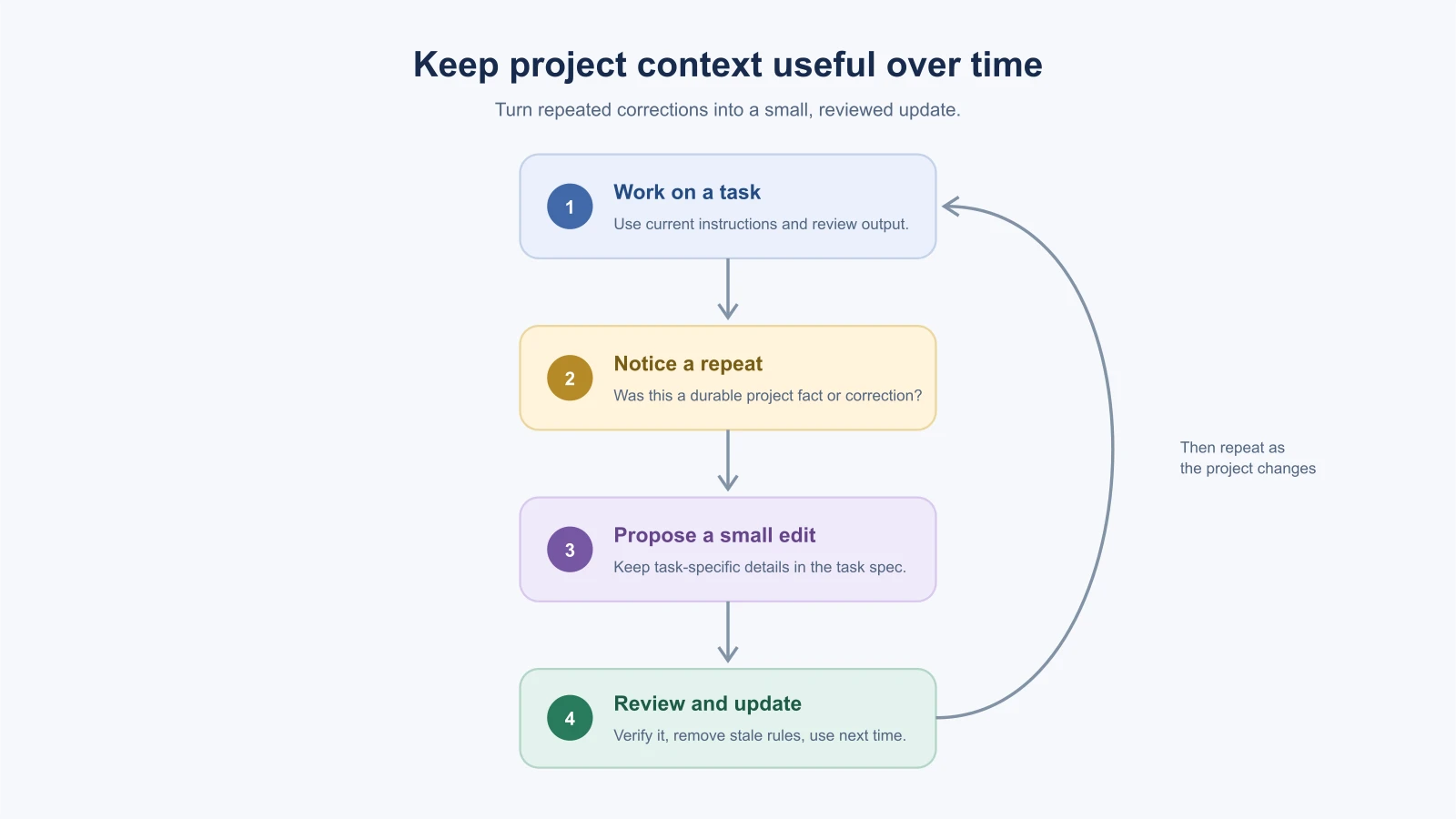
Treat the file as a living note, not something to write once and forget. When the AI repeats a mistake or you correct it more than once, ask whether a short instruction would prevent that problem next time. Add durable guidance, then remove or revise old notes when the project changes.
At the end of a work session, you can ask:
1Based on this session, suggest up to three changes to the project context file.
2Only include durable project facts or corrections that will matter again.
3Show the proposed edits separately. Do not change the file until I review them.
Check any suggestion against the project before you keep it. A one-time decision belongs in the feature spec or task discussion; a repeating project convention belongs in the context file. If a note is no longer true, delete or update it instead of keeping both versions.
Where each tool looks
Tools read different files. This table is a snapshot from the tools' own documentation, checked on November 3, 2026. File names, supported formats and defaults change, so confirm them in the current docs before you rely on them.
| Tool | Where its instructions live | What its docs say |
|---|---|---|
| Claude Code | CLAUDE.md in the project root or .claude/CLAUDE.md | Can read AGENTS.md when there is no CLAUDE.md. Targets under 200 lines per file, and treats the file as context, not enforced configuration (memory docs) |
| Cursor | .cursor/rules (rule files with frontmatter) or AGENTS.md in the project root | Advises keeping rules under 500 lines and splitting large ones (Cursor rules) |
| GitHub Copilot | .github/copilot-instructions.md, path-specific .instructions.md files, or AGENTS.md | Describes repository-wide and path-specific instructions (GitHub docs) |
| Gemini CLI | GEMINI.md by default | A setting can change the file name, for example to AGENTS.md (Gemini CLI docs) |
| Many tools | AGENTS.md | Described as a README for coding agents; the nearest file to the code being changed takes precedence (agents.md) |
If you use more than one tool, avoid keeping the same facts in several places that can drift apart. One approach is to keep the shared guidance in a single file, often AGENTS.md, and let tool-specific files point to it. Claude Code's documentation describes importing AGENTS.md from CLAUDE.md so both can share one file.
A fuller example
The five-line note from this lesson is enough to start. As the project grows, a context file might look like this. It is an illustration for BookmarkBox, so replace the details with your own.
1# BookmarkBox
2
3BookmarkBox helps people save web pages and find them again.
4
5## Stack
6- Next.js App Router, TypeScript, Tailwind CSS
7- Postgres, accessed only from server-side code
8
9## Commands
10- Start locally: `npm run dev`
11- Checks: use the scripts in `package.json`; tell me which ones you ran
12
13## Do
14- Read `docs/spec.md` before changing behavior.
15- Follow the patterns in nearby files.
16- Keep each change small and explain which files you touched.
17- Check ownership on the server for every bookmark read or change.
18
19## Do not
20- Add a dependency without explaining why.
21- Put secrets in code, prompts or files that are committed.
22- Change unrelated pages while working on a feature.
23
24## Definition of done
25- The acceptance checks in the spec are met and I have tried the feature.
26- Relevant tests pass, and any new behavior has a test.
The “definition of done” section is worth having. It tells the tool what you consider finished, which makes its final summary easier to check.
When the AI seems to ignore the file
If the tool does not follow your instructions, check these causes before rewriting everything:
- The file is not loaded. Ask: “Which instructions from the project file are you using for this task? Quote them.” If it cannot, check the file name and location in your tool's docs.
- The file is too long. Important lines get lost among less important ones. Trim it.
- The instruction is vague. “Write clean code” can mean almost anything. “Keep components under about 150 lines and split by responsibility” can be checked.
- Two instructions conflict. A global file, a project file and your prompt may disagree. Remove the contradiction.
- It is a guide, not a lock. A context file steers the tool but does not enforce anything. For actions you want to prevent, use your tool's permission settings, and review what it does.
Mistakes beginners make
- Writing a long manual before the project exists. Start with a few decisions you already know; add details as the project teaches you what matters.
- Assuming every tool reads the same filename. Check the tool's docs and confirm the context is loaded.
- Adding every prompt to the file. Save stable project guidance, not task-specific instructions that will be irrelevant tomorrow.
- Leaving obsolete rules in place. Update or remove notes when the stack or workflow changes.
- Including secrets or private data. Keep credentials in the project's secret storage, not shared instructions.
- Treating the file as a security control. It guides the AI; use your tool's permission settings and review actions that affect files or systems.
Recap and try it yourself
A context document gives your coding tool lasting project guidance. Include the purpose, stack, real commands, important conventions and links to current decisions. Keep it short, check that the tool loads it and update it when experience reveals a durable rule.
Try it: create a five-line context note for an app you want to build. Include its purpose, stack, one command, one coding convention and one boundary. Ask your coding tool to summarize the file it loaded, then correct anything it misunderstood. In Managing context and sessions, you will learn what to carry forward and when to start fresh.