
Vibe Coding course · lesson 13 of 26
- 1What Is Vibe Coding? A Beginner's Guide
- 2The Vibe Coder Mindset: Build Small, Check Often
- 3Choosing Your Vibe Coding Tool: A Beginner's Guide
- 4Set Up Your Workspace for Vibe Coding
- 5Your First Vibe-Coded App in 30 Minutes
- 6From Idea to MVP: Plan a Small First Version
- 7Spec-Driven Development: Give AI a Clear Plan to Build From
- 8Mockups and Examples as Input: Show AI What You Mean
- 9Choose a Tech Stack: Pick Tools You Can Keep Using
- 10Prompts That Build Things: Give AI a Clear Task
- 11Context Documents: Give AI Lasting Project Instructions
- 12Managing Context and Sessions: Keep AI on the Right Task
- 13Set Standards Early and Review AI Output
- 14Build the Skeleton: Start the BookmarkBox App
- 15Add Data and a Database: Save Real Bookmarks
- 16Add Accounts Safely: Sign In and Protect Each User's Data
- 17Design and Polish: Improve the App One Pass at a Time
- 18Version Control with AI: Keep a Safe History of Your Work
- 19Debugging with AI: Find the Cause Before You Fix It
- 20Test by Default: Make Sure Each Feature Keeps Working
- 21Refactor and Keep Your Code Healthy
- 22Security for Vibe Coders: Protect Your App and Its Users
- 23Deploy Your App: Put BookmarkBox Online
- 24Monitor and Maintain Your App After Launch
- 25Where Vibe Coding Stops: Know When to Change Your Approach
- 26Capstone: Ship a Project from Idea to Production
After this lesson, you will be able to review an AI's first changes, agree on a few simple project standards and ask for an explanation when code is unfamiliar. Early review matters because the patterns accepted in the first feature often become the patterns the AI copies into the next one.
In Managing context and sessions, you learned to keep a task focused. Now we will look closely at the output before moving on to more features.
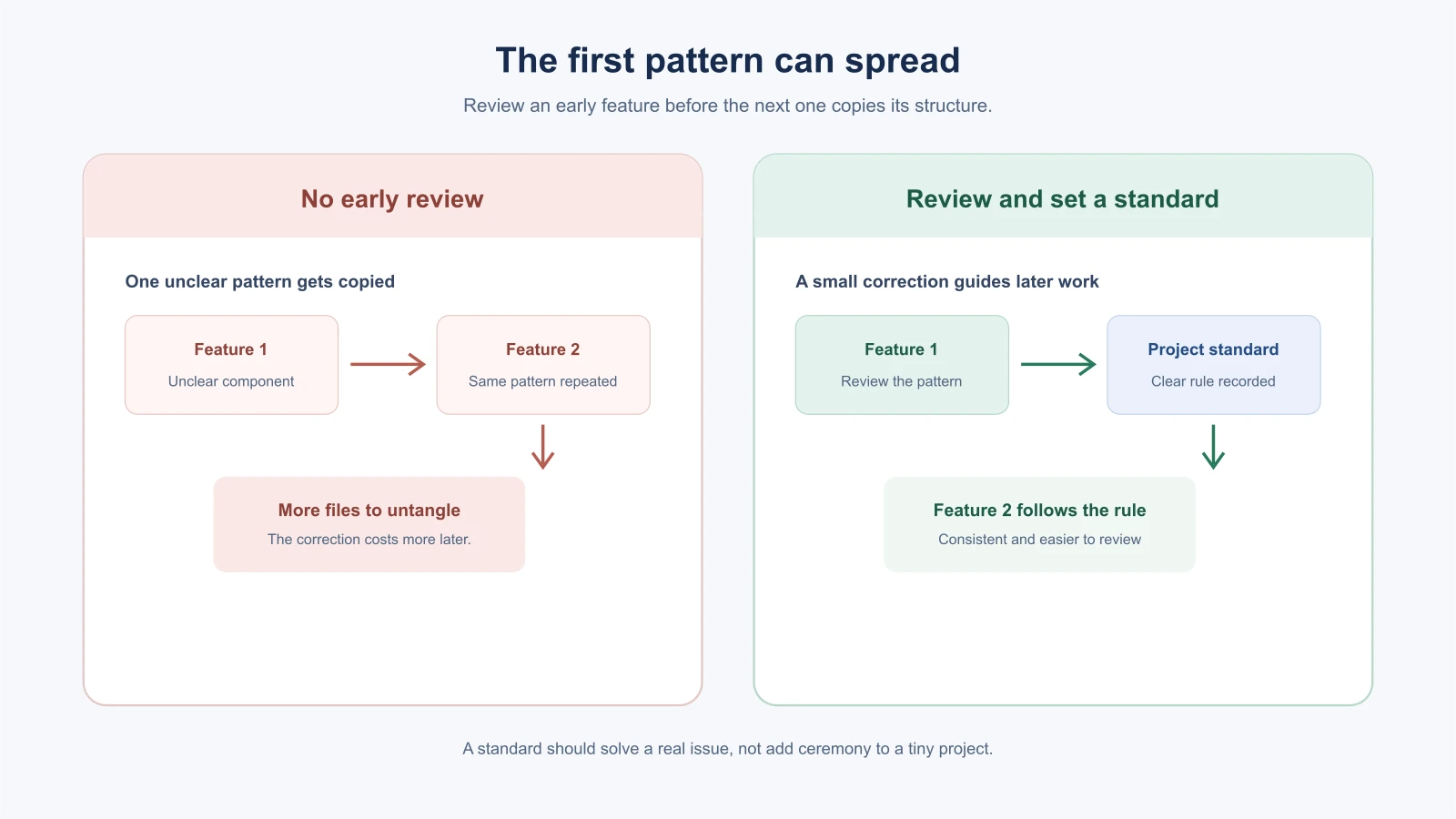
Why review the first changes closely?
An AI may produce code that works for the example it saw but is difficult to change, inconsistent with the rest of the project or larger than the task required. If you accept it without looking, later prompts may copy that structure. A small review now can prevent repeated clean-up later.
You do not have to understand every line on the first read. Start with what changed, whether the app behaves as requested and whether the new code looks like it belongs in this project. When something is unclear, ask the AI to explain it in plain language and point to the relevant files or behavior.
Agree on a few practical standards
Standards are decisions about how you want work organized and reviewed. Keep the first set small and useful:
- Names: Use names that tell a reader what a value or function represents.
saveBookmarkis clearer thandoThing. - Structure: Put related work together and follow patterns already used in the project.
- Small pieces: Keep a function or component focused on one job. A module is a file or unit of code that groups related behavior; splitting a large component can make it easier to understand, but splitting every few lines creates unnecessary files.
- Consistency: Use the project's existing choices for styling, error messages and data handling instead of adding a second approach without a reason.
- Checks: State which commands or manual steps the project uses to verify a change. Get the exact commands from the project rather than inventing them.
You can record standards in the project context file from Context documents, or in an existing contribution guide. For example:
1## Code conventions
2- Follow the existing component and folder patterns.
3- Use names that describe the value or action.
4- Keep components focused; explain before adding a new abstraction.
5- Use the existing Tailwind styling approach.
6- Tell me which checks ran and what they covered.
This is a starting point, not a universal style guide. If the project already has clear conventions, follow them rather than imposing a new scheme.
Review the changes in a simple order
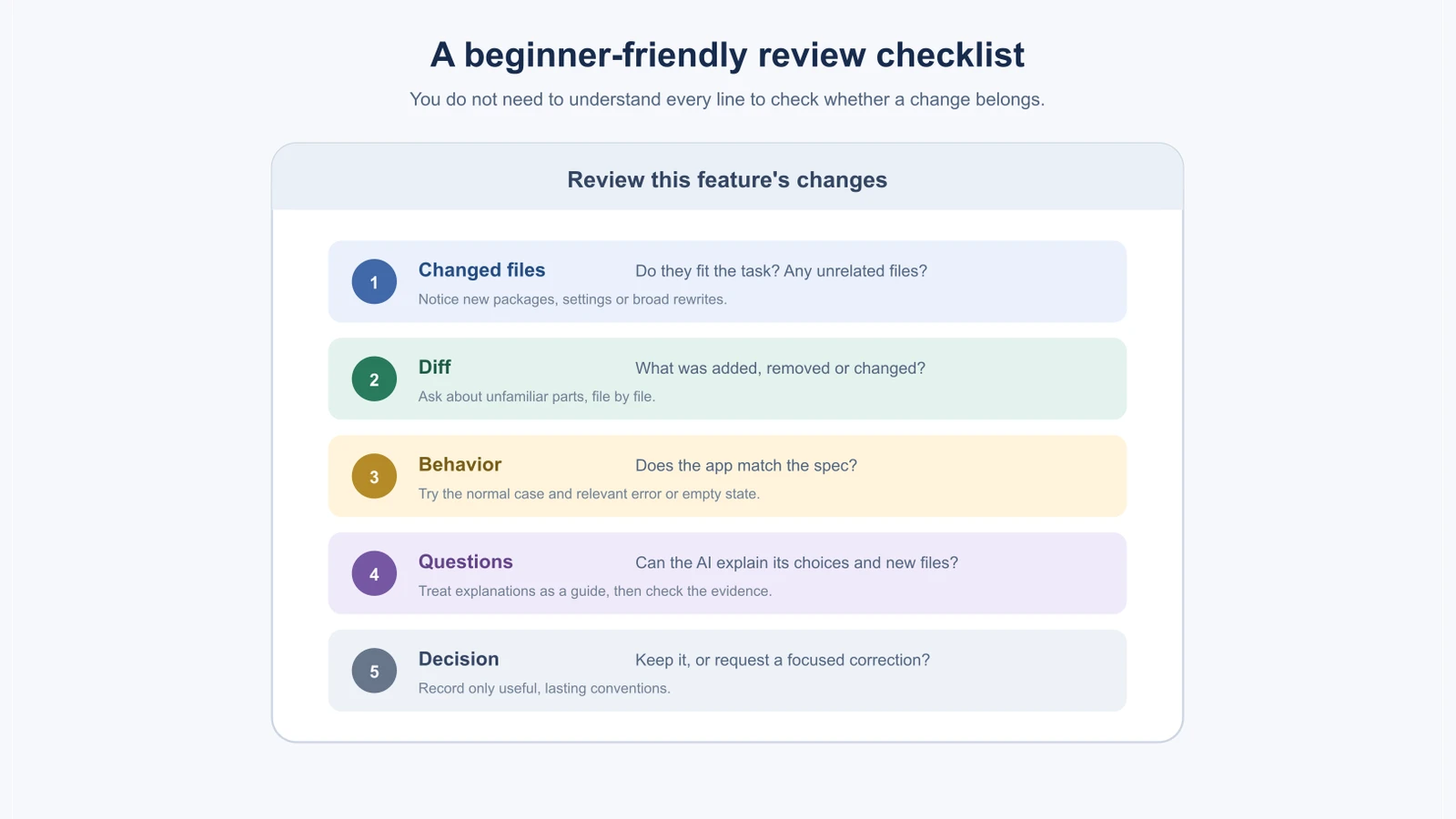
After the AI finishes a task, use this sequence:
- Look at the file list. Are the files related to the request? A small form change that touches twenty unrelated files deserves a question.
- Read the diff. A diff is a view of what was added, removed or changed. Look for unrelated edits, new packages, configuration changes and files that were rewritten. Git's
diffcommand shows changes between your working files and the saved version. - Run or preview the app. Follow the acceptance checks in the spec. Try the normal case, a missing or invalid value and any empty state relevant to the feature.
- Ask what you do not understand. Request an explanation of a specific function or decision. Ask what evidence shows the change meets the spec.
- Decide what to keep. Ask for a focused correction if something is wrong. Once the result is understandable and matches the agreed behavior, record any standard you want reused.
If you use GitHub, its review guide recommends examining changed files and their diffs to understand a proposal. You can use the same habit on your own local changes before you commit them.
If you cannot read the code yet
You can still review several important things without understanding every syntax detail:
- Does the list of changed files make sense for the feature?
- Does the app show the result you requested?
- Do labels, errors and empty states make sense to a person using it?
- Did the AI add a dependency, change a setting or alter unrelated pages?
- Can the AI explain the new files and the path from an action to its result?
Try this prompt after a change:
1Explain the changes in plain language, grouped by file. For each file, tell me its role and what changed. Point out any new package or project setting. Then show how the implementation meets each acceptance check in the spec. Do not make more edits yet.An explanation helps you decide what to inspect. It is not proof the implementation is correct, so compare it with the diff and behavior you can observe.
A worked review: the first BookmarkBox form
Here is an illustrative example of how a review might go. You asked an AI to add the first bookmark form. It says it is done. You look before you accept.
Step 1: the file list. The tool reports five changed files: app/page.tsx, a new app/components/BookmarkForm.tsx, a new app/components/BookmarkList.tsx, package.json and app/globals.css.
The first three match the task. The change to package.json does not, because that file lists installed packages. You ask: “Why did you change package.json? Which package did you add and what does it do?” If the answer is a small library for something the project could do without, you can ask for a version that does not need it. The change to globals.css deserves a question too: is it for this form, or did something else get restyled?
Step 2: a few lines of the diff. A diff shows lines added in one marker and lines removed in another. A small illustration:
1- <p>Your saved links will appear here.</p>
2+ <BookmarkList bookmarks={bookmarks} />
The line starting with - was removed, and the line starting with + was added. Here, a placeholder paragraph was replaced by a component that shows the list. You do not need to know the syntax to follow the story: something static became something that displays data.
Step 3: the behavior. You open the app and follow the spec. A valid title and address are saved and shown. A missing title shows a message. You also try one thing the spec did not mention: a very long title. If it breaks the layout, you have found something worth fixing now.
Step 4: the decision. The form works, one unrelated package was added without a reason, and the long title overflows. You ask for two focused corrections, you remove the package, and only then do you commit.
How to read a diff if you are new to it
A diff can look intimidating at first. A few pointers make it easier:
- Start with the file list, then open the diff for one file at a time.
- Lines marked with
+were added; lines marked with-were removed. Lines without a marker are context, shown so you can see where the change sits. - Lines that start with
@@tell you where in the file the next change begins. You can skip over them. - Look hardest at the unusual files: package lists, configuration, environment settings and anything the task did not mention.
- A big diff for a small request is a sign to slow down. Ask what each part is for.
Many editors and GitHub show diffs side by side, with added lines in green and removed lines in red, which many people find easier to read than the raw text.
Questions that make the AI show its reasoning
An explanation is not proof, but good questions reveal what the tool assumed and what it checked:
- “What did you assume that was not in my request?”
- “Which part of this change would break if the data were empty?”
- “Where does the information go after the person selects Save? Name each file along the way.”
- “Which acceptance check does this part of the change satisfy?”
- “What would you remove if you wanted this change to be smaller?”
- “What did you not verify?”
Compare the answers with the code and with what you see when you use the app. If the explanation and the behavior disagree, trust the behavior and investigate.
Mistakes beginners make
- Accepting the first implementation without looking. Check the file list, diff and behavior before moving on.
- Trying to learn every line at once. Start with the task's changed files and ask about the parts you do not understand.
- Asking for a full rewrite when one pattern is wrong. Name the specific file and correction to keep the change small.
- Creating standards that fight the existing project. Adopt conventions the project already uses unless there is a clear reason to change them.
- Splitting everything into tiny files. Use smaller modules when they clarify responsibilities, not as a target by itself.
- Treating an AI explanation as verification. Check the actual output and behavior against the spec.
Recap and try it yourself
Review the first changes carefully so useful patterns become repeatable and confusing ones do not spread. Check the changed files, read the diff, try the behavior, ask about what is unclear and record only a few standards that genuinely help.
Try it: ask an AI to make one small change in a practice project. Before accepting it, write down the changed files, find one addition and one deletion in the diff, and try the feature. Ask for a plain-language explanation of one file. In Build the skeleton, you will start the BookmarkBox project and use these review habits on its first structure.