
Vibe Coding course · lesson 3 of 26
- 1What Is Vibe Coding? A Beginner's Guide
- 2The Vibe Coder Mindset: Build Small, Check Often
- 3Choosing Your Vibe Coding Tool: A Beginner's Guide
- 4Set Up Your Workspace for Vibe Coding
- 5Your First Vibe-Coded App in 30 Minutes
- 6From Idea to MVP: Plan a Small First Version
- 7Spec-Driven Development: Give AI a Clear Plan to Build From
- 8Mockups and Examples as Input: Show AI What You Mean
- 9Choose a Tech Stack: Pick Tools You Can Keep Using
- 10Prompts That Build Things: Give AI a Clear Task
- 11Context Documents: Give AI Lasting Project Instructions
- 12Managing Context and Sessions: Keep AI on the Right Task
- 13Set Standards Early and Review AI Output
- 14Build the Skeleton: Start the BookmarkBox App
- 15Add Data and a Database: Save Real Bookmarks
- 16Add Accounts Safely: Sign In and Protect Each User's Data
- 17Design and Polish: Improve the App One Pass at a Time
- 18Version Control with AI: Keep a Safe History of Your Work
- 19Debugging with AI: Find the Cause Before You Fix It
- 20Test by Default: Make Sure Each Feature Keeps Working
- 21Refactor and Keep Your Code Healthy
- 22Security for Vibe Coders: Protect Your App and Its Users
- 23Deploy Your App: Put BookmarkBox Online
- 24Monitor and Maintain Your App After Launch
- 25Where Vibe Coding Stops: Know When to Change Your Approach
- 26Capstone: Ship a Project from Idea to Production
After this lesson, you will be able to sort popular AI coding tools into a few broad groups and choose one that fits your project and working style. You do not need to pick the “best” tool for everyone. You need one that lets you make progress, understand what it changes and keep a copy of your work.
The names and features in this guide were checked against the tools' official documentation on November 3, 2026. These products change quickly. Treat the examples as a snapshot, and check each tool's current access, price, limits and capabilities before you sign up or move a project into it.
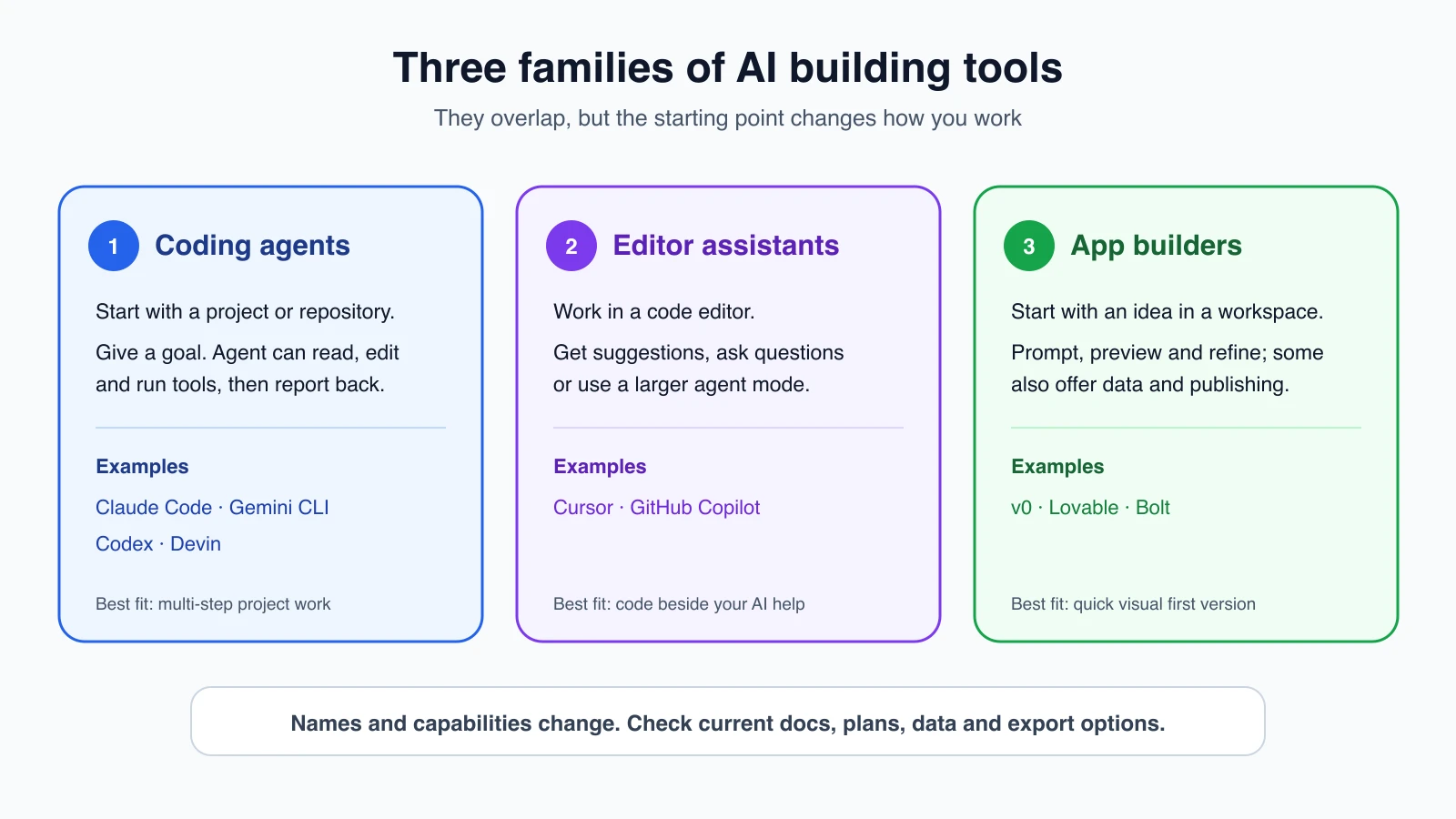
Three useful families
The categories overlap. Some products now offer an editor, a terminal, a browser workspace and remote agents under one name. The family labels below are a starting point for understanding how you will work with the tool.
1. Coding agents that work in a project
A coding agent is an AI tool that can work through a task using project files and other tools. Depending on the product and settings, it may inspect files, edit them, run commands and check the results. You give it a goal, then review its work.
- Claude Code works in a terminal, IDE, desktop app or browser. It can read a codebase, change files and run commands.
- Gemini CLI is an open-source terminal agent. Check its current availability carefully: Google's repository says that, since June 18, 2026, the Gemini CLI is maintained for eligible Gemini Code Assist and Google Cloud workflows, while individual free and Google AI plan access moved to Antigravity CLI.
- OpenAI Codex is a coding agent available through multiple interfaces, including an IDE, command line and web or mobile experiences. Its official documentation describes using it to write, review and debug code.
- Devin is a hosted software engineering agent designed to take on tasks such as bugs, features, tests and migrations. Its documentation also describes a terminal tool for local interactive work.
These can suit you if you already have a project folder or repository and want the AI to make changes across it. You will still need to decide how much access to give it and review the result.
2. Assistants inside an editor
An editor is an app where you open and change project files. An editor assistant can suggest code while you type, answer questions about your project or take on a larger task in an agent mode.
- Cursor is a code editor with an agent that can search files, edit code and run terminal commands. The model and available features depend on your setup.
- GitHub Copilot offers code suggestions, chat and agent experiences in supported editors and on GitHub. GitHub's documentation separates suggestions you review as you type from agents that can work through a task and prepare changes for your review.
An editor assistant can be a comfortable choice if you want to see the code and AI conversation in the same place. You can often begin with small suggestions, then try a more independent agent mode when you are ready.
3. App builders for a visual, prompt-led start
An app builder gives you a visual workspace where you describe a product, preview it and ask for changes. Some also create server-side features such as data storage or sign-in, and offer a way to publish the result. Those features do not mean the app is automatically ready for real users.
- v0 turns natural-language descriptions into applications, with a workflow for editing the generated code and publishing through Vercel.
- Lovable describes itself as a full-stack AI development platform. Its documentation covers generating web apps, editing their code, connecting a repository and publishing.
- Bolt provides a browser-based workflow to create, preview and publish websites and apps from a prompt. Its quickstart shows a sample app with account and saved-item features.
These tools can help when you want to see an early version without setting up a local development environment first. Before building more into one, find out how to access and export the code, where the data is stored, what publishing does, and what the service charges for continued use.
A quick comparison
This table is about the starting workflow, not a scorecard. Product features, plan limits and integrations can change; confirm details in the linked official documentation.
| Tool | A good starting point when you want to… | Where the work starts |
|---|---|---|
| Claude Code | Ask an agent to explore and change an existing project | Terminal, editor, desktop app or browser |
| Gemini CLI | Work with an open-source terminal agent in an eligible Google workflow | Terminal; check account and product availability |
| Codex | Give a coding agent a task and review its changes in your preferred interface | IDE, CLI, web or mobile |
| Cursor | Work in a code editor with both direct edits and agent help | Cursor editor or its agent experiences |
| Devin | Delegate a scoped engineering task to a hosted agent, then review it | Devin web workspace or terminal tool |
| GitHub Copilot | Get suggestions in your editor or delegate work through GitHub | Supported editors, GitHub, CLI or app |
| v0 | Describe a web interface or app, iterate visually and publish with Vercel | Browser workspace |
| Lovable | Turn a product description into a web app and continue editing it | Browser workspace |
| Bolt | Prompt, preview and publish a website or web app in one workspace | Browser workspace |
Some names refer to more than one product surface. “Codex,” for example, can mean the coding agent experience or the underlying tools and SDKs used by developers. “Copilot” includes suggestions, chat and agent workflows. When comparing plans or reading a tutorial, make sure it describes the same version you intend to use.
How to choose
Start with the task and the way you want to work, not a leaderboard.
- Are you starting with an idea or an existing code project? If you want a visual first version from a description, try an app builder such as v0, Lovable or Bolt. If you have a project folder or Git repository already, look at a coding agent or editor assistant.
- Where do you want to work? Choose a browser workspace if you want to avoid local setup at first. Choose an editor if you want the files and suggestions together. Choose a terminal agent if you are comfortable running commands or want direct access to a local project.
- How much control do you want? Inline suggestions keep each change close to you. An agent can handle a longer task, so you should pay closer attention to its permissions, summary and file changes. A hosted builder may handle setup and publishing for you, which makes it important to understand where your code and data live.
- Can you leave later? Check whether the product lets you export or sync the code to a repository, and whether the app depends on services that are difficult to move. This is sometimes called lock-in: the effort or cost of switching away from a tool or service.
- Can you afford the ongoing cost? Look at current plan limits, usage credits, model charges, hosting and database fees. A free first session does not tell you what a working app will cost each month.
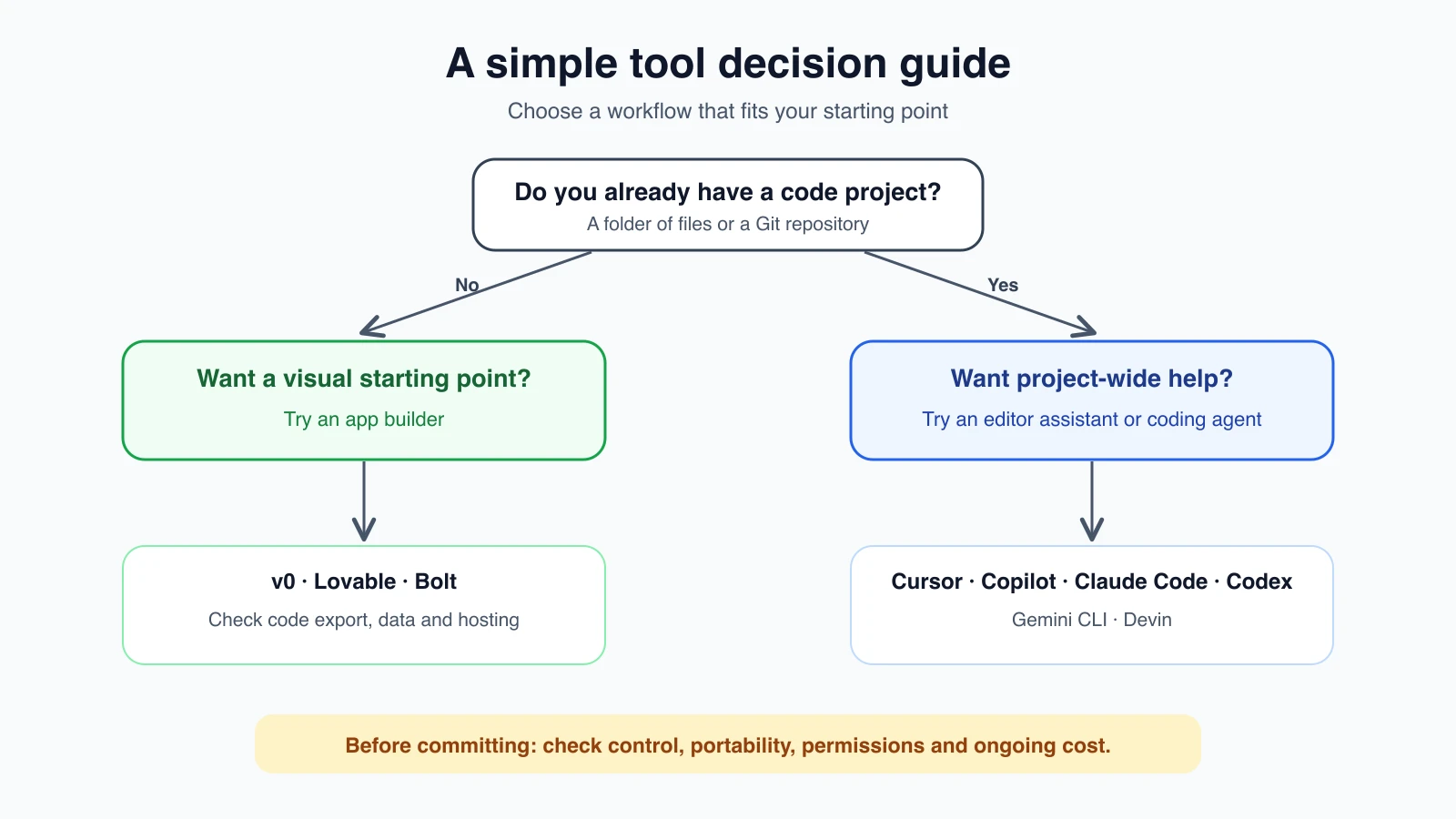
For a first experiment, choose one tool and one small goal. You can learn the basic build-and-review loop before comparing every product. The next lesson, Set up your workspace, walks through preparing a safe place to try a coding tool.
What about AI agents?
The word agent describes how a tool works, not one specific brand. A chat assistant may answer with text. An agent can also use tools to take steps toward a goal, such as reading files, editing code or running a test. Products may include both modes, and agent capabilities vary by product, plan, settings and permissions. The AI Agents course explains the idea in more depth.
Frontend-focused builders are not necessarily less capable. “Frontend” means the part of an app people see and interact with, such as its pages, buttons and forms. A tool may start by making that visible layer, then offer ways to add data and sign-in. Check what it actually provides instead of assuming “full-stack” or “frontend” tells you everything you need to know.
Mistakes beginners make
- Choosing from a popularity list. A popular tool may not fit where your project lives or how you want to work.
- Assuming every product with “AI” is the same kind of assistant. A code suggestion, a project agent and an app builder offer different workflows.
- Picking based on an old tutorial. Product names, plans and capabilities change. Follow current official setup and billing pages.
- Ignoring where the app and its data live. Understand hosting, database access, export options and account ownership before building around a service.
- Letting an agent run without reviewing its access or output. A tool that can change files or run commands needs clear boundaries and a human review.
Recap and try it yourself
Coding agents work through tasks in a project, editor assistants sit alongside your code, and app builders offer a visual prompt-led route from idea to preview. Their features overlap, so choose by project, workflow, control, portability and cost. Verify current details before you commit to a product.
Try this: choose one tool from the table and visit its official documentation. Write down three things before you build: where your project will live, how you can review or export its code, and what happens when you publish. In Set up your workspace, you will prepare a safe place for your first experiment.