
Vibe Coding course · lesson 19 of 26
- 1What Is Vibe Coding? A Beginner's Guide
- 2The Vibe Coder Mindset: Build Small, Check Often
- 3Choosing Your Vibe Coding Tool: A Beginner's Guide
- 4Set Up Your Workspace for Vibe Coding
- 5Your First Vibe-Coded App in 30 Minutes
- 6From Idea to MVP: Plan a Small First Version
- 7Spec-Driven Development: Give AI a Clear Plan to Build From
- 8Mockups and Examples as Input: Show AI What You Mean
- 9Choose a Tech Stack: Pick Tools You Can Keep Using
- 10Prompts That Build Things: Give AI a Clear Task
- 11Context Documents: Give AI Lasting Project Instructions
- 12Managing Context and Sessions: Keep AI on the Right Task
- 13Set Standards Early and Review AI Output
- 14Build the Skeleton: Start the BookmarkBox App
- 15Add Data and a Database: Save Real Bookmarks
- 16Add Accounts Safely: Sign In and Protect Each User's Data
- 17Design and Polish: Improve the App One Pass at a Time
- 18Version Control with AI: Keep a Safe History of Your Work
- 19Debugging with AI: Find the Cause Before You Fix It
- 20Test by Default: Make Sure Each Feature Keeps Working
- 21Refactor and Keep Your Code Healthy
- 22Security for Vibe Coders: Protect Your App and Its Users
- 23Deploy Your App: Put BookmarkBox Online
- 24Monitor and Maintain Your App After Launch
- 25Where Vibe Coding Stops: Know When to Change Your Approach
- 26Capstone: Ship a Project from Idea to Production
When something breaks, it is tempting to paste the error into an AI tool and accept the first patch it suggests. That can hide the symptom without fixing the cause. A better approach is to make the problem repeatable, collect the clues, and change one thing at a time.
In Version control with AI, you learned to keep a known working checkpoint. That gives you a safe place to return to while debugging. In this lesson, we will use BookmarkBox examples, but the same steps work for most small apps.
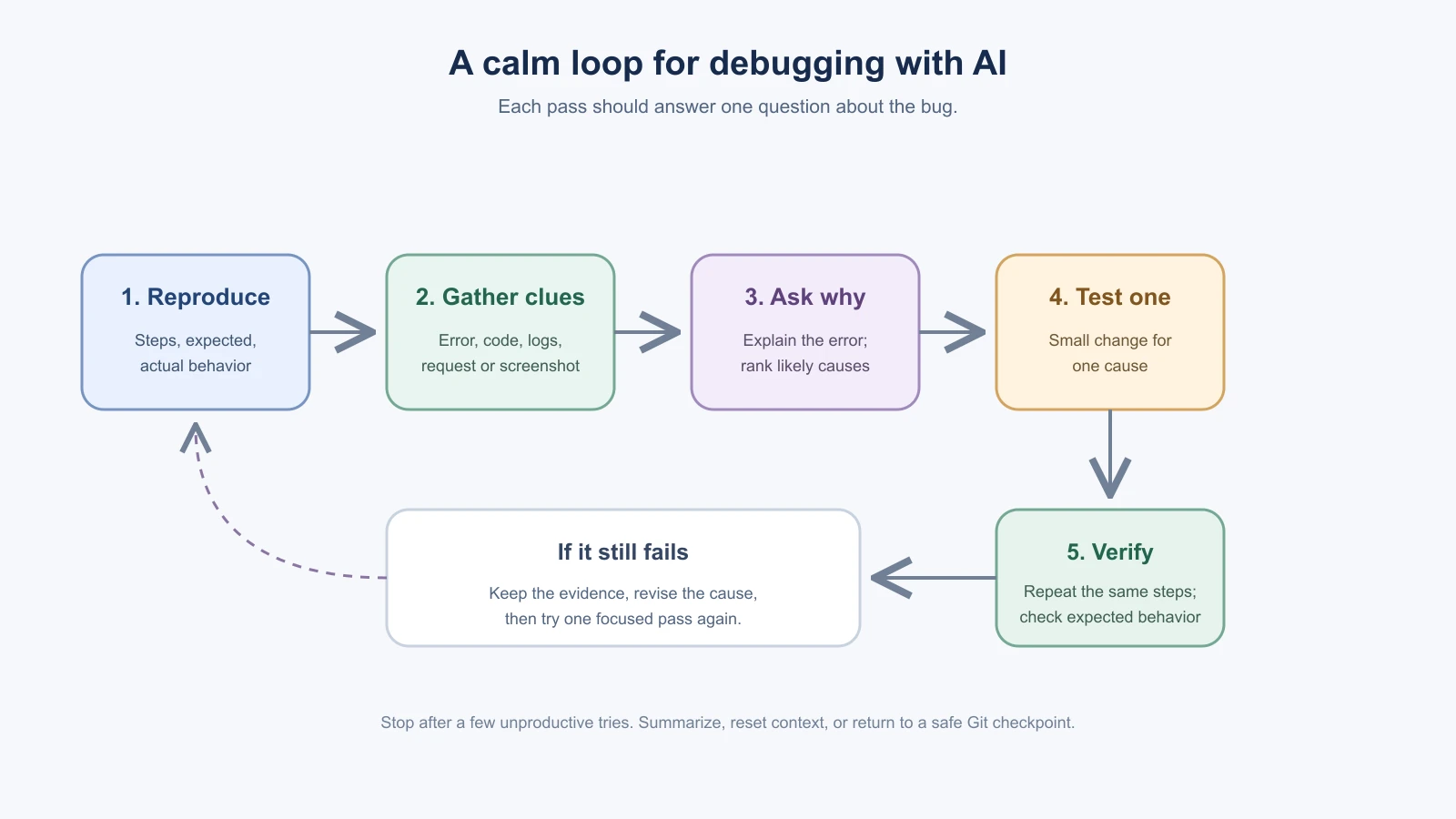
Reproduce the problem first
Before asking the AI to change code, make the bug happen again. Write down the exact steps, what you expected, and what actually happened. If it happens only sometimes, note what was different when it appeared.
For example:
- Steps: Sign in, open Bookmarks, paste a URL without
https://, then select Save. - Expected: The bookmark is saved or I see a clear message explaining what to fix.
- Actual: The Save button spins forever.
- Where: Local development in Chrome, after the latest form change.
If you cannot reproduce it, the AI will have to guess what went wrong. A useful report includes the page or command, the steps, expected and actual behavior, and any error text. Do not include passwords, access tokens, or private customer data in a prompt.
Read the whole error, not just the last line
An error report often includes several clues:
- The error type and message describe what failed, such as a missing value or a rejected request.
- A file name and line number show where the program noticed the problem. The original mistake may be earlier or in another file.
- A stack trace lists the calls that led to the failure. Start near the top entries from your own code, then follow the calls if needed.
- The input and steps help explain why this particular run failed.
Copy the full error and a small relevant code excerpt. Include the function or component around the reported line, plus the code that calls it if that matters. Avoid dumping the whole project into the chat. Share enough context for the AI to trace the behavior, while keeping unrelated files out of the way.
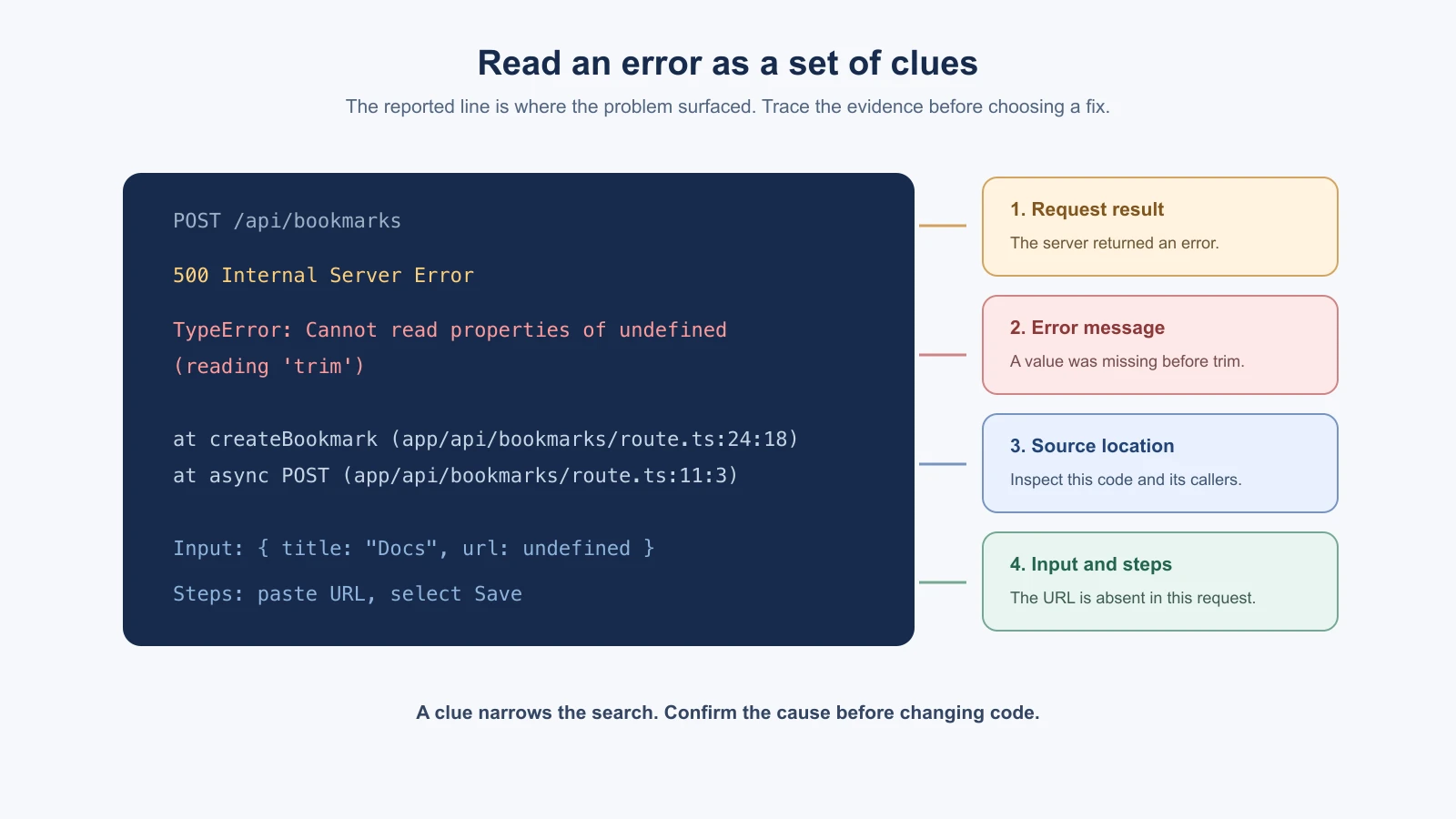
Ask the AI to explain what the message means in plain language before it edits anything. Then ask for a short list of plausible causes and what evidence would support each one. A good answer should connect its guesses to the error and code you provided. If it cannot, ask what information is missing.
Gather evidence, then test one cause
Look at the place where information crosses a boundary: a form submitting to a server, a server saving to a database, or a page displaying a response. For a stuck Save button, useful clues might be whether the click handler ran, what request was sent, what status came back, and whether the page received a response.
Temporary logs can help. Ask the AI to add a few targeted messages at those boundaries, then reproduce the issue and read the output. For example, log that submission started and the response status. Do not log passwords, session cookies, tokens, or other sensitive values. Remove temporary noise when you understand the cause.
Do not ask the AI to rewrite the whole form while investigating. Choose one likely cause, make the smallest change that tests it, and try the same steps again. If the evidence rules it out, undo or revise that change before moving to the next cause. This keeps the investigation understandable and makes each attempt teach you something.
When the bug is in the browser
For a visual or interaction problem, capture a screenshot and describe the steps that lead to it. Browser developer tools can show console errors and network requests. A failing request may reveal a server response or status code that the page itself does not display.
If your coding assistant has browser access, it can help repeat those steps. Microsoft Playwright's MCP server lets compatible AI clients navigate and interact with pages using structured page snapshots. The exact setup and available actions depend on your client. You can also reproduce the issue manually; browser automation is an aid, not a requirement. See the Playwright MCP introduction and Playwright debugging guide for current details.
A prompt that keeps the investigation focused
Use a prompt like this and fill in the details you know:
1I can reproduce this problem:
2- Steps: [exact steps]
3- Expected: [what should happen]
4- Actual: [what happens instead]
5- Error: [paste the full relevant error]
6- Relevant code: [paste the small related section]
7- Recent change: [what changed before it started]
8
9First explain the error in plain language. List up to three plausible causes and the evidence for each. Do not edit files yet. Tell me what to inspect to distinguish between the causes.
Once you have checked the evidence, ask for one small change to test the strongest explanation. Ask the AI to show the changed files and explain why the change addresses the cause. Review the diff as you learned in the previous lesson.
Verify the fix and know when to reset
After a change, repeat the original steps. Check that the reported problem is gone and that the expected behavior still works. For BookmarkBox, if saving a bookmark was stuck, try saving one valid URL and confirm it appears in the list. A page that merely stops showing an error is not enough if saving still fails.
Do not accept a patch you cannot explain. Ask the AI to walk through the relevant lines, what caused the bug, and how the change corrects it. Watch for fixes that hide the error, remove the feature, or hardcode the example instead of handling the real input. The next lesson, Test by default, shows how to turn a bug you found into a check that helps prevent it from returning.
If three focused attempts have not made progress, stop changing code. Summarize what you tried and what each result showed. Start a fresh session with that short summary, or return to your last known good Git checkpoint if the working tree has become tangled. Keep any unrelated uncommitted work safe; do not reset or discard it blindly. For a deeper Claude Code walkthrough, see Debugging, refactoring and tests.
A small debugging checklist
- Can I reproduce the problem with clear steps?
- Have I included the full useful error and the relevant code?
- Did I ask for an explanation and possible causes before edits?
- Am I testing one cause with one small change?
- Did I repeat the original steps and check the expected behavior?
- Can I explain the fix, and is my working code still recoverable in Git?
Debugging gets easier when each attempt answers a question. Reproduce, gather evidence, test a cause, and verify what changed. That habit helps you fix the current bug and understand your project a little better.
Debugging a problem that comes and goes
Some bugs appear only sometimes, which makes them harder to reproduce. A few ways to narrow them down:
- Note the conditions each time it happens. Which page, which data, which account, how long since the last refresh?
- Compare a failing case with a working one. What differs in the input or the state?
- Add a few timestamped logs around the suspicious step so you can see the order of events.
- Look for the smallest example that still fails, by removing parts of the input or the steps one at a time.
- Write down what you ruled out, so you and the AI do not repeat the same checks.
A bug you cannot reproduce is still a clue. Give the AI the conditions you noted and ask for ways to test each one.
Mistakes beginners make
- Pasting only the last line of an error. Include the full message, the relevant code and the steps that caused it.
- Asking for a fix before an explanation. Ask what the error means and for a short list of plausible causes before any file is edited.
- Changing several things at once. Test one cause with one small change so each attempt teaches you something.
- Accepting a fix you cannot explain. Ask what caused the bug, and watch for patches that hide the error, remove the feature or hardcode the example.
- Sharing secrets while debugging. Keep passwords, tokens and private customer data out of prompts and temporary logs.
Recap and try it yourself
Reproduce the problem, read the whole error, gather evidence, test one cause at a time and verify with the original steps. If three focused attempts do not help, stop, summarize what you learned and start fresh or return to a safe Git checkpoint.
Try it: in a practice project, break something on purpose, such as a form that accepts an empty field. Write down the steps, the expected result and the actual result. Then use the prompt in this lesson to ask for an explanation and up to three causes before any edit. Test one cause, repeat the original steps and commit the fix. In Test by default, you will turn a bug like this into a check that helps keep it from returning.