
Lesson 12 showed you CLAUDE.md, the file where you write lasting instructions. This lesson adds two more tools for the same job. Rules files let you split instructions into small topic files and load some of them only when they matter. Auto memory lets Claude take notes for itself. After this lesson you will know how both work, when to use each one, and how to see, edit or switch them off.
The big picture
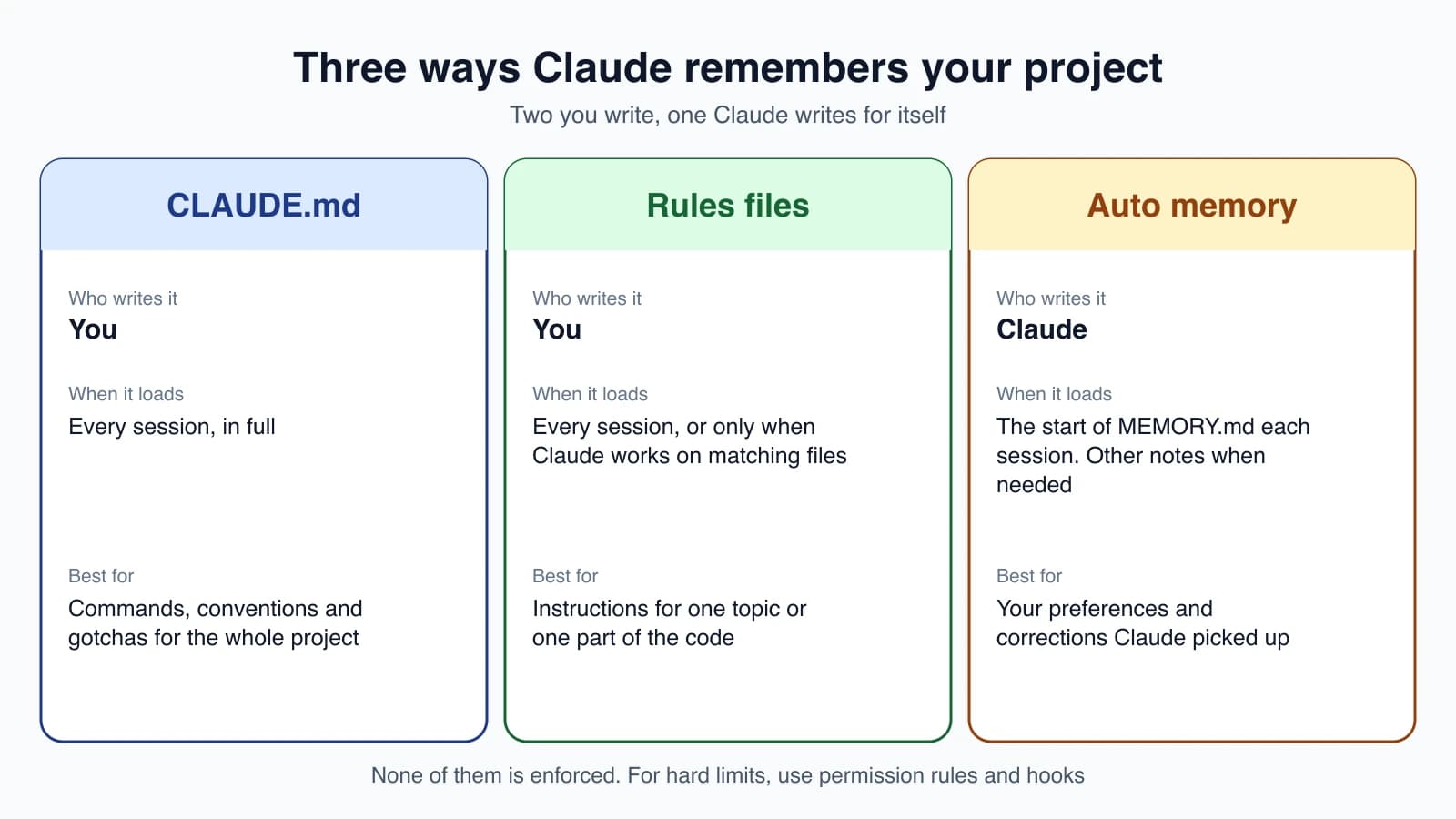
CLAUDE.md and rules files are things you write. Auto memory is written by Claude. All three load into Claude's context, and Claude treats all three as guidance, not as enforced settings. For hard limits, use the permission rules from lesson 8 or the hooks you will meet in lesson 18.
Rules files
A big CLAUDE.md gets hard to maintain, and every line in it costs a little of Claude's attention on every task. Rules files fix both problems. You split instructions into several small files, one per topic, and you can make some of them load only when they are relevant.
Set up a rules folder
Create a .claude/rules/ folder in your project and put one markdown file in it for each topic. Give each file a clear name:
1your-project/
2├── .claude/
3│   ├── CLAUDE.md           # Main project instructions
4│   └── rules/
5│       ├── code-style.md   # Code style guidelines
6│       ├── testing.md      # Testing conventions
7│       └── security.md     # Security requirements
Claude Code finds every .md file in that folder, including files in subfolders such as frontend/ or backend/. A rule file with no special header loads at the start of every session, with the same priority as .claude/CLAUDE.md. So the simplest use of rules is just tidiness: shorter files, one subject each, easier for a team to edit without stepping on each other.
Path-specific rules
The more powerful feature is scoping. A rule that only matters for your API code should not take up space while Claude edits a CSS file. Add a short header, called frontmatter, at the top of the rule file to say which files it applies to:
1---
2paths:
3  - "src/api/**/*.ts"
4---
5
6# API development rules
7
8- All API endpoints must include input validation
9- Use the standard error response format
10- Include OpenAPI documentation comments
The part between the --- lines is the frontmatter. The paths list holds glob patterns, which are file-matching shortcuts where * stands for any name and ** means any number of folders.
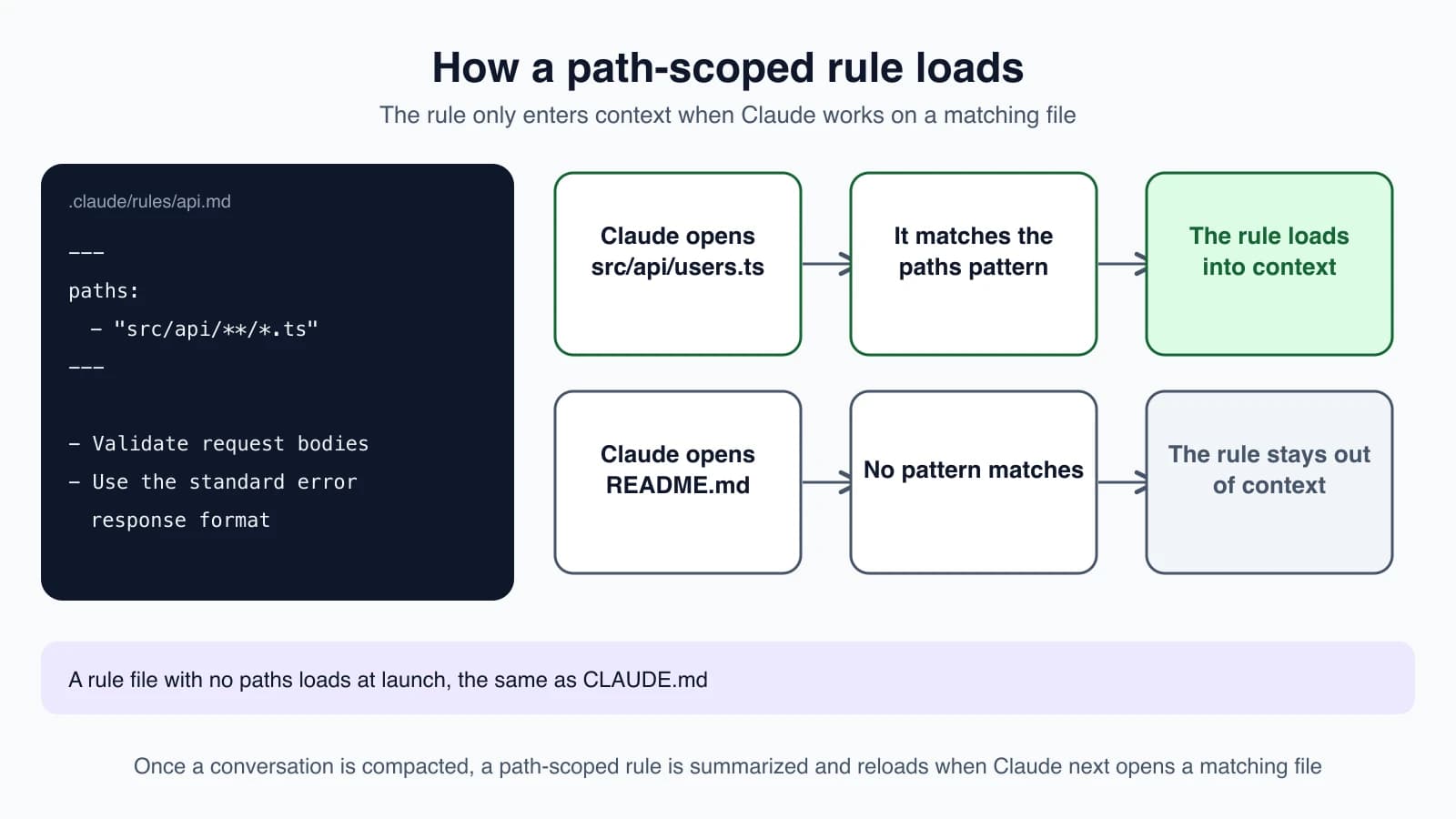
A path-scoped rule loads when Claude reads, writes or edits a file that matches. If Claude is working on README.md, the API rules stay out of the way and cost nothing.
Here are some useful patterns:
| Pattern | Matches |
|---|---|
**/*.ts | .ts files anywhere in the project |
src/**/* | Everything under the src/ folder |
*.md | .md files anywhere |
/*.md | .md files directly in the project root only |
src/components/*.tsx | .tsx files directly inside src/components/, not deeper |
You can list several patterns, and you can use braces to match more than one extension:
1---
2paths:
3  - "src/**/*.{ts,tsx}"
4  - "lib/**/*.ts"
5  - "tests/**/*.test.ts"
6---
Patterns are measured from the folder that contains the .claude folder. Two details save debugging time. First, paths is the only field Claude Code reads in the header, and anything else is ignored. Second, if the header is not valid, Claude Code ignores it and loads the rule as if it had no paths, so it quietly becomes an always-on rule. Run claude --debug to see the parsing error.
One thing to remember about compaction
A path-scoped rule is loaded into the conversation when Claude opens a matching file. When the conversation is compacted (lesson 9), that rule is summarized away like the rest of the chat, and it loads again the next time Claude opens a matching file. If a rule must always be present, leave off the paths header or move it into your project-root CLAUDE.md.
Personal rules for every project
Put rules you want everywhere in ~/.claude/rules/, in your home folder:
1~/.claude/rules/
2├── preferences.md    # Your personal coding preferences
3└── workflows.md      # Your preferred workflows
Personal rules load before project rules. Neither overrides the other. If a personal rule and a project rule conflict, Claude may follow either, so keep them consistent.
Rules versus skills
Rules load every session, or whenever matching files are opened. Instructions for a particular task, such as a release checklist, do not need to be in context all the time. For those, a skill loads only when you invoke it or when Claude decides it is relevant. Lesson 16 covers skills.
You can also share a set of rules across projects by symlinking a shared folder into .claude/rules/. A symlink is a shortcut that points to another folder. Claude Code asks for your approval the first time a project links to rules outside its own folder.
Auto memory
Auto memory lets Claude learn without you writing anything. As it works, Claude saves notes for itself about what it learns, and reads them back in later sessions. It is on by default for local sessions.
What Claude saves
Claude stores four kinds of notes, each tagged with a type:
- user: your role, experience and working preferences
- feedback: corrections you give Claude and approaches you confirm
- project: ongoing work, deadlines and decisions that are not visible in the code or Git history
- reference: where to find information outside the project, such as an issue tracker or a dashboard
Claude skips anything it can work out from the code, such as the architecture or file paths. It also skips anything your CLAUDE.md files already say. It does not save something every session. It decides whether a fact would be useful in a future conversation.
You can ask directly. If you say "always use pnpm, not npm" or "remember that the API tests need a local Redis", Claude saves that to auto memory. If you want it in CLAUDE.md instead, say "add this to CLAUDE.md".
Where memory lives
Each project gets its own folder at ~/.claude/projects/<project>/memory/. The project name comes from the Git repository, so all worktrees and subfolders of the same repository share one memory folder. Inside it:
1~/.claude/projects/<project>/memory/
2├── MEMORY.md           # Index, one line per memory, loaded into every session
3├── user_role.md        # One memory
4├── feedback_testing.md # One memory
5└── ...                 # Other topic files Claude creates
MEMORY.md is an index. Claude keeps each line short and moves the detail into separate topic files. The memory is local to your computer and is not shared with teammates or other machines.
How it loads
At the start of every conversation, Claude Code loads the first 200 lines of MEMORY.md, or the first 25KB, whichever comes first. The topic files are not loaded at startup. Claude reads them on demand when it needs the detail. When you see a message like "Saved 2 memories" or "Recalled 2 memories", Claude is writing to or reading from this folder.
Auto memory is not loaded into subagents (lesson 17), which can keep their own separate memory.
View, edit and switch it off
Memory files are plain markdown, and you are in charge of them. Run:
1/memoryIt lists your CLAUDE.md files and other memory files, lets you open any of them in your editor, gives you a toggle for auto memory, and offers a link to open the auto memory folder. Edit or delete anything you disagree with.
To turn auto memory off for a single project, add this to the project's settings file:
1{
2  "autoMemoryEnabled": false
3}
To turn it off everywhere, use the /memory toggle, or set the environment variable CLAUDE_CODE_DISABLE_AUTO_MEMORY=1.
Mistakes beginners make
- Putting everything in one giant file. Split by topic into rules files so each stays short.
- Scoping a rule that must always apply. A path-scoped rule disappears after compaction until Claude opens a matching file again. Keep must-always rules unscoped.
- Leaving out the quotes in
paths. Write patterns in double quotes, such as"src/**/*.ts". - Contradicting yourself. A personal rule and a project rule can disagree, and Claude may follow either.
- Never looking at auto memory. It can hold a wrong or outdated note. Open
/memorynow and then and clean it up. - Treating memory as enforcement. It is context. For a rule with no exceptions, use a hook or a deny rule.
Quick recap
- Rules files live in
.claude/rules/. Each file covers one topic and loads at launch unless you scope it. - Add a
pathsheader with glob patterns to load a rule only when Claude works on matching files. - Personal rules go in
~/.claude/rules/. Project and personal rules should not conflict. - Auto memory is Claude's own notebook, stored per repository in
~/.claude/projects/<project>/memory/, withMEMORY.mdas the index. - Use
/memoryto browse, edit and switch memory on or off.
Try it yourself
In your claude-practice folder, create .claude/rules/pages.md with a paths header of "*.html" and one rule, such as "every page must have a title tag and a link back to the home page". Ask Claude to add a new page and check that it follows the rule. Then tell Claude "remember that I prefer short filenames in lowercase", run /memory, and look for the new note.
Next lesson: settings.json, where permissions, models and other options are configured.