
Throughout this course you have seen a gap between guidance and enforcement. A line in CLAUDE.md or a prompt asks Claude to do something, and Claude usually does. A hook closes the gap. It is a command of your own that Claude Code runs at a fixed moment, every time, whatever Claude decides. After this lesson you will know when hooks run, how to write one, how it can allow or block an action, and how to build three useful ones.
Why hooks exist
Instructions you write for Claude are guidance. Claude reads them and decides what to do, and it can decide that a line does not apply. Hooks are different. Claude Code itself runs them, so the result does not depend on what the model remembers or chooses.
Use a hook when something must always happen or never happen:
- Always format a file after Claude edits it.
- Never let Claude edit
.envorpackage-lock.json. - Always send you a notification when Claude is waiting for you.
Keep preferences with plenty of exceptions in CLAUDE.md. A rule like "prefer named exports" is a preference, not a hook.
When hooks run
A hook is attached to an event, a moment in Claude Code's lifecycle.
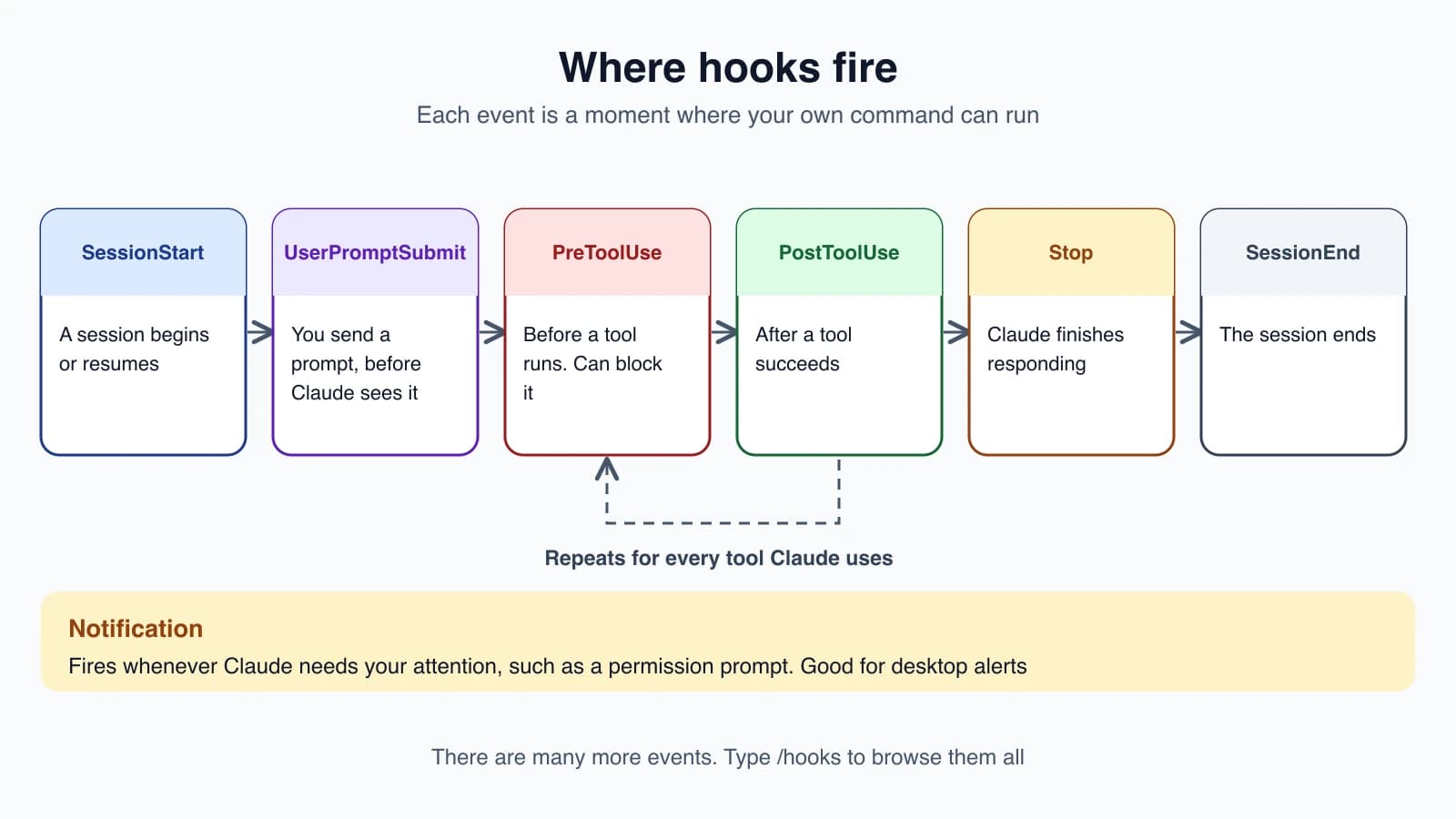
These are the events to know first:
| Event | When it fires |
|---|---|
SessionStart | A session begins or resumes |
UserPromptSubmit | You send a prompt, before Claude processes it |
PreToolUse | Before a tool runs. It can block the tool |
PostToolUse | After a tool succeeds |
Notification | Claude Code sends a notification, such as when it waits for you |
Stop | Claude finishes responding |
PreCompact and PostCompact | Before and after the conversation is compacted |
SessionEnd | The session ends |
There are many more, including events for subagents, file changes and model switches. Run /hooks inside Claude Code to browse them all.
Your first hook: a notification
You can set up this hook in a minute. It sends you a desktop notification whenever Claude needs your attention, so you can work in another window.
Open ~/.claude/settings.json (create it if it does not exist) and add a hooks block. This version is for macOS:
1{
2  "hooks": {
3    "Notification": [
4      {
5        "matcher": "",
6        "hooks": [
7          {
8            "type": "command",
9            "command": "osascript -e 'display notification \"Claude Code needs your attention\" with title \"Claude Code\"'"
10          }
11        ]
12      }
13    ]
14  }
15}
On Linux, the command is notify-send 'Claude Code' 'Claude Code needs your attention'. Windows uses a PowerShell command, and the official documentation lists it.
Read the structure from the outside in. hooks holds one key per event, here Notification. Each event holds a list of groups. Each group has a matcher, which filters when it applies (an empty one means every time), and a list of hooks to run. Each hook has a type, almost always command, and the command itself.
If your settings file already has a hooks key, add Notification next to the existing events instead of replacing the whole block.
To check it worked, type /hooks. Your hook should appear under Notification. To test it, press Shift + Tab until the status bar shows manual mode, ask Claude to do something that needs permission, and switch to another window. You should get the notification.
On macOS, if nothing appears, osascript sends notifications through the Script Editor app. Run osascript -e 'display notification "test"' once in Terminal, then open System Settings, go to Notifications, find Script Editor and turn notifications on.
How a hook talks to Claude Code
When an event fires, Claude Code runs your command and sends it information as JSON on its standard input. Your command reads that, does its work, and answers with an exit code. For a PreToolUse event on a shell command, the JSON looks like this:
1{
2  "session_id": "abc123",
3  "cwd": "/Users/sarah/myproject",
4  "hook_event_name": "PreToolUse",
5  "tool_name": "Bash",
6  "tool_input": {
7    "command": "npm test"
8  }
9}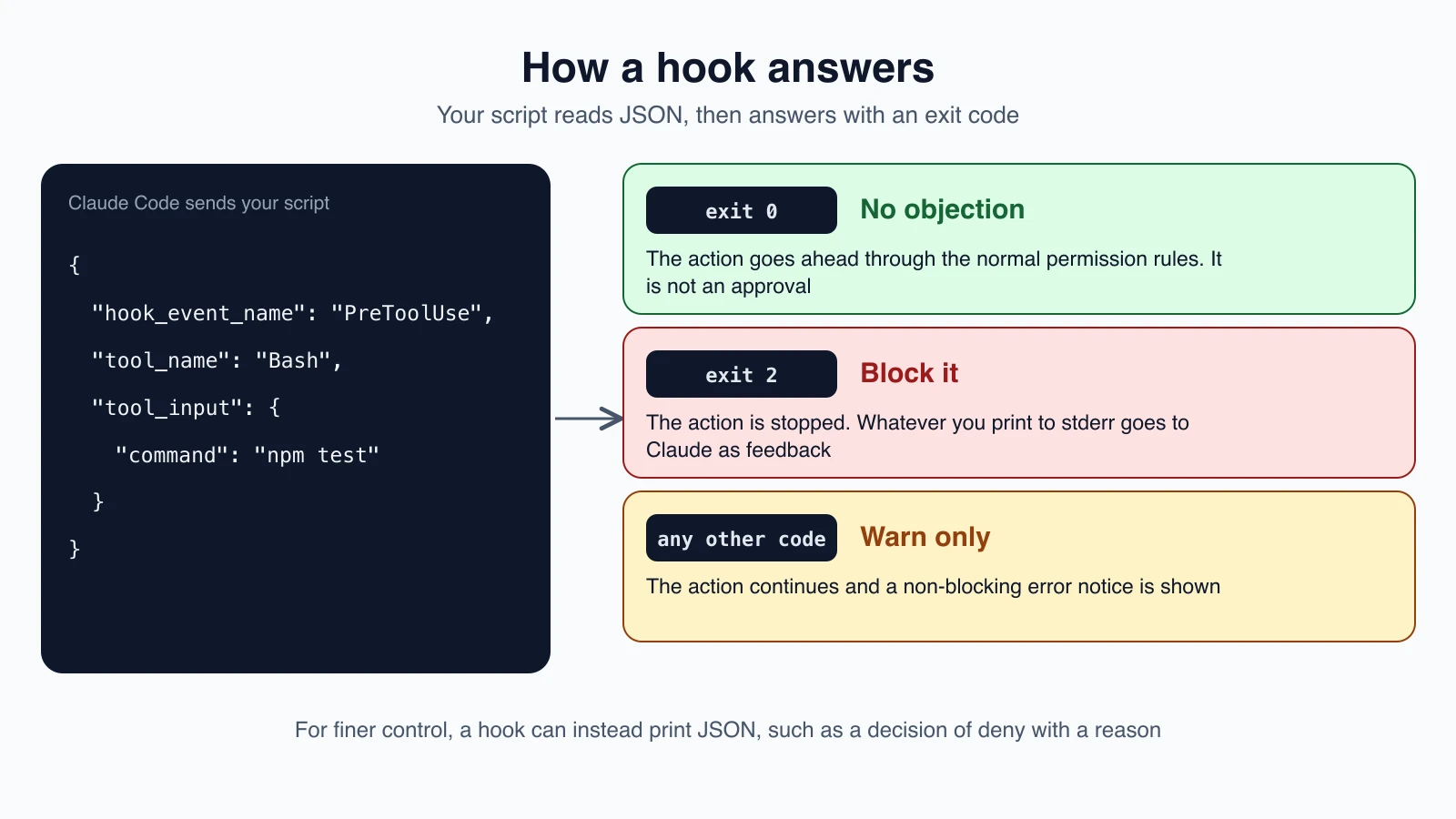
Your answer is the exit code:
- Exit 0 means no objection. For a
PreToolUsehook this is not an approval. The action still goes through the normal permission rules from lesson 8. - Exit 2 blocks the action. Whatever your script prints to standard error is sent to Claude as feedback, so it can adjust its approach.
- Any other code lets the action proceed, and Claude Code shows a non-blocking error notice.
Here is a short script that blocks one kind of command:
1#!/bin/bash
2INPUT=$(cat)
3COMMAND=$(echo "$INPUT" | jq -r '.tool_input.command')
4
5if echo "$COMMAND" | grep -q "drop table"; then
6  echo "Blocked: dropping tables is not allowed" >&2
7  exit 2
8fi
9
10exit 0
jq is a small tool for reading JSON. Install it with brew install jq on macOS or apt-get install jq on Debian and Ubuntu.
For finer control, exit 0 and print a JSON object instead. This tells Claude Code to deny a call and gives Claude the reason:
1{
2  "hookSpecificOutput": {
3    "hookEventName": "PreToolUse",
4    "permissionDecision": "deny",
5    "permissionDecisionReason": "Use rg instead of grep for better performance"
6  }
7}
Pick one approach per hook: exit 2 with a message, or exit 0 with JSON.
Choose which tools a hook watches: matchers
Without a matcher, a hook fires on every occurrence of its event. A matcher narrows it down. For tool events it filters by tool name. Edit|Write matches either of those two tools and nothing else, so a formatter runs after file edits and not after every command Claude runs. Matchers are case-sensitive.
Other events match on other things. SessionStart matches how the session began (startup, resume, clear, compact), and Notification matches the kind of notification.
Example: format files after every edit
This hook runs the Prettier code formatter on every file Claude edits. Add it to .claude/settings.json in your project:
1{
2  "hooks": {
3    "PostToolUse": [
4      {
5        "matcher": "Edit|Write",
6        "hooks": [
7          {
8            "type": "command",
9            "command": "jq -r '.tool_input.file_path' | xargs npx prettier --write"
10          }
11        ]
12      }
13    ]
14  }
15}
The command pulls the edited file's path out of the JSON and passes it to Prettier. To test it, ask Claude to add a line with single-quoted strings to a JavaScript file. With Prettier's defaults, the hook rewrites them as double quotes. When a hook succeeds, Claude Code shows nothing in the conversation, so check the file itself.
Example: protect files from edits
This hook stops Claude from touching sensitive files such as .env, package-lock.json and anything inside .git/.
Save this script as .claude/hooks/protect-files.sh:
1#!/bin/bash
2INPUT=$(cat)
3FILE_PATH=$(echo "$INPUT" | jq -r '.tool_input.file_path // empty')
4
5PROTECTED_PATTERNS=(".env" "package-lock.json" ".git/")
6
7for pattern in "${PROTECTED_PATTERNS[@]}"; do
8  if [[ "$FILE_PATH" == *"$pattern"* ]]; then
9    echo "Blocked: $FILE_PATH matches protected pattern '$pattern'" >&2
10    exit 2
11  fi
12done
13
14exit 0
Make it executable on macOS and Linux:
1chmod +x .claude/hooks/protect-files.shThen register it in .claude/settings.json as a PreToolUse hook for the editing tools:
1{
2  "hooks": {
3    "PreToolUse": [
4      {
5        "matcher": "Edit|Write",
6        "hooks": [
7          {
8            "type": "command",
9            "command": "\"$CLAUDE_PROJECT_DIR\"/.claude/hooks/protect-files.sh"
10          }
11        ]
12      }
13    ]
14  }
15}
Now ask Claude to add a comment to your .env file. Claude Code blocks the edit and passes the Blocked: message to Claude, which can then explain or choose another approach.
This is stronger than a permission deny rule in one respect that matters. A hook's deny holds in every permission mode, including bypassPermissions. A hook can also never loosen your rules: an "allow" from a hook does not override deny rules from your settings.
Where hooks live
| Location | Reaches | Shared with the team |
|---|---|---|
~/.claude/settings.json | All your projects | No |
.claude/settings.json | This project | Yes, if committed |
.claude/settings.local.json | This project | No |
| Managed settings | Your organization | Yes |
A plugin's hooks/hooks.json | Wherever the plugin is on | Yes |
| A skill or subagent file | While that skill or subagent is active | Yes |
Run /hooks to see everything configured, grouped by event. Edits to settings files are normally picked up automatically, and restarting forces a reload. To switch hooks off, set "disableAllHooks": true.
Other kinds of hooks
Most hooks run a shell command. Four other types exist:
httpsends the event data to a web address.mcp_toolcalls a tool on a connected MCP server.promptasks a Claude model for a single yes or no judgment.agentruns a multi-step check with tools. It is experimental.
The last two use a model, so they are not deterministic. For a hard rule, use a command hook.
Limits to remember
- A
PostToolUsehook cannot undo anything, because the tool has already run. - A
Stophook fires whenever Claude finishes responding, not only at the end of a whole task. It does not fire when you interrupt. - Command hooks talk only through output and exit codes. They cannot run slash commands or call tools.
- A command hook may run for up to 10 minutes by default, and some events have much shorter limits. Keep hooks fast.
- A hook runs with your computer account's permissions, so only add hooks you understand, especially in a project you did not write.
When a hook does not work
- Run
/hooksand confirm the hook appears under the right event. - Check the matcher, which is case-sensitive.
- Test the script by hand. Pipe sample JSON in and read the exit code:
1echo '{"tool_name":"Bash","tool_input":{"command":"ls"}}' | ./my-hook.sh
2echo $?- If you see "command not found", use absolute paths or
$CLAUDE_PROJECT_DIR. For "jq: command not found", installjq. - If the script does not run at all, make it executable with
chmod +x. - Check your settings JSON. A trailing comma or a comment breaks it.
Mistakes beginners make
- Using a hook for a preference. Hooks are for rules with no exceptions. Keep the rest in
CLAUDE.md. - Forgetting
exit 2. Printing a message does nothing without the exit code that blocks the action. - Treating exit 0 as approval. It only means no objection. Permission rules still apply.
- Wrong matcher case.
edit|writewill not match theEditandWritetools. - Slow hooks. A hook that takes seconds makes every action feel stuck.
- Expecting
PostToolUseto prevent damage. It runs after the change. UsePreToolUseto stop an action.
Quick recap
- Hooks are your own commands that Claude Code runs at fixed events, so the outcome does not depend on the model.
- Configure them under a
hookskey in a settings file, with an event, a matcher and a command. - Exit 0 is no objection, exit 2 blocks and sends your message to Claude, and other codes only warn.
PreToolUsecan stop an action.PostToolUsereacts after it.- Build useful hooks for notifications, formatting and protected files, and check them with
/hooks.
Try it yourself
In your claude-practice folder, create a .env file with one line of text. Add the protect-files.sh script and the PreToolUse hook from this lesson. Ask Claude to add a comment to .env and watch it get blocked. Then ask Claude to edit index.html to confirm that normal edits still work.
Next lesson: MCP servers, which connect Claude Code to outside tools.