
So far Claude Code has worked with your files and your terminal. Real projects also live in other places: an issue tracker, a design tool, a database, a wiki. MCP servers connect Claude Code to those places. After this lesson you will know what MCP is, how to add a server, how to choose where its settings are saved, how to sign in, how to use what it offers, and how to avoid the main risk.
What MCP is
The Model Context Protocol, or MCP, is an open standard for connecting AI tools to outside systems. An MCP server is a bridge to one of those systems. Once a server is connected, Claude can read from that system and act on it directly.
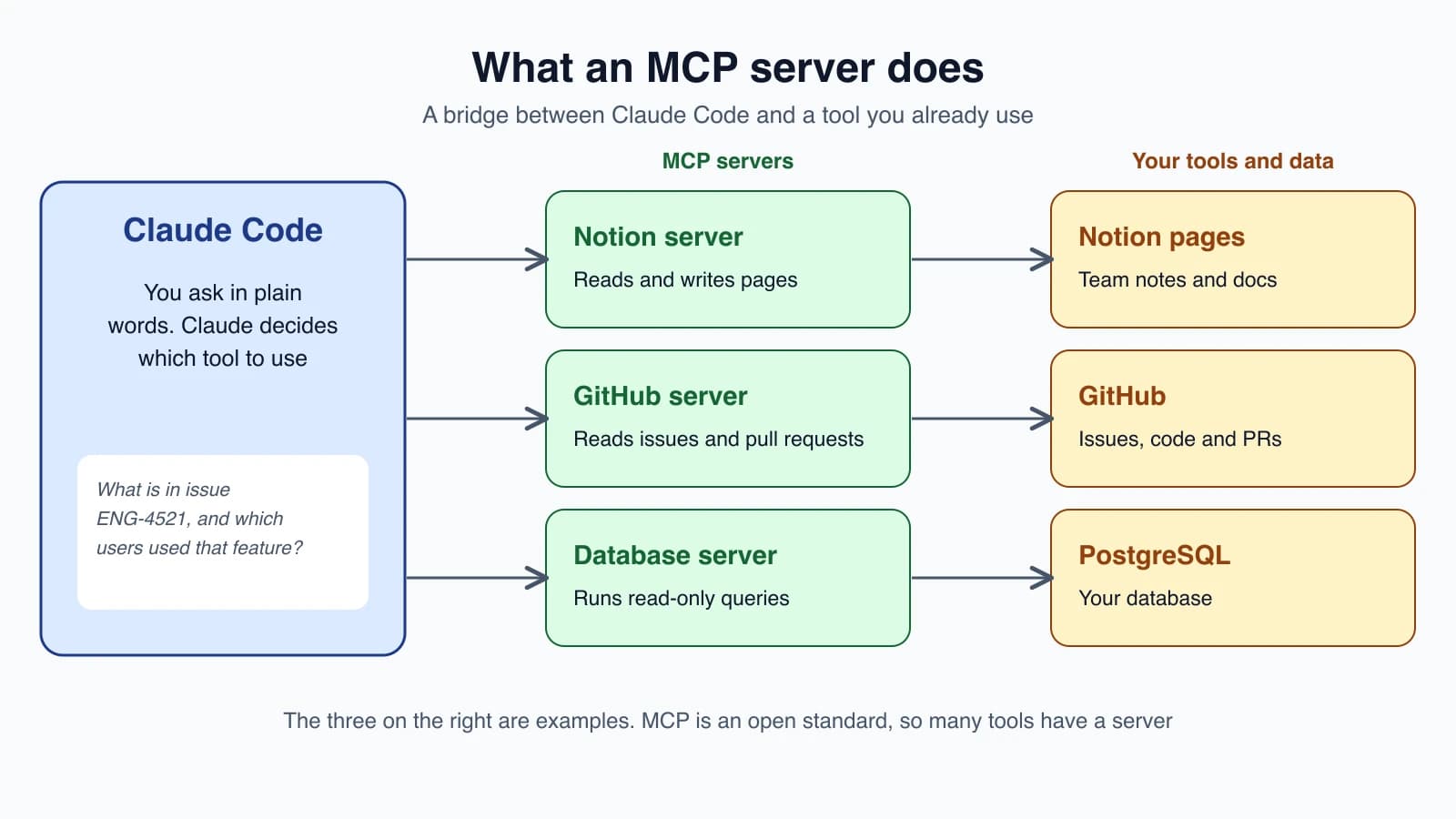
Add a server when you notice yourself copying information into chat from another tool. With the right servers connected, you can ask things like:
- "Add the feature described in JIRA issue ENG-4521 and create a PR on GitHub."
- "Find emails of 10 random users who used feature ENG-4521, based on our PostgreSQL database."
- "Create Gmail drafts inviting these 10 users to a feedback session."
A warning before anything else. Only connect servers you trust. A server that fetches outside content, such as web pages, emails or tickets, can carry prompt injection: hidden text that tries to make Claude do something you did not ask for. Security gets its own section below.
Add a server
Use the claude mcp add command in your regular terminal. How you add a server depends on how it runs.
A remote server over HTTP (recommended)
Most cloud tools run a server on the internet. The pattern is:
1claude mcp add --transport http <name> <url>A real example connects to Notion:
1claude mcp add --transport http notion https://mcp.notion.com/mcpSome servers want a token in a header:
1claude mcp add --transport http secure-api https://api.example.com/mcp \
2  --header "Authorization: Bearer your-token"
A local server on your computer (stdio)
Some servers run as a program on your own machine. Use these for tools that need direct access to your system. The pattern puts a double dash before the command:
1claude mcp add --env AIRTABLE_API_KEY=YOUR_KEY --transport stdio airtable \
2  -- npx -y airtable-mcp-server
The -- separates Claude's own options from the command that starts the server. Without it, Claude Code would try to read the server's flags as its own. The line above runs npx -y airtable-mcp-server with your key in its environment.
An older kind: SSE
A third kind, --transport sse, is deprecated. Use HTTP where a server offers it. Recent versions of Claude Code try HTTP first and fall back to SSE on their own.
Adding from a JSON block
A server's setup page may show a JSON block that starts with mcpServers, written for another app. Take the object inside it and use add-json:
1claude mcp add-json example '{"command":"npx","args":["-y","@example/mcp-server"]}'Each add command prints an Added ... line when it works.
Choose a scope
A scope decides which projects load a server and whether your team shares it.
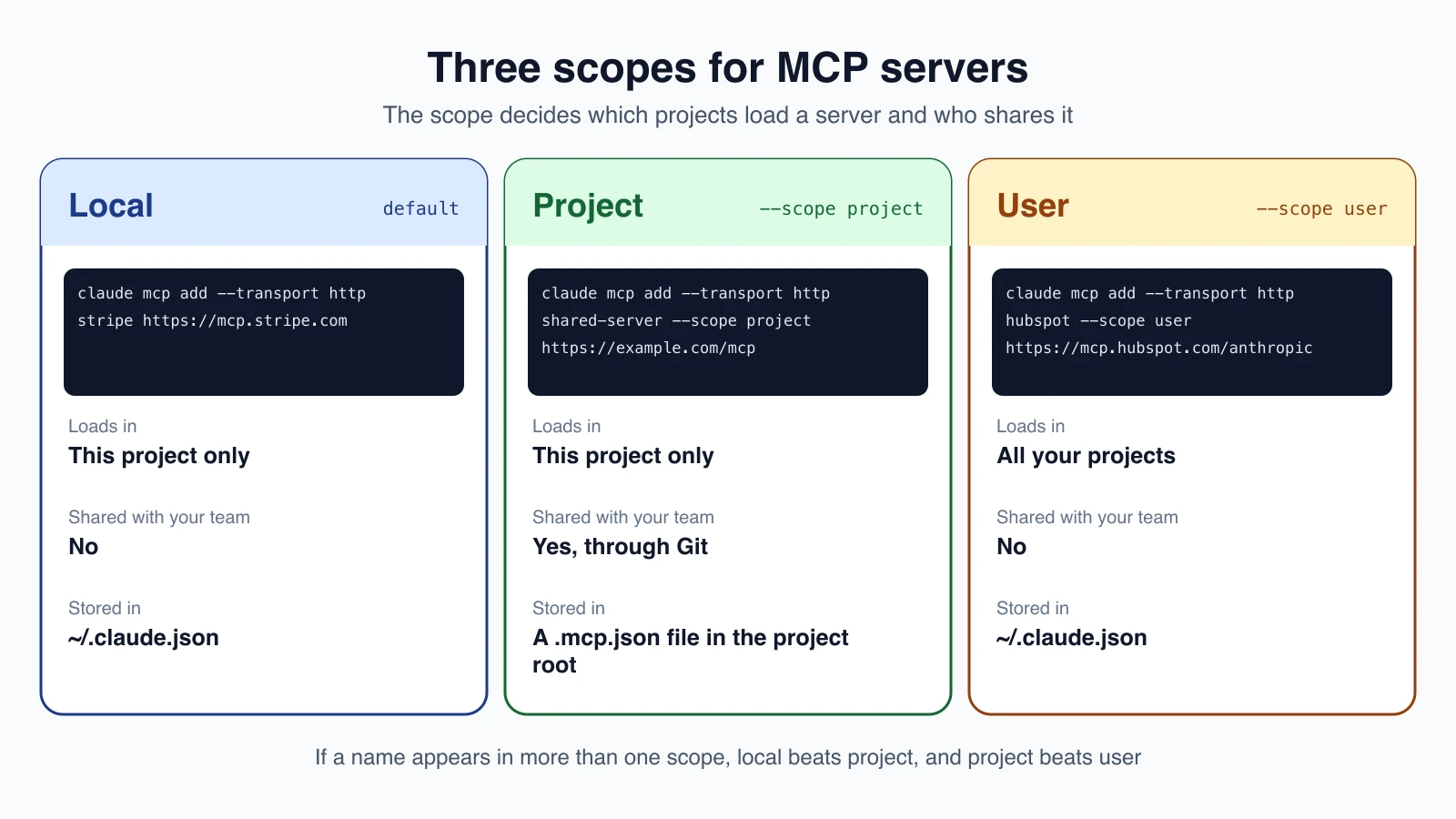
| Scope | Loads in | Shared with team | Stored in |
|---|---|---|---|
| Local (the default) | This project only | No | ~/.claude.json |
| Project | This project only | Yes, through Git | .mcp.json in the project root |
| User | All your projects | No | ~/.claude.json |
Pick one with --scope:
1claude mcp add --transport http shared-server --scope project https://example.com/mcp
2claude mcp add --transport http hubspot --scope user https://mcp.hubspot.com/anthropic
The project command creates a .mcp.json file that you commit so teammates get the same server:
1{
2  "mcpServers": {
3    "shared-server": {
4      "type": "http",
5      "url": "https://example.com/mcp"
6    }
7  }
8}
If the same server name exists in more than one scope, Claude Code uses the highest one and does not merge them. The order is local, then project, then user, then servers from plugins, then claude.ai connectors.
For safety, Claude Code asks you to approve project servers from .mcp.json before using them, since someone else wrote that file. To reset your answers, run claude mcp reset-project-choices.
Manage your servers
From your terminal:
1claude mcp list
2claude mcp get notion
3claude mcp remove notion
list shows every server with its health, get shows details for one, and remove deletes it. Inside a session, run /mcp. The panel shows each server's status and how many tools it offers, lets you sign in, and lets you switch a server on or off without removing it.
Status messages to recognize:
- Connected: it is working.
- Needs authentication: sign in, as below.
- Failed to connect: run
claude mcp get <name>and read theIssue:line. - Pending approval: a project server you have not approved yet. Run
claudeand approve it.
Sign in with OAuth
Many cloud servers require you to sign in. After adding one, run /mcp inside Claude Code and follow the browser steps. Tokens are stored securely and refreshed for you. You can also use claude mcp login sentry and claude mcp logout sentry from the shell.
Use what a server offers
Ask in plain words. Claude decides when to use a connected tool. You do not need special syntax:
1what are the open pull requests on this repository, and which are waiting on me?Reference resources with @. Servers can expose resources, such as an issue or a document. Type @ to see them next to your files, then use the form @server:protocol://path:
1Can you analyze @github:issue://123 and suggest a fix?You can include several in one prompt, such as Compare @postgres:schema://users with @docs:file://database/user-model. They are fetched and attached automatically.
Run prompts as commands. Servers can offer ready-made prompts. Type / and look for entries marked MCP. They are named like this:
1/mcp__github__list_prs
2/mcp__github__pr_review 456
The second one passes an argument, separated by a space.
Context cost. Connecting many servers could crowd the context window, so Claude Code uses tool search. Only tool names and server instructions load at the start of a session, and the full details load when Claude needs a tool. Adding more servers has little effect on your context.
Keep secrets out of Git
A shared .mcp.json should not contain tokens. It can read environment variables instead, using ${VAR} or ${VAR:-default}:
1{
2  "mcpServers": {
3    "api-server": {
4      "type": "http",
5      "url": "${API_BASE_URL:-https://api.example.com}/mcp",
6      "headers": {
7        "Authorization": "Bearer ${API_KEY}"
8      }
9    }
10  }
11}
Each teammate sets API_KEY on their own computer. If a variable is missing and has no default, Claude Code warns you in claude mcp list and /mcp.
Output limits and timeouts
Claude Code warns when one MCP tool returns more than 10,000 tokens, and it limits the output to 25,000 tokens by default. To change that, set MAX_MCP_OUTPUT_TOKENS, for example MAX_MCP_OUTPUT_TOKENS=50000. To change how long Claude Code waits for a server to start, set MCP_TIMEOUT, for example MCP_TIMEOUT=10000 claude for ten seconds.
Stay safe
Every server you connect can feed text and actions into your session. A few habits go a long way:
- Trust the source. Use servers from vendors you know, and read what a server does before adding it.
- Watch for prompt injection. Content from the web, email or tickets can contain instructions aimed at Claude. Be careful when a server pulls in text written by strangers.
- Use the least access you can. For a database, create a read-only user and give Claude those credentials.
- Check project servers before approving. A
.mcp.jsonfrom a repository you cloned is code someone else wrote. - Combine with permissions. You can block a server with the
disabledMcpjsonServerssetting, and the deny rules from lesson 8 and hooks from lesson 18 still apply.
When a server will not connect
| What you see | What to try |
|---|---|
has a "url" but no "type" | Add "type": "http". Without a type, the entry is read as a local server |
| Failed to connect | Run claude mcp get <name> and read the Issue: line |
| A 401 or 403 error | Check that the token is valid for that address |
| Pending approval | Run claude and approve the server |
| A local server will not start | Run its command alone in your terminal, and check you used -- before it |
| Several servers failed | Run /mcp reconnect all inside a session |
For more detail, start Claude Code with claude --debug-file /tmp/claude-debug.log and read the log.
Mistakes beginners make
- Connecting a server without checking it. Treat a server like software you install.
- Pasting a token into a shared
.mcp.json. Use${VAR}and keep the secret on each machine. - Forgetting
--for a local server. The command after the double dash is what runs. - Using the wrong scope. Local is private to you and this project. Use project scope to share with a team, and user scope for tools you want everywhere.
- Giving full database access. Use a read-only user.
- Forgetting to sign in. A server that needs authentication stays unusable until you run
/mcp.
Quick recap
- MCP servers connect Claude Code to outside tools such as trackers, databases and wikis.
- Add one with
claude mcp add --transport http <name> <url>, or with--transport stdioand a--for a local program. - Choose a scope: local (default), project (shared through
.mcp.json) or user. - Manage servers with
claude mcp list,getandremove, and/mcpinside a session. - Use resources with
@server:protocol://pathand prompts as/mcp__server__prompt. - Trust carefully, give least access, and keep secrets out of Git.
Try it yourself
In your terminal, run claude mcp list to see what is connected. Then pick one tool you already use that offers an MCP server, find its setup instructions, and add it with claude mcp add. Start Claude Code, run /mcp, sign in if needed, and ask one question about data in that tool, such as "list the five most recently updated items". Check the answer against the tool itself. If you do not use any such tool yet, skip the add step and just open /mcp to see the panel.
Next lesson: plugins and marketplaces.