
Claude Code can handle Git for you in plain English, and it can run several sessions side by side without them stepping on each other's files. After this lesson you will know how to ask Claude for the everyday Git tasks, which habits keep your work safe, and how worktrees let you run parallel sessions. This is the first lesson of Module 5, where you use Claude Code in a team and in automation.
Git in one minute
Git is the tool most developers use to track changes to their code. A few words you need:
- A commit is a saved snapshot of your changes, with a message that describes them.
- A branch is a separate line of work, so you can try something without touching your main code.
- A pull request, or PR, is a proposal to merge a branch into the main one, so teammates can review it first.
- A remote is the shared copy of the repository, for example on GitHub.
If you have never used Git, you can still follow along, because Claude Code makes these steps conversational.
Git with Claude Code in plain English
Claude Code works directly with Git. It can stage changes, write commit messages, create branches and open pull requests. You ask in ordinary words:
1what files have I changed?1commit my changes with a descriptive message1create a new branch called feature/quickstart1show me the last 5 commits1help me resolve merge conflictsA merge conflict happens when two branches changed the same lines, and Git needs a person to choose which version to keep. Claude can read both sides and propose a resolution, and you decide.
Open a pull request
You can ask directly, or go step by step:
1summarize the changes I've made to the authentication module1create a pr1enhance the PR description with more context about the security improvementsClaude Code links the session to the pull request when Claude creates it with gh pr create or glab mr create. Later you can find that conversation again:
1claude --from-pr 1234Replace 1234 with your pull request number. It opens the session picker filtered to sessions linked to that PR.
A safe workflow
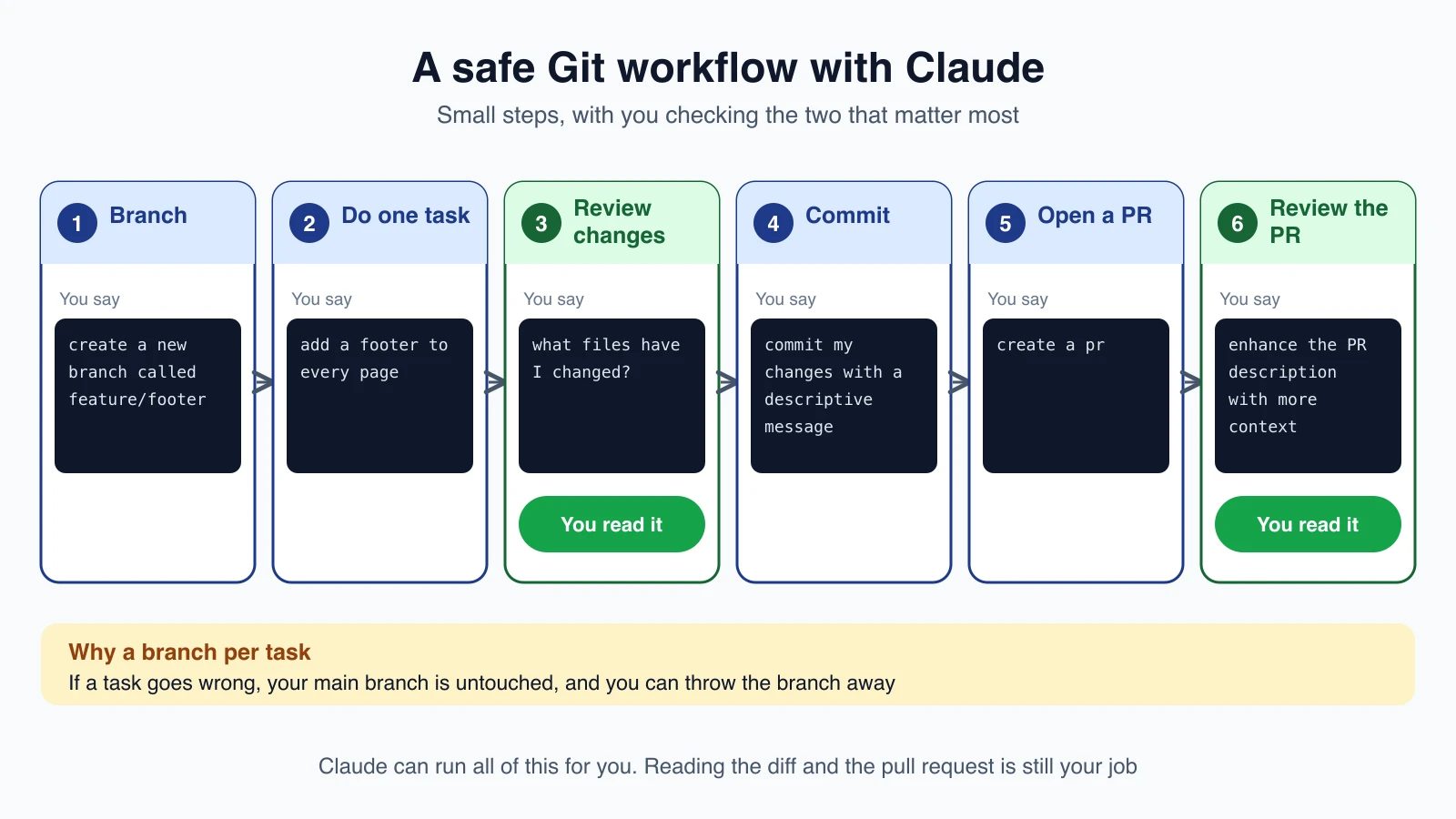
Git is where mistakes become permanent, so a few habits matter.
- Use a branch for each task. If a task goes badly, your main branch is untouched and you can delete the branch.
- Keep tasks small. A small change is easy to review and easy to undo.
- Read the diff before you commit. A diff is the list of changes. Ask "what files have I changed?", run
git diff, or use/diffinside Claude Code (lesson 4). - Commit before a big task. Rewind (lesson 9) only covers files Claude edited, and Git is your lasting backup.
- Read the pull request before you submit it. Ask Claude to point out risks. Claude's text is a draft, and you are responsible for what goes out.
- Be careful with anything that leaves your computer. A push sends your work to a shared remote. Auto mode blocks risky actions such as force pushes (lesson 8), and a deny rule can block pushing altogether, for example
"deny": ["Bash(git push *)"]in your settings (lesson 14), if you want to push yourself.
To undo changes to one file, Git has your back: git restore filename throws away its uncommitted changes. You can also just ask Claude to undo what it changed.
Why worktrees?
Sometimes you want Claude working on a feature in one terminal while another session fixes a bug in a second. If both edit the same folder, their changes collide. A git worktree solves this. It is a separate working folder with its own files and its own branch, sharing the same repository history and remote as your main folder.
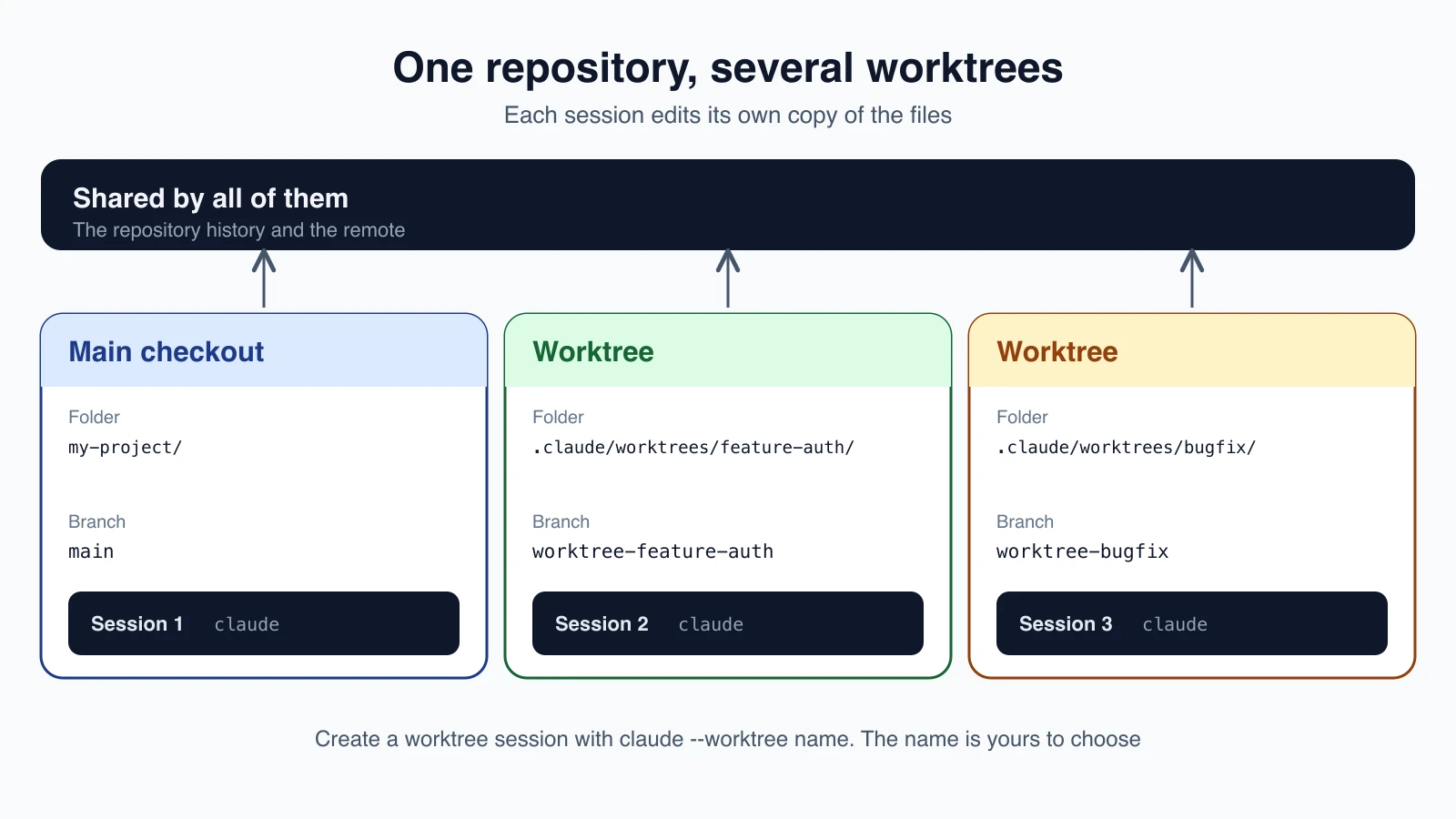
Each Claude session gets its own copy of the files to edit, so one session can build a feature while another fixes a bug and neither sees the other's half-finished work.
Start Claude in a worktree
Use the --worktree flag, or -w, with a name:
1claude --worktree feature-authClaude Code creates the worktree under .claude/worktrees/feature-auth/ at your repository root, on a new branch named worktree-feature-auth, and starts Claude in it. Run the same command with a different name in another terminal to start a second isolated session. If you leave out the name, Claude generates one, such as bright-running-fox.
A few requirements and tips:
- The repository needs at least one commit, because a worktree is created from an existing commit. With no commits, the command fails with
Failed to resolve base branch "HEAD". - You must have run
claudein the folder once before, to accept the workspace trust dialog. - Add
.claude/worktrees/to your.gitignore, so worktree contents do not show up as untracked files in your main folder. - You can also ask a running session to "work in a worktree", and Claude will create one.
Set up the new folder
A worktree is a fresh checkout. Files that Git ignores, such as .env, are not copied, and you need to install dependencies there. Ask Claude to set it up, or run your usual setup in that folder. To copy ignored files automatically into every new worktree, add a .worktreeinclude file to your project root. It uses the same pattern syntax as .gitignore:
1.env
2.env.local
3config/secrets.json
Only files that match a pattern and are also ignored by Git are copied, so tracked files are never duplicated.
Choose where it starts
By default, a new worktree branches from your repository's default branch on the remote, usually main, so it starts clean. If you want it to start from your current local work, including unpushed commits, set this in your settings:
1{
2  "worktree": {
3    "baseRef": "head"
4  }
5}
To start from a specific pull request, pass its number. Quote it so your shell does not treat # as a comment:
1claude --worktree "#1234"That creates the worktree at .claude/worktrees/pr-1234.
Clean up when you exit
When you exit a worktree session, Claude checks whether removing the worktree would lose anything:
- Nothing changed. For an unnamed session, Claude removes the worktree and its branch automatically. A named session asks first, so you can keep it.
- There is work in it. Claude asks whether to keep or remove it. Keeping preserves the folder and branch, and Claude Code prints the exact command to return later, in the form
claude --worktree <name> --resume. Removing deletes the folder, its branch and everything in them.
Non-interactive runs with -p have no exit prompt, so they never clean up. Remove those yourself with git worktree remove, adding git worktree unlock first if Git says the worktree is locked.
Manage worktrees by hand
Plain Git can do all of this too, which is useful when you want to check out a specific existing branch or put the folder somewhere else:
1git worktree add ../project-feature-a -b feature-a
2git worktree add ../project-bugfix fix-issue-456
3cd ../project-feature-a
4claude
5git worktree list
6git worktree remove ../project-feature-a
The first command creates a worktree on a new branch. The second uses a branch that already exists. list shows all worktrees and remove deletes one when you are done.
What worktrees share and keep separate
A worktree has its own files and branch, but it shares a few things with the main folder:
- The repository's history, stored in one shared
.gitfolder, sogit commitworks inside any worktree. - Project plugins. Plugins installed at project scope in the main folder load in its worktrees too (lesson 20).
- Permission approvals. If you choose "Yes, and don't ask again" for a command in a worktree session, the rule is saved in the main folder's
.claude/settings.local.jsonand applies to every worktree of that repository.
CLAUDE.md files and .claude/rules/ still load from the worktree itself.
Isolation is enforced
While a session is isolated in a worktree, Claude Code blocks edits that target the main folder, and blocks commands that run from or redirect Git into it. That keeps a worktree session from accidentally changing your main checkout. These checks look at file edits and Git commands. A shell command that copies files into the main folder, such as cp, is not caught by them and is treated like any other command under your permissions.
Worktrees for subagents
Subagents can work in their own worktrees too, so parallel helpers do not collide. Ask Claude to "use worktrees for your agents", or make it permanent by adding isolation: worktree to a subagent's header (lesson 17):
1---
2name: refactorer
3description: Applies mechanical refactors across many files
4isolation: worktree
5---
6
7Apply the requested refactor across every affected file, then run the tests
8and report the results.
Each subagent gets a temporary worktree. Claude Code removes it automatically when the subagent finishes with no changes, and a worktree with changes stays until it can be removed without losing work.
Mistakes beginners make
- Working on
maindirectly. Use a branch for each task. - Committing without reading the diff. Always review what changed first.
- Creating a worktree in a repository with no commits. Make a first commit.
- Forgetting the
.envfile. A new worktree is a fresh checkout. Use.worktreeinclude. - Removing a worktree that holds work. Read the exit prompt before choosing remove.
- Assuming rewind replaces Git. Rewind only covers files Claude edited in this session. Commit often.
Quick recap
- Ask Claude for Git tasks in plain English: status, branches, commits, conflicts and pull requests.
- Use a branch per task, keep tasks small, and read the diff and the pull request before they go out.
- A worktree is a separate folder and branch that shares history, so parallel sessions do not collide.
- Start one with
claude --worktree name, copy ignored files with.worktreeinclude, and clean up on exit. - Subagents can run in worktrees with
isolation: worktree.
Try it yourself
In your claude-practice folder, run git init if needed and make a first commit. Run claude --worktree footer-test, ask Claude to add a footer to every page, and ask "what files have I changed?". Exit the session and read the prompt before choosing to keep or remove the worktree. Then run git worktree list to see what exists. If you kept it, run git worktree remove on it when you are done.
Next lesson: headless mode and the Agent SDK.