
A long session with Claude Code can drift. Early instructions fade, old output crowds the window, and a wrong turn is hard to undo. This lesson gives you the tools to prevent that. After it, you will know when to start fresh and when to shorten the conversation, how to go back when Claude heads the wrong way, and how to return to old work later.
You already know the idea from lesson 6: Claude can only keep so much text in mind at once, and that space is called the context window. Here you learn to manage it on purpose.
Five tools, five situations
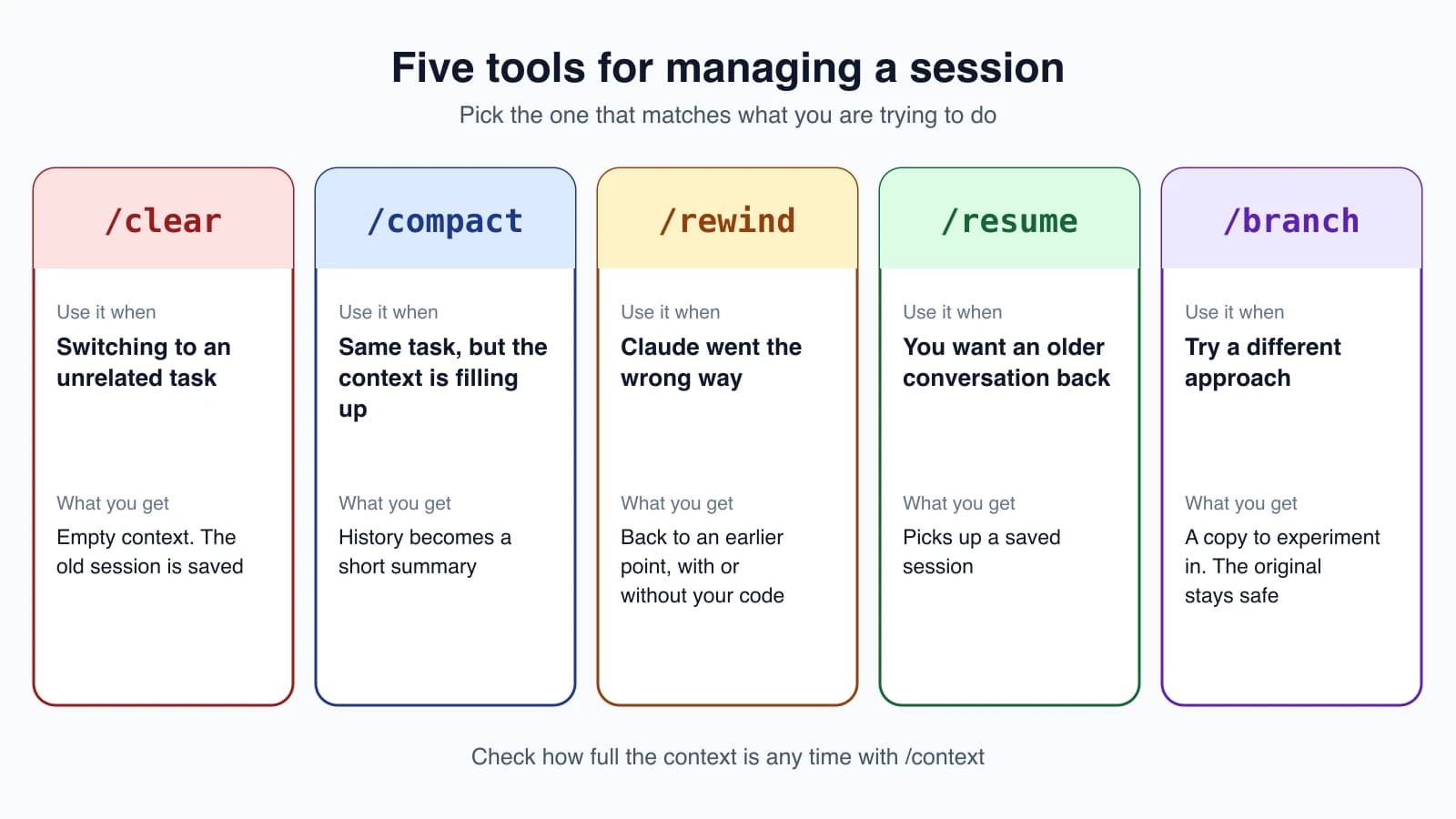
Most of the skill is choosing the right tool. The rest of this lesson covers each one in turn.
See what is using space: /context
Before you shrink anything, look. Type:
1/contextIt shows a live breakdown of what is filling the window, with suggestions to reduce it. It also lists which CLAUDE.md and memory files loaded. Think of it as a fuel gauge. Check it when a session feels sluggish or Claude starts forgetting things.
Start fresh: /clear
1/clear/clear starts a new conversation with an empty context. It is the right move when you switch to a task that has nothing to do with the last one. Old conversation crowds out the files you need next, and it costs tokens on every message you send.
Nothing is lost. Claude Code saves the previous session, and you can bring it back with /resume. If you want to label the session you are leaving, pass a name:
1/clear release-prepA session you have named with --name or /rename keeps its name after /clear. The new conversation still loads your CLAUDE.md and memory, so your lasting rules are there from the start.
Shrink the conversation: /compact
1/compact/compact replaces the history with a summary and lets you keep working on the same task. You do not have to run it. Claude Code compacts automatically when the window nears full. The catch with automatic compaction is that it decides for itself what matters.
You can steer it by adding instructions:
1/compact focus on the auth bug fixDo this before you start a long new stage of work, so the summary keeps what you care about.
What survives, and what does not
Compaction does not erase everything. These come back after it:
- Your project-root
CLAUDE.mdand your auto memory, which are re-read from disk - The plan Claude wrote in plan mode
- Up to five of the files Claude read or edited most recently
- Skill descriptions, and the bodies of skills you used, up to a size limit
What can disappear is anything that only existed in the chat, such as a detailed instruction you gave an hour ago. This is the reason for the rule from lesson 6: put anything lasting in CLAUDE.md. Rules that load only when Claude touches certain files, and nested CLAUDE.md files in subfolders, reload on demand rather than being kept.
If you want compaction to happen sooner, /autocompact 500k sets how full the window gets before the automatic pass runs.
Go back: /rewind
Sometimes Claude takes a wrong turn, and you want the clock turned back. Claude Code makes this possible with checkpoints. Every prompt you send that starts a turn creates a checkpoint, a snapshot of your code before Claude changes it. It keeps snapshots for the 100 most recent checkpoints in a session.
Open the rewind menu in either of two ways:
- Type
/rewind. - Press
Esctwice when the prompt box is empty. If the box has text, doubleEscclears it instead, and the up arrow brings the text back.
The menu lists the prompts you sent. Pick a point, then choose what to do:
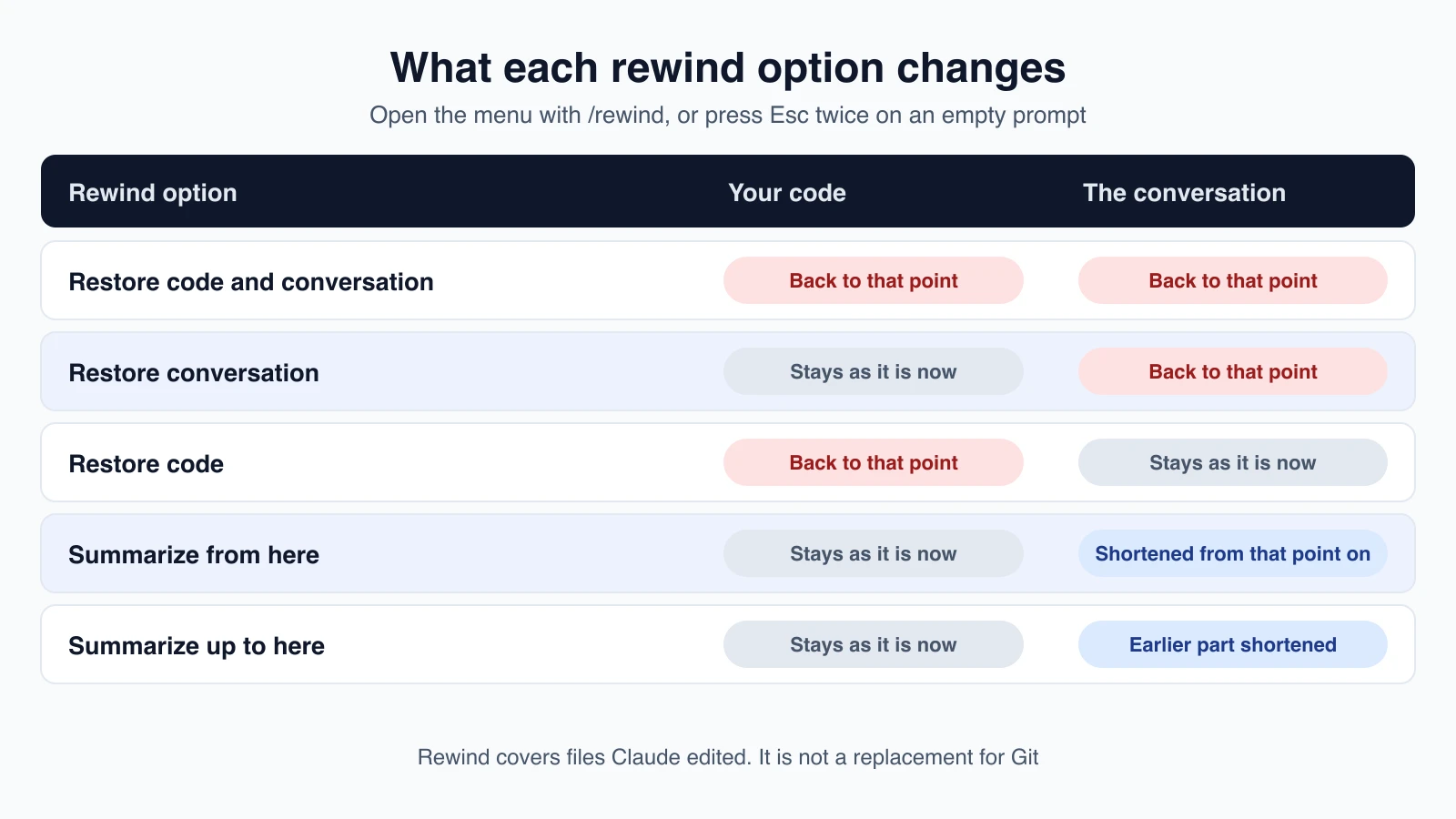
- Restore code and conversation puts both back to that point.
- Restore conversation rewinds the chat but keeps your code as it is now.
- Restore code reverts the files but keeps the conversation.
- Summarize from here compresses the conversation from that point on, which frees up space.
- Summarize up to here compresses everything before that point and keeps the later messages.
- Never mind goes back to the list.
After a restore, the prompt you rewound to appears in the input box so you can edit it and send it again. That is a handy way to try a better prompt.
You can also guide a summary. Highlight a Summarize option, type what to focus on where it says "add context (optional)", and press Enter.
What rewind cannot do
Checkpoints are for quick recovery within a session. They have limits worth knowing:
- They track changes made by Claude's file-editing tools. If a file was changed only by a shell command, it is not tracked. Use Git for that.
- Edits from other programs, or from other sessions running at the same time, are not tracked.
- Most edits made by subagents (lesson 17) are not restored.
- Snapshots are deleted about 30 days after the session last saved one, so an old rewind may fail.
Checkpoints are not a replacement for version control. Keep using Git for commits and permanent history.
Come back later: sessions
Claude Code saves every conversation as a session, tied to the folder you worked in. Here are the ways back in:
| Command | What it does |
|---|---|
claude --continue | Reopens the most recent session in this folder |
claude --resume | Opens the session picker |
claude --resume auth-refactor | Resumes the session with that name |
/resume | Switches to another session from inside Claude Code |
A resumed session restores the conversation history, the model it used, and, when you resume from the terminal, its permission mode. It does not carry over every launch option, so pass flags like --add-dir again.
Name your sessions
A name makes a session easy to find later. Set one at startup, or any time during the session:
1claude -n auth-refactor1/rename auth-refactorWithout a name, Claude Code makes up a short title from your first prompt. Naming matters most when you juggle several tasks.
Use the session picker
Run /resume, or claude --resume with no name, to open the picker. These keys help:
| Key | What it does |
|---|---|
↑ ↓ | Move between sessions |
Enter | Resume the highlighted session |
Space | Preview the session |
Ctrl + R | Rename the highlighted session |
/ or just start typing | Search |
Ctrl + A | Show sessions from every project on this computer |
Ctrl + B | Show only sessions from the current Git branch |
Try another idea safely: /branch
Say you are halfway through a feature and want to test a different approach without losing your current path. Branch the conversation:
1/branch try-streaming-approachThis copies the conversation so far into a new session and switches you to it. The original stays untouched, and you can go back with /resume. From the command line, claude --continue --fork-session does the same. Branching copies the conversation, not your files, so for different versions of your code, use a Git branch too.
Habits that keep sessions healthy
- One task, one session. When the topic changes, use
/clear. - Compact with a focus before a long new stage:
/compact focus on .... - Keep lasting rules in
CLAUDE.md, not in chat. - Rewind early. If Claude is clearly off track, go back right away instead of piling corrections on top.
- Name sessions you will want again. A good name beats scrolling a list.
- Glance at
/contextwhen things feel slow or forgetful.
Mistakes beginners make
- Never clearing. A session that has covered five unrelated tasks carries all of that weight into every answer.
- Using
/clearwhen you meant/compact./clearends the thread of work./compactkeeps it in shorter form. - Trusting chat for rules. Instructions you gave only in conversation can be lost in a summary. Put them in
CLAUDE.md, or use a deny rule if it is a safety boundary. - Using rewind as your only backup. It does not cover files changed by shell commands. Commit to Git regularly.
- Forgetting how to get a cleared session back.
/resumelists it.
Quick recap
- Check space with
/context. Start fresh with/clear. Shorten a conversation with/compact, optionally with a focus. /rewindorEsc Escgoes back to a checkpoint. You choose whether to restore code, conversation or both, or to summarize part of the conversation.- Resume with
claude --continue,claude --resumeor/resume. Name sessions with-nor/rename. /branchcopies a conversation so you can try another approach safely.- Lasting rules belong in
CLAUDE.md. Checkpoints do not replace Git.
Try it yourself
In your practice folder, ask Claude to add a small feature, such as a footer. Run /context to see the breakdown. Then press Esc twice, pick the prompt you just sent, and choose Restore code to see the footer disappear while the conversation stays. Next run /rename footer-experiment, /clear, and then /resume to bring the named session back.
Next lesson: prompting patterns for code.