
By now you have used Claude Code for real tasks. This lesson explains what is happening underneath, because knowing how it works makes you better at using it. You will learn the loop it follows on every task, the tools it uses, what it can see in your project, and why the context window matters. You will also learn how to steer it when it goes the wrong way.
There is no new command to memorize here. The payoff is that you will write better prompts and understand why Claude sometimes forgets something or takes an unexpected route.
The loop: gather, act, verify
Lesson 1 showed a simple version of this. Here is the fuller picture. When you give Claude Code a task, it works through three phases:
- Gather context. It looks around: searching files, reading code, running commands to see what is going on.
- Take action. It changes something, such as editing a file or running a command.
- Verify results. It checks whether the action worked, for example by running the tests.
These phases blend together instead of running once in strict order. Claude uses tools in every phase, looks at what each tool returns, and decides the next step from there. It can chain dozens of steps this way and correct itself along the way.
How long the loop runs depends on the request. A question about your code might need only the first phase. A bug fix goes around the loop several times. A big refactor spends a lot of effort verifying.
You are part of the loop too. You can interrupt at any point to redirect Claude, add information, or ask for a different approach. We will come back to that.
One task, step by step
Take a real request: "fix the failing tests". Here is how Claude might handle it.
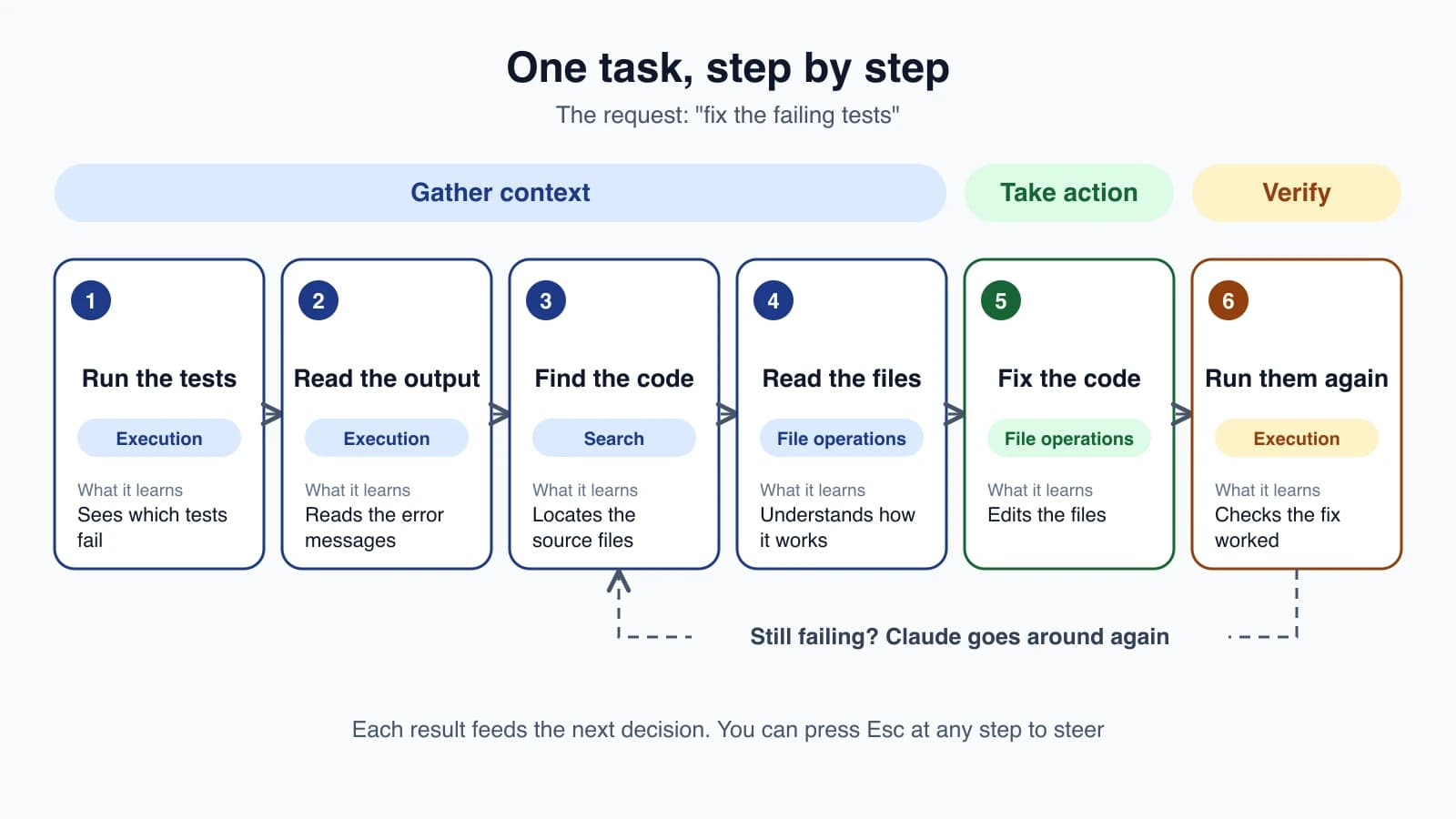
Notice that Claude did not ask you which files to open or which command to run. It ran the tests first, because that is the quickest way to learn what is broken. Each result told it what to do next. The first four steps are gathering context, step 5 is the action, and step 6 is the check. If the tests still fail, it goes around again with the new information.
This is the main idea of the lesson. Claude Code does not follow a fixed script. It decides each step from what the last step revealed.
The two parts: a model and tools
The loop is powered by two things.
The model is the AI that reasons. It reads code in any language, works out how pieces connect, and decides what to do. When people say "Claude decided to check the config file", the model made that call. Lesson 5 covered how to choose a model.
The tools are how Claude acts. Without tools, an AI can only reply with text. With tools it can read your files, edit them, run commands and search the web. Every tool result flows back to the model and shapes its next decision.
Claude Code is the layer that surrounds the model: it provides the tools and manages what the model gets to see. You will sometimes see this layer called an agentic harness.
The five kinds of tools
| Category | What Claude can do |
|---|---|
| File operations | Read files, edit code, create new files, rename and reorganize |
| Search | Find files by pattern, search inside files, explore a codebase |
| Execution | Run shell commands, start servers, run tests, use git |
| Web | Search the web, fetch documentation, look up error messages |
| Code intelligence | See type errors after edits, jump to definitions, find references (needs a code intelligence plugin) |
Claude also has tools for starting helper agents and for asking you questions. It picks tools based on your prompt and on what it learns along the way. You can add more abilities on top, and Module 4 covers skills, hooks, MCP servers and subagents.
What Claude can see
When you run claude in a folder, it gains access to:
- Your project. The files in that folder and its subfolders, and files elsewhere if you give permission.
- Your terminal. Any command you could run yourself, including build tools, git, package managers and scripts.
- Your git state. The current branch, uncommitted changes and recent commits.
- Your
CLAUDE.md. A markdown file of instructions and conventions for your project, read every session. Lesson 12 covers it. - Auto memory. Notes Claude saves for itself as it works, such as your preferences.
- Extensions you set up, such as MCP servers, skills and subagents.
This is why Claude Code can fix an authentication bug across many files, while an assistant that sees one open file cannot. It can search, read the connected files, make coordinated edits, run the tests and, if you ask, commit.
The context window
Everything Claude knows about your current task has to fit inside its context window, the amount of text it can keep in mind at one time.
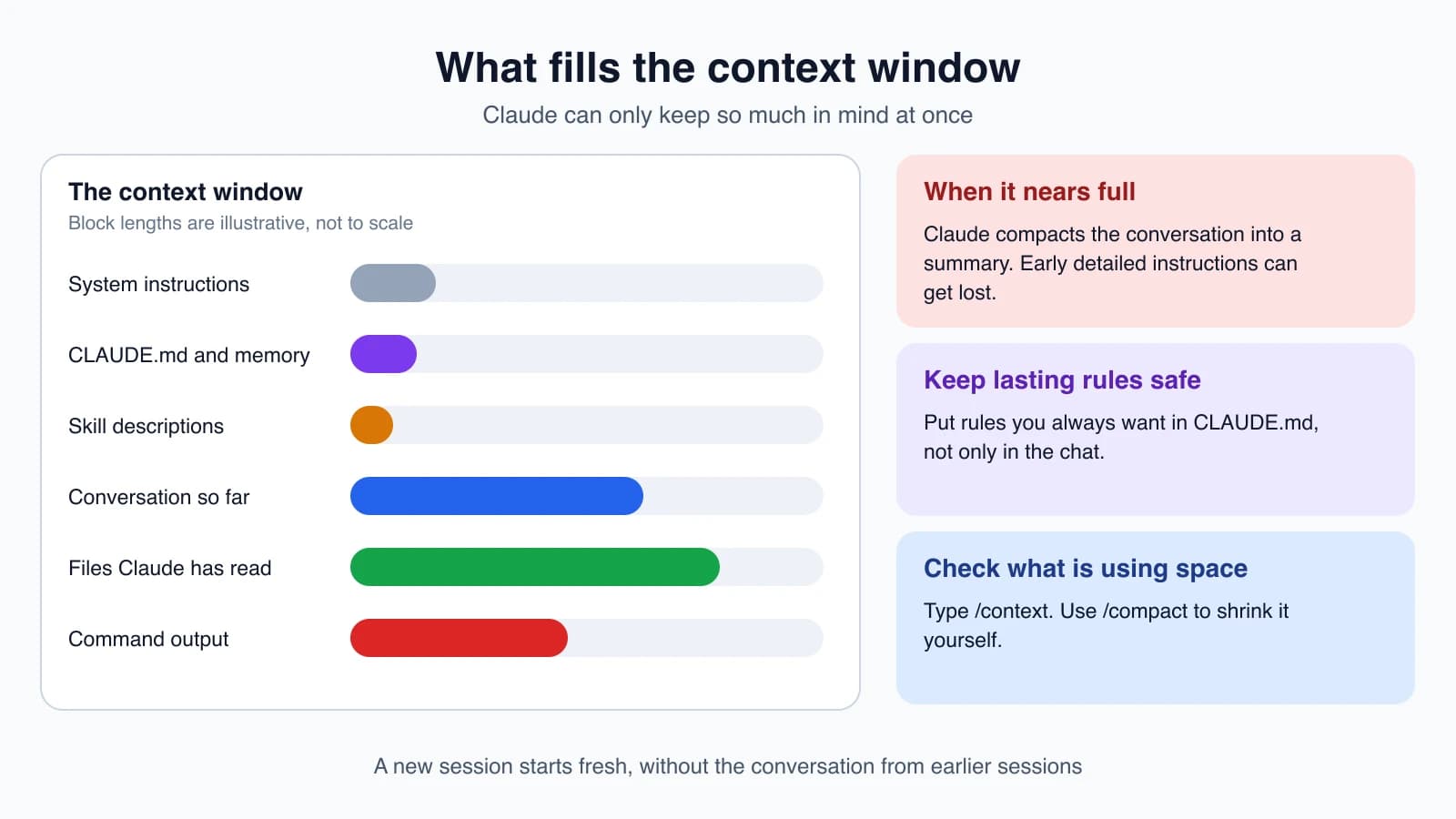
Several things use up space: the conversation, the contents of files Claude has read, the output of commands, your CLAUDE.md, auto memory, skill descriptions and Claude Code's own system instructions. As you work, the window fills.
When it gets close to full, Claude Code compacts the conversation automatically. It replaces the history with a summary that keeps your requests and the key code. The catch is that detailed instructions from early in the conversation can get lost in the summary.
That leads to two habits:
- Put rules you always want in
CLAUDE.md, not only in the chat. Files like that load fresh every session. - Check what is using space with
/context. If you want to shrink the conversation yourself,/compactdoes it, and you can tell it what matters:/compact focus on the API changes.
Sessions are independent. A new session starts with a fresh window and none of the earlier conversation. claude -c and claude -r reopen an old session so its history comes back. Lesson 9 covers context in more depth.
Staying in control
Claude works on its own, but you stay in charge in three ways.
Interrupt. Press Esc to stop Claude immediately. The running tool call is cancelled and it waits for your next instruction.
Steer without stopping. Type a correction and press Enter while Claude is still working. Your message is queued, and Claude reads it as soon as its current tool calls finish, then adjusts before its next step.
Undo. Before Claude edits a file, it saves a snapshot. If something goes wrong, press Esc twice to rewind, or ask Claude to undo it. These snapshots only cover file changes. Actions that affect other systems, such as databases, APIs or deployments, cannot be undone this way, which is why permission settings matter. Lesson 8 covers them.
Delegate, don't dictate
Because Claude figures out the steps itself, you get better results by describing the goal and the context, not the method. Compare:
1Open src/payments/checkout.ts, find the function that validates cards, and change line 42 to check the expiry date.1The checkout flow is broken for users with expired cards. The relevant code is in src/payments/. Can you investigate and fix it?The second prompt gives Claude the problem and a starting place, then trusts it to work out the details. It also leaves room to find that the real cause is somewhere else.
Mistakes beginners make
- Treating Claude like a search box. One-shot questions work, but the real strength is a goal with room to explore, test and adjust.
- Micromanaging every step. If you dictate each file and command, you lose what Claude is good at. Give the goal and the context.
- Assuming it remembers last week. Each session starts fresh. Put lasting rules in
CLAUDE.md. - Letting a very long session run forever. As the window fills, early details can get lost in the summary. Start a new session for a new task, or use
/compactwith a focus. - Waiting for a wrong answer to finish. If Claude heads the wrong way, press
Escor type a correction instead of waiting.
Quick recap
- Claude Code loops through three phases: gather context, take action and verify results, deciding each step from the last.
- A model does the reasoning and tools do the acting: file operations, search, execution, web and code intelligence.
- It can see your project, your terminal, your git state,
CLAUDE.mdand memory. - The context window is limited. Put lasting rules in
CLAUDE.md, check usage with/context, and shrink it with/compact. - You can interrupt with
Esc, steer by typing while it works, and undo file edits by rewinding.
Try it yourself
In your practice project, ask Claude to "add a footer with the current year to every page". Before you approve anything, watch what it does first. List the tools it uses in order, such as search, read and edit, and note which step belongs to which phase of the loop. Then type /context and look at what is using space.
Next lesson: plan mode, for when you want Claude to think before it acts.