
The cheapest time to fix a mistake is before any code is written. Plan mode gives you that moment. Claude Code researches your project, writes a plan, and waits for your approval before it touches your files. After this lesson you will know how to switch it on, how to read and edit a plan, what your choices are when the plan is ready, and when planning is worth the extra step.
What plan mode is
Plan mode tells Claude Code to research and propose changes without making them. In this mode Claude reads your files, explores the project, and writes a plan. It does not edit your source code. Edits stay blocked until you approve the plan.
Compare the two ways a risky task can go.
Without a plan, you ask for a big feature and Claude starts editing. Ten files later, you notice it took an approach you did not want. Now you are reviewing and undoing a lot of work.
With a plan, you ask for the same feature. Claude comes back with a short list: which files it would change, in what order, and why. You spot the wrong approach in thirty seconds and say so. Nothing has been edited yet, so correcting it costs a sentence.
When to plan and when to skip it
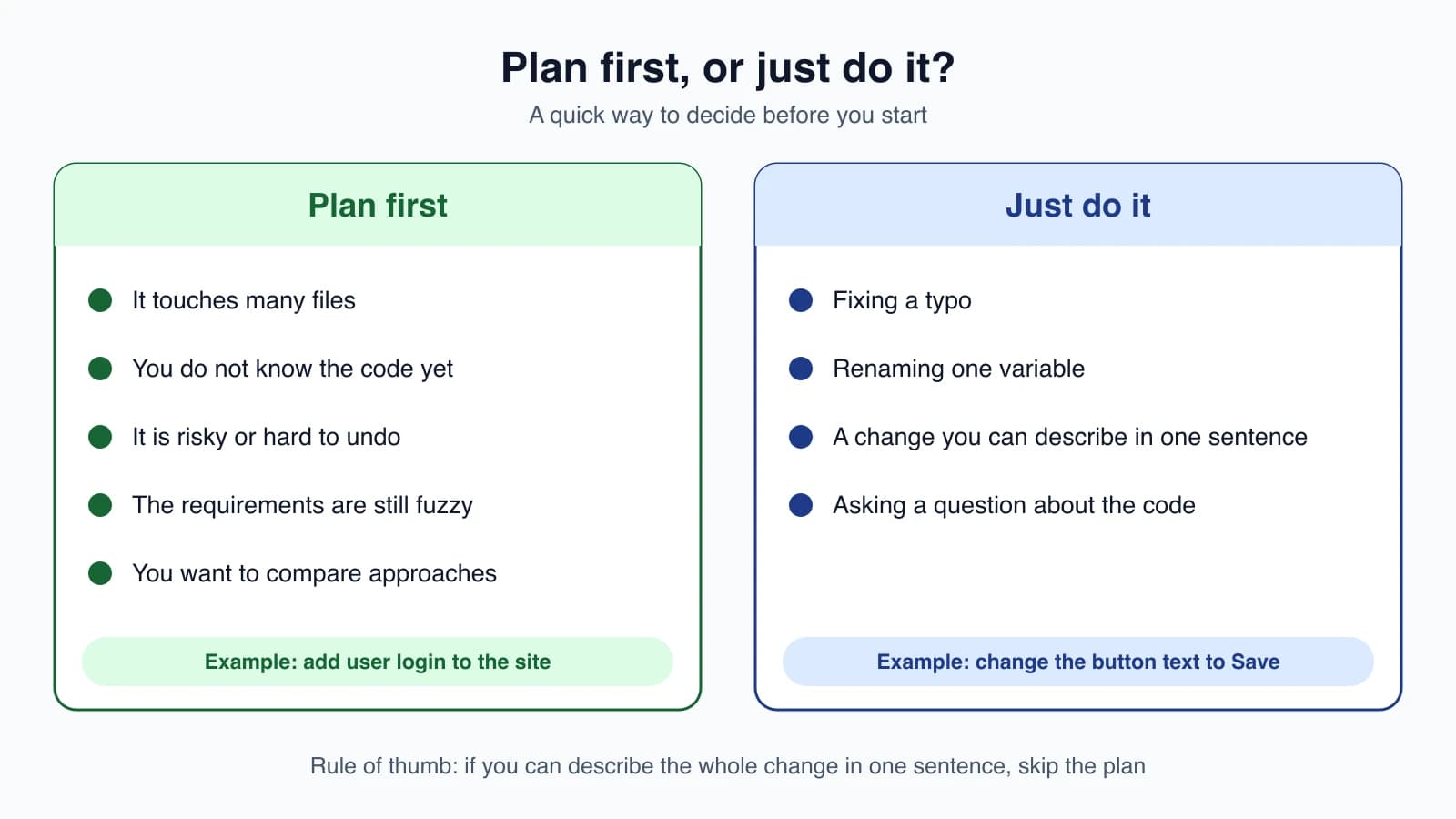
The official guidance for plan mode is that it suits exploring a codebase before changing it. In practice that points to a few clear signals.
Plan first when:
- The change touches many files.
- You are working in code you do not know yet.
- The change is risky or hard to undo.
- You are not sure what you want, or there is more than one way to do it.
Skip the plan when the task is small. Fixing a typo or renaming one variable does not need a plan, and asking for one adds a step for no gain. A good rule of thumb: if you can describe the whole change in one sentence, just ask for it. Questions about your code never need plan mode, because Claude does not edit anything when it answers them.
How to turn it on
There are four ways to enter plan mode.
Press Shift + Tab. This cycles through the permission modes. The order is Manual (shown as default), then Accept edits, then Plan. If you start in Auto mode, the first press takes you to Manual, and the cycle continues from there. Watch the mode label near the prompt so you know where you landed. Pressing Shift + Tab again leaves plan mode without approving anything.
Start a prompt with /plan. This enters plan mode and, if you add a description, begins planning that task straight away:
1/plan add a dark mode toggle to every pageLaunch Claude Code in plan mode:
1claude --permission-mode planMake it the default for a project. Add this to .claude/settings.json and every terminal session in that project starts in plan mode. Lesson 14 covers settings files.
1{
2  "permissions": {
3    "defaultMode": "plan"
4  }
5}
What happens in plan mode
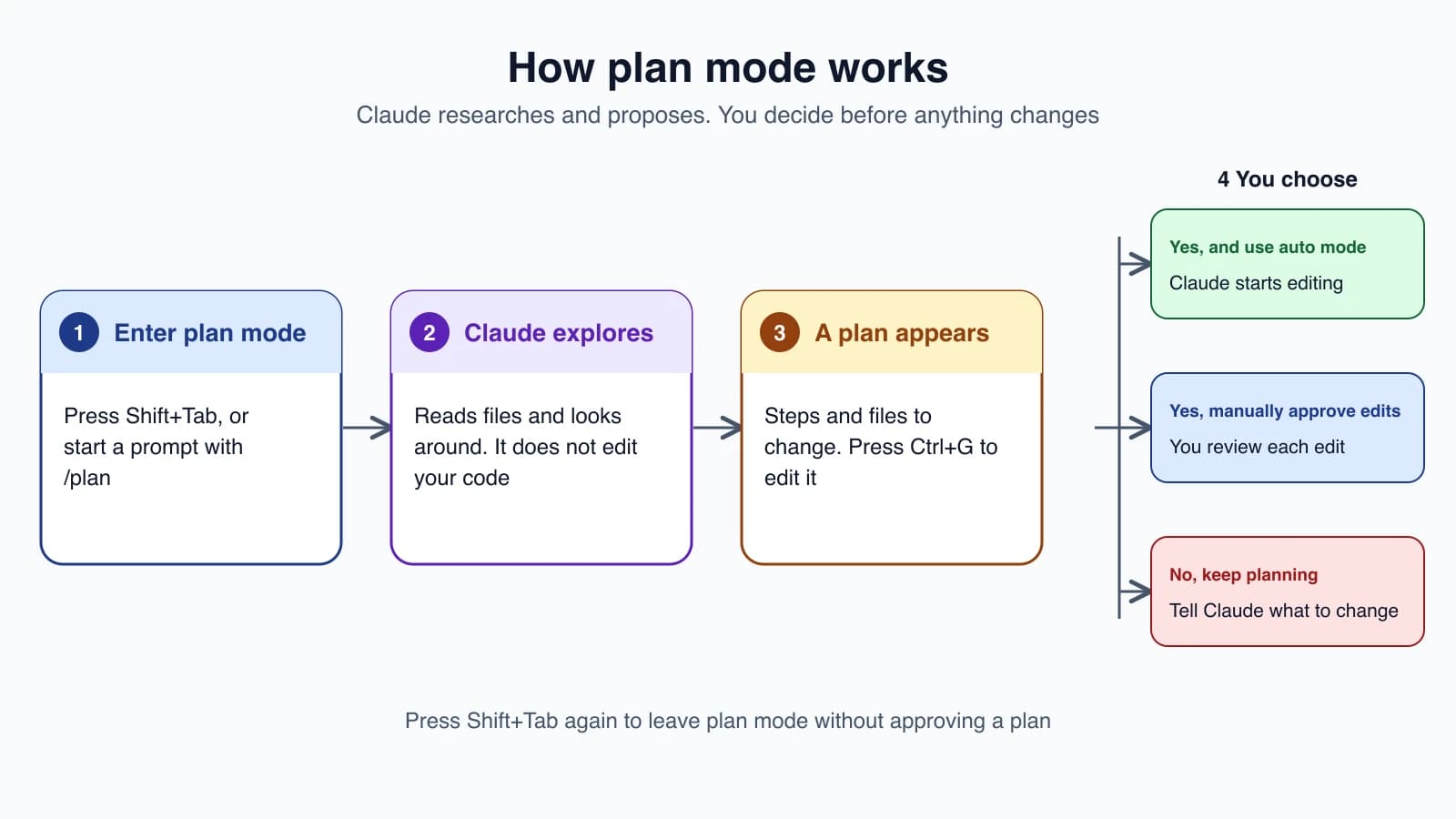
Once you give Claude a task in plan mode, it explores. It reads files and may run shell commands to look around, such as listing a folder or running a search. Depending on your setup, some commands are reviewed automatically and others ask for your approval, but nothing edits your source files.
Then it presents a plan and stops. Here is a simplified example of what you might see after asking for a second page on the practice site from lesson 3:
1Plan: add an About page
2
31. Create about.html with the same header and styles as index.html
42. Add a navigation link to about.html in index.html
53. Add a link back to the home page in about.html
64. Open both pages to check the links
7
8Files to change: index.html
9Files to create: about.html
Read it like a small proposal. Is it using the right files? Is anything missing? Is anything in it that you did not ask for?
Your choices when the plan is ready
When the plan is ready, Claude asks how to proceed. The options are worded roughly like this:
- Yes, and use auto mode. You approve the plan, and Claude starts editing in Auto mode. If Auto mode is not available to you, this option reads "Yes, auto-accept edits" instead.
- Yes, manually approve edits. You approve the plan, and Claude edits, but you review each edit one at a time.
- No, keep planning. You stay in plan mode and tell Claude what to change in the plan.
Approving a plan leaves plan mode and starts the work. A setting can also add an option that approves the plan and clears the planning context first. Lesson 9 explains why you might want that.
Change the plan before approving it
You do not have to accept the plan exactly as written. There are two ways to shape it.
Reply in your own words. Choose "No, keep planning" and write what to change: "Do not touch index.html yet. Create the new page first, then we will add the link."
Edit the plan directly. Press Ctrl + G to open the proposed plan in your default text editor. Change it, save, close, and Claude proceeds with your version. This is handy when you disagree with one step and want to fix it yourself.
To plan again after approving, press Shift + Tab until you are back in plan mode, or start your next prompt with /plan.
A habit worth building: explore, plan, then code
Plan mode fits into a simple three-step rhythm.
- Explore. Ask questions to understand the code. "How does login work in this project?"
- Plan. Switch to plan mode and ask for the change. Review and adjust the plan.
- Build. Approve the plan, let Claude edit, then run and check the result as you learned in lesson 3.
Not sure what you want yet?
Sometimes the problem is not that Claude needs a plan. It is that you have not decided what you want. Ask Claude to interview you instead:
1I want to add rate limiting to the public API but haven't thought it through yet. Interview me until you could write the spec, then write it to SPEC.md.Claude asks questions, you answer, and you end up with a written spec you can review before any code exists. Then start a fresh session and ask for the build with the spec in hand.
Pairing it with a model
Back in lesson 5 you met the opusplan model alias. It uses Opus while planning and then switches to Sonnet when carrying out the plan. That gives you the stronger reasoning where it counts most, and a faster model for the editing.
Mistakes beginners make
- Planning everything. A plan for a one-line fix is a wasted step. Save it for changes that touch many files, or that you are unsure about.
- Approving without reading. A plan is only useful if you check it. Look at which files it names and whether any step surprises you.
- Starting over instead of editing. If most of the plan is right, ask for the one change you want or press
Ctrl + G. You do not need to throw it away. - Forgetting which mode you are in. If Claude is not editing when you expected it to, check whether you are still in plan mode. Press
Shift + Tabto cycle. - Treating the plan as a guarantee. It is a proposal based on what Claude has read so far. Claude can learn something new while building and adjust, so keep checking the result.
Quick recap
- Plan mode makes Claude research and propose a plan without editing your code.
- Enter it with
Shift + Tab,/plan, orclaude --permission-mode plan. - At the end you choose to approve and let Claude edit, approve and review each edit, or keep planning.
- Press
Ctrl + Gto edit a plan yourself before approving it. - Plan for big, risky or unclear changes. Skip it for small ones.
Try it yourself
In your claude-practice folder, type /plan add a contact page with a form that has a name field and an email field. Read the plan Claude produces. Press Ctrl + G and change one step, such as adding a "Send" button, then save and close. Choose "Yes, manually approve edits" and review each edit as it comes. Open the page in your browser to confirm the form is there.
Next lesson: permission modes, and how to control what Claude can do without asking.