
In this lesson you will run a full session from start to finish. You will ask Claude Code a question, let it change a file, check the result yourself, ask for an improvement, and come back to the same conversation later. You will also learn how to write prompts that get the result you wanted on the first try.
Claude Code needs to be installed and signed in. If it is not yet, do lesson 2 first. You do not need an existing project, because we will create a tiny practice one.
The plan
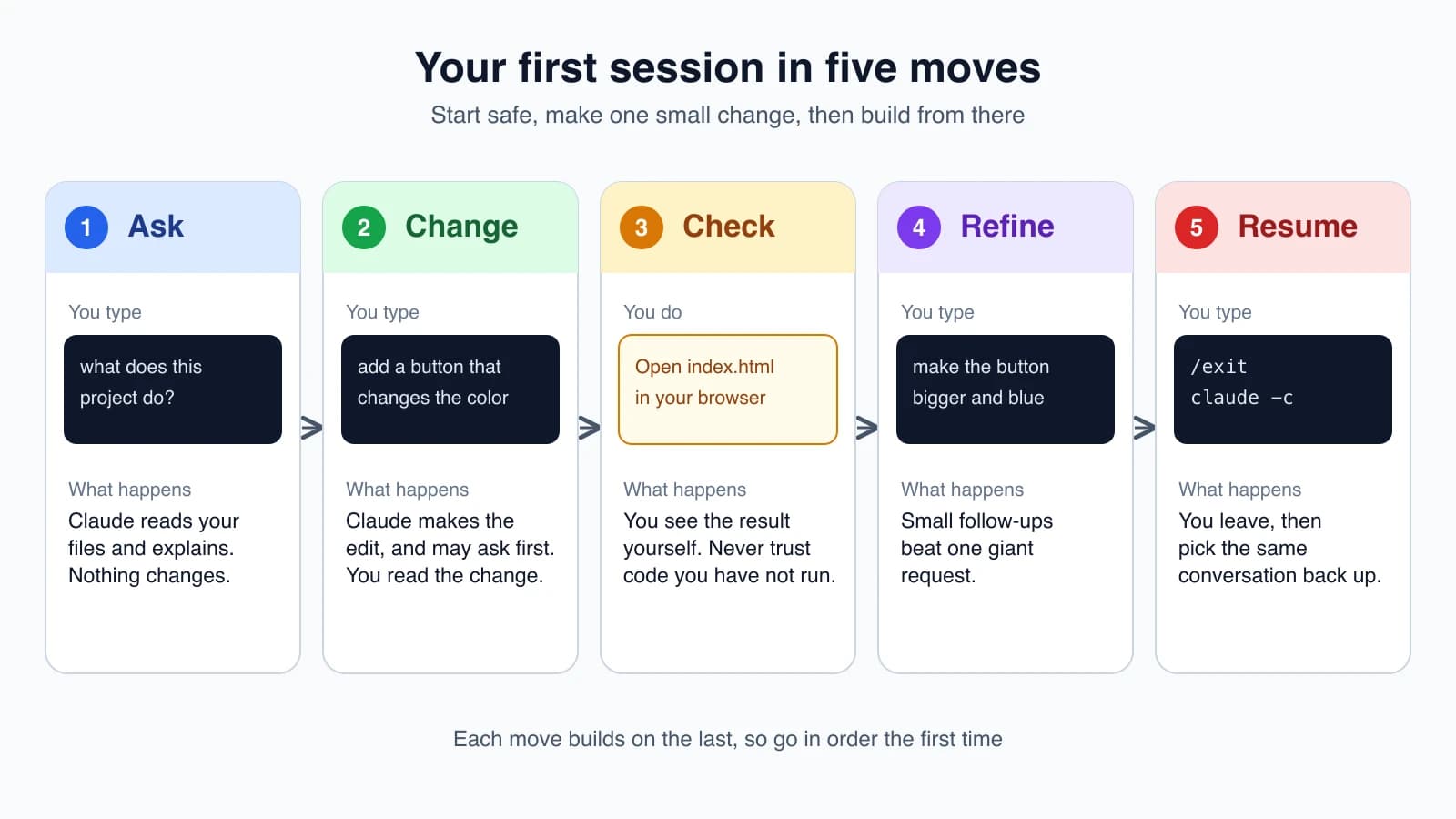
Each move teaches one habit. Asking first lets you see how Claude Code reads your project without any risk. Changing and checking teach you the review-and-verify rhythm you will use for the rest of the course.
Set up a practice folder
Open your terminal and create an empty folder to practice in. These commands work in macOS, Linux, PowerShell and CMD:
1mkdir claude-practice
2cd claude-practice
3claude
mkdir makes a new folder, cd moves into it, and claude starts a session there. Claude Code works inside the folder you start it in, so everything it creates lands in claude-practice. If you already have a small project you like, start Claude Code in that folder instead.
When the session starts you will see a prompt where you type, with the version, the current model and your working folder shown above it.
Move 1: Ask
The folder is empty, so give Claude Code something to look at first. Type this and press Enter:
1make me a simple webpage that says hello worldClaude Code will say what it plans to do, then create a file, usually called index.html. Whether it asks first depends on your permission mode. In Manual mode it shows a permission prompt before it creates or changes a file. Read what it is about to do, then choose Yes to approve it. Newer versions of Claude Code may start in Auto mode instead, where a safety check runs in the background and blocks risky actions without asking you each time. In that case the file simply appears. Either way, everything Claude does is listed in the conversation, so read it.
Now try a pure question, which changes nothing:
1what does this project do?Claude reads the file it just made and explains it in plain language. Questions like this are the safest way to get comfortable. On a real project, they are also the fastest way to understand code you did not write. Good ones to try later:
1what technologies does this project use?1where is the main entry point?1explain the folder structureYou do not need to point Claude at specific files. It reads what it needs.
Move 2: Change
Now ask for a change:
1add a button that changes the background color when I click itClaude Code finds the right file and makes the edit. Depending on your permission mode, it either asks you first or edits and then tells you what it changed. Read the change, even if you do not know the language yet. You are checking two things: is it touching the file you expected, and does the change look like what you asked for. If it asks, approve it when it looks right. If it already made the edit, tell Claude what to fix if it does not.
You can change how often Claude Code asks by pressing Shift + Tab, which cycles through the permission modes. For now, leave it as it is. Lesson 8 explains each mode and when to use it.
Move 3: Check
This is the step beginners skip. Do not skip it.
Open the folder in your file browser and double-click index.html. It opens in your web browser. Click the button. Does the color change?
If yes, great. If not, tell Claude Code exactly what you saw:
1the button appears but nothing happens when I click itTelling Claude what you observed, not what you assume is wrong, gives it something concrete to investigate. Claude Code writes plausible code, and sometimes plausible is not correct. Running the result is how you find out.
Move 4: Refine
Now improve what you have, one small step at a time:
1make the button bigger and blueThen another:
1add a heading above the button that says "Color Changer"Small follow-ups work better than one giant request. Each one is easy for Claude to get right, easy for you to check, and easy to undo if it goes wrong. The conversation remembers what came before, so you can say "make it bigger" without repeating which button you mean.
Write specific prompts
The quality of your prompt decides the quality of the result. Compare these two requests:
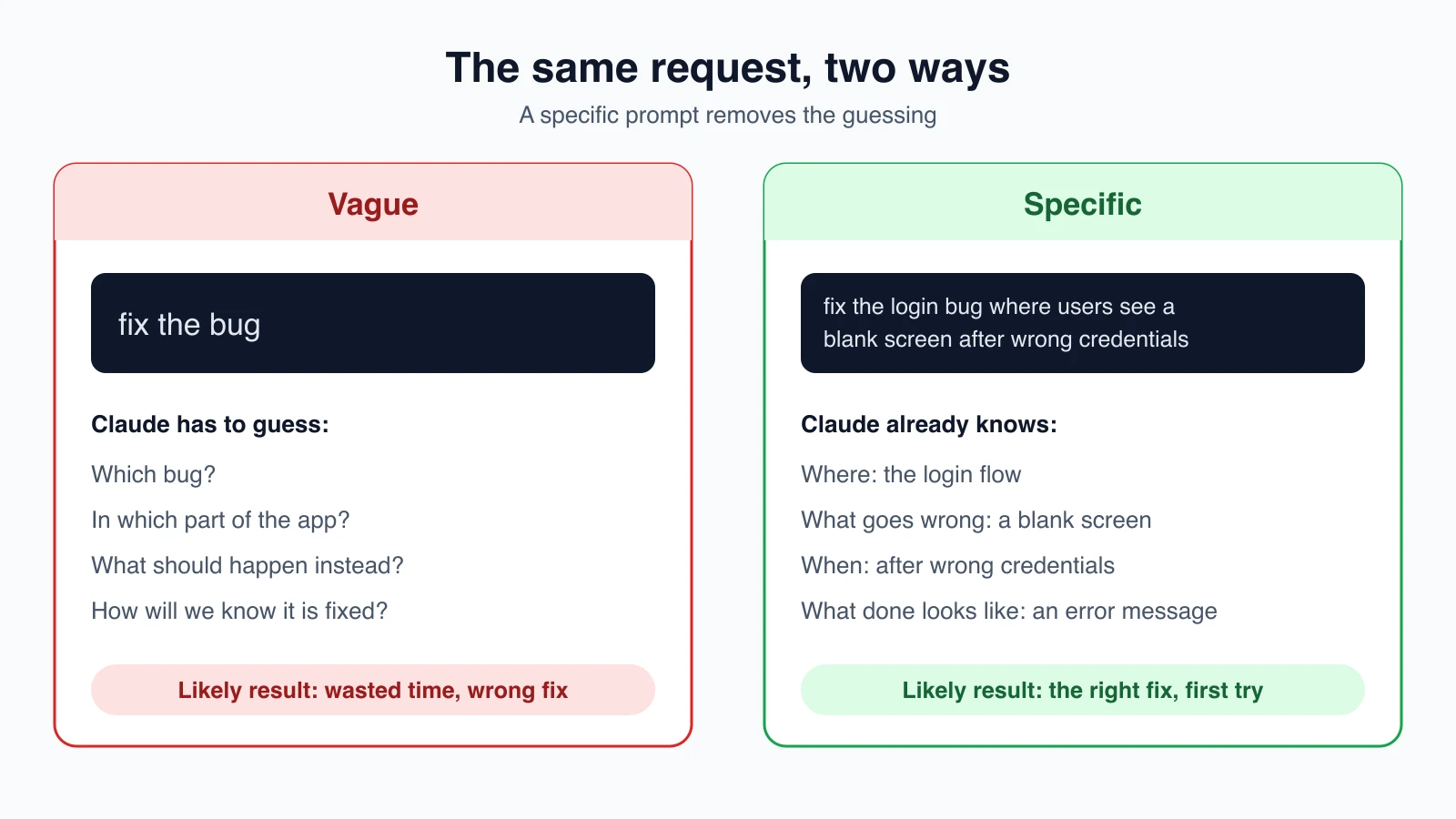
A good prompt usually answers four questions: where, what goes wrong or what you want, when it happens, and what the finished result looks like. You do not need all four every time, but each one you include removes a guess.
For bigger jobs, number the steps:
11. create a new database table for user profiles
22. create an API endpoint to get and update user profiles
33. build a webpage that allows users to see and edit their information
And let Claude look before it changes anything. A prompt like "analyze the database schema" first, followed by the request, usually beats jumping straight to the change.
If you made a mistake
On a real project that uses Git, you have a safety net. git diff shows exactly what changed since your last commit, and git restore filename throws away the changes to one file. You can also just ask Claude Code, as in "what files have I changed?" or "commit my changes with a descriptive message". Later lessons cover Git workflows and rewinding a session in depth.
Move 5: Exit and resume
Leave the session by typing /exit, or by pressing Ctrl + D twice on an empty prompt.
To come back later, run Claude Code in the same folder with one of these:
1claude -cThis continues the most recent conversation in the current folder. If you want to choose from earlier conversations, use:
1claude -rInside a running session, /resume does the same job. Resuming keeps the history, so Claude Code still knows what you built.
Commands worth knowing
You met most of these already. Keep this list nearby.
| Command | What it does |
|---|---|
claude | Start a new session in this folder |
claude "task" | Start a session with a first prompt already typed |
claude -p "question" | Ask one question, print the answer, and exit |
claude -c | Continue the latest conversation in this folder |
claude -r | Choose an earlier conversation to resume |
/help | Show the commands available inside a session |
/clear | Wipe the conversation and start fresh |
/exit | Leave Claude Code |
Esc | Interrupt Claude while it is working |
Shift + Tab | Cycle the permission mode |
Typing / alone shows the commands and skills you can use, Tab completes them, and the up arrow brings back earlier prompts.
Mistakes beginners make
- Approving without reading. A permission prompt only helps if you look at it, so read the file name and the change. If your mode does not ask, read what Claude changed afterward.
- Never running the result. Claude Code can produce code that reads well and fails. Open the page, run the program, click the button.
- Asking for everything at once. A request with ten parts is hard to check. Do one part, verify it, then continue.
- Describing the fix instead of the problem. If you are not sure what is wrong, say what you see: "clicking Save does nothing". Let Claude find the cause.
- Starting in the wrong folder. Claude works within the folder you launch it from. If it cannot find your files, check where you are.
Quick recap
- A first session follows five moves: ask, change, check, refine and resume.
- Depending on its permission mode, Claude Code may ask before it edits files. Read any prompt before you approve, and review the changes either way.
- Always run the result yourself. Do not trust code you have not tried.
- Specific prompts work better than vague ones. Say where, what, when and what done looks like.
- Use
claude -cto continue your last conversation and/exitto leave.
Try it yourself
In your claude-practice folder, ask Claude Code to add a second page with a link back to the first one. For each edit, say out loud which file it changed and why. Open both pages in your browser and click through. Then exit, run claude -c, and ask "what pages does this site have?" to confirm it remembered.
Next lesson: the Claude Code terminal interface and the shortcuts that save you time.