
By the end of this lesson you will know what Claude Code is, what it can do for you, where you can run it, and whether it fits the way you work. You do not need to install anything yet. Lesson 2 covers installation.
What Claude Code is
Claude Code is an AI coding assistant made by Anthropic. You describe a job in plain English, and it does the work inside your project: it reads your files, changes code, runs commands, and checks whether the result works.
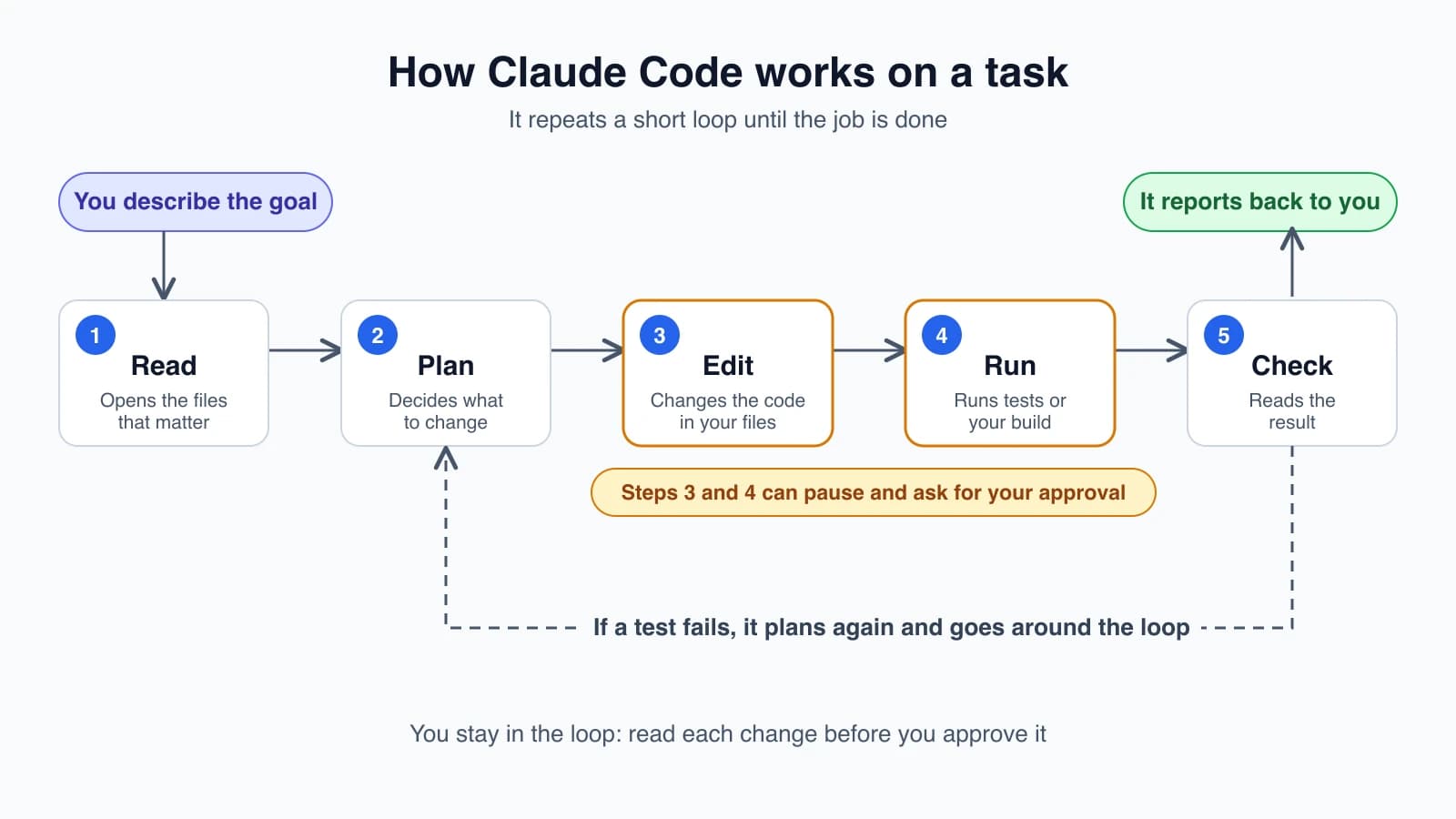
The word to notice is agentic. An agentic tool does not just answer a question and stop. It takes steps toward a goal, looks at what happened, and decides what to do next. If you ask Claude Code to fix a failing test, it can open the test, find the code it covers, change that code, run the test again, and report back. You watch each step and approve the ones that matter.
A few terms used throughout this course:
- Codebase is all the files that make up your project.
- Terminal is the text window where you type commands instead of clicking buttons. On a Mac it is the Terminal app, on Windows it is PowerShell or CMD.
- Command is one instruction you type into the terminal, such as
lsto list files. - Prompt is the message you write to the AI.
- Session is one continuous conversation with Claude Code.
A short example
Say you have a small website and a button that does nothing when clicked. You open your terminal in the project folder, start Claude Code, and type:
1The "Subscribe" button on the homepage does nothing when I click it. Find out why and fix it.Here is the kind of thing that happens next. This transcript is simplified to show the idea:
1> I'll start by finding where the Subscribe button is defined.
2  Searched for "Subscribe" across 14 files
3  Read components/SubscribeButton.tsx
4
5> The button has no onClick handler, so clicking it does nothing.
6  I'd like to edit components/SubscribeButton.tsx. Allow? (yes / no)
You read the proposed change and answer. If you say yes, Claude Code makes the edit and can run your project's tests to confirm nothing else broke. You stay in control the whole time, because Claude Code asks before it changes files or runs commands that need your approval.
What you can use it for
People use Claude Code for tasks like these:
- Building a new feature from a plain-language description
- Finding the cause of a bug from an error message
- Writing tests for code that has none
- Explaining a codebase you have just joined ("how does login work here?")
- Renaming something across dozens of files
- Writing commit messages and opening pull requests (a pull request is a proposal to merge your changes into the main project)
- Updating dependencies, fixing lint errors, and other chores
It works best when you give it a clear goal and let it look around, instead of pasting snippets and hoping for the best.
How it differs from other AI tools
You may already use a chat tool or an editor with AI suggestions. Claude Code overlaps with both, but the working style is different.
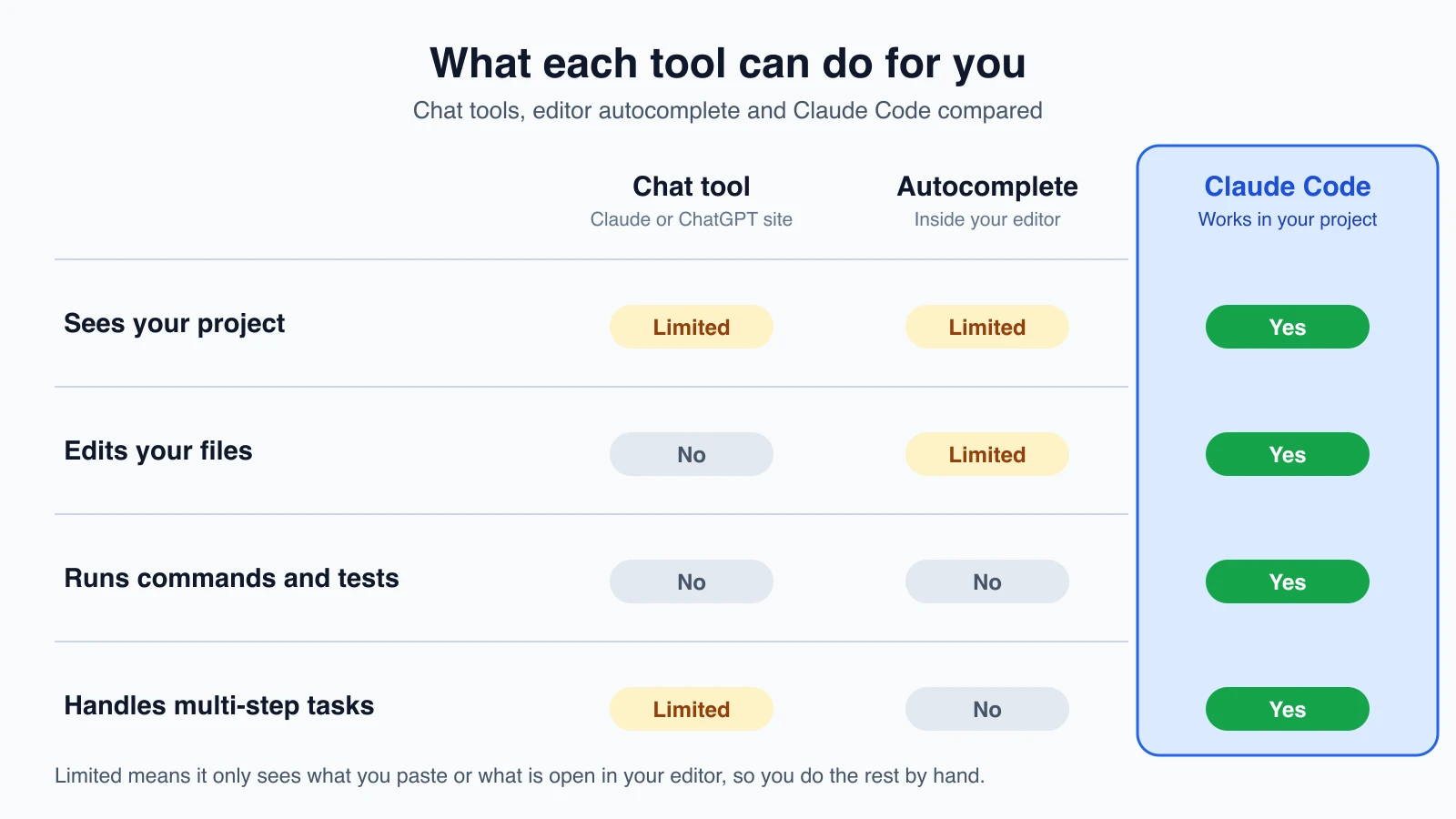
A chat tool such as the Claude or ChatGPT website only sees what you paste in. You copy code over, read the answer, and copy it back into your editor yourself. It cannot run your tests, so it cannot know whether its suggestion works.
An editor assistant, like the autocomplete in many code editors, suggests the next few lines while you type. That helps with small, local edits. It generally does not plan a change across ten files or run your build to check the outcome.
Claude Code sits closer to a teammate who has access to your project. It can read the files it needs, make coordinated changes in several places, run commands, and look at the results before it tells you it is done.
Many developers use more than one of these. They are not exclusive.
Where you can run it
Claude Code runs on several surfaces, which are the different places you can open it. They share the same engine, so your project instructions and settings follow you between them.
- The terminal, which is the full-featured command-line version
- VS Code and JetBrains editors, through an extension or plugin
- The Claude desktop app, in its Code tab, which shows changes visually
- The web at claude.ai/code, which needs no local setup
If you have never used a terminal, start with the desktop app or the web version. The terminal version is what most of this course shows, because it has the most features, and every lesson explains what to type.
What it can't do for you
Claude Code can make mistakes. It may misunderstand your request, write code that looks right and is not, or miss a detail of your project it never read. Treat its work the way you would treat a pull request from a new teammate: read it, run it, and test it before you rely on it. Later lessons cover permission modes, plan mode and review habits that make this easy.
It also needs access. Most surfaces need a Claude subscription or an Anthropic Console account, and the first time you start it you will be asked to sign in. Lesson 2 walks through this.
Mistakes beginners make
- Giving a vague goal. "Make the app better" leaves Claude Code guessing. "Add a loading spinner to the checkout button while the payment request is running" gives it something to act on.
- Approving everything without reading. The approval prompts exist so you can catch a wrong turn early. Read the change before you say yes.
- Expecting it to remember everything. Each session starts fresh unless you give it lasting instructions. Lesson 12 shows how a
CLAUDE.mdfile solves this. - Starting in the wrong folder. Claude Code works within the folder you open it in. Start it inside your project, not in your home directory.
Quick recap
- Claude Code is an agentic coding tool. It reads your project, edits files, and runs commands to reach a goal you describe.
- It asks for your approval before it makes changes that need it.
- Chat tools work from pasted snippets, and editor autocomplete suggests lines. Claude Code handles multi-step tasks across a whole project.
- It runs in the terminal, in VS Code and JetBrains, in the desktop app, and on the web.
- Review everything it produces, as you would for any teammate's work.
Try it yourself
Before the next lesson, pick a small project you know well, or create an empty folder. Write down three tasks you would like help with, such as "explain what this project does" or "add a test for the login function". You will use them in lesson 3, your first session.
Next lesson: installing Claude Code and signing in.