
Until now you have used Claude Code as a conversation. This lesson shows you another way: running it as a command that takes an input, does a job and prints a result, with nobody sitting at the keyboard. That is how you put Claude Code inside scripts, build pipelines and automated checks. After this lesson you will know how to run it that way, how to read its output in a script, how to control what it may do when no one can approve anything, and where the Agent SDK fits.
This is the second lesson of Module 5.
Non-interactive mode
Add the -p flag (short for --print) to any claude command and it runs non-interactively. It reads your prompt, does the work, prints the answer and exits, like any other command-line tool.
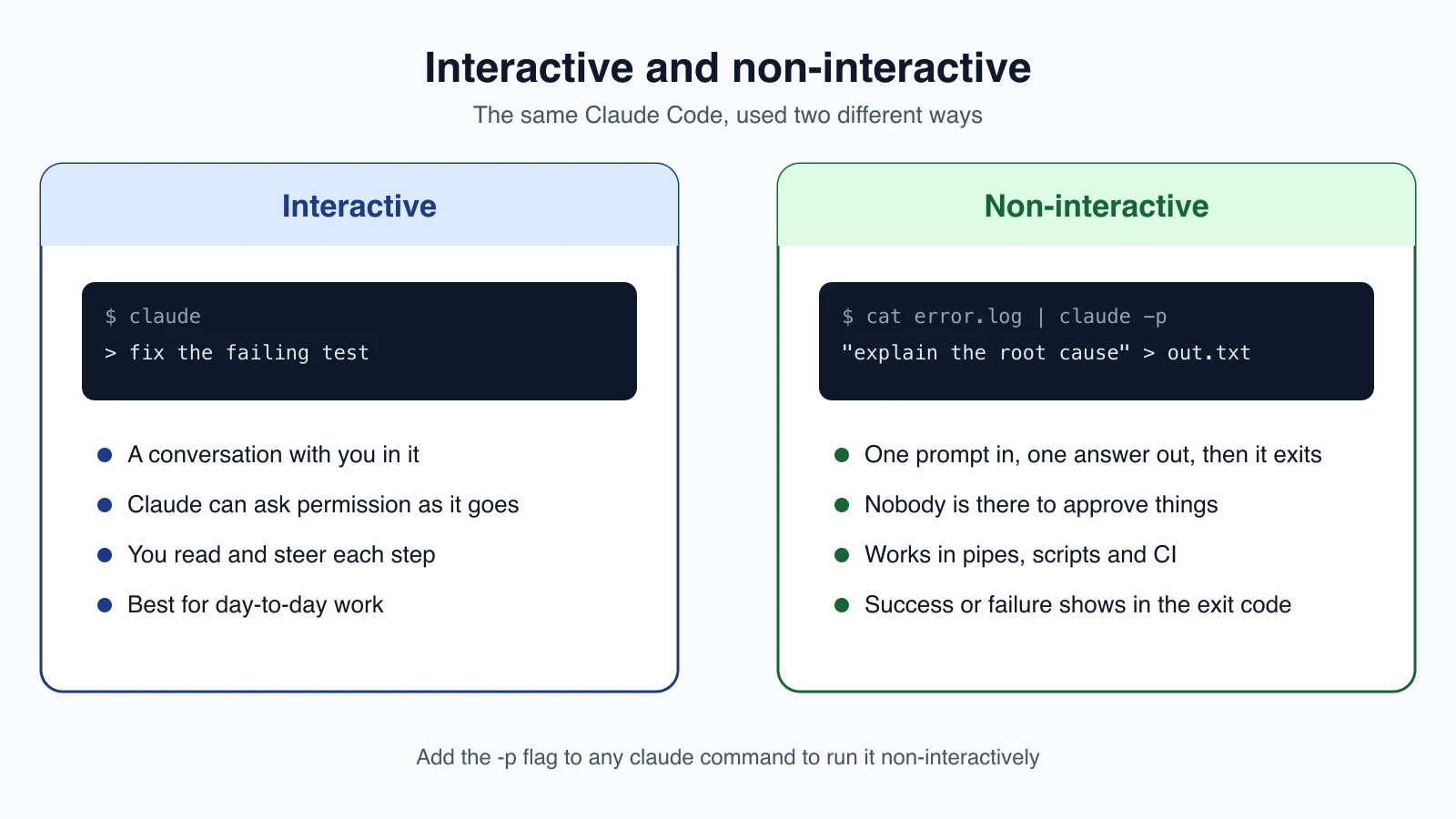
1claude -p "What does the auth module do?"Claude Code exits with code 0 when the run succeeds and a non-zero code when it fails, so a script can branch on the result. An exit code is the number a program returns to say whether it worked. This is sometimes called headless mode, because there is no screen and no person.
You can combine -p with other options. Here Claude fixes a bug and is allowed to read and edit files and run commands:
1claude -p "Find and fix the bug in auth.py" --allowedTools "Read,Edit,Bash"Pipe data in
Non-interactive mode reads standard input, so you can pipe the output of another command into Claude and redirect its answer anywhere. This example explains a build error and saves the answer to a file:
1cat build-error.txt | claude -p 'concisely explain the root cause of this build error' > output.txtAnother example summarizes recent history:
1git log --oneline -20 | claude -p "summarize these recent commits"Piped input is capped at 10MB. For something larger, write it to a file and mention the file's path in your prompt.
Use Claude as a checker
You can wrap a call in a script to make Claude a project-specific reviewer. This package.json script pipes the changes against main into Claude and asks it to report typos:
1{
2  "scripts": {
3    "lint:claude": "git diff main | claude -p \"you are a typo linter. for each typo in this diff, report filename:line on one line and the issue on the next. return nothing else.\""
4  }
5}
Run it with npm run lint:claude. Piping the diff means Claude does not need permission to run a command to read it.
Choose the output format
By default the answer is plain text. The --output-format flag changes that:
text, the default, is plain text.jsonreturns one JSON object with the result, the session ID and other details.stream-jsonsends one JSON object per line as events happen, for live streaming.
1claude -p "Summarize this project" --output-format jsonThe text of the answer is in the result field. A tool like jq pulls fields out:
1claude -p "Summarize this project" --output-format json | jq -r '.result'The JSON also reports total_cost_usd, an estimate of what the run cost. It is calculated on your side and can differ from your real bill.
Ask for a specific shape
When a script needs data it can rely on, use --json-schema with a JSON Schema, a description of the exact structure you want. This example asks for function names as a list of strings:
1claude -p "Extract the main function names from auth.py" \
2  --output-format json \
3  --json-schema '{"type":"object","properties":{"functions":{"type":"array","items":{"type":"string"}}},"required":["functions"]}' \
4  | jq '.structured_output'
The matching data arrives in the structured_output field. If a run ends without valid output, for example because Claude declined the request, that field is missing, so check that it exists before your script uses it.
Stream tokens as they arrive
To see text as it is generated, combine stream-json with two more flags:
1claude -p "Explain recursion" --output-format stream-json --verbose --include-partial-messagesThe last line of the stream is a result message with the final text, cost and session details.
What a headless run may do
In an interactive session, Claude can stop and ask you before it edits a file or runs a command. In a non-interactive run, nobody is there to answer, so you decide in advance.
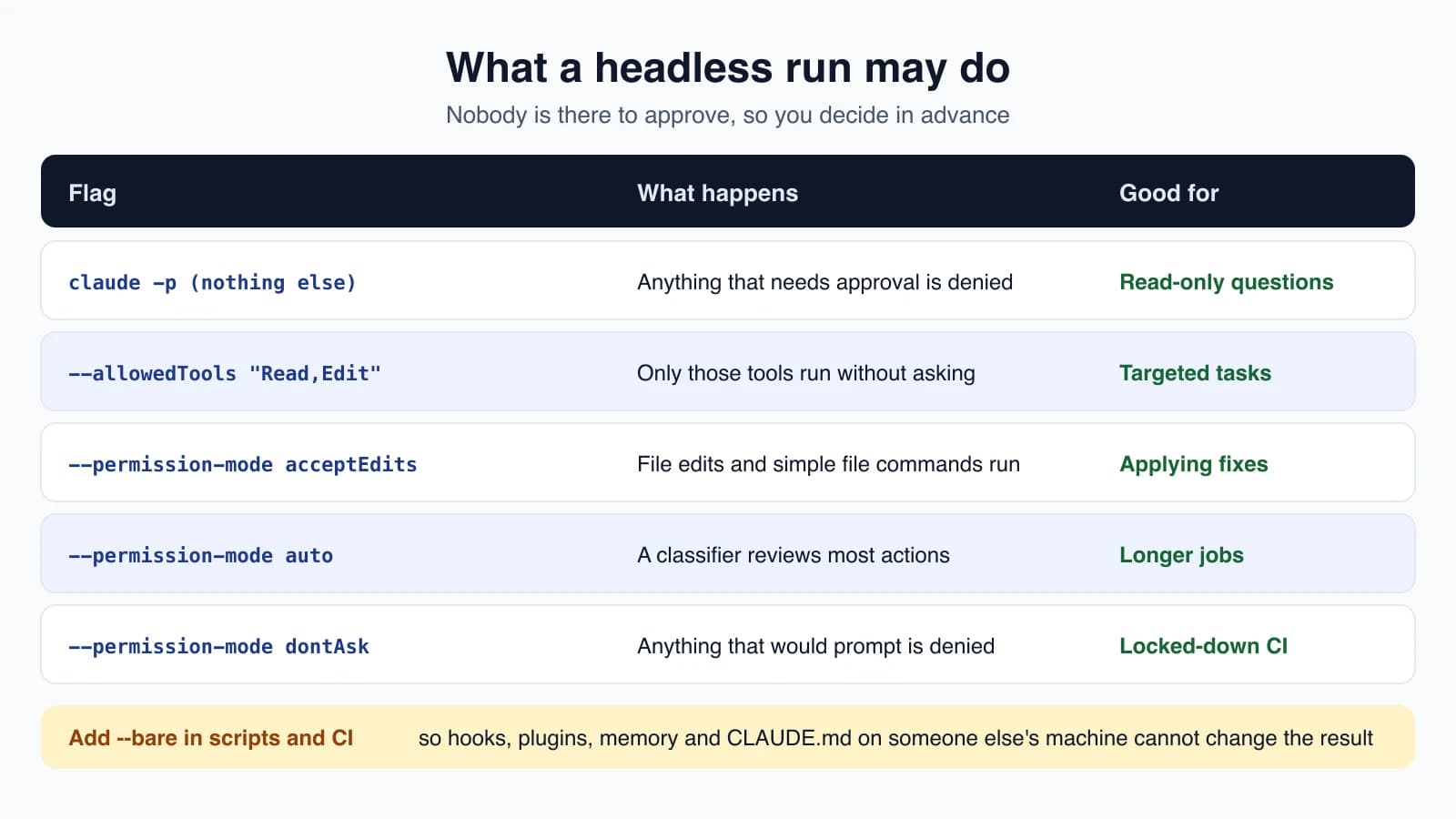
- By default, anything that needs approval is denied. In Claude Code 2.1.302 and later, a
claude -prun starts in Manual mode when nothing sets a permission mode. --allowedToolslets specific tools run without asking, using the permission rule syntax from lesson 8.--allowedTools "Read,Edit"lets Claude read and edit files freely.--permission-modesets a baseline for the whole run.acceptEditslets Claude write files and run simple file commands such asmkdirandmv.autohas a classifier review most actions.dontAskdenies anything that would prompt, which suits locked-down automation.
1claude -p "Apply the lint fixes" --permission-mode acceptEditsAllow only certain commands
You can allow a command by its start. This example reviews staged changes and creates a commit, but only lets Claude run four kinds of Git command:
1claude -p "Look at my staged changes and create an appropriate commit" \
2  --allowedTools "Bash(git diff *),Bash(git log *),Bash(git status *),Bash(git commit *)"
The trailing space and * make it a prefix match, so Bash(git diff *) allows any command that begins with git diff. The space before the star matters. Without it, Bash(git diff*) would also match git diff-index.
Unattended runs
For a scheduled job where no person can ever answer a prompt, add --permission-prompts none. Anything that would have asked is denied, Claude is told that nobody can approve it and not to retry, and the run carries on:
1claude -p "Update the dependency pins and run the tests" --permission-mode auto --permission-prompts noneWith JSON streaming, denials appear as permission_denied messages, and the final result lists them in permission_denials. This flag needs Claude Code 2.1.259 or later.
Run it the same way everywhere: --bare
A normal claude -p run loads everything an interactive session would: hooks, skills, plugins, MCP servers, auto memory and CLAUDE.md. On your own computer that is helpful. On a build server it can make results differ from one machine to another.
Add --bare for a clean, repeatable start:
1claude --bare -p "Summarize README.md" --allowedTools "Read"In bare mode, Claude Code skips hooks, skills, custom commands, subagents, plugins, MCP servers, auto memory and CLAUDE.md, and it never reads your login or keychain. It uses ANTHROPIC_API_KEY, a key from the Anthropic Console, so set that first. Claude keeps its Bash, file read and file edit tools. If you need extra context, pass it with a flag, such as --append-system-prompt, --settings, --mcp-config, --agents or --plugin-dir.
--bare is the recommended mode for scripted calls, and it is expected to become the default for -p in a future release.
A safety note
Without --bare, a -p run uses the hooks in a project's .claude/settings.json and connects the servers in its .mcp.json, even in a folder you have never trusted. It shows no trust dialog and no approval prompt. That matters in a repository someone else wrote, because those files can run commands. Use --bare in automation, and run -p without it only in projects you trust.
Add instructions and continue a conversation
To add to Claude's instructions without replacing its defaults, use --append-system-prompt. This script, saved as review.sh, reviews a pull request for security problems:
1gh pr diff "$1" | claude -p \
2  --append-system-prompt "You are a security engineer. Review for vulnerabilities." \
3  --output-format json
"$1" stands for the first value you type after the script name, so bash review.sh 123 reviews pull request 123.
To keep a conversation going across several runs, use --continue for the most recent one:
1claude -p "Review this codebase for performance issues"
2claude -p "Now focus on the database queries" --continue
3claude -p "Generate a summary of all issues found" --continue
When you run several conversations, capture the session ID and use --resume:
1session_id=$(claude -p "Start a review" --output-format json | jq -r '.session_id')
2claude -p "Continue that review" --resume "$session_id"
Skills and commands in -p mode
Skills and custom commands work. Put /skill-name in the prompt and Claude Code expands it before running. Commands that only make sense in the interactive screen, such as /login, are not available. A few take a value as an argument, such as /model sonnet, and /config key=value changes a setting.
Stopping a run
If you stop a claude -p run with SIGTERM, for example with kill, Claude Code exits with code 143 and leaves the turn in progress unfinished. To end the turn cleanly, send SIGINT instead.
From the command line to the Agent SDK
The Agent SDK is Claude Code as a library. It gives you the same tools, agent loop and context management that power Claude Code, programmable from Python and TypeScript. Both packages bundle a native Claude Code binary, so most installs need nothing else.
Stay with claude -p when a script or pipeline just needs to run Claude and read the output. Move to the SDK when you are building your own application and need things such as structured message objects, callbacks that approve each tool call, or your own sessions and hooks in code.
| You want | Use |
|---|---|
| A quick answer in a script or pipeline | claude -p |
| Data your script can parse reliably | --output-format json with --json-schema |
| The same result on every machine | --bare |
| Your own app with callbacks and live messages | The Python or TypeScript Agent SDK |
| Anthropic to host the agent for you | Managed Agents, a separate hosted product |
| Direct control of every API call and tool loop | The Claude Client SDK |
Your first agent in a few minutes
The official quickstart builds an agent that finds and fixes bugs in a file. You need Node.js 18.14 or later, or Python 3.10 or later, plus an API key from the Claude Console.
1. Make a folder and install the SDK. For TypeScript:
1mkdir my-agent && cd my-agent
2npm init -y
3npm pkg set type=module
4npm install @anthropic-ai/claude-agent-sdk
5npm install --save-dev tsx
Or for Python, with a virtual environment:
1python3 -m venv .venv
2source .venv/bin/activate
3pip install claude-agent-sdk
2. Set your API key in the shell where you will run the agent:
1export ANTHROPIC_API_KEY=your-api-keyThe SDK reads the key from the environment and does not load .env files for you. Never put the key in the code. It can also sign in through Amazon Bedrock, Google Cloud's Agent Platform or Microsoft Foundry by setting the matching CLAUDE_CODE_USE_... variable.
3. Create a file with two deliberate bugs, utils.py:
1def calculate_average(numbers):
2    total = 0
3    for num in numbers:
4        total += num
5    return total / len(numbers)
6
7
8def get_user_name(user):
9    return user["name"].upper()
An empty list crashes the first function with a division by zero, and None crashes the second.
4. Write the agent. In Python, agent.py:
1import asyncio
2from claude_agent_sdk import query, ClaudeAgentOptions, AssistantMessage, ResultMessage
3
4
5async def main():
6    async for message in query(
7        prompt="Review utils.py for bugs that would cause crashes. Fix any issues you find.",
8        options=ClaudeAgentOptions(
9            allowed_tools=["Read", "Edit", "Glob"],
10            permission_mode="acceptEdits",
11        ),
12    ):
13        if isinstance(message, AssistantMessage):
14            for block in message.content:
15                if hasattr(block, "text"):
16                    print(block.text)
17                elif hasattr(block, "name"):
18                    print(f"Tool: {block.name}")
19        elif isinstance(message, ResultMessage):
20            print(f"Done: {message.subtype}")
21
22
23asyncio.run(main())
The TypeScript version, agent.ts, does the same thing:
1import { query } from "@anthropic-ai/claude-agent-sdk";
2
3for await (const message of query({
4  prompt: "Review utils.py for bugs that would cause crashes. Fix any issues you find.",
5  options: {
6    allowedTools: ["Read", "Edit", "Glob"],
7    permissionMode: "acceptEdits"
8  }
9})) {
10  if (message.type === "assistant" && message.message?.content) {
11    for (const block of message.message.content) {
12      if ("text" in block) {
13        console.log(block.text);
14      } else if ("name" in block) {
15        console.log(`Tool: ${block.name}`);
16      }
17    }
18  } else if (message.type === "result") {
19    console.log(`Done: ${message.subtype}`);
20  }
21}
5. Run it. Use python agent.py or npx tsx agent.ts. The agent prints what it is thinking and each tool it calls, and ends with Done: success. Open utils.py afterward and you will find the two crashes handled.
What those few lines do
queryis the entry point. It starts the same agent loop you met in lesson 6 and returns a stream, so you read messages as Claude works. Each message is Claude's reasoning, a tool call, a tool result or the final outcome.promptis the task, in plain language. Claude decides which tools to use.optionsconfigure the agent.allowedToolspre-approves tools so nobody has to click yes, andpermissionMode: "acceptEdits"approves file edits. Other options includesystemPromptandmcpServers.
The loop ends when Claude finishes or hits an error. Filtering the messages, as the example does, keeps the output readable. Without it you also see system and internal messages, which help when you debug.
Choose the tools your agent gets
The tools you allow decide what the agent can do, so give it the least it needs:
| Tools | What the agent can do |
|---|---|
Read, Glob, Grep | Read-only analysis |
Read, Edit, Glob | Analyze and change code |
Read, Edit, Bash, Glob, Grep | Full automation |
You can also add a custom system prompt, such as "You are a senior Python developer. Always follow PEP 8", or add WebSearch to let the agent look things up. With Bash allowed you can ask for bigger jobs, such as writing unit tests, running them and fixing the failures.
What else the SDK can do
The SDK carries over the Claude Code features you have learned. It supports hooks (lesson 18), subagents (lesson 17), MCP servers (lesson 19), permissions (lesson 8), and sessions you can resume or fork. It also loads skills, slash commands and memory from your project's .claude/ folder, and it can load plugins by local path.
Two cautions. Anthropic does not allow a third-party product to offer claude.ai login or rate limits through the SDK, so use API keys. And to drive the same agent from a language other than Python or TypeScript, run claude -p --output-format json as a subprocess, as you learned earlier in this lesson.
Mistakes beginners make
- Forgetting that nobody can approve. A call that needs approval is denied. List the tools you need in
--allowedToolsor choose a permission mode. - Allowing all of
Bash. Prefer specific prefixes such asBash(git diff *). - Skipping
--barein CI. Results then depend on whatever hooks and memory live on that machine. - Running
-pin an untrusted repository. Project hooks and MCP servers load without a prompt. - Trusting
structured_outputwithout checking it exists. Test for the field first. - Piping huge inputs. Standard input is capped at 10MB. Write large content to a file instead.
Quick recap
claude -p "prompt"runs Claude Code once, prints the answer and exits, with a non-zero exit code on failure.- Pipe data in, and redirect the answer out, like any command-line tool.
- Use
--output-format jsonfor parseable output and--json-schemafor a guaranteed shape. - Decide permissions in advance with
--allowedTools,--permission-modeand--permission-prompts none. - Add
--barein scripts and CI for repeatable, safer runs. - Move to the Python or TypeScript Agent SDK when you need to build your own application. Its
queryfunction streams messages while the agent works, andallowedToolsandpermissionModecontrol what it may do.
Try it yourself
In your claude-practice folder, run claude -p "What files are in this folder and what do they do?". Then pipe something in: ls | claude -p "explain what each of these might be for". Next run the same question with --output-format json and use jq -r '.result' to print just the text. If you have Python or Node installed, also build the bug-fixing agent from the quickstart section above and read the messages it prints. Finally, ask for an edit without --allowedTools, such as claude -p "add a title tag to index.html", and notice what happens when nobody can approve it. Rerun it with --allowedTools "Read,Edit".
Next lesson: GitHub Actions and CI.