
Some jobs are not one-time. You want Claude to check whether a deployment finished, keep an eye on a pull request, or remind you to do something at three o'clock. After this lesson you will know how to make Claude repeat a prompt on a timer, how to set a reminder, how to read the time format Claude uses, how to stop a loop, and which kind of scheduling to pick when you need something that survives a closed laptop. This lesson finishes Module 5.
Scheduling at a glance
Claude Code has three ways to run work on a schedule:
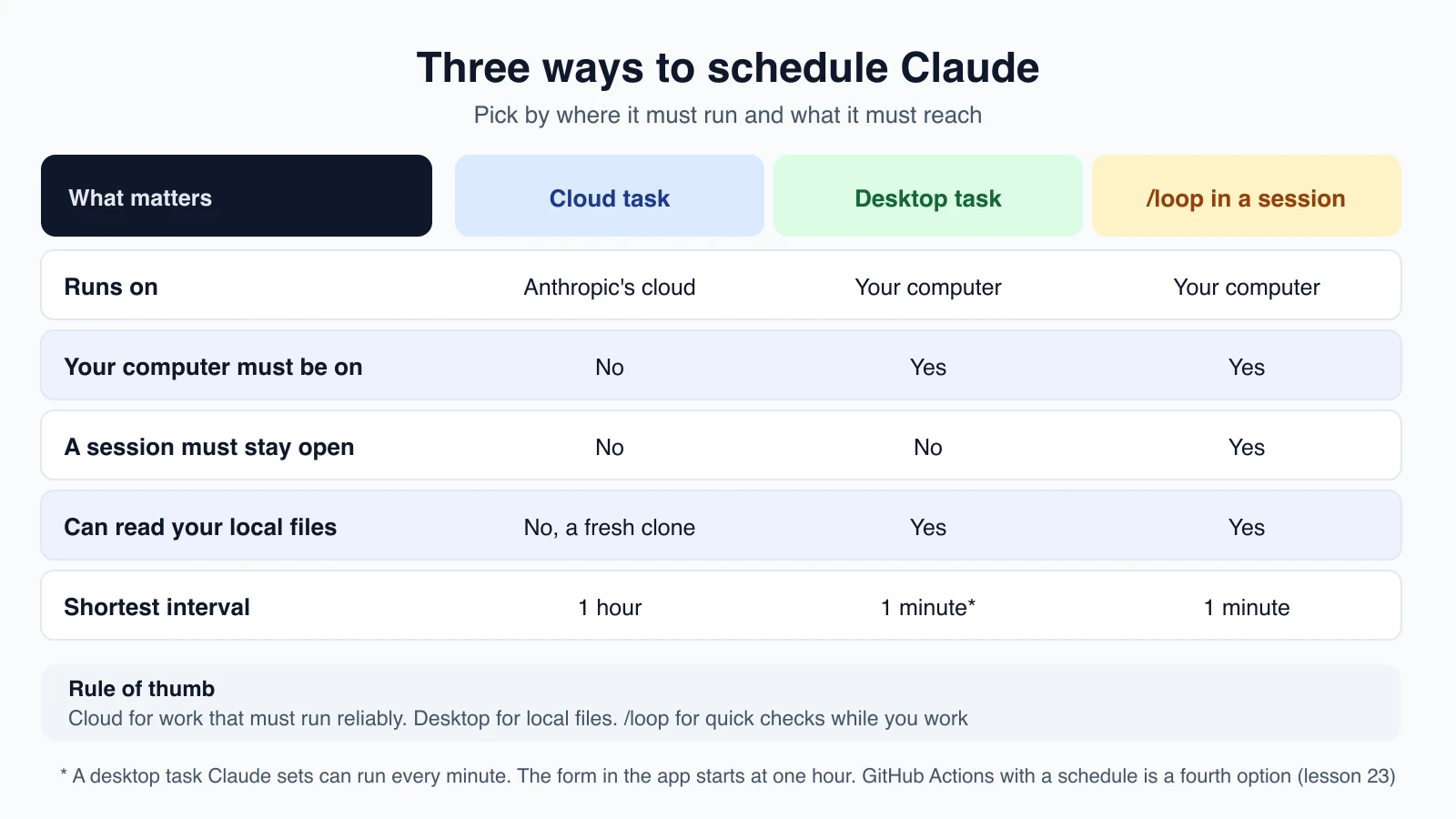
- Cloud scheduled tasks run on Anthropic's servers, so they keep going when your computer is off. They start from a fresh copy of your repository and cannot read your local files. They can also trigger on API calls or GitHub events.
- Desktop scheduled tasks run on your computer through the desktop app. They can read your local files and tools.
/loopruns inside an open Claude Code session. It is the quickest way to poll for something while you work.
A fourth option is a scheduled GitHub Actions workflow, which you met in lesson 23. This lesson focuses on /loop and the scheduling tools in your session.
Repeat a prompt with /loop
/loop is a built-in skill. Both the interval and the prompt are optional, and what you give it decides how it behaves:
| You type | Example | What happens |
|---|---|---|
| An interval and a prompt | /loop 5m check the deploy | The prompt runs on a fixed schedule |
| A prompt only | /loop check the deploy | Claude chooses the interval each time |
| An interval only, or nothing | /loop | A built-in maintenance prompt runs, or your own loop.md |
A fixed interval
Put the interval first as a short token, or last as a clause such as every 2 hours:
1/loop 5m check if the deployment finished and tell me what happenedThe units are s for seconds, m for minutes, h for hours and d for days. Claude converts it to a cron expression, a standard way to describe a schedule, schedules it, and confirms the timing and a task ID. Seconds are rounded up to the nearest minute, because cron works in minutes. An interval that does not fit cleanly, such as 7m or 90m, is rounded to the nearest one that does, and Claude tells you what it picked.
You can also loop a skill from lesson 16:
1/loop 20m /review-pr 1234A scheduled run can only use skills that Claude is allowed to invoke on its own. Built-in commands such as /permissions, /model and /clear, skills marked disable-model-invocation: true, and MCP prompts reach Claude as plain text instead of running.
Let Claude choose the interval
If you leave the interval out, Claude picks a delay between one minute and one hour after each iteration, based on what it saw. It waits briefly while a build is finishing and longer when nothing is pending. It prints the delay and the reason at the end of each run:
1/loop check whether CI passed and address any review commentsWhen the Monitor tool is available, Claude may use it instead of polling. Monitor runs a background script and streams each line of output back, which is often more responsive and uses fewer tokens than re-running a prompt on a timer.
The built-in maintenance prompt
A bare /loop, with no prompt, runs a built-in maintenance routine. On each pass, in order, Claude:
- Continues any unfinished work from the conversation.
- Tends to the current branch's pull request: review comments, failed CI runs and merge conflicts.
- Runs cleanup passes, such as bug hunts or simplification, when nothing else is pending.
Claude does not start new projects outside that scope. Irreversible actions such as pushing or deleting go ahead only when they continue something you already authorized in the conversation.
Write your own default with loop.md
To replace the built-in routine, create a loop.md file. Put it at .claude/loop.md for a project, or ~/.claude/loop.md for every project. The project file wins if both exist. It is plain markdown, written as if you were typing the prompt yourself:
1Check the `release/next` PR. If CI is red, pull the failing job log,
2diagnose, and push a minimal fix. If new review comments have arrived,
3address each one and resolve the thread. If everything is green and
4quiet, say so in one line.
Edits take effect on the next iteration, so you can refine it while a loop runs. A loop.md is used only by a bare /loop. When you give a prompt on the command line, the file is ignored. Content beyond 25,000 bytes is cut off.
Stop a loop
How you stop it depends on how it was started:
- A self-paced loop (no interval): press
Escwhile it is waiting for its next run, orCtrl + Cwhile Claude is idle. APending wakeup cancellednotice confirms it will not fire again. Claude can also end one itself once the task is done. - A fixed-interval loop: ask Claude to cancel it, for example
cancel the deploy check loop.EscandCtrl + Cdo not stop it.
A loop you never cancel ends on its own after seven days.
One-time reminders
For a single reminder, just say what you want in words:
1remind me at 3pm to push the release branch1in 45 minutes, check whether the integration tests passedClaude schedules a one-time task that deletes itself after it runs, and confirms when it will fire.
See and cancel your tasks
Ask in plain language:
1what scheduled tasks do I have?1cancel the deploy check jobBehind the scenes Claude uses three tools: CronCreate to schedule a task, CronList to list tasks with their IDs and next run times, and CronDelete to cancel one by its 8-character ID. A session can hold up to 50 scheduled tasks.
Reading a cron expression
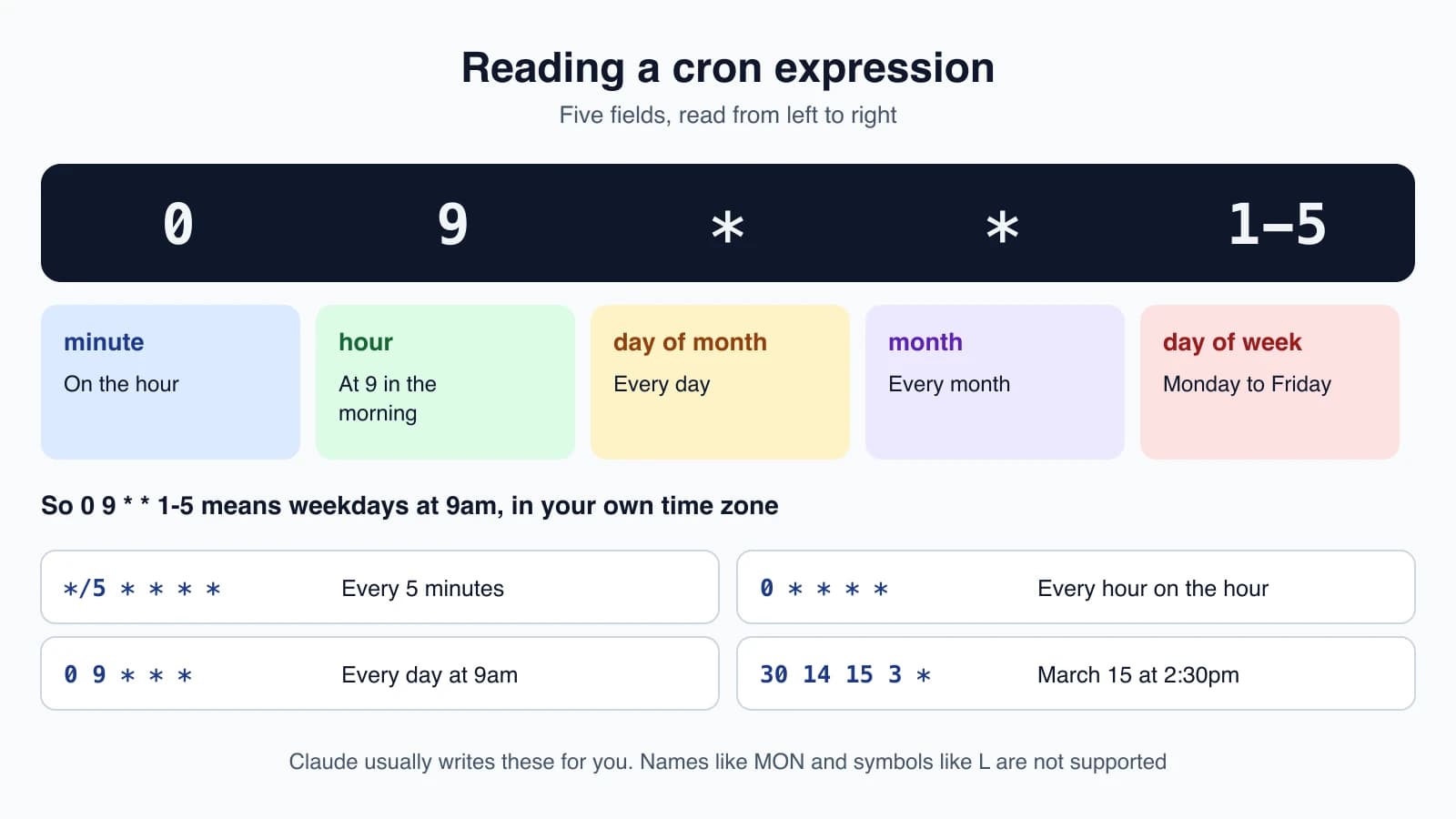
A cron expression has five fields: minute, hour, day of the month, month and day of the week. An asterisk means "every". A step such as */15 means every 15, a range such as 1-5 means one through five, and a comma separates a list.
| Example | Meaning |
|---|---|
*/5 * * * * | Every 5 minutes |
0 * * * * | Every hour on the hour |
0 9 * * * | Every day at 9am |
0 9 * * 1-5 | Weekdays at 9am |
30 14 15 3 * | March 15 at 2:30pm |
Day of the week runs from 0 or 7 for Sunday to 6 for Saturday. Times use your local time zone, so 0 9 * * * means 9am wherever you run Claude Code, not UTC. Extended symbols such as L, W and ?, and names like MON, are not supported. You rarely need to write these yourself, since Claude does it from your plain-language request.
How and when tasks fire
- Between your turns. The scheduler checks every second for due tasks. A scheduled prompt runs between your turns, never in the middle of a response. If Claude is busy when a task comes due, it waits until the current turn ends.
- Jitter. A task can run a little later than its schedule, because Claude Code spreads runs out so many sessions do not hit the API at the same instant. A recurring task runs late by up to half the gap to its next run, and at most 30 minutes. A task every five minutes is the exception, and runs 15 seconds sooner than five minutes after the last one, at 4 minutes 45 seconds.
- One-time tasks on the hour. A one-time task set for
:00or:30can run up to 90 seconds early. If timing matters, use an odd minute, such as3 9 * * *in place of0 9 * * *. - Seven-day expiry. A recurring task fires one last time seven days after it was created, then deletes itself. This limits how long a forgotten loop can run. For anything that needs to last longer, use a cloud or desktop scheduled task.
Limits to remember
- Tasks fire only while Claude Code is running and idle. Closing the terminal stops them. Backgrounding the session lets
/looptasks keep running without a terminal. - There is no catch-up. If a scheduled time passes while Claude is busy, the task fires once when Claude becomes idle, not once for each missed run.
- When you resume with
claude --resumeorclaude --continue, Claude Code restores tasks created with the scheduling tools, except expired ones and one-time tasks whose time has passed. A self-paced/loopis not restored, so run/loopagain. - Missed runs while the session was closed are not replayed.
- To turn scheduling off entirely, set
CLAUDE_CODE_DISABLE_CRON=1. The cron tools and/loopthen become unavailable, and any scheduled tasks stop firing.
If you need something that runs without your session or your computer, use a cloud scheduled task, a desktop scheduled task or a GitHub Actions schedule trigger.
Related features
/goal keeps Claude working turn after turn toward a condition, rather than on a timer. Channels let events such as a CI failure push into your session directly, which avoids polling. Both are covered in the official documentation.
Mistakes beginners make
- Expecting a loop to survive closing the terminal. It only runs while Claude Code is running. Use cloud or desktop tasks for that.
- Trying to stop a fixed-interval loop with
Esc. Ask Claude to cancel it instead. - Looping a built-in command. Commands like
/permissionsarrive as plain text and do not run. - Forgetting the seven-day limit. A loop ends after a week, so recreate it if you still need it.
- Scheduling for exactly on the hour when timing matters. Pick an odd minute.
- Polling when you could be told. For events, a Monitor, a channel or a CI trigger can react instead of checking repeatedly.
Quick recap
/looprepeats a prompt on a fixed interval, or at a pace Claude chooses. A bare/loopruns a maintenance routine, or yourloop.md.- Ask in plain words for one-time reminders, and to list or cancel tasks.
- Cron expressions have five fields. Times use your local time zone.
- Tasks run only while Claude Code is open and idle, with jitter, no catch-up, and a seven-day expiry for recurring ones.
- Use cloud or desktop scheduled tasks, or GitHub Actions, for work that must survive your session.
Try it yourself
In your claude-practice folder, start Claude Code and run /loop 5m tell me how many files are in this folder. Wait for two runs, then ask "what scheduled tasks do I have?" and note its ID. Ask Claude to cancel it. Then try a one-time reminder: in 3 minutes, tell me to take a break. Finally, ask Claude to explain the cron expression it used in the earlier loop.
Module 5 is complete. Next lesson, the start of Module 6: cost and token efficiency.