
Lesson 24 gave you the big picture of Claude Code's security. This lesson goes deeper into the practical tools: the sandbox, which limits what shell commands can reach, secrets, meaning the keys and passwords you must not leak, and dev containers, which run Claude Code inside an isolated environment. After it you will know how to turn on the sandbox, what it protects and what it does not, how to keep secrets out of reach, and how to choose between the available levels of isolation.
What the sandbox is
The sandbox is a boundary around the shell commands Claude runs on your computer. The operating system enforces it, which means it holds even if Claude or a command tries to step outside. You choose which files and network hosts those commands may reach. Because the system enforces the limits while a command runs, Claude can run sandboxed commands without asking you to approve each one.
Three facts to know up front:
- It covers shell commands only: Bash, PowerShell and Monitor commands, and every process they start.
- It runs on macOS, Linux and WSL2. On native Windows, Claude Code runs commands without it.
- It is off by default.
Turn it on
Run this in a session:
1/sandboxYou can also set it in a settings file, such as ~/.claude/settings.json:
1{
2  "sandbox": {
3    "enabled": true
4  }
5}
The /sandbox panel has three tabs: Mode, Overrides and Config. To try it for a single session, pass the setting on the command line:
1claude --settings '{"sandbox": {"enabled": true, "allowUnsandboxedCommands": false}}'Setting up Linux and WSL2
The sandbox needs two packages. On macOS it uses the built-in Seatbelt framework, so there is nothing to install. On native Windows, run Claude Code inside WSL2 to use it.
1# Ubuntu or Debian
2sudo apt-get install bubblewrap socat
3
4# Fedora
5sudo dnf install bubblewrap socat
Two modes
Both modes enforce the same file and network limits. They differ in whether you are asked:
- Auto-allow mode. Sandboxed commands run without a prompt.
- Regular permissions mode. Every Bash command still goes through the normal permission prompts, even when sandboxed.
Even in auto-allow mode, your deny rules still block, and ask rules such as Bash(git push *) still force a prompt.
What it covers and what it does not
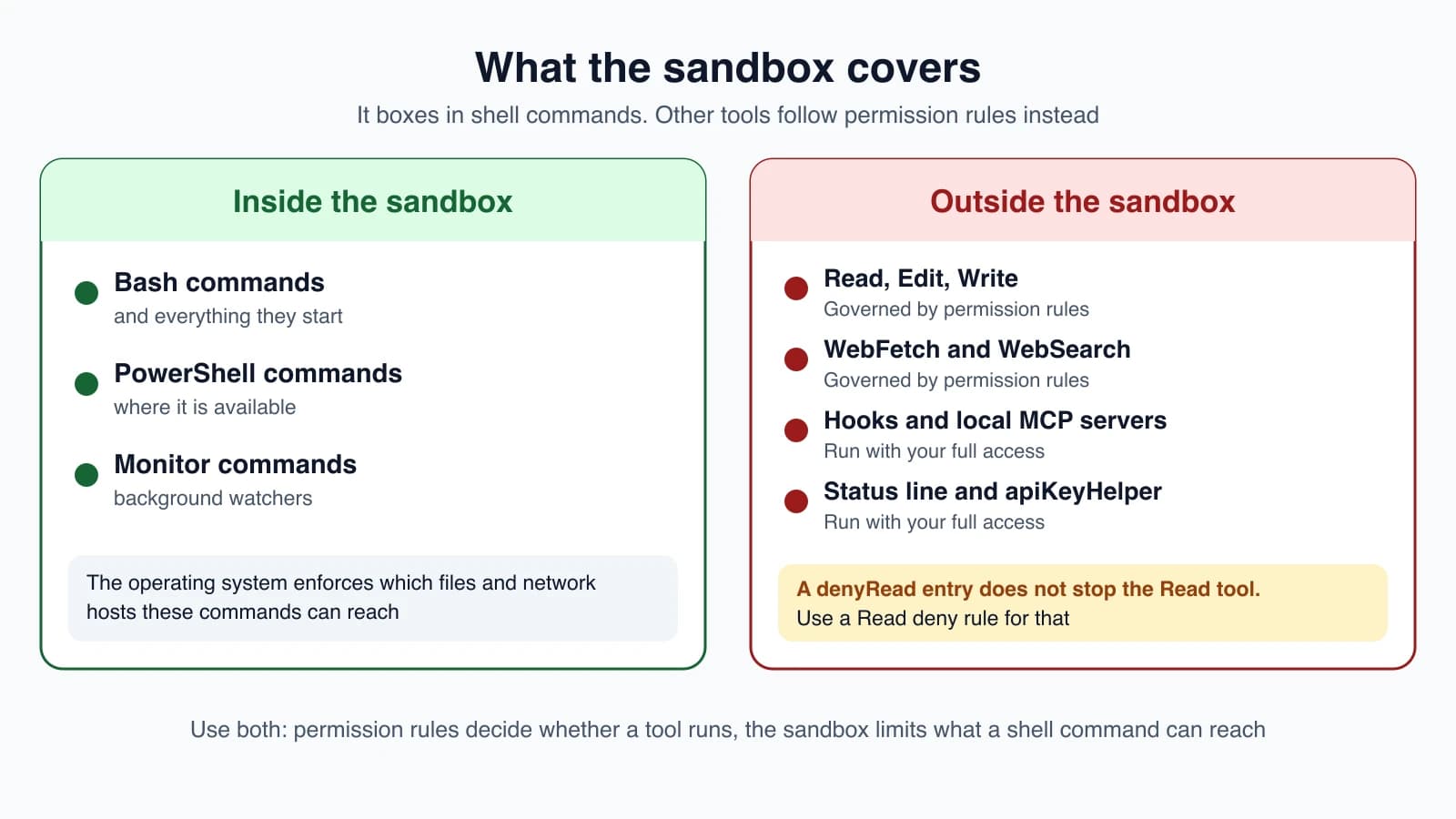
The sandbox does not cover:
- Claude's built-in file and web tools: Read, Edit, Write, WebFetch and WebSearch. These follow permission rules. A
denyReadsetting does not stop the Read tool. - Command hooks, local MCP servers, plugin monitors, language servers, your status line command and
apiKeyHelper. These run with your full access. - Commands you type yourself at the
!shell prompt, in most sessions.
The two layers are complementary. Permission rules decide whether a tool can be used, before it runs. The sandbox limits what a shell command can reach once it runs, no matter what the model chose. /sandbox is not a permission mode.
File rules
By default, a sandboxed command may write to the working folder, a per-user temporary folder, and folders you added with --add-dir. To let a tool write elsewhere, use allowWrite:
1{
2  "sandbox": {
3    "enabled": true,
4    "filesystem": {
5      "allowWrite": ["~/.kube", "/tmp/build"]
6    }
7  }
8}
Reading is far more open. By default a sandboxed command can read most of your computer, including credential files such as ~/.ssh and ~/.aws/credentials. The default does not protect secrets on its own. To block reads, use denyRead, and re-open a part with allowRead. This example blocks your home folder but keeps the project readable. Put it in the project's .claude/settings.json, because the dot means the project root there:
1{
2  "sandbox": {
3    "enabled": true,
4    "filesystem": {
5      "denyRead": ["~/"],
6      "allowRead": ["."]
7    }
8  }
9}
Some paths stay write-protected even inside allowed folders, including .claude/settings.json, .mcp.json and shell startup files. This stops a command from granting itself new permissions.
Network rules
A sandboxed command has no direct route to the network. Its traffic goes through a proxy on your computer, which checks each host name against your list of allowed domains. That list starts empty.
1{
2  "sandbox": {
3    "enabled": true,
4    "network": {
5      "allowedDomains": ["github.com", "*.npmjs.org"],
6      "deniedDomains": []
7    }
8  }
9}
What happens to a host that is not on your list depends on your permission mode:
| Permission mode | A connection to a host not on the list |
|---|---|
| Bypass permissions | Allowed without a prompt |
| Manual and Accept edits | You get a prompt |
| Auto | Refused, unless the command named the host and the classifier approved it |
| Don't ask | Refused |
Hosts in deniedDomains are refused in every mode.
When a command needs to leave the sandbox
Some tools cannot work inside the sandbox. You have three options, from safest to riskiest:
- Open one more door. If a tool only needs another folder or host, add it with
allowWriteorallowedDomains. The command stays sandboxed. - Exclude the command. Add a pattern to
excludedCommands. That command then runs outside the sandbox with your full access, so make the pattern as narrow as you can:
1{
2  "sandbox": {
3    "enabled": true,
4    "excludedCommands": ["docker compose *"]
5  }
6}
The pattern uses the same syntax as Bash(...) rules, so end it with * to allow arguments. docker matches only a bare docker, while docker * matches with or without arguments.
- Let Claude retry outside. When a command fails in the sandbox, Claude may retry it with
dangerouslyDisableSandbox. In Manual and Accept edits modes you get a prompt titled "Bash command (unsandboxed)". Auto mode has the classifier decide, and Don't ask denies it. To switch the retry off entirely, set"allowUnsandboxedCommands": false.
One more setting matters. If a needed package is missing, the sandbox may fail to start, and then Claude Code runs commands without sandboxing. To make that an error instead, add "failIfUnavailable": true.
Limits to know
- Default reads are broad. Protect secrets with
denyRead. - Some tools struggle. Tools that ignore proxy settings, such as plain
sshand most database drivers, cannot reach even allowed hosts. UDP, QUIC andpingare blocked.dockerandwatchmanneed an excluded command or a workaround. - Switching off file isolation is risky. Setting
"filesystem": {"disabled": true}keeps the network limits but lets commands write files that later commands can use to widen their own access. Use it only for trusted work. - You can still bypass it by hand. Commands you type at the
!prompt run outside the sandbox in most sessions.
Security limits the documentation warns about
The sandbox reduces risk. It is not a complete wall, and the official page lists limits worth knowing:
- Allowing a broad domain can leak data. The network filter decides from the hostname the program asks for, and it does not inspect encrypted traffic. Allowing something as broad as
github.comcan give code inside the sandbox a route to send data out, and techniques such as domain fronting may reach hosts outside your list. Allow only domains you trust. If you need stronger guarantees, use a custom proxy that inspects traffic. - A Unix socket can be a backdoor. Allowing a socket such as
/var/run/docker.sockeffectively gives access to the host machine. - Wide write access can escalate. Allowing writes to folders on your
$PATH, system configuration or shell files such as.bashrcand.zshrccan cause code to run later in a different context. - Weaker modes weaken it.
enableWeakerNestedSandboxlets the sandbox run inside Docker without special privileges, andallowAppleEventson macOS lets sandboxed commands launch other apps unsandboxed. Use them only when something else isolates the work. - Both halves matter. Without network isolation, a compromised agent could send your SSH keys away. Without file isolation, it could change system files to get network access. When you widen one setting, check that you did not undo the other side.
What the sandbox does and does not cover
The sandbox isolates shell commands and the programs they start. Subagents (lesson 17) run in the same process and use the same sandbox settings, so their commands are sandboxed too. A background session is sandboxed when its own settings turn it on. Computer use is different: when Claude controls your screen, it works on your real desktop, and per-app permission prompts guard each application. To put the whole Claude Code process behind a boundary, run it in a dev container or the sandbox runtime, which the sections below and the isolation ladder cover.
Enforcing the sandbox for an organization
Administrators deliver the sandbox settings through managed settings (lesson 28). This configuration turns the sandbox on, refuses to start if it cannot run, and stops Claude retrying commands outside it:
1{
2  "sandbox": {
3    "enabled": true,
4    "failIfUnavailable": true,
5    "allowUnsandboxedCommands": false
6  }
7}failIfUnavailableblocks Claude Code from starting when something such as bubblewrap is missing, instead of quietly running without a sandbox.allowUnsandboxedCommands: falsemakes Claude Code ignore the escape hatch, so a command that fails in the sandbox cannot be retried outside it.
Two more points follow from this. First, the sandbox does not run on native Windows, so with failIfUnavailable set, Claude Code exits at startup on those machines. Deliver the configuration only to macOS and Linux, or move Windows developers to WSL2 or a container. Second, a developer can still type a command at the ! prompt and run it outside the sandbox, with the same access they have in any terminal. Strict sandbox mode covers sessions where typed commands run sandboxed too.
Keep developers from widening the policy
How settings combine depends on their type. When managed settings set a true-or-false key such as enabled, Claude Code uses the managed value and ignores a developer's local one. List keys such as allowRead are merged from every scope, so a developer could add entries that widen access. Two settings lock that down:
allowManagedReadPathsOnlyset totruemeans onlyallowReadentries from managed settings count.allowManagedDomainsOnlyset totruemeans only managed domain rules count, and other domains are blocked without a prompt.
Several settings weaken the sandbox, including enableWeakerNestedSandbox, enableWeakerNetworkIsolation, network.allowAllUnixSockets and network.allowLocalBinding. Set them to false in managed settings if you do not want anyone using them.
An admin-required sandbox
The sandbox becomes admin-required when managed settings set allowUnsandboxedCommands to false or allowManagedDomainsOnly to true. These do not turn the sandbox on, so set enabled too. While it is admin-required, Claude Code takes the settings that loosen the sandbox, such as excludedCommands and extra allowed domains, only from managed settings, the --settings flag and the developer's own ~/.claude/settings.json. It ignores them in a repository's .claude/settings.json. A repository you cloned therefore cannot quietly widen your sandbox. Add the exceptions your approved tools need to managed settings instead. This needs Claude Code 2.1.285 or later.
Corporate proxies
To route sandbox traffic through a corporate proxy elsewhere on your network, set HTTPS_PROXY, and Claude Code's allowlist still applies. To inspect or log traffic with a proxy you run on the same machine, set sandbox.network.httpProxyPort and socksProxyPort. Be careful with that second option. Once you set a port, your proxy is responsible for all filtering, and Claude Code's own domain lists stop applying to that traffic.
Protecting secrets
A secret is anything that would cause harm if it leaked: API keys, tokens, passwords, private keys, and files such as .env. Several layers help, and they work best together.
- Block the file tools. A deny rule stops the Read tool, for example
Read(./.env)andRead(./.env.*)(lesson 8). The sandbox'sdenyReaddoes not do that job, so use both. - Block shell reads.
denyReadin the sandbox settings keeps shell commands away from folders such as~/.sshand~/.aws. - Use a hook as a guard. A
PreToolUsehook can refuse edits to sensitive files (lesson 18). - Do not paste secrets into prompts or
CLAUDE.md. Those travel into conversations and logs. - Keep keys out of Git. Use secrets in your CI system (lesson 23) and
${VAR}in.mcp.json(lesson 19). - Use the least access you can. Prefer read-only credentials and tokens that are limited to one repository or that expire quickly.
- Never commit a key. Treat one that was committed as leaked.
Dev containers
A development container, or dev container, is an isolated environment, defined by a file in your project, that every engineer on a team can run. It is a Docker container, on your computer or on a cloud host such as GitHub Codespaces. Your editor connects to it. Your files appear as normal, but the terminal and the commands Claude runs execute inside the container instead of on your computer.
Claude Code installs into any dev container through the Claude Code Dev Container Feature. Add this to .devcontainer/devcontainer.json:
1{
2  "image": "mcr.microsoft.com/devcontainers/base:ubuntu",
3  "features": {
4    "ghcr.io/anthropics/devcontainer-features/claude-code:1.0": {}
5  }
6}
Replace the image line with your project's base image, or remove it if you use a Dockerfile. Then rebuild the container. In VS Code, open the Command Palette and run Dev Containers: Rebuild Container. Open a terminal in it, run claude, and sign in.
Keep your login across rebuilds
A rebuild discards the container's home folder, so you would have to sign in again each time. To keep it, mount a named volume at ~/.claude and point CLAUDE_CONFIG_DIR at the same place:
1"mounts": [
2  "source=claude-code-config,target=/home/node/.claude,type=volume"
3],
4"containerEnv": {
5  "CLAUDE_CONFIG_DIR": "/home/node/.claude"
6}
Replace /home/node with the home folder of your container's user.
Running without prompts, and the warning
Because the container runs Claude Code as a non-root user and confines commands to the container, you can use --dangerously-skip-permissions for unattended work. The command-line tool refuses that flag when launched as root, so check that the container's user is not root. Pair it with limits on the container's outbound network traffic, and consider auto mode instead if you only want fewer prompts.
The documentation attaches a clear warning to this setup. With --dangerously-skip-permissions, a dev container does not stop a malicious project from sending out anything it can reach inside the container, including your Claude Code login stored in ~/.claude. So:
- Use dev containers only with repositories you trust, and watch what Claude does.
- Do not mount host secrets such as
~/.sshor cloud credential files into the container. Prefer tokens limited to one repository or that expire quickly. - Pass cloud credentials as environment variables rather than mounting credential files.
Choosing how much isolation you need
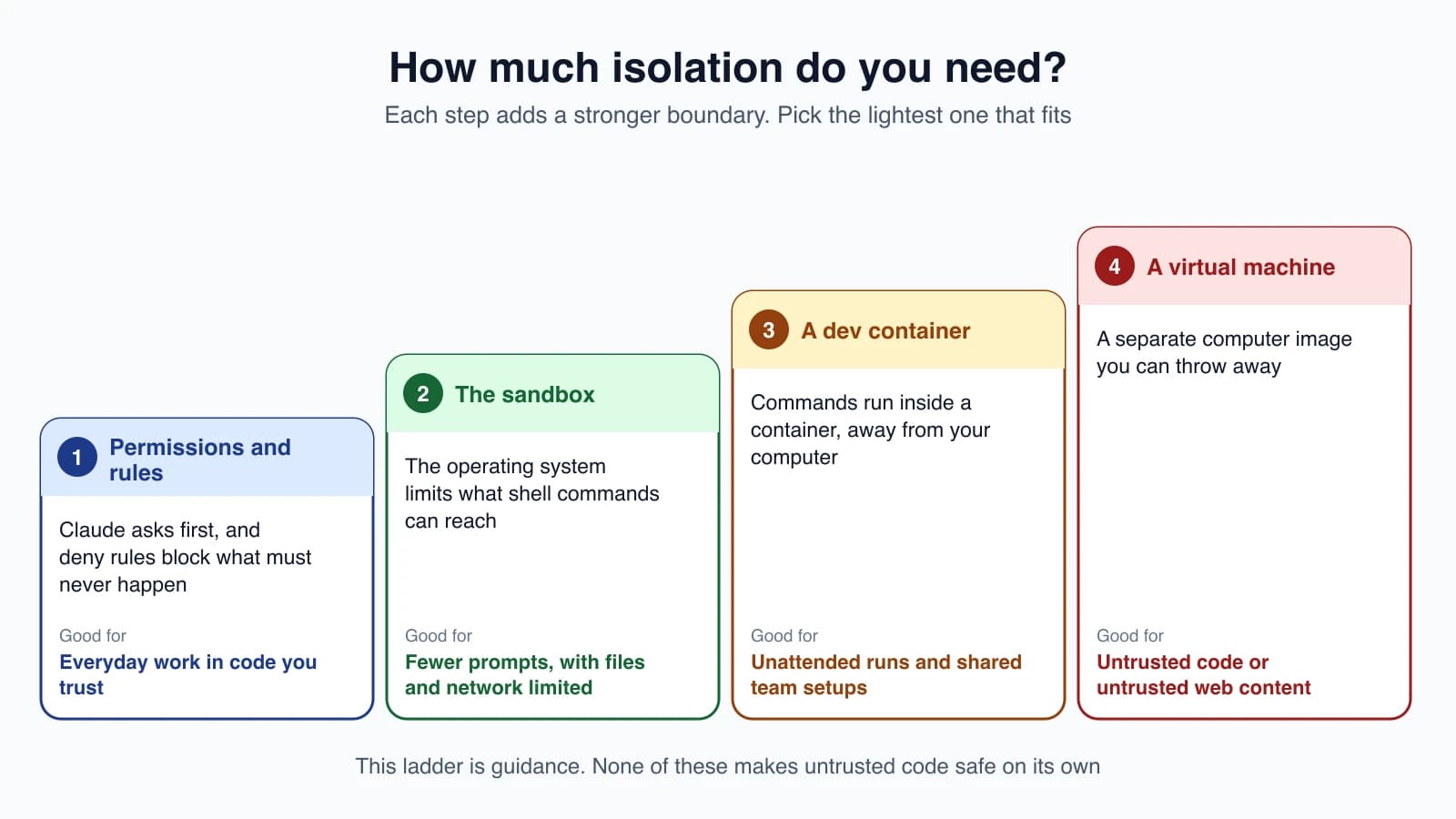
Pick the lightest level that fits the risk:
- Permissions and rules for everyday work in code you trust.
- The sandbox when you want fewer prompts with file and network limits.
- A dev container for unattended runs and shared team setups.
- A virtual machine for untrusted code or when working with untrusted web content. The documentation lists using a virtual machine for scripts and tool calls as a best practice when interacting with outside web services.
This ladder is guidance, not a guarantee. The documentation says plainly that no system is completely immune to attack, so keep reading what Claude proposes and what you approve.
Mistakes beginners make
- Assuming the sandbox protects secrets by default. Reads are broad until you add
denyRead. - Thinking the sandbox covers every tool. It covers shell commands only. File and web tools follow permission rules.
- Excluding a command too widely. An excluded command runs with your full access. Use the narrowest pattern.
- Forgetting
failIfUnavailable. Without it, a missing package silently means no sandbox. - Mounting
~/.sshinto a container. It defeats the isolation. - Skipping permissions in an untrusted repository. Only do it in a trusted project inside an isolated environment.
Quick recap
- The sandbox is an operating-system boundary for shell commands. Turn it on with
/sandbox. - Writes are limited to the working folder by default, but reads are broad. Use
denyReadfor secrets. - Network access goes through a proxy with an allowed-domain list that starts empty.
- It does not cover the file and web tools, hooks, local MCP servers, or the status line. Use permission rules for those.
- Protect secrets in layers: deny rules,
denyRead, hooks, CI secrets and least-privilege tokens. - Dev containers add isolation, but a skipped-permissions container can still leak what is inside it. Use trusted repositories and keep host secrets out.
Try it yourself
In your claude-practice folder, run /sandbox and open each tab. Turn it on, then create a file called secret.txt and add "Read(./secret.txt)" as a deny rule in .claude/settings.local.json. Ask Claude to read secret.txt and watch it get blocked. Then ask Claude to run cat secret.txt in the shell, and notice that this is a different path, covered by the sandbox's denyRead rather than the Read rule. Add denyRead for the file and try again.
Next lesson: rolling out Claude Code to a team.