
Sooner or later something will not behave. A rule in CLAUDE.md is ignored, a hook never runs, an MCP server is missing, or the session turns slow. This lesson gives you a routine for finding out why, starting with the cheapest check. After it you will know which command to run for which symptom, how to tell whether your own setup is the cause, how to fix the common performance and search problems, and where to ask for help.
A routine, not a guess
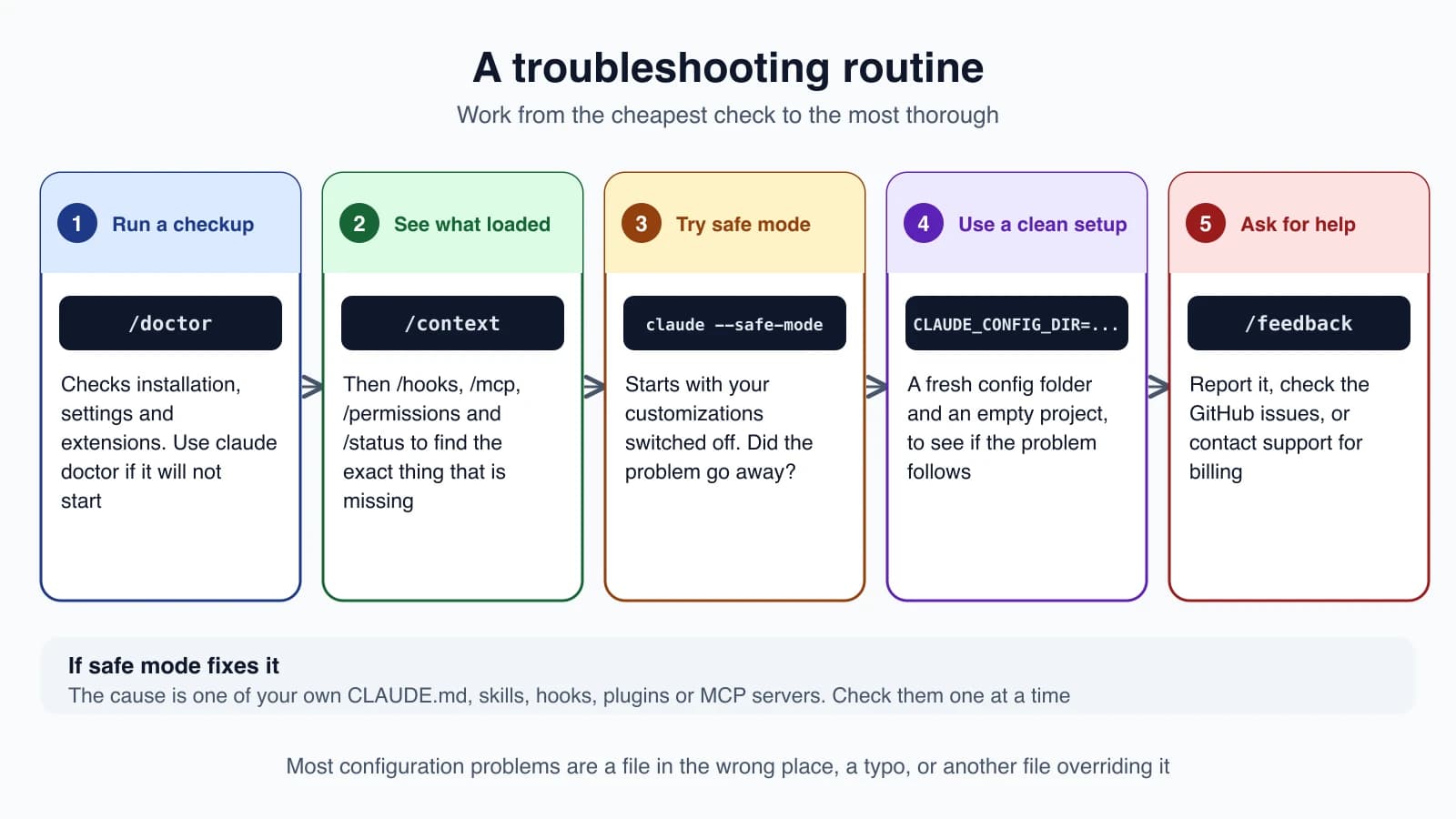
Most problems come from one of three things: a file in the wrong place, a small typo, or one file overriding another. A fixed routine finds all three faster than trying things at random.
Step 1: run a checkup
Inside a session, type:
1/doctorIt checks your installation, your settings files and your extensions, and when it finds something it can fix, it proposes the fix and waits for you to confirm.
If Claude Code will not start at all, run the same check from your normal terminal:
1claude doctor/status is a companion. It shows your version, account, model and which settings sources are active, which settles many "why is this setting ignored" questions in one look.
Step 2: see what actually loaded
Claude Code has a command for each kind of setup. Instead of guessing, ask it what it sees:
| Command | Shows you |
|---|---|
/context | What is using your context window, including CLAUDE.md and memory |
/memory | Which CLAUDE.md and rules files are loaded |
/skills | The skills Claude can use |
/hooks | The hooks that are configured |
/mcp | MCP servers and whether each one connected |
/permissions | Your allow, ask and deny rules and where each came from |
/status | Active settings sources |
/debug | A debug log for the current session |
If the thing you expected is not in the list, you now know the problem is that it was never loaded. That is a much smaller question than "why is Claude behaving oddly".
Step 3: try safe mode
To find out whether your own customizations are the cause, start Claude Code with them switched off:
1claude --safe-modeSafe mode skips your plugins, MCP servers and hooks. Repeat the thing that went wrong.
- The problem is gone. The cause is one of your customizations. Turn them back on one at a time until it returns.
- The problem is still there. Your setup is not the cause. Go on to step 4.
Step 4: use a clean setup
If safe mode is not enough, test with a completely fresh configuration folder and an empty project, so that nothing from your usual setup can interfere:
1mkdir -p ~/claude-clean/empty && cd ~/claude-clean/empty
2CLAUDE_CONFIG_DIR=~/claude-clean/config claude --setting-sources user
If it works here, something in your real configuration or project is the cause. If it fails here too, the problem is the installation or the environment, which is the moment to report it.
Step 5: ask for help
- Run
/feedbackinside a session to report a bug or send suggestions directly. - Search the Claude Code issues on GitHub. Someone has often hit the same thing.
- For account or billing questions, use the "Get help" option at claude.ai.
- You can also simply ask Claude. It can read its own documentation, so "why isn't my hook running?" is a reasonable question.
Common causes, matched to symptoms
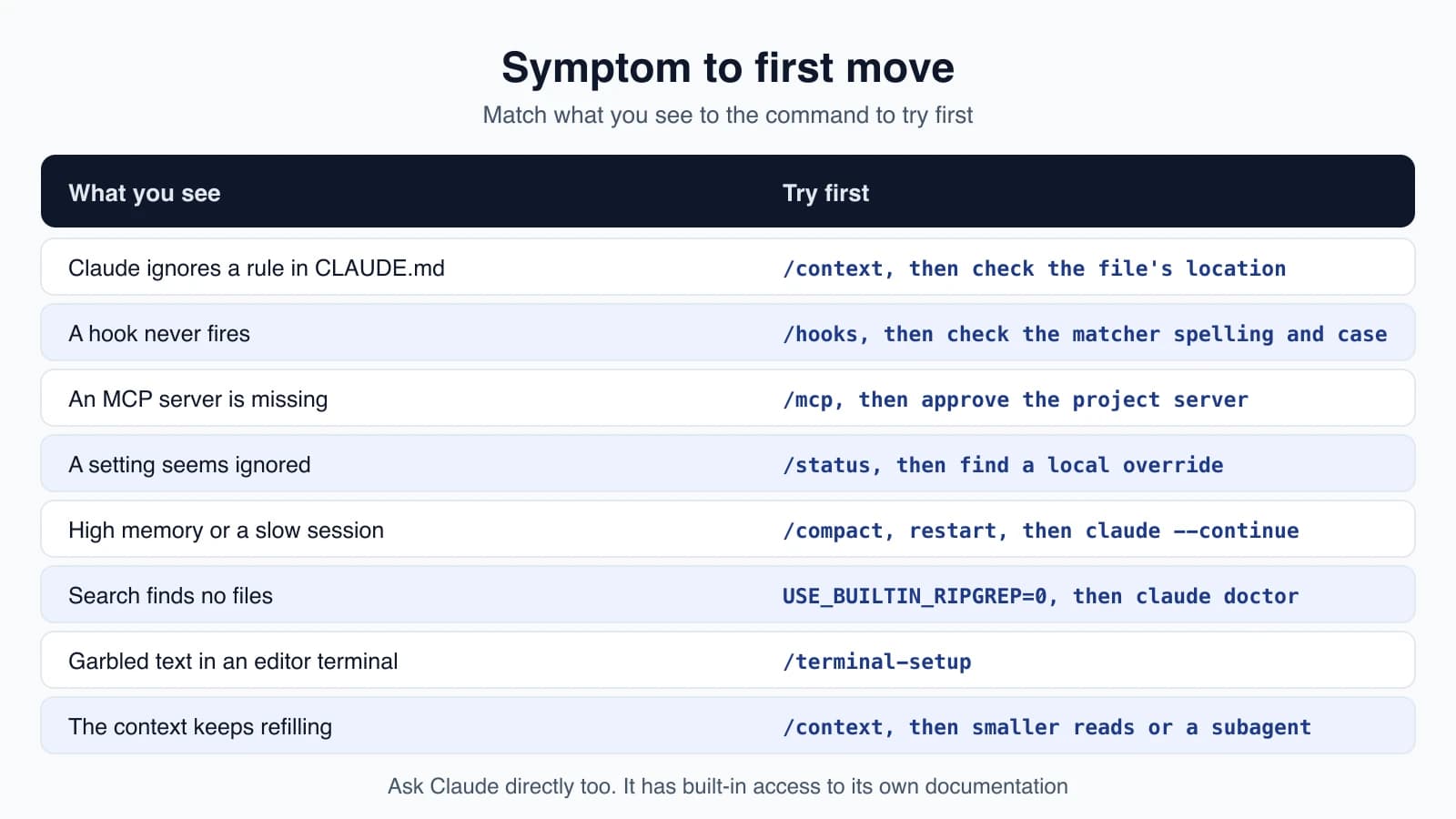
These are the causes the documentation lists most often when a setup does not work.
| What you see | Likely cause |
|---|---|
| Permissions or hooks do nothing | They were put in ~/.claude.json. They belong in ~/.claude/settings.json |
| A project setting is ignored | settings.local.json overrides settings.json |
| A skill does not appear | It must live at .claude/skills/<name>/SKILL.md |
A CLAUDE.md in a subfolder is not applied | Subfolder files load on demand, when Claude works in that folder |
Explore and Plan subagents ignore CLAUDE.md | They skip it by design |
Bash(rm *) does not block /bin/rm | Deny patterns match the text of the command. Use a hook or the sandbox |
When a hook never fires
- The matcher must be a string, and it is case-sensitive. Use
|to list several tools, as inEdit|Write. - Hooks must sit under the
hookskey insettings.json. A standalone hooks file is not read. - Run
claude --debugto watch Claude Code evaluate each hook.
When an MCP server is missing
- A project
.mcp.jsonmust be at the repository root and use anmcpServerskey. - Project servers need one-time approval. Check
/mcp, and approve if it asks. - Use absolute paths in server commands.
- Run
claude --debug=mcp. The log is written to~/.claude/debug/<session-id>.txt.
Slow sessions and high memory
A long session can get heavy. Work through these in order:
- Compact with
/compact, or clear with/clearbetween unrelated tasks (lesson 9). - Restart between tasks. A fresh session is the cheapest cure for most slowness.
- Add build folders to
.gitignore, such asnode_modules,distand.next, so Claude does not search them. - Use safe mode to rule out a plugin, an MCP server or a hook.
- Heed the memory warning. If Claude Code warns that memory use is above 2.5GB, restart and pick up where you were with
claude --continue.
For a bug report about memory, /heapdump writes two files to your Desktop: a heap snapshot and a diagnostics file. The snapshot contains every string in memory, including any credentials, so never share it. Attach the diagnostics file only.
If auto-compaction keeps failing
Sometimes the context refills right after each compaction. This is often one very large file or tool output being read again and again. Look at the Messages row in /context to see whether that is the case, then:
- Read big files in chunks instead of all at once.
- Run
/compactwith a focus, as in lesson 9. - Hand the heavy reading to a subagent (lesson 17).
- Or
/clearand start the task again with a narrower request.
If Claude seems stuck
Press Ctrl + C. If it does not respond, close the terminal, start Claude Code again, and use claude --resume to return to the session.
Search, terminal and clipboard problems
- Search finds nothing, or fewer files than it should. Install ripgrep yourself and set
USE_BUILTIN_RIPGREPto0in theenvsection of your settings. Confirm the result withclaude doctor. - Slow search on Windows with WSL. Keep your project on the Linux filesystem, not under the Windows drives.
- Garbled text or odd line breaks in an editor's terminal. Run
/terminal-setup. - Copy and paste do not work, for instance over SSH or inside a sandbox. Use
/copy, which handles the cases where normal terminal copying fails.
Mistakes beginners make
- Guessing instead of looking. Run
/doctorand the matching list command first. - Putting settings in the wrong file. Permissions and hooks go in
~/.claude/settings.json, not~/.claude.json. - Forgetting the local override.
settings.local.jsonquietly beatssettings.json. - Changing several things at once. Change one thing, test, then change the next.
- Sharing a heap snapshot. It can contain secrets. Share only the diagnostics file.
- Trusting a deny pattern as a hard wall. Use a hook or the sandbox when it must not be bypassed (lessons 18 and 27).
Quick recap
- Follow a routine:
/doctor, then the list commands, then safe mode, then a clean setup, then ask for help. /context,/memory,/skills,/hooks,/mcpand/permissionsshow what Claude actually loaded.claude --safe-modetells you quickly whether your own plugins, servers or hooks are the cause.- For slowness, compact, restart between tasks, ignore build folders, and use
claude --continueafter a restart. - Use
/feedbackto report problems, and never share a heap snapshot.
Try it yourself
In your claude-practice folder, run /doctor and read what it reports. Then run /hooks, /mcp and /permissions and note which sources your rules come from. Finally, start claude --safe-mode and run /mcp to confirm that your servers are not loaded, then exit and start normally again.
Next lesson: real project walkthroughs, the last lesson of the course.