
So far you have used Claude Code on your own. This lesson is about using it with other people. When a whole team or company adopts it, you need shared setup that every developer gets, rules nobody can override, and a way to see usage. After it you will know how a rollout is structured, how to deliver settings to everyone's computers, what is worth enforcing, and how to get developers started. It is written for team leads and administrators, and it is also useful if you are a developer wondering why some of your settings are locked.
Three layers of team setup
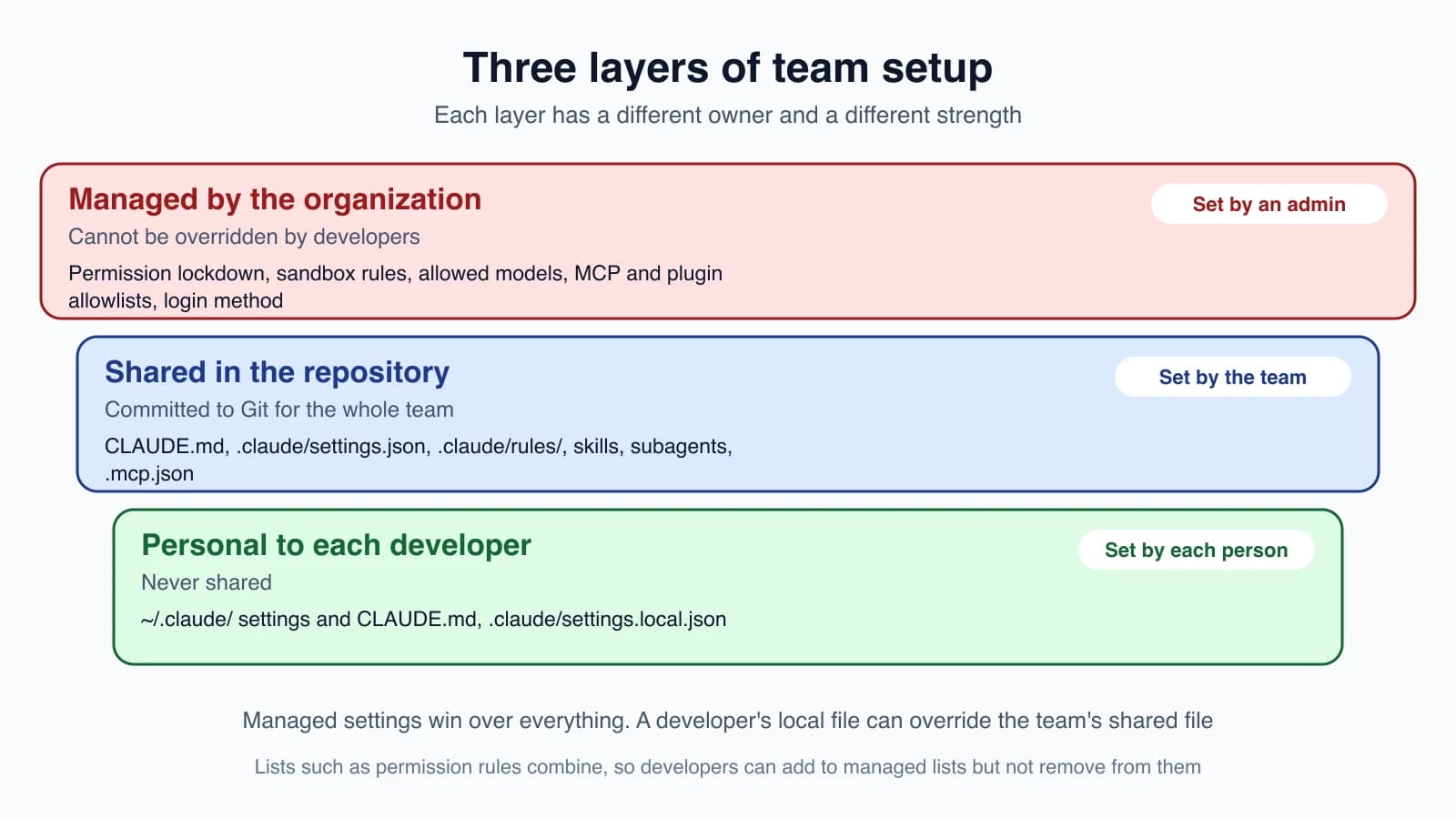
Almost everything in this course fits into one of three layers.
Managed by the organization. Settings an administrator delivers to every computer. Developers cannot override them. Use them for rules that must hold everywhere.
Shared in the repository. Files committed to Git so every teammate who clones the project gets the same setup: CLAUDE.md (lesson 12), .claude/settings.json (lesson 14), .claude/rules/ (lesson 13), skills (lesson 16), subagents (lesson 17), hooks (lesson 18), and .mcp.json (lesson 19). Use these for the project's conventions and tools.
Personal to each developer. Their own ~/.claude/ files and .claude/settings.local.json, which stays out of Git. Use these for personal preferences.
Managed settings win over everything. Between the other two, a developer's local file can override the team's shared file. List settings such as permission rules combine, so a developer can add rules to a managed list but not remove from it.
Start with the shared project setup
Even with no administrator at all, a team gets a lot from committing a good project setup. A checklist:
- A short
CLAUDE.mdwith the commands to build, test and lint, and the conventions that are not obvious from the code. - A
.claude/settings.jsonwith shared permission rules, such as allowingnpm testand denying reads of.env, plus any hooks the team agrees on. - Rules, skills and subagents for the repeatable jobs your team does.
- A
.mcp.jsonwith project servers, using${VAR}for secrets (lesson 19). - A rule in
.gitignorefor.claude/settings.local.json.
Remember from lesson 14 that some shared settings wait for each person to trust the folder. Allow rules, extra directories and most environment variables apply only after a teammate trusts it, while deny and ask rules apply right away.
Plan the rollout: five decisions
The official administrator guide lays out five decisions, in order:
- Choose your API provider. Where Claude Code signs in and how it is billed.
- Decide how settings reach devices. How managed policy gets onto developer computers.
- Decide what to enforce. Which tools, commands and integrations are allowed.
- Set up usage visibility. How you track spend and adoption.
- Review data handling. Retention and compliance.
A sensible way to roll out is to start small. The documentation recommends a pilot group to establish a baseline of usage before a wider rollout. After the pilot, apply a managed baseline, widen to more teams, and review the numbers.
1. Choose an API provider
| Provider | Choose it when |
|---|---|
| Claude for Teams or Enterprise | You want Claude Code and claude.ai under one per-seat subscription with no infrastructure to run. This is the default recommendation |
| Claude Console | You are API-first or want pay-as-you-go billing |
| Amazon Bedrock | You want to inherit existing AWS compliance controls and billing |
| Google Cloud's Agent Platform | You want to inherit existing Google Cloud controls and billing |
| Microsoft Foundry | You want to inherit existing Azure controls and billing |
One catch to plan for: some features need a claude.ai account. Cloud sessions, cloud scheduled tasks, Code Review, Remote Control and the Chrome extension are not available through Console API keys or cloud-provider credentials alone. If you deploy through a cloud provider, decide whether developers also need Teams or Enterprise seats. Single sign-on, user provisioning and seat assignment are set up at the Claude account level, in the administrator guide.
2. Deliver managed settings
Managed settings are the settings your organization deploys to every developer's computer. Claude Code applies them above every other level. They use the same JSON shape as settings.json (lesson 14). Developers cannot override them, apart from a few security-sensitive keys where a stricter lower-level value still counts.
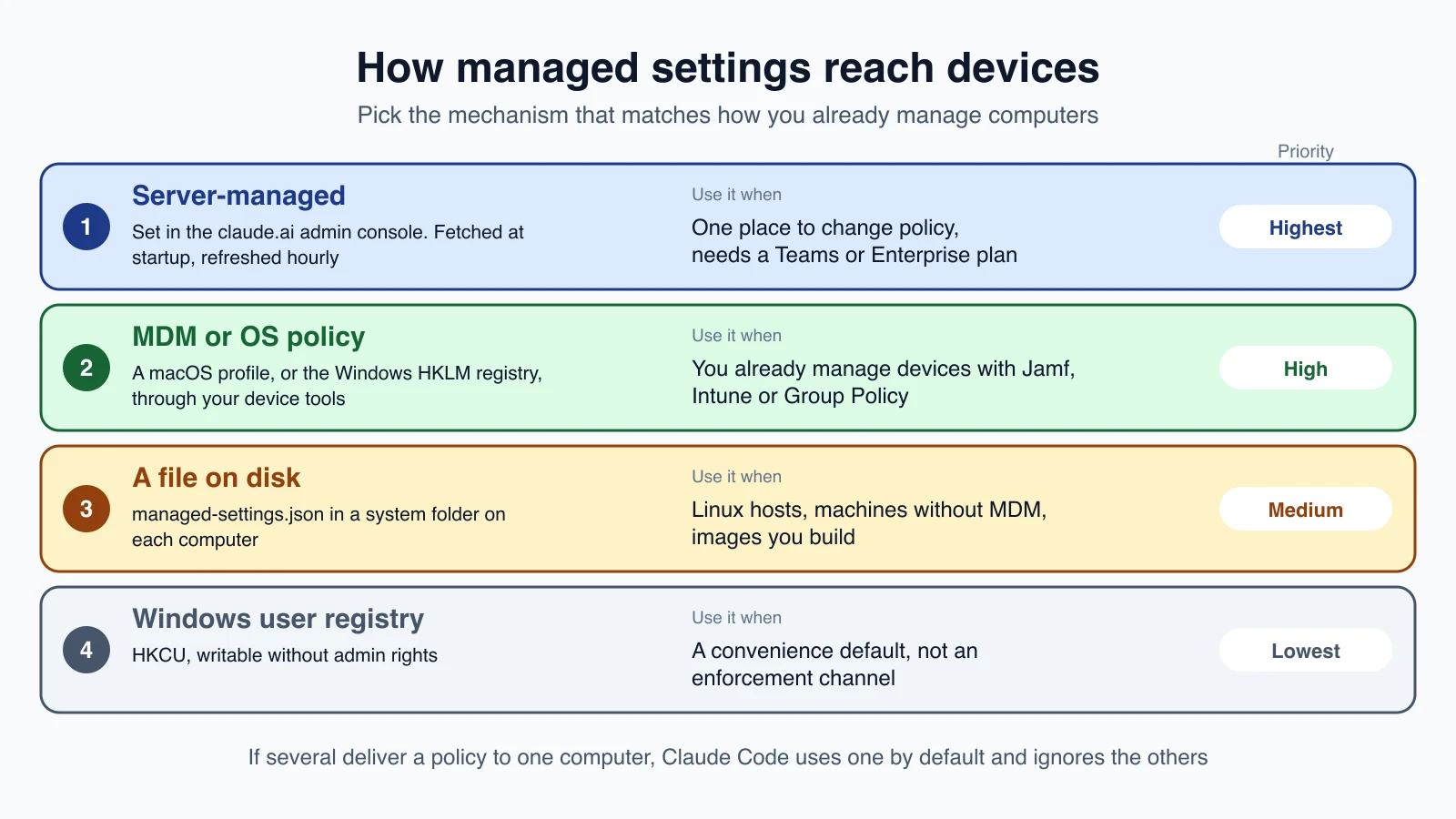
You have four delivery options, listed by priority:
| Mechanism | How it works | Use it when |
|---|---|---|
| Server-managed | Set in the claude.ai admin console. Claude Code fetches it at startup and refreshes it hourly | You want one place to change policy for a claude.ai organization, with no work on each computer. Needs a Teams or Enterprise plan |
| MDM or operating-system policy | A macOS configuration profile, or the Windows registry under HKLM\SOFTWARE\Policies\ClaudeCode | You already manage devices with tools such as Jamf, Intune or Group Policy |
| A file on disk | managed-settings.json in a system folder | Linux hosts, machines without MDM, or images you build yourself |
| Windows user registry | HKCU, writable without admin rights | A convenience default, not an enforcement channel |
When more than one mechanism delivers a policy to the same computer, Claude Code by default uses one and ignores the others. If your members use a mix of sign-in methods, configure server-managed settings for claude.ai users plus a file or operating-system fallback for everyone else.
Deploy a managed file
The quickest route is a file. Write a managed-settings.json with the keys you want. This example blocks two file reads, turns off bypass mode, and makes Claude Code ignore permission rules from user, project and local files:
1{
2  "permissions": {
3    "deny": [
4      "Read(./.env)",
5      "Read(./secrets/**)"
6    ],
7    "disableBypassPermissionsMode": "disable"
8  },
9  "allowManagedPermissionRulesOnly": true
10}
Place it in the system folder for each operating system:
- macOS:
/Library/Application Support/ClaudeCode/managed-settings.json - Linux and WSL:
/etc/claude-code/managed-settings.json - Windows:
C:\Program Files\ClaudeCode\managed-settings.json
If several teams own parts of one policy, put each part in its own file in a managed-settings.d/ folder next to the main file. Claude Code reads managed-settings.json first, then every .json file in that folder in alphabetical order, so name them with number prefixes, such as 10-telemetry.json and 20-security.json. When two files set the same key:
- A single value such as
"model": "opus": the later file wins. - A list such as
permissions.deny: the lists combine, with duplicates removed. - A nested block such as
envorsandbox: the blocks merge key by key.
Hidden files and files that do not end in .json are ignored.
When several managed sources reach one computer
A computer can receive policy from more than one place. Claude Code ranks the sources, highest first:
- Remote settings, delivered from claude.ai as server-managed settings.
- MDM or operating-system policy: the macOS profile or the Windows HKLM registry.
- Managed settings files:
managed-settings.d/*.jsonandmanaged-settings.json, merged together. - The Windows HKCU registry, which a user can write, so it is only a fallback.
By default, the key managedSourcesBehavior is "first-wins". Claude Code uses the highest-ranked source that supplies at least one policy key and ignores the others rather than merging them. Set it to "merge" in managed settings and Claude Code combines every admin source: for most keys the higher-ranked value applies, lists are joined, and locks take the strictest value. Merge needs Claude Code 2.1.242 or later. A few keys, such as the sandbox locks, are always read from every admin source.
What a developer can still change
A developer's own settings files, --settings flag and project files never override a managed value. Some things sit outside that rule:
- The model for one session. A managed
modelis a default, not a lock.--modelandANTHROPIC_MODELstill choose a model, so useavailableModelsto restrict the choice. - Local administrators. A developer who is an administrator on the machine can edit the managed file itself. That is why teams redeploy it on a schedule with their MDM tool.
- Other tools. Managed settings bind Claude Code only. Someone calling the API from another tool is not covered.
Check that it worked
On one computer, run /status inside Claude Code and read the Setting sources line. It names the managed source in use:
| You see | It means |
|---|---|
Enterprise managed settings (remote) | Server-managed settings from claude.ai |
(plist) or (HKLM) | An MDM or operating-system policy |
(file), (drop-ins) or (file + drop-ins) | managed-settings.json, the drop-in folder, or both |
(HKCU) | The user-writable registry fallback |
When Claude Code found a managed source and did not use it, a Skipped sources line names it. That line tells you whether a policy never reached the computer, or reached it and a higher-ranked source overrode it. If the Setting sources line is missing, no managed source with a policy key was found, so check the file path and that the file holds a policy key. For a server-managed policy, claude doctor reports the fetch result.
Check one machine before you roll out to the fleet. A session left open for weeks can lag a rollout, so a newer policy may need a restart to apply.
What happens with a bad file
- If a managed file, MDM profile or registry value cannot be read as a JSON object, Claude Code refuses to start and names the source in an error. Test your file before you push it.
- If a value is the wrong type, Claude Code repairs or drops the single bad entry and warns about it. Interactive sessions show a dialog at startup.
claude doctorlists each invalid entry with its source and field. - Some security keys fail closed. If
allowManagedPermissionRulesOnlyordisableAutoModeholds a value Claude Code cannot read, it is treated as the restrictive value until you fix it.
3. Decide what to enforce
Each control is a setting key in the managed file. These are the ones to know:
| Control | What it does | Key settings |
|---|---|---|
| Permission rules | Allow, ask or deny specific tools and commands | permissions.allow, permissions.deny |
| Permission lockdown | Make managed settings the only source of permission rules, and turn off bypass mode | allowManagedPermissionRulesOnly, permissions.disableBypassPermissionsMode |
| Starting permission mode | Choose the mode terminal sessions start in, or remove auto mode | permissions.defaultMode, permissions.disableAutoMode |
| Sandbox | Operating-system file and network isolation | sandbox.enabled, sandbox.network.allowedDomains |
Managed CLAUDE.md | Organization-wide guidance for Claude. It is guidance, not an enforced rule | A file at the managed policy path |
| MCP control | Restrict which MCP servers users can add | allowedMcpServers, deniedMcpServers, allowManagedMcpServersOnly |
| Plugin control | Restrict which marketplaces users can install from | strictKnownMarketplaces, blockedMarketplaces |
| Hook restriction | Restrict which hooks run | allowManagedHooksOnly |
| Login enforcement | Restrict the sign-in method or the organization | forceLoginMethod, forceLoginOrgUUID |
| Model restriction | Limit which models appear in the picker | availableModels |
| Effort cap | Cap the effort level | maxEffortLevel |
| Version floor | Stop auto-update installing below a minimum | minimumVersion |
| Telemetry opt-out | Turn off usage metrics, error reports and surveys | env with DISABLE_TELEMETRY set to 1, or CLAUDE_CODE_DISABLE_NONESSENTIAL_TRAFFIC to cut all non-essential traffic |
Some of these keys can be set only in managed settings. Putting them in a user or project file has no effect. They are mostly locks, which tell Claude Code to honor only the managed value:
allowManagedPermissionRulesOnly,allowManagedHooksOnlyandallowManagedMcpServersOnlystrictKnownMarketplaces,blockedMarketplacesandstrictPluginOnlyCustomizationforceRemoteSettingsRefresh, which blocks startup until fresh remote settings arrivesandbox.network.allowManagedDomainsOnlyandsandbox.filesystem.allowManagedReadPathsOnly
A note about telemetry: turning it off also stops the usage data that feeds your organization's analytics dashboard for the developers the policy reaches, so decide with the dashboard in mind.
Many of these appeared earlier in the course. Permission rules and the bypass setting came in lesson 8, the sandbox in lesson 27, MCP servers in lesson 19, plugin marketplaces in lesson 20, hooks in lesson 18, and effort in lesson 5.
One point about layers: permission rules and the sandbox cover different things. Denying the web fetch tool blocks Claude's own fetch tool, but if shell commands are allowed, curl and wget can still reach any address. The sandbox closes that gap with a network allowlist enforced by the operating system. For a serious policy, use both. For the complete picture of the threat model, see lesson 24.
4. Set up usage visibility
Choose monitoring by what you need to report on:
| Capability | What you get | Availability |
|---|---|---|
| OpenTelemetry export | Sessions, tools and token metrics sent to your own monitoring | All providers |
| Analytics dashboard | Adoption and contribution metrics, or per-user usage and spend | claude.ai analytics for Teams and Enterprise, and the Console dashboard for API organizations |
| Programmatic reporting | Per-user usage and cost data over an API | Enterprise Analytics API, or the Claude Code Analytics API for the Console |
| Spend controls | Spend limits and rate limits | Organization settings, Console workspaces, or your cloud's budget controls |
Lesson 26 covered the cost side in more detail, including rate-limit recommendations by team size and what each limit message means.
5. Review data handling
On Team, Enterprise, Claude API and cloud provider plans, Anthropic does not train models on your code or prompts. Your provider determines retention and compliance. Qualified Enterprise accounts can get zero data retention, and there is a HIPAA configuration for organizations that need it, which turns some features off. If you need request-level audit logs or want to route traffic by data sensitivity, put a gateway between developers and your provider.
Onboard your developers
Give people the same path you followed:
- The quickstart and common workflows pages in the documentation.
- Claude Academy courses such as Claude Code 101 and Claude Code in Action.
- This course, starting with lessons 1 to 5.
For sign-in problems, the common fixes are to run /logout then /login to switch accounts, run claude update if the enterprise sign-in option is missing, and restart the terminal after updating. If someone sees "You haven't been added to your organization yet", their seat does not include Claude Code access, and an admin needs to update it in the admin console.
Mistakes teams make
- Skipping the pilot. Start small, get a baseline, then expand.
- Putting rules that must never be broken in
CLAUDE.md. Use deny rules or managed settings. - Relying on the Windows user registry for enforcement. It is writable without admin rights.
- Forgetting that developers need a claude.ai seat for some features. Check before you promise them.
- Not testing the managed file. A file that cannot be read stops Claude Code from starting.
- Locking everything down on day one. Start with the rules that matter, and add more as you learn.
Quick recap
- Team setup has three layers: managed by the organization, shared in the repository, and personal to each developer.
- Plan a rollout in five decisions: provider, delivery, enforcement, usage visibility and data handling. Start with a pilot.
- Deliver managed settings by the admin console, MDM, a file, or the Windows user registry, and check with
/status. - Enforce what matters with permission rules, lockdown, the sandbox and allowlists, and use
CLAUDE.mdfor guidance only. - Track usage with OpenTelemetry and the dashboards, and onboard developers with the quickstart and courses.
Try it yourself
If you are the owner of a project, do the shared checklist: write a short CLAUDE.md, commit a .claude/settings.json that denies reads of .env, and add .claude/settings.local.json to .gitignore. Then, on your own computer, create a managed settings file with one deny rule at the path for your system, start Claude Code, and run /status to find Enterprise managed settings (file) in the sources. Remove the file again when you are done. If you manage a team, draft your answers to the five decisions in a short document.
Next lesson: troubleshooting Claude Code.