
Cyber Security course · lesson 3 of 24
- 1What Is Cyber Security?
- 2Fundamental IT Skills for Cyber Security
- 3Operating Systems for Security: Windows, Linux and macOS
- 4Virtualization and Your Safe Cyber Security Lab
- 5Networking Fundamentals for Cyber Security
- 6Network Services and Infrastructure for Cyber Security
- 7Network Troubleshooting and Traffic Analysis Tools
- 8Core Security Concepts Every Defender Uses
- 9Authentication and Access Control Explained
- 10Cryptography Basics for Cyber Security
- 11Secure Protocols and Wireless Security
- 12The Threat Landscape and Security Frameworks
- 13Social Engineering and Human Attacks
- 14Network and Wireless Attacks and How to Detect Them
- 15Web Attacks and the OWASP Top 10
- 16Malware, Exploits and System Attacks
- 17Hardening and Endpoint Security
- 18Network Defense, Logging and SIEM
- 19Vulnerability Management and Threat Hunting
- 20Incident Response and Digital Forensics
- 21Cloud Security Basics
- 22Scripting for Security
- 23Ethical Hacking, CTFs and Penetration Testing
- 24Cyber Security Standards, Certifications and Capstone
After this lesson, you should be able to explain what an operating system does, say why an unsupported version is a security problem, read file permissions on Linux and macOS and recognize them on Windows, install software from trusted sources, create, read, copy, move and delete files from the command line, and find the logs and process lists you need when something goes wrong. You will meet all three major families: Windows, Linux and macOS. Security work touches all of them, often on the same day.
What an operating system does
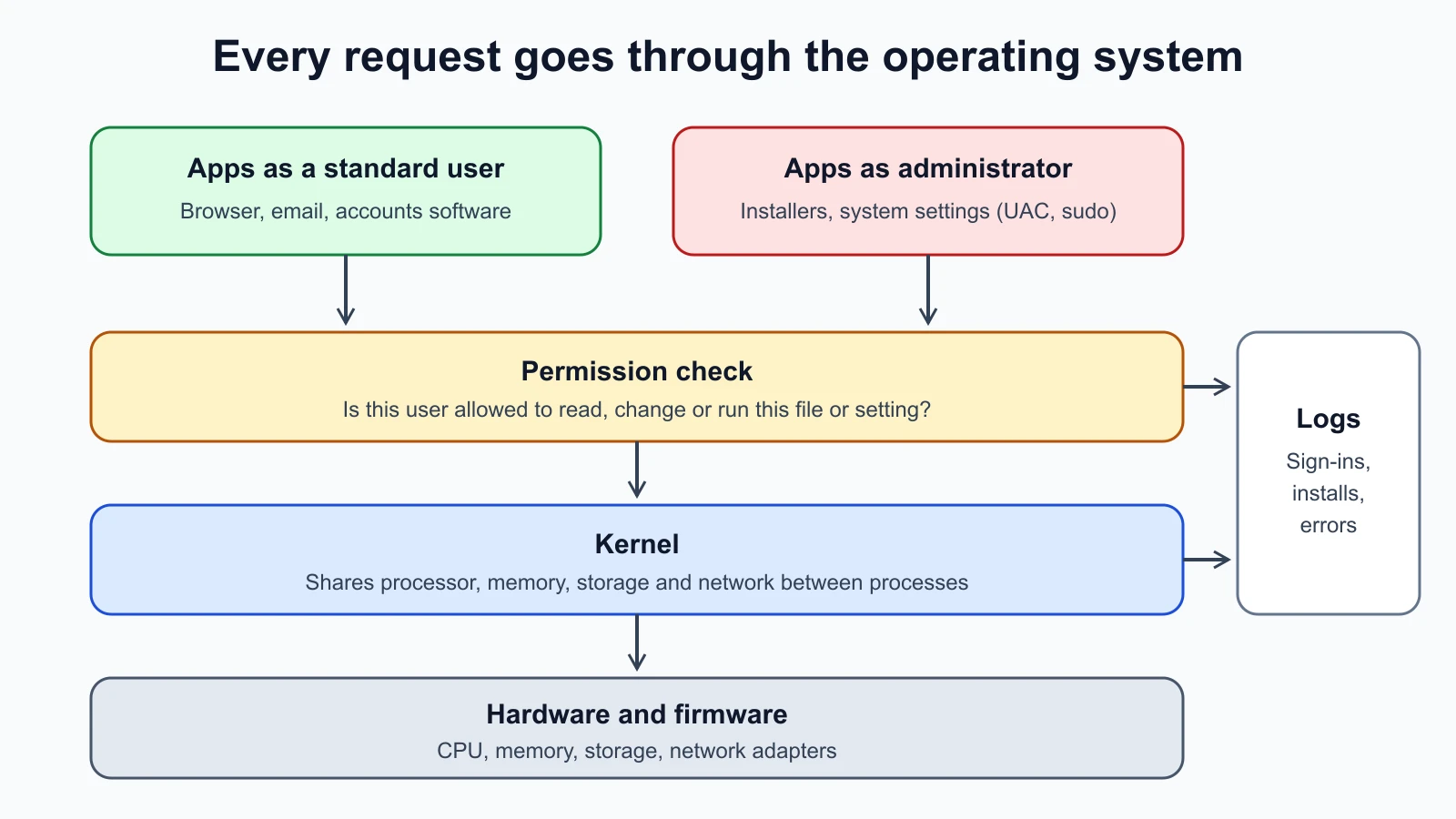
An operating system (OS) is the software that runs the computer for every other program. It starts after the firmware, which you met in Fundamental IT Skills for Cyber Security, and it stays in charge until the machine shuts down. Its core is the kernel, the part that talks directly to the hardware and decides which program may use the processor, memory, storage and network at any moment.
For security, four jobs of the OS matter most:
- Users. The OS knows who is signed in and what each account is allowed to do.
- Files. It stores files and enforces who may read, change or run each one.
- Processes. A process is a running program. The OS starts, isolates and stops processes, and each one runs with the rights of a particular user.
- Logs. It records events such as sign-ins, errors, software installs and crashes, which defenders read later.
When an attacker "gets into" a computer, they are usually running a process as some user. What they can do next depends on that user's rights. That is why so much of this lesson is about users and permissions.
Three families and why versions matter
Windows
Microsoft Windows runs most office and home PCs and many company servers. At Harbor Books, the fictional bookshop used throughout this course, the front-office PC runs Windows 11. Windows 11 receives a feature update each year, named by year and half, and Microsoft's release information page currently lists versions such as 24H2, 25H2 and 26H2.
The most important version fact for security is support. Microsoft ended support for Windows 10 on 14 October 2025. A Windows 10 PC still starts and runs, but without support it no longer receives regular security updates, so newly found weaknesses stay open. Microsoft offers Extended Security Updates for eligible Windows 10 PCs, providing critical and important security fixes until 12 October 2027. If Harbor Books still had a Windows 10 till, the owner would need to enroll it in that program, upgrade it, or replace it.
Linux
Linux is a kernel, and a Linux distribution (distro) packages that kernel with tools, a desktop if wanted and a way to install software. Ubuntu, Debian, Fedora and Red Hat Enterprise Linux are common distributions. Linux is common on web servers, cloud machines and network devices, and Android phones use a Linux kernel. Security tools are often built for Linux first, which is why the practice lab in this course uses Linux virtual machines, including the security-focused distributions Kali and Parrot that you will meet in the lesson on virtualization.
Distributions have their own support periods. Canonical, the company behind Ubuntu, publishes a long-term support (LTS) release every two years with five years of standard security maintenance. The current LTS, Ubuntu 26.04, was released in April 2026 and is maintained until May 2031. Interim releases between LTS versions get only nine months of updates, so servers usually run LTS.
macOS
Apple's macOS runs on Mac computers. It is built on a Unix foundation, so its Terminal and file permissions behave much like Linux. Apple's own list of macOS versions currently shows macOS 27 Golden Gate as the latest release, with macOS Tahoe 26 and earlier versions below it. Older Macs eventually stop receiving new macOS versions, and then later security updates, so the same support question applies.
The support rule
Whatever the family, the rule is the same: an operating system that no longer receives security updates is a growing risk. Every new weakness discovered in it stays unfixed. One of the first things a security assessment checks is the OS version of every machine, and an inventory like the one you built in the last lesson should record it.
GUI and command line
Every major OS offers two ways to work. The graphical user interface (GUI) uses windows, icons and a mouse. The command-line interface (CLI) uses typed commands in a program called a terminal, which runs a shell that reads and carries out the commands. On Linux the shell is usually Bash; on macOS it is zsh by default in recent versions; on Windows you have PowerShell and the older Command Prompt.
Security professionals use the command line heavily, for four practical reasons:
- Servers often have no GUI. Most Linux servers are managed only through a terminal, often over a remote connection.
- Commands are repeatable. A command can be written down, shared, checked and run again exactly. A series of clicks cannot.
- Commands can be combined. The output of one command can feed another, so you can search thousands of log lines in a second.
- Many security tools are command-line only. Scanners, packet capture tools and forensic utilities in later lessons are usually run this way.
You do not need to memorize hundreds of commands. You need the small set below, the habit of reading each command before you press Enter, and the help system (man command on Linux and macOS, Get-Help command in PowerShell).
Users, administrators and permissions
Every OS separates standard users, who can use programs and their own files, from administrators, who can change the system: install software for everyone, change security settings, read other users' files. On Linux and macOS the most powerful account is called root.
The security principle here is least privilege: give each user and program only the rights it needs. If a standard user opens a malicious email attachment, the malware runs with standard rights and has fewer places to go. If an administrator opens it, the malware may be able to change the whole machine. That is why Harbor Books' owner should use a standard account for daily work and keep a separate administrator account for changes.
Each OS has a way to step up to administrator rights for one task:
- Windows uses User Account Control (UAC). Microsoft describes it as a feature that notifies the user when a change needs administrator permission and lets them approve or deny it. Programs run with standard rights until someone approves the prompt. UAC is on by default. Do not turn it off.
- Linux and macOS use
sudo, a command that lets an authorized user run a single command as root or another user, as its security policy allows. By defaultsudorecords the command it runs, which gives defenders a trail.
Reading Unix permissions
On Linux and macOS, every file has an owner (a user), a group (a set of users) and three sets of permissions: for the owner, for the group, and for everyone else ("others"). Each set has three possible rights: r (read), w (write, meaning change) and x (execute, meaning run as a program; for a folder, enter it).
The command ls -l shows them. Here is real output from a Mac running macOS 26.1, with the username changed to harbor:
1-rw-r--r--@ 1 harbor wheel 35 12 Nov 14:58 support-log.txtRead the first block, -rw-r--r--, in four parts:
- The first character is the type:
-for a file,dfor a folder. rw-is the owner: read and write, no execute.r--is the group: read only.r--is others: read only.
The @ at the end is macOS-specific and means the file has extended attributes, extra metadata such as where it was downloaded from. Then come the number of links, the owner (harbor), the group (wheel here, because the file is in a system temporary folder), the size in bytes, the date and the name.
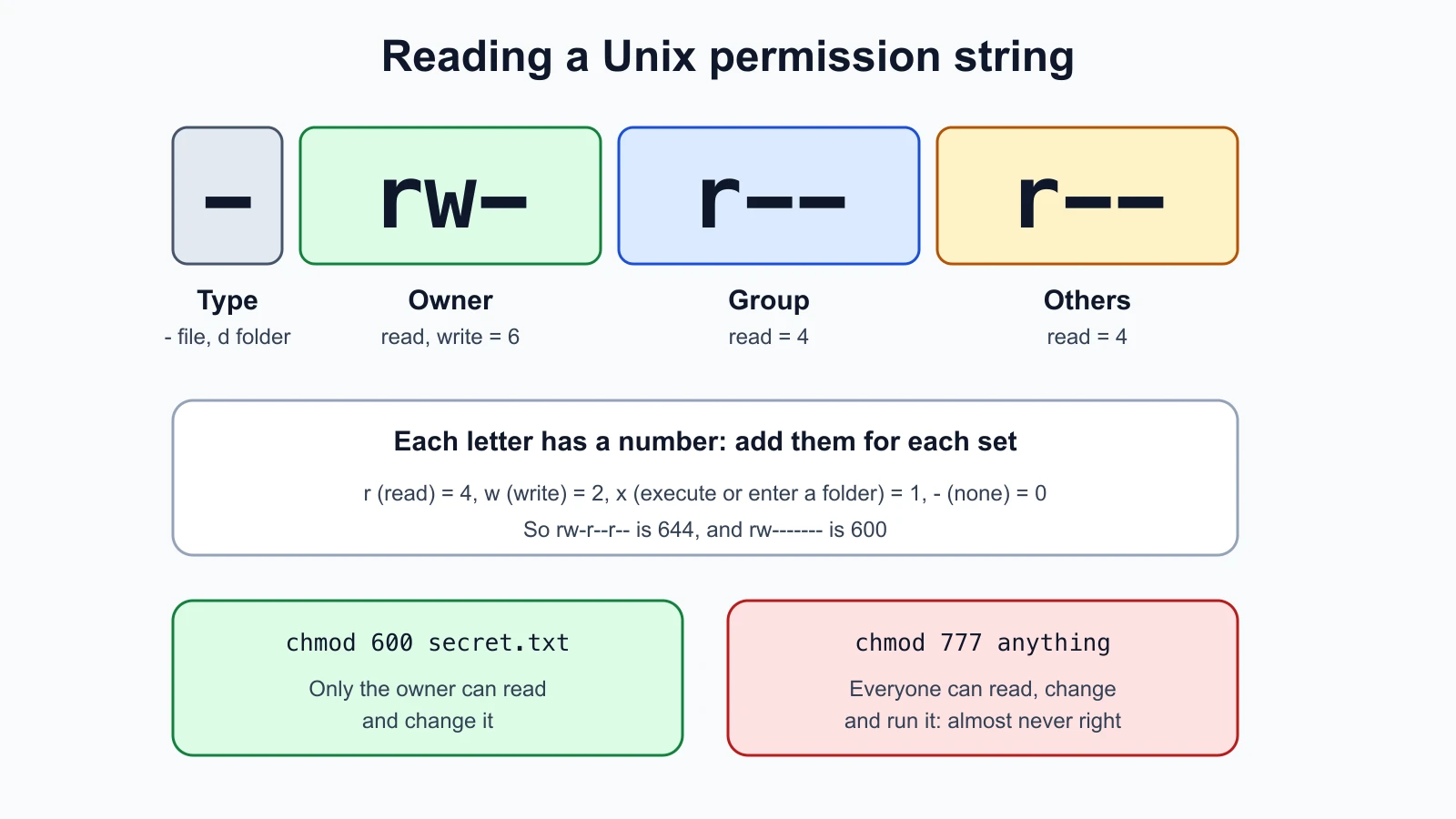
The command chmod changes permissions. The common shorthand uses a number for each set, made by adding read (4), write (2) and execute (1). So 6 means read and write (4 + 2), and 4 means read only. chmod 600 gives the owner read and write and gives the group and others nothing. Here it is on the same file:
1chmod 600 support-log.txt
2ls -l support-log.txt1-rw-------@ 1 harbor wheel 35 12 Nov 14:58 support-log.txtNow only the owner can read the file. For a file holding a password or private key, that is what you want. Two warning signs to remember: a file that everyone can write to (a w in the last set) can be changed by any user on the machine, and chmod 777, which gives everyone every right, is almost never the right fix even when it makes an error go away.
Windows permissions
Windows uses access control lists (ACLs): each file or folder has a list of entries saying which users or groups have which rights. You see them in a file's Properties under the Security tab, or with the icacls command. Microsoft's documentation lists simple rights such as F (full access), M (modify), RX (read and execute), R (read-only) and W (write-only). The idea is the same as on Unix, with more detail: who can do what to this file.
Installing software safely
A lot of malware arrives as software the user chose to install. On every OS, the safest sources are the ones that check software before you get it:
- Windows: the Microsoft Store, the vendor's own website, or WinGet, Microsoft's command-line package manager (
winget search name, thenwinget install name). Microsoft's WinGet documentation warns that running it from an administrator prompt skips the usual elevation prompts, so take care and install only applications you trust. - macOS: the App Store, or a developer's site. Apple's Gatekeeper checks, by default, that downloaded apps come from an identified developer, are notarized (scanned by Apple for known malicious content) and have not been altered, and asks the user before a downloaded app opens the first time.
- Linux: the distribution's package manager. On Ubuntu,
sudo apt updaterefreshes the list of available packages,sudo apt install nmapinstalls one (Nmap is a network scanner you will use in the lab), andsudo apt remove nmapremoves it. Packages from the official repositories are signed, so the package manager can check they came from the distribution.
The common rule: prefer the official store or package manager, then the vendor's own site, and avoid software from random download sites, cracked copies and links in unexpected emails. Keep automatic updates on, as you saw in the last lesson.
Working with files from the command line
Creating, reading, updating and deleting files (often shortened to CRUD) is the most basic command-line skill. Here is a short session from the same Mac. The folder harbor-notes is a practice folder created for this example. Each command is followed by its output, if it has any.
1mkdir harbor-notes
2cd harbor-notes
3echo "Till 2 printer jammed, fixed 10:15" > support-log.txt
4cat support-log.txt
5cp support-log.txt support-log-backup.txt
6mv support-log-backup.txt old-log.txt
7ls -l
8rm old-log.txt
9ls
Output, in order (the username is replaced with harbor):
1Till 2 printer jammed, fixed 10:15
2total 16
3-rw-r--r--@ 1 harbor  wheel  35 12 Nov 14:58 old-log.txt
4-rw-r--r--@ 1 harbor  wheel  35 12 Nov 14:58 support-log.txt
5support-log.txt
What each command did:
mkdirmade a directory (folder);cdchanged into it.echo "..." > filecreated the file and wrote one line into it. A single>replaces the file's contents;>>adds to the end.catprinted the file.cpcopied it;mvrenamed the copy (mvalso moves files between folders).ls -llisted the folder with permissions;lslists names only.rmdeleted the old file. There is no recycle bin at the command line:rmis permanent, so read the command twice before pressing Enter.
The same commands work on Linux. On Windows, PowerShell has its own commands (Microsoft calls them cmdlets) and also accepts several Unix-style names as shortcuts. The PowerShell column below is based on Microsoft's PowerShell documentation and was not run for this lesson:
| Task | Linux and macOS | Windows PowerShell |
|---|---|---|
| List files | ls -l | Get-ChildItem (or ls, dir) |
| Change folder | cd folder | Set-Location folder (or cd) |
| Make folder | mkdir name | New-Item -ItemType Directory name |
| Read a file | cat file | Get-Content file (or cat) |
| Copy | cp a b | Copy-Item a b |
| Move or rename | mv a b | Move-Item a b |
| Delete | rm file | Remove-Item file |
| Who am I? | whoami | whoami |
| Running processes | ps aux or top | Get-Process |
| Help | man command | Get-Help command |
Troubleshooting on each system
The seven-step troubleshooting method from the last lesson works on any OS. What changes is where you look for evidence in step 1. Two places matter on every system: the list of running processes, and the logs.
Running processes show what the computer is doing right now. On Windows, open Task Manager (Ctrl+Shift+Esc) or run Get-Process. On macOS, open Activity Monitor or run top or ps aux in Terminal. On Linux, run top or ps aux. A process you do not recognize, using a lot of processor time or network, deserves a search for its name.
Logs record what happened in the past:
- Windows keeps logs in Event Viewer. Under "Windows Logs" you will find the Application, Security and System logs. The Security log records sign-ins and other security events, which you will analyze in the lesson on logging and SIEM.
- macOS has the Console app, which collects log messages you can search and compiles reports.
- Linux systems that use systemd (most current distributions, including Ubuntu) store logs in the journal, read with
journalctl. Useful options:journalctl -bfor messages since the last boot,journalctl -p errfor errors and worse,journalctl -u sshfor one service, andjournalctl -fto follow new messages live. Many systems also keep text logs in/var/log.
For Harbor Books, a useful habit is to look at these two places when anything odd happens: which programs are running, and what the logs said just before the problem. Most of the time the answer is a failed update or a full disk. Sometimes it is something that should not be there, and you will have the evidence ready.
Mistakes beginners make
-
Using an administrator account for everyday work. Any malware you run gets full control.
Fix: Use a standard account daily and approve administrator prompts only when you started the change.
-
Fixing permission errors with
chmod 777or by turning off UAC. The error goes away and so does the protection.Fix: Find out which user needs which right, and grant only that.
-
Running
rmorRemove-Itemwithout reading the path. A wrong folder or a stray space can delete far more than intended.Fix: Run
lson the same path first, and keep backups of anything that matters. -
Keeping an unsupported OS because "it still works". It works for attackers too.
Fix: Record every machine's OS version, and plan upgrades or extended support before end of support.
-
Installing tools from random download sites. Security tools are a popular disguise for malware.
Fix: Use the official store, package manager or vendor site, and check you typed the address correctly.
Recap and try it yourself
The operating system controls users, files, processes and logs, and the rights of the user running a process decide what that process can do. Windows, Linux and macOS each need a supported version that still gets security updates. The command line is repeatable and powerful, and the commands mkdir, cd, cat, cp, mv, ls and rm (or their PowerShell equivalents) cover everyday file work. Unix permissions are read, write and execute for owner, group and others; Windows uses ACLs. Install software from official stores or package managers, use standard accounts day to day, and know where to find processes and logs.
Try it on your own computer, inside a new practice folder:
- Find your OS and version (Windows: Settings, System, About; macOS: Apple menu, About This Mac; Linux: run
cat /etc/os-release). Check on the vendor's site that it still receives security updates. - Check whether your daily account is a standard user or an administrator.
- In a terminal, make a folder, create a text file, read it, copy it, rename the copy and delete it, using the commands above. On Linux or macOS, run
ls -l, thenchmod 600on the file andls -lagain, and explain the change in one sentence. - Open your log viewer (Event Viewer, Console or
journalctl -b) and find one entry from today. Do not change or delete anything in the logs.
Add your OS version and account type to the inventory from the last lesson. In the next lesson you will use these skills to build a safe practice lab with virtual machines.
Sources checked on 12 November 2026: Windows 11 release information; Microsoft, Windows 10 end of support; Ubuntu release cycle; Apple, macOS versions; Microsoft, User Account Control; sudo manual; Microsoft, icacls; Microsoft, WinGet; Apple, Gatekeeper and runtime protection; Ubuntu package management; Microsoft, Get-ChildItem; Microsoft, Event Viewer; Apple, Console User Guide; journalctl manual.