
Cyber Security course · lesson 6 of 24
- 1What Is Cyber Security?
- 2Fundamental IT Skills for Cyber Security
- 3Operating Systems for Security: Windows, Linux and macOS
- 4Virtualization and Your Safe Cyber Security Lab
- 5Networking Fundamentals for Cyber Security
- 6Network Services and Infrastructure for Cyber Security
- 7Network Troubleshooting and Traffic Analysis Tools
- 8Core Security Concepts Every Defender Uses
- 9Authentication and Access Control Explained
- 10Cryptography Basics for Cyber Security
- 11Secure Protocols and Wireless Security
- 12The Threat Landscape and Security Frameworks
- 13Social Engineering and Human Attacks
- 14Network and Wireless Attacks and How to Detect Them
- 15Web Attacks and the OWASP Top 10
- 16Malware, Exploits and System Attacks
- 17Hardening and Endpoint Security
- 18Network Defense, Logging and SIEM
- 19Vulnerability Management and Threat Hunting
- 20Incident Response and Digital Forensics
- 21Cloud Security Basics
- 22Scripting for Security
- 23Ethical Hacking, CTFs and Penetration Testing
- 24Cyber Security Standards, Certifications and Capstone
After this lesson, you should be able to explain what DHCP, DNS, NTP, ARP and NAT do and how each can be abused, tell a router from a switch, describe LAN, WLAN, WAN and MAN networks and the four classic topologies, explain why VLANs and a DMZ separate traffic, say when a VPN is the right way in, and choose the secure version of each common protocol: SSH over Telnet, SFTP over FTP, HTTPS over HTTP, and TLS 1.2 or 1.3 rather than SSL. In Networking Fundamentals for Cyber Security you learned addresses, subnets and ports. This lesson is about the services that make those addresses useful, and the equipment that carries them.
Kinds of networks
Networks are named by how much ground they cover:
- A LAN (local area network) connects devices in one building or site, such as the Harbor Books shop.
- A WLAN (wireless LAN) is a LAN that uses Wi-Fi instead of, or as well as, cables.
- A MAN (metropolitan area network) spans a city, for example linking a company's offices across town, often run by a telecom provider.
- A WAN (wide area network) spans regions or countries. The internet is the largest WAN; a company with branches in several cities also runs one.
The bigger the network, the more of it someone else operates. Traffic on your own LAN passes through your equipment. Traffic on a WAN passes through providers you do not control, which is one reason to encrypt it.
Topologies
A topology is the shape of the connections:
| Topology | Shape | Strength | Weakness |
|---|---|---|---|
| Star | Every device connects to a central switch | Easy to manage; one broken cable affects one device | The central switch is a single point of failure |
| Bus | All devices share one cable | Cheap, historically common | One break can stop everything; every device sees all traffic |
| Ring | Each device connects to two neighbors in a loop | Predictable traffic flow | A break can interrupt the ring unless it is doubled |
| Mesh | Devices have many links to each other | Survives failures by routing around them | More cables or links to manage and secure |
Most modern office networks, including Harbor Books, are a star: devices plug into a switch, and the switch connects to the router. Wide-area and internet backbones lean toward mesh, so traffic can take another path when a link fails. For availability, the CIA property from the first lesson, the question is always "what single failure takes us offline?"
Routers, switches and access points
These three boxes are often combined in one home router, but they do different jobs:
- A switch connects devices within one network. It learns the MAC address (hardware address) of each device on each port and sends each frame only to the port where its destination is. It works mainly at layer 2 of the OSI model.
- A router connects different networks and forwards packets between them using IP addresses. It works at layer 3. Your default gateway is a router. Routers are also natural places to filter traffic, which is why routers and firewalls are often the same device.
- An access point connects Wi-Fi devices to the wired network.
A security way to remember it: a switch decides which port inside the network, a router decides which network, and a firewall decides whether at all.
ARP: finding the device behind an address
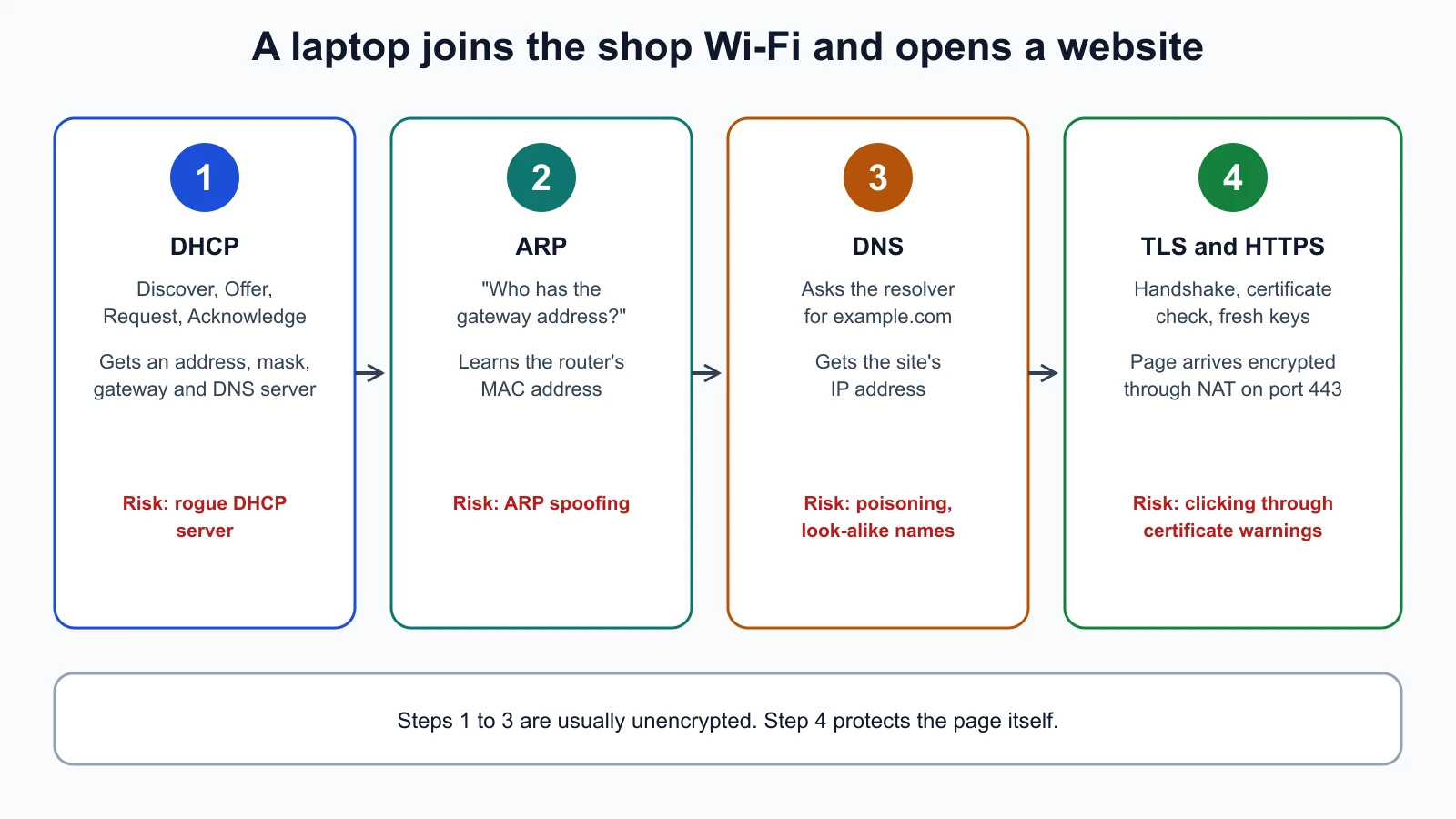
When a computer wants to send a packet to 192.168.10.20 on its own subnet, it needs that device's MAC address. ARP (Address Resolution Protocol, RFC 826 from 1982) handles this: the computer broadcasts "who has 192.168.10.20?", and the device with that address replies with its MAC address. The answer is stored in a short-lived ARP table, which you can view with arp -a on Windows, macOS and Linux.
The original specification has no way to check that a reply is genuine. Any device on the same network can answer, or send unrequested replies, claiming to be the gateway. That is the basis of ARP spoofing, which can let an attacker on the LAN sit in the middle of other people's traffic. You will see how it is detected and blocked in the lesson on network and wireless attacks. For now, note why physical access and guest Wi-Fi separation matter: ARP tricks only work from inside the same local network.
VLANs: several networks on one switch
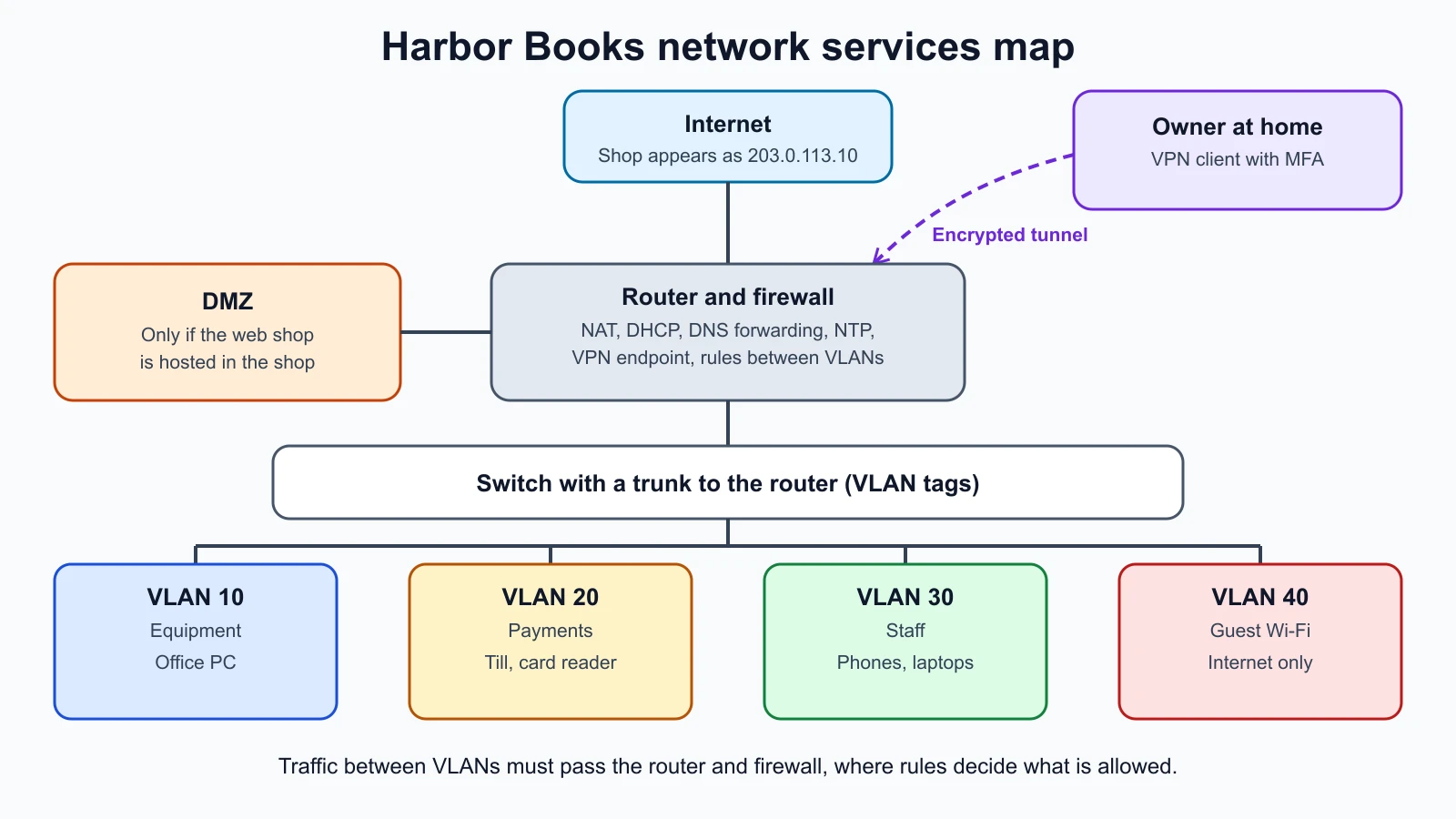
In the last lesson Harbor Books split 192.168.10.0/24 into four subnets: equipment, payments, staff and guests. Running four separate sets of switches would be expensive. A VLAN (virtual LAN) solves this. NIST's glossary defines a VLAN as a broadcast domain that is partitioned and isolated within a network at the data link layer, so one physical network can be split into several independent ones.
Each switch port is assigned to a VLAN, usually identified by a number. Devices in VLAN 20 (payments) cannot talk directly to devices in VLAN 40 (guests), even though they share the same switch. To get from one VLAN to another, traffic must go through the router, where rules decide what is allowed. A link that carries several VLANs between switches, or between a switch and router, is called a trunk; each frame on it carries a tag saying which VLAN it belongs to.
A sensible plan for the shop pairs each subnet with a VLAN:
| VLAN | Subnet | Devices | Allowed to reach |
|---|---|---|---|
| 10 Equipment | 192.168.10.0/26 | Router, office PC, a future backup NAS | Internet, management of other VLANs by the owner only |
| 20 Payments | 192.168.10.64/26 | Till, card reader | The payment provider on the internet only |
| 30 Staff | 192.168.10.128/26 | Staff phones and laptops | Internet, the office printer |
| 40 Guest | 192.168.10.192/26 | Customers' phones on guest Wi-Fi | Internet only |
VLANs are a strong and cheap control, but misconfigured trunks can be abused to hop from one VLAN to another, which is covered alongside ARP spoofing in the attacks lesson.
DHCP: handing out addresses
Typing an IP address, mask, gateway and DNS server into every device would be slow and error-prone. DHCP (Dynamic Host Configuration Protocol, RFC 2131) does it automatically. A new device and a DHCP server exchange four messages, often remembered as DORA:
- Discover: the device broadcasts a request for any DHCP server.
- Offer: a server offers an address and settings.
- Request: the device asks for the offered settings from one server.
- Acknowledge: the server confirms.
The address is given as a lease for a set time, which the device renews while it stays on the network. Besides the IP address, DHCP usually supplies the subnet mask, the default gateway and the DNS servers to use.
That last point is why DHCP matters to security. The RFC's own security section is blunt: unauthorized DHCP servers may be easily set up, they can send false and disruptive information to clients, and DHCP in its original form is "quite insecure". A rogue DHCP server that hands out its own address as the gateway or DNS server can redirect traffic. Business switches offer a feature usually called DHCP snooping, which allows DHCP replies only from the port where the real server is. Recall also the 169.254.x.x address from the last lesson: a device that shows one did not get a DHCP reply at all.
IPAM: knowing which address is which
As networks grow, someone needs to track which addresses and subnets exist, which are free, and which device has which address. IPAM (IP address management) is the practice, and the software, that does this. In a large organization it is a dedicated tool linked to DHCP and DNS; at Harbor Books it is a table in the asset inventory you started in Fundamental IT Skills for Cyber Security. For defenders, IPAM answers the first question in many investigations: "what is 192.168.10.37, and who owns it?"
DNS: names to addresses
People remember names; networks route addresses. DNS (Domain Name System) translates between them. RFC 1034, from 1987, describes it as a distributed system with three parts: a tree of names with data attached (resource records), name servers that hold the authoritative data for parts of the tree, and resolvers that look up answers for programs and cache them.
When you type example.com, your computer asks a resolver (often your router or internet provider, or a public resolver), which finds the authoritative name servers for the domain and returns the answer. Common record types:
| Record | Holds | Example use |
|---|---|---|
| A | An IPv4 address | Where the website is |
| AAAA | An IPv6 address | Same, for IPv6 |
| CNAME | An alias to another name | www pointing to the main name |
| MX | The mail servers for the domain | Where email is delivered |
| NS | The authoritative name servers | Who answers for the domain |
| TXT | Free text | Email anti-spoofing settings, domain ownership checks |
Here is real output from querying example.com, a domain reserved for documentation, with dig on a Mac (the time stamp line is removed):
1dig example.com A +noall +answer
2dig example.com MX +short
3dig example.com NS +short1example.com. 300 IN A 172.66.147.243
2example.com. 300 IN A 104.20.23.154
30 .
4elliott.ns.cloudflare.com.
5hera.ns.cloudflare.com.Read it like this: the domain has two IPv4 addresses, each cached for 300 seconds (the TTL, or time to live). Its MX answer, 0 ., is a "null MX", defined in RFC 7505, which tells senders the domain accepts no email at all. The NS records show which name servers are authoritative for it. These answers are what was returned on 12 November 2026; they can change at any time. On Windows, nslookup example.com gives similar information.
DNS is a favorite target because nearly every connection starts with it. Attackers register look-alike names (typosquatting), poison resolver caches to send people to the wrong address, change a domain's records after stealing the registrar password, or hide data inside DNS queries to sneak it out of a network. Defenses include protecting registrar accounts with MFA, using trustworthy resolvers, logging DNS queries, and DNSSEC, which you will meet in the lesson on secure protocols.
NTP: agreeing on the time
NTP (Network Time Protocol, version 4 in RFC 5905) synchronizes computer clocks over the network, using UDP port 123. Here is a real one-off check against Apple's time server from a Mac using sntp:
1+0.134253 +/- 0.103526 time.apple.com 17.253.18.131The clock was about 0.13 seconds off, within an uncertainty of about 0.1 seconds. That is fine.
Time sounds dull, but security depends on it in two ways. Certificates have start and end dates, so a wrong clock breaks HTTPS, as in the Harbor Books troubleshooting example in the IT skills lesson. And investigations rely on lining up logs from many machines: if the till's clock is five minutes off from the router's, the order of events in an incident becomes guesswork. Every device should sync to a reliable time source, and logs should record time zones, or better, UTC.
NAT: many devices, one public address
You saw in the last lesson that private addresses are not routed on the internet. NAT (network address translation, described in RFC 3022) lets private devices reach the internet anyway. The common form, which the RFC calls NAPT, maps each private address and port to the router's single public address and a port of its own, and rewrites replies on the way back. Harbor Books' devices all appear on the internet as 203.0.113.10.
NAT has a security side effect: devices behind it cannot be contacted from outside unless the router is told to forward a port. RFC 3022 describes that hiding as a privacy effect, not a security mechanism, and it is not a firewall. Two consequences follow:
- Port forwarding opens a door. Forwarding a public port to an inside device makes that device reachable from the whole internet. Microsoft's own Remote Desktop guidance warns that forwarding the Remote Desktop port opens your PC to the internet, "which isn't recommended", and says a VPN is preferable.
- Outbound traffic is not filtered by NAT. Malware inside the network can still connect out freely. Outbound rules need a firewall.
DMZ: a buffer zone for public services
A DMZ (demilitarized zone) is a separate network segment for systems that must be reachable from the internet, placed between the internet and the internal network. NIST's glossary describes it as a host or network segment inserted as a "neutral zone" between an organization's private network and the internet.
The logic is containment. A public web server is exposed to everyone, so it is the system most likely to be attacked. If it sits in a DMZ, firewall rules can allow the internet to reach it on port 443 while blocking it from reaching the till or the office PC. If it is compromised, the attacker is stuck in the DMZ.
Harbor Books' web shop is the obvious candidate. Many small shops avoid the question by using a hosted shop platform, so the web shop never runs inside the building at all, an option covered in the cloud security lesson. If it were hosted in the shop, it would get its own DMZ segment rather than a place on the equipment VLAN.
Note that some home routers have a setting called "DMZ host", which forwards all incoming traffic to one device. That is the opposite of a real DMZ: it exposes the device completely. Leave it off.
VPNs: a private tunnel across a public network
A VPN (virtual private network) creates an encrypted tunnel between two points across an untrusted network such as the internet, so traffic inside the tunnel cannot be read or changed on the way. There are two common uses:
- Remote access: a staff member's laptop at home connects into the shop network as if it were inside the building.
- Site to site: two offices connect their networks permanently over the internet.
Two families of technology are common. IPsec works at the network layer; NIST's Guide to IPsec VPNs (SP 800-77 Revision 1, 2020) describes it as a framework of open standards for private communications over IP networks, usually set up with the Internet Key Exchange (IKE) protocol. TLS-based VPNs use the same TLS encryption as HTTPS, described below.
For Harbor Books, the right way for the owner to reach the office PC from home is a VPN into the equipment VLAN, protected with MFA, not a forwarded Remote Desktop port. A VPN is only as safe as its accounts and its software, so VPN devices need prompt updates and strong sign-in.
Consumer "VPN apps" that route your browsing through a provider's servers are a different product. They move your trust from your internet provider to the VPN company; they do not make you anonymous or protect an organization's network.
Remote access and file transfer protocols
Old protocols sent everything, including passwords, as readable text. Their secure replacements encrypt the connection. A packet capture, which you will make in the next lesson, shows the difference plainly.
| Old and insecure | Secure replacement | Notes |
|---|---|---|
| Telnet (port 23) | SSH (port 22) | SSH gives an encrypted remote command line. RFC 4253 says its transport provides server authentication, confidentiality and integrity |
| FTP (ports 20, 21) | SFTP (over SSH, port 22) | FTP sends the user name and password as ordinary text. SFTP is an interactive file transfer program that runs over an encrypted SSH connection |
| HTTP (port 80) | HTTPS (port 443) | HTTP over TLS |
SSH deserves one more note. The first time you connect to a server, SSH shows the server's host key fingerprint and asks whether to trust it. RFC 4253 says the client should verify the host key, and that accepting it without checking leaves the connection open to active attacks. If a known server's key suddenly changes, stop and find out why before you connect.
RDP (Remote Desktop Protocol, port 3389) gives a full graphical desktop on a remote Windows machine. It is encrypted, but it is a popular target for password guessing when left reachable from the internet. Use it inside the network or through a VPN, with strong passwords and MFA where available.
HTTP, HTTPS, SSL and TLS
HTTP carries web pages. HTTPS is HTTP inside a TLS connection. TLS (Transport Layer Security) is the successor to SSL (Secure Sockets Layer); people still say "SSL certificate" out of habit, but SSL itself is obsolete.
TLS 1.3, defined in RFC 8446 (2018), gives three protections that map onto the CIA triad:
- Authentication: the server always proves its identity, usually with a certificate. The client can optionally prove its identity too.
- Confidentiality: after the connection is set up, only the two ends can read the data.
- Integrity: if an attacker changes data in transit, the change is detected.
The setup exchange is called the handshake. In simple terms, the client says which versions and encryption methods it supports, the server picks one and sends its certificate, the server proves it holds the private key that matches the certificate, and both sides derive fresh keys for the session. The lesson on cryptography basics explains keys and certificates properly.
Old versions are retired. RFC 7568 (2015) says plainly that SSL 3.0 must not be used, and RFC 8996 (2021) deprecated TLS 1.0 and 1.1. Today, servers should offer TLS 1.2 and 1.3 only.
Here is a real connection to example.com with curl -v, showing the lines that matter:
1* SSL connection using TLSv1.3 / AEAD-CHACHA20-POLY1305-SHA256 / [blank] / UNDEF
2*  subject: CN=example.com
3*  expire date: Dec 25 22:56:35 2026 GMT
4*  issuer: C=US; O=SSL Corporation; CN=Cloudflare TLS Issuing ECC CA 3
5* using HTTP/2
The connection used TLS 1.3 (curl still labels it "SSL connection" out of habit). The certificate's subject is example.com, it expires on 25 December 2026, and it was issued by a certificate authority, the organization that vouches for the certificate. Those details were true on 12 November 2026 and will change when the certificate is renewed. A browser checks all of this silently; when a check fails, it shows the warning you met in the troubleshooting example in the IT skills lesson.
Mistakes beginners make
-
Thinking NAT is a firewall. It hides inside addresses but does not filter outbound traffic, and port forwarding bypasses it entirely.
Fix: Use firewall rules for both directions, and forward no ports you cannot justify.
-
Exposing Remote Desktop or SSH directly to the internet. These ports attract constant password guessing.
Fix: Reach them through a VPN with MFA, and limit who can connect.
-
Using the router's "DMZ host" setting. It forwards everything to one device.
Fix: Leave it off; build a real DMZ segment or host public services elsewhere.
-
Ignoring time synchronization. Wrong clocks break certificates and make logs useless in an investigation.
Fix: Point every device at a reliable NTP source and record times in UTC.
-
Clicking through SSH host key changes and certificate warnings. Both can signal someone in the middle of the connection.
Fix: Verify the fingerprint or certificate before continuing, and treat unexplained changes as an incident until explained.
Recap and try it yourself
LANs, WLANs, MANs and WANs differ in reach, and star, bus, ring and mesh topologies differ in how they fail. Switches move frames inside a network, routers move packets between networks, and firewalls decide what is allowed. ARP finds MAC addresses but trusts any reply. VLANs split one physical network into isolated ones, and a DMZ holds public servers away from the inside. DHCP hands out addresses, gateways and DNS servers, and a rogue server can misdirect traffic. DNS turns names into addresses, NTP keeps clocks aligned, IPAM tracks who has which address, and NAT lets private devices share one public address without being a firewall. VPNs protect traffic across untrusted networks. Prefer SSH, SFTP and HTTPS over Telnet, FTP and HTTP, and allow only TLS 1.2 and 1.3.
Try it:
- Run
dig example.com A +noall +answer(ornslookup example.comon Windows) and then the same for a domain you use every day. Note the TTL of each answer. - Run
arp -aon your own computer. Which entry is your default gateway? Do not change anything. - Open your home router's admin page from a device you own and find its DHCP settings: the address range it hands out, the lease time and the DNS servers. Check whether any port forwarding or "DMZ host" setting is on, and write down what you find. Change nothing unless you understand it and own the router.
- In your lab, run
ip routeandcat /etc/resolv.confonharbor-kalito see the gateway and DNS settings it received. - Using the Harbor Books VLAN table, write one sentence for each VLAN explaining what should be blocked from reaching it.
In the next lesson you will use the tools that let you see all of this happening: ping, traceroute, netstat, nmap, tcpdump and Wireshark.
Sources checked on 12 November 2026: RFC 826, ARP; NIST glossary, VLAN; RFC 2131, DHCP; RFC 1034, DNS concepts; RFC 7505, null MX; RFC 5905, NTPv4; RFC 3022, traditional NAT; Microsoft, Remote Desktop access from outside your network; NIST glossary, DMZ; NIST SP 800-77 Rev. 1, Guide to IPsec VPNs; RFC 4253, SSH transport; OpenBSD sftp manual; RFC 8446, TLS 1.3; RFC 7568, deprecating SSL 3.0; RFC 8996, deprecating TLS 1.0 and 1.1.