
Cyber Security course · lesson 22 of 24
- 1What Is Cyber Security?
- 2Fundamental IT Skills for Cyber Security
- 3Operating Systems for Security: Windows, Linux and macOS
- 4Virtualization and Your Safe Cyber Security Lab
- 5Networking Fundamentals for Cyber Security
- 6Network Services and Infrastructure for Cyber Security
- 7Network Troubleshooting and Traffic Analysis Tools
- 8Core Security Concepts Every Defender Uses
- 9Authentication and Access Control Explained
- 10Cryptography Basics for Cyber Security
- 11Secure Protocols and Wireless Security
- 12The Threat Landscape and Security Frameworks
- 13Social Engineering and Human Attacks
- 14Network and Wireless Attacks and How to Detect Them
- 15Web Attacks and the OWASP Top 10
- 16Malware, Exploits and System Attacks
- 17Hardening and Endpoint Security
- 18Network Defense, Logging and SIEM
- 19Vulnerability Management and Threat Hunting
- 20Incident Response and Digital Forensics
- 21Cloud Security Basics
- 22Scripting for Security
- 23Ethical Hacking, CTFs and Penetration Testing
- 24Cyber Security Standards, Certifications and Capstone
After this lesson, you should be able to explain when a small script helps a security team, read the flow of a program you did not write, write a cautious Python utility and Bash helper, and recognize where PowerShell, Go, JavaScript and C++ are commonly used. You will build two offline tools that inspect synthetic audit data. They do not connect to a cloud service, change a system or use credentials. Run examples only on data you are authorized to review.
Harbor Books now has cloud accounts, shared files and an incident response plan. Its administrator downloads an approved sample of cloud audit events for a routine review. Looking through every row by hand is slow, but a rushed script that makes changes could create a bigger problem. A small read-only program can count a few sensitive event types and help the administrator decide what deserves a closer look. It cannot decide whether a change was malicious or authorized; a person needs to check context.
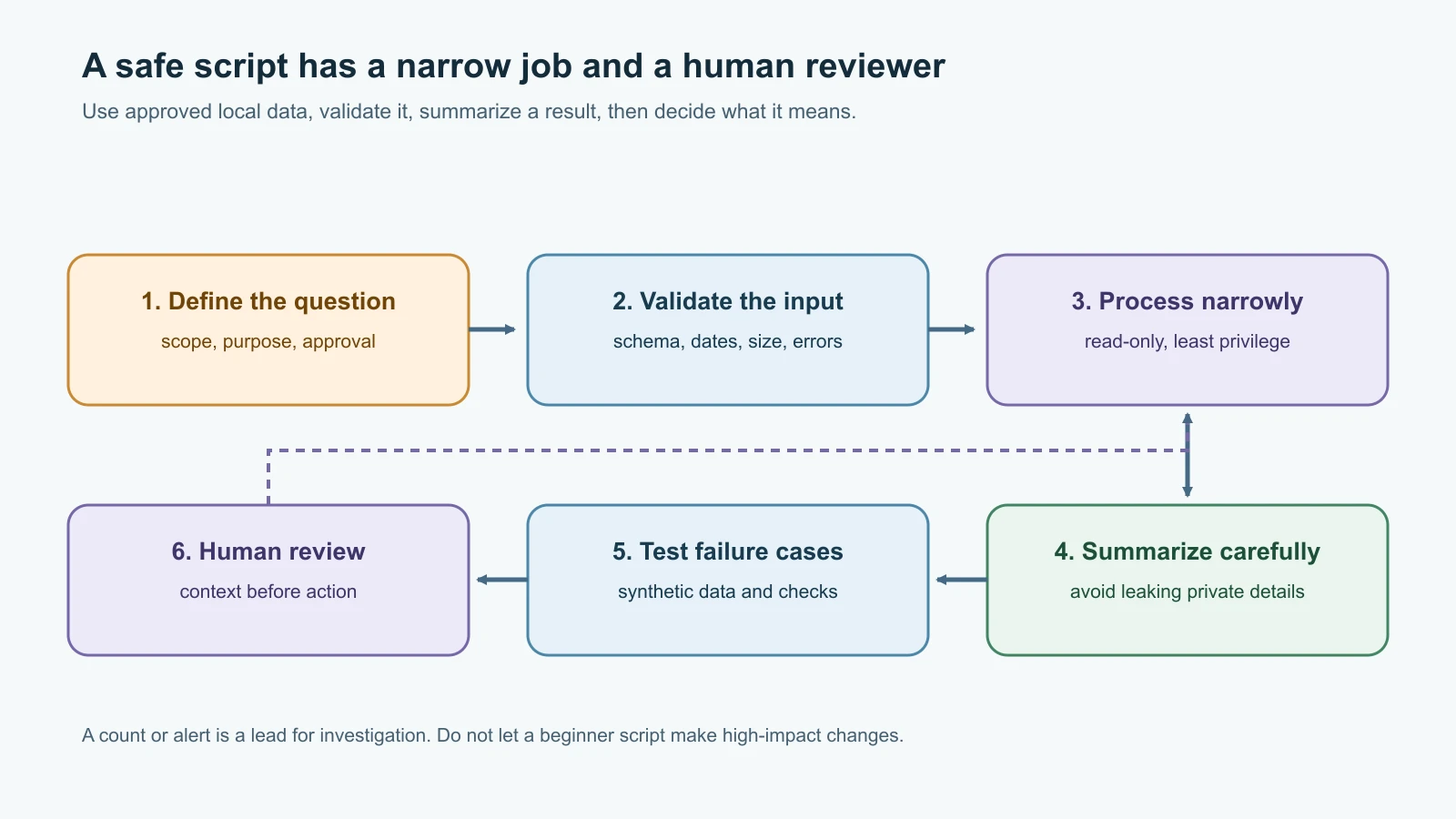
Why security teams write scripts
A script is a set of instructions a computer follows to automate a task. Automation is useful when the same careful steps need to be repeated, such as summarizing an approved log export, checking file hashes, or finding systems that need review. A script can save time, make the process consistent and show how a result was produced.
Scripts can also repeat mistakes quickly. A typo in a one-off command may affect one file; a script with a broad target or powerful account could affect thousands. Code can expose private records, leak credentials into logs, delete data or contact systems outside its intended scope. Scripting for security therefore starts with a bounded question, approved inputs, limited permissions and a clear plan for what the program will do.
The tools in earlier lessons illustrate several useful patterns. The file-integrity checker in Hardening and Endpoint Security compares files with a baseline. The log analyzer in Network Defense, Logging and SIEM finds a pattern in synthetic login events. In both cases, the script produces a signal for a human to investigate. It is not an incident verdict, and it should not automatically disable accounts or block devices.
Before automating a task, ask:
- What specific question should the script answer?
- Which files or systems may it read, and do I have permission?
- Does it need to change anything? Can the first version be read-only?
- What should happen with malformed, missing or unexpectedly large input?
- Could output include personal data, credentials or confidential information?
- How will I test normal cases, error cases and limits before using real data?
Read code before you run it
When someone gives you a script, do not start by double-clicking it or pasting it into a privileged terminal. Read it as a set of decisions. Identify where execution begins, which inputs it accepts, which files or services it accesses, what it changes, and what it prints or sends elsewhere. A short script can still call another program, load a dependency, read environment variables or use network credentials.
Use this review checklist:
| Check | Questions to ask |
|---|---|
| Purpose | Is there one clear task, or does the program do unrelated work? |
| Input | Does it accept command-line arguments, files, environment values, network responses or user text? Are these validated? |
| Scope | Does it name a specific file or folder, or can it act on a broad path or account? |
| Side effects | Does it write, delete, move, upload, install, change permissions, start a process or alter a setting? |
| Network | Does it make requests, open a listener, download code or send telemetry? To which destination? |
| Privilege | Does it ask for administrator or cloud-owner access when a smaller role would work? |
| Secrets and privacy | Could it print tokens, passwords, personal records or private paths? Are secrets hard-coded? |
| Dependencies | Which libraries or other programs are loaded? Are they expected and maintained? |
| Errors | What happens when a file is missing, a row is malformed, or an operation fails halfway through? |
| Evidence | Can I run it on synthetic data and compare the output with a manual calculation first? |
Pay close attention to code that evaluates text as a command or builds shell commands from untrusted input. In Python, names such as eval, exec and subprocess deserve careful review. In shell, an unquoted variable may be split into words or expanded as a filename pattern. In PowerShell, strings and native command arguments have parsing rules of their own. These features are not always malicious, but they increase the need to understand exactly what data reaches them.
Run unfamiliar code with the least privilege practical. Use a disposable copy of synthetic data in a temporary folder. Disconnecting from networks can help when the task does not need them, but it does not make unsafe code harmless: a script can still delete local files or expose data in output. If you cannot explain a script's important effects, ask for review before running it on a real system.
Python: a readable language for small tools
Python is often used for data handling, administration and security tooling because its syntax is readable and its standard library includes tools for files, CSV, dates, hashes, logging and testing. The example here uses only the standard library. It reads a local CSV export and counts selected administrative event names. It does not connect to AWS, Google Cloud, Azure or any other service.
Create cloud_audit_review.py:
1#!/usr/bin/env python3
2"""Count selected event labels in an authorized local CSV export."""
3
4from __future__ import annotations
5
6import argparse
7import csv
8from collections import Counter
9from datetime import datetime
10from pathlib import Path
11from typing import TextIO
12
13
14REQUIRED_COLUMNS = {"timestamp", "actor", "action", "resource"}
15WATCHED_ACTIONS = {
16    "admin_role_granted",
17    "key_created",
18    "logging_disabled",
19    "permission_changed",
20    "public_access_enabled",
21}
22
23
24def review_events(source: TextIO) -> tuple[Counter[str], int]:
25    """Return counts for watched actions and malformed watched rows."""
26    reader = csv.DictReader(source)
27    if reader.fieldnames is None:
28        raise ValueError("CSV must include a header row")
29
30    missing = REQUIRED_COLUMNS - set(reader.fieldnames)
31    if missing:
32        raise ValueError(f"CSV is missing columns: {', '.join(sorted(missing))}")
33
34    counts: Counter[str] = Counter()
35    malformed = 0
36    for row in reader:
37        action = (row.get("action") or "").strip().lower()
38        if action not in WATCHED_ACTIONS:
39            continue
40
41        timestamp_text = (row.get("timestamp") or "").strip()
42        actor = (row.get("actor") or "").strip()
43        resource = (row.get("resource") or "").strip()
44        try:
45            timestamp = datetime.fromisoformat(timestamp_text.replace("Z", "+00:00"))
46            if timestamp.tzinfo is None or timestamp.utcoffset() is None:
47                raise ValueError("timestamp must include a time zone")
48            if not actor or not resource:
49                raise ValueError("actor and resource are required")
50        except (ValueError, TypeError):
51            malformed += 1
52            continue
53
54        counts[action] += 1
55
56    return counts, malformed
57
58
59def main() -> int:
60    parser = argparse.ArgumentParser(
61        description="Summarize selected actions in a local audit CSV."
62    )
63    parser.add_argument("csv_file", type=Path, help="authorized local CSV export")
64    args = parser.parse_args()
65
66    if not args.csv_file.is_file():
67        parser.error("input must be an existing regular file")
68
69    try:
70        with args.csv_file.open("r", encoding="utf-8-sig", newline="") as source:
71            counts, malformed = review_events(source)
72    except (OSError, UnicodeError, ValueError) as error:
73        parser.error(str(error))
74
75    print("Selected cloud audit event counts")
76    if counts:
77        for action, count in sorted(counts.items()):
78            print(f"{action}: {count}")
79    else:
80        print("No selected actions found")
81    print(f"Malformed selected rows skipped: {malformed}")
82    return 0
83
84
85if __name__ == "__main__":
86    raise SystemExit(main())
The script uses a fixed set of event labels and prints aggregate counts rather than names or resource identifiers. That reduces unnecessary exposure in its output, but the input file can still contain sensitive information and should be handled according to the organization's policy. The selected labels are examples, not a universal event taxonomy. Cloud providers use different audit schemas, and a missing label does not prove that nothing happened.
Here is a small synthetic input named sample-cloud-audit.csv:
1timestamp,actor,action,resource
22026-11-12T08:10:00Z,harbor-admin,permission_changed,orders-bucket
32026-11-12T08:12:00Z,deploy-service,public_access_enabled,product-images
42026-11-12T08:14:00Z,harbor-admin,logging_disabled,orders-bucket
52026-11-12T08:16:00Z,staff-user,file_viewed,orders-bucket
62026-11-12T08:19:00Z,contractor,permission_changed,orders-bucket
From a directory containing only those two files, run:
1python3 cloud_audit_review.py sample-cloud-audit.csvReal output on Python 3.12 for the synthetic sample:
1Selected cloud audit event counts
2logging_disabled: 1
3permission_changed: 2
4public_access_enabled: 1
5Malformed selected rows skipped: 0
The count is a review cue, not a conclusion. The administrator checks the approved change record, resource owner and provider audit console before deciding whether any event is unexpected. A legitimate deployment may enable public access for a specific public image service, while the same action on an order export could be serious. Context decides.
Test the Python function
Tests let us check expected behavior without connecting to a real cloud account. Save this file as test_cloud_audit_review.py next to the script:
1import io
2import unittest
3
4from cloud_audit_review import review_events
5
6
7class ReviewEventsTests(unittest.TestCase):
8    def test_counts_selected_actions_and_ignores_routine_event(self):
9        source = io.StringIO(
10            "timestamp,actor,action,resource\n"
11            "2026-11-12T08:10:00Z,admin,permission_changed,bucket-a\n"
12            "2026-11-12T08:11:00Z,user,file_viewed,bucket-a\n"
13            "2026-11-12T08:12:00Z,admin,permission_changed,bucket-b\n"
14        )
15        counts, malformed = review_events(source)
16        self.assertEqual(counts["permission_changed"], 2)
17        self.assertEqual(sum(counts.values()), 2)
18        self.assertEqual(malformed, 0)
19
20    def test_normalizes_action_case_and_spaces(self):
21        source = io.StringIO(
22            "timestamp,actor,action,resource\n"
23            "2026-11-12T08:10:00Z,admin, PUBLIC_ACCESS_ENABLED ,bucket-a\n"
24        )
25        counts, malformed = review_events(source)
26        self.assertEqual(counts["public_access_enabled"], 1)
27        self.assertEqual(malformed, 0)
28
29    def test_skips_malformed_selected_row(self):
30        source = io.StringIO(
31            "timestamp,actor,action,resource\n"
32            "not-a-date,admin,key_created,key-a\n"
33            "2026-11-12T08:10:00Z,admin,key_created,key-b\n"
34        )
35        counts, malformed = review_events(source)
36        self.assertEqual(counts["key_created"], 1)
37        self.assertEqual(malformed, 1)
38
39    def test_requires_timezone_on_selected_timestamp(self):
40        source = io.StringIO(
41            "timestamp,actor,action,resource\n"
42            "2026-11-12T08:10:00,admin,logging_disabled,bucket-a\n"
43        )
44        counts, malformed = review_events(source)
45        self.assertEqual(sum(counts.values()), 0)
46        self.assertEqual(malformed, 1)
47
48    def test_rejects_missing_columns(self):
49        source = io.StringIO("timestamp,action\n2026-11-12T08:10:00Z,key_created\n")
50        with self.assertRaisesRegex(ValueError, "missing columns"):
51            review_events(source)
52
53
54if __name__ == "__main__":
55    unittest.main()
Run the tests with python3 -m unittest -v. The tests check a normal result, normalization, a malformed timestamp, a timestamp missing its time zone, and an incomplete header. They do not prove that the list of watched actions is complete or that the events are trustworthy. That still depends on the source and provider schema.
Bash: useful for small command-line tasks
Bash is a command interpreter and scripting language available on many Linux systems and macOS. It is good at combining existing command-line tools, passing file paths and automating simple workflows. Its parsing rules are easy to underestimate: spaces split words, wildcard characters expand to matching filenames, and unquoted text can be interpreted in ways the writer did not intend. Quote variables that represent paths or values, and do not build commands by concatenating untrusted text.
This small Bash script counts lines containing five fixed event labels in a local, plain-text training file. It is deliberately less capable than the Python CSV parser. It does not understand CSV fields and a single line with repeated text counts once. Use it as a quick summary only when the file format is known.
Save as count_audit_labels.sh:
1#!/usr/bin/env bash
2set -u
3
4if [[ $# -ne 1 ]]; then
5  printf 'Usage: %s <authorized-training-log>\n' "$0" >&2
6  exit 2
7fi
8
9log_file=$1
10if [[ ! -f "$log_file" || ! -r "$log_file" ]]; then
11  printf 'Input must be a readable regular file.\n' >&2
12  exit 2
13fi
14
15printf 'Matching lines in local training log\n'
16for action in \
17  admin_role_granted \
18  key_created \
19  logging_disabled \
20  permission_changed \
21  public_access_enabled
22do
23  if count=$(grep -F -c -- "$action" "$log_file"); then
24    :
25  else
26    status=$?
27    if [[ $status -eq 1 ]]; then
28      count=0
29    else
30      printf 'Could not read the input file.\n' >&2
31      exit "$status"
32    fi
33  fi
34  printf '%s: %s\n' "$action" "$count"
35done
The use of "$log_file" preserves a path with spaces as one argument. grep -F treats each label as literal text instead of a regular expression. The script only reads a file and writes a short summary to the terminal. It does not parse an event schema, redact the source file or establish whether an event is suspicious.
For a synthetic file named training log.txt (note the space) containing one line for each of the five labels and two lines containing permission_changed, the real output is:
1Matching lines in local training log
2admin_role_granted: 1
3key_created: 1
4logging_disabled: 1
5permission_changed: 2
6public_access_enabled: 1
Bash scripts often use set -e to exit on errors, but its behavior has exceptions in conditionals, pipelines and functions. Do not treat it as a complete error-handling strategy. Understand the exit statuses of the commands you call and check important failures explicitly. For a complex or structured data format such as CSV, JSON or a provider audit export, use a parser designed for that format instead of text matching.
PowerShell, Go, JavaScript and C++ at a glance
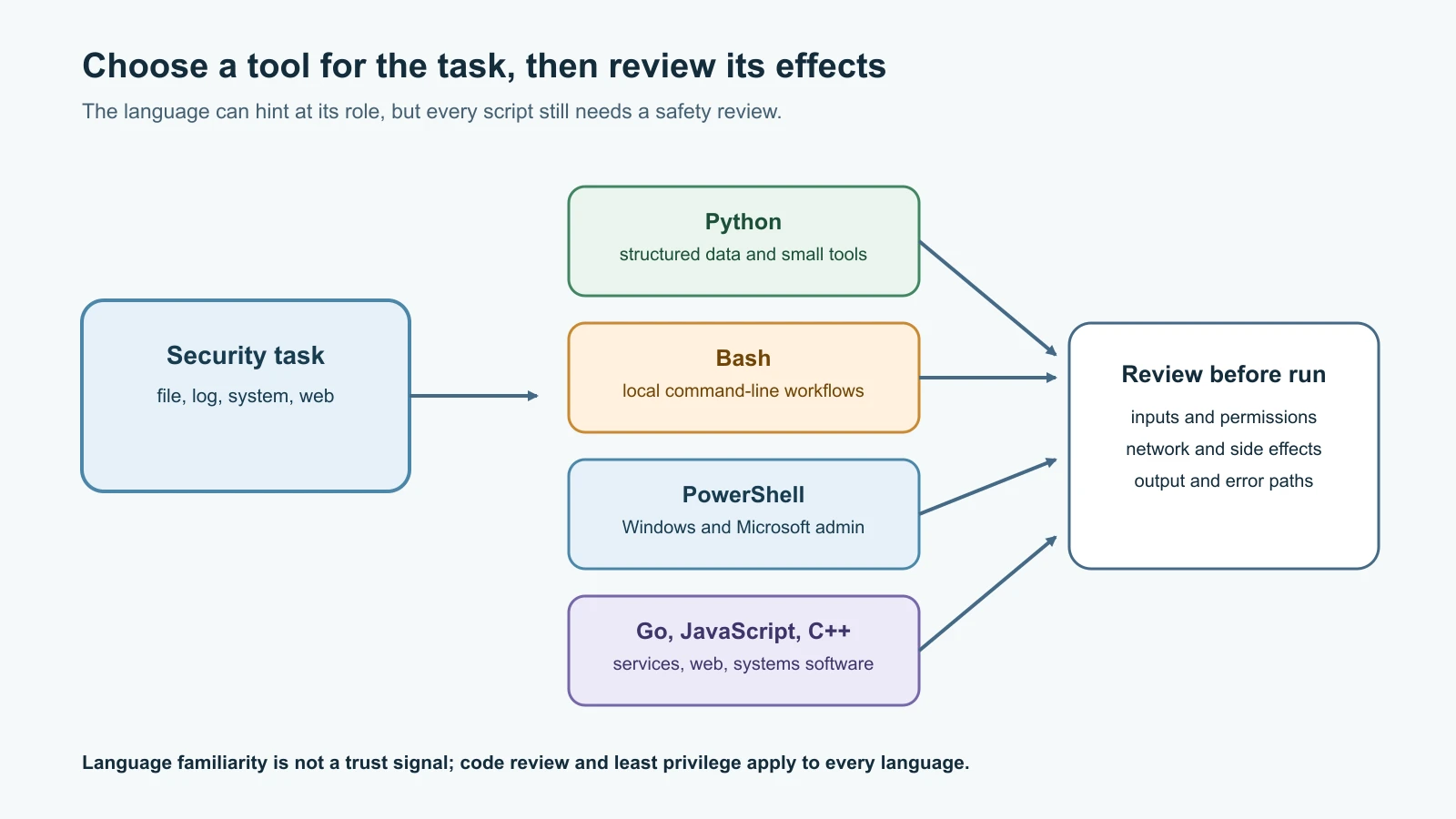
You do not need to master every language to read security tooling. Start by recognizing the language, finding its entry point, and tracing data from input to output. In this course, Python and Bash receive the hands-on treatment; the other languages are a map of what you may encounter.
| Language | Where it often appears | What to notice when reading it |
|---|---|---|
| PowerShell | Windows administration, endpoint management and Microsoft cloud automation | Cmdlets are often verb-noun names; the pipeline passes objects, and quoting affects how values are parsed. A command can still change accounts or systems, so inspect its parameters and target. |
| Go | Network services, command-line tools and cloud utilities | Programs are commonly compiled; look for main, imported packages, error checks and goroutines that run concurrently. A concurrent task can process more systems than expected. |
| JavaScript | Browser interfaces, web servers and cloud functions | It runs in browsers and server environments; distinguish display code from code that sends requests or handles credentials. Review dependencies and asynchronous calls. |
| C++ | Operating systems, performance-sensitive applications and security products | It is compiled and gives programmers lower-level control over memory. When reviewing unfamiliar C++, notice buffer sizes, pointer ownership and external libraries; do not assume a short example is safe for production. |
Here are small, illustrative examples of transforming a string without reading files or contacting a service:
1$action = 'Permission_Changed'.Trim().ToLowerInvariant()1action := strings.ToLower(strings.TrimSpace("Permission_Changed"))1const action = "Permission_Changed".trim().toLowerCase();1std::string action = "Permission_Changed";
2std::transform(action.begin(), action.end(), action.begin(),
3 [](unsigned char ch) { return std::tolower(ch); });The snippets show a similar idea, not a complete program. The C++ example needs the standard headers for string, algorithm and cctype, and a complete program needs an entry point. When code is copied from a tutorial, check its assumptions, language version, dependencies and context. Do not run code just because it looks familiar.
For a read-only PowerShell example, Get-FileHash -LiteralPath './sample.txt' -Algorithm SHA256 calculates a hash for the named local file. It does not prove that the file is safe or that its source is trusted. The PowerShell documentation describes SHA-256 as the default algorithm for Get-FileHash. In a real workflow, use an approved file and record the purpose of the hash.
Safer habits for security automation
Keep scripts small enough to review. Prefer a specific input file to a whole disk, account or tenant. Default to read-only behavior. If a script must make changes, first implement a preview or dry-run mode that shows intended changes without applying them. Ask an authorized owner to approve high-impact actions. A dry run is useful only if it accurately represents what the real run will do.
Validate input at the boundary. Check that expected fields exist, parse dates with time zones, reject missing values that affect a decision, and handle malformed rows without crashing halfway through. Limit how much data you load at once when files may be large. Do not interpret arbitrary input as code or a shell command. Keep file paths and command arguments separate rather than assembling executable command strings.
Use a least-privileged account. Do not run a log report as administrator if normal file access is enough. Do not embed access keys or passwords in source code. Avoid printing private records and secrets; a concise count or redacted identifier is often more useful. Keep logs of the script's own actions when appropriate, but avoid copying sensitive input into those logs.
Test in layers. First use a tiny hand-written sample where you can calculate the answer. Then test missing files, invalid columns, empty data, unusual characters and failure paths. Review the output before increasing the input size. Keep a copy of the original input and do not overwrite it. When a tool depends on third-party packages, check the package source, maintainer, version, permissions and update path before installing it.
The scripts in this lesson are intentionally narrow. In real work, confirm the provider's export format, data-handling policy, retention rules and authorization before reviewing logs. Cloud audit logs can contain employee identifiers, resource names, IP addresses and other sensitive details. An offline script is still processing data that deserves protection.
Mistakes beginners make
- Running an unfamiliar script before reading its inputs, permissions, network behavior and side effects.
- Copying a command from a forum without checking the path, account or environment it targets.
- Forgetting quotes around a Bash path and accidentally splitting it into several arguments.
- Treating
set -eas a complete substitute for checking errors. - Searching structured data with
grepand assuming text matches equal correctly parsed records. - Treating a summary count as proof that an event was malicious or that no other events occurred.
- Printing whole audit rows when a small aggregate would answer the question.
- Using administrator credentials because a script asks for them, without asking whether that access is required.
- Hard-coding secrets or committing them to a repository.
- Testing only the happy path and never checking malformed input or a missing file.
- Automating a response action before a human has reviewed its scope and consequences.
Recap and try it yourself
Security scripts are useful when they answer a narrow question repeatedly and predictably. Python works well for structured files and small programs; Bash is useful for combining command-line tools, but its parsing and error behavior need care. PowerShell, Go, JavaScript and C++ appear in many systems, and a reviewer should be able to identify their inputs, effects and dependencies even without being an expert. Start with authorized synthetic data, minimal permissions, read-only processing and tests that cover failures.
Try it yourself with the synthetic CSV above. Add one selected action with a timestamp that has no time zone and one routine action. Run the Python tests and predict the count and malformed-row total before running the script. Then make a plain-text training log with a filename that contains spaces and try the Bash script. Explain why its line count may differ from a CSV event count. Do not point either program at a real cloud export or system log unless you have explicit authorization and a safe data-handling plan. Next, Ethical Hacking, CTFs and Penetration Testing shows how authorized testing is scoped.
Sources checked on 12 November 2026: Python's official standard library documentation, including CSV, dates and file handling; the GNU Bash Reference Manual on quoting and shell behavior; Microsoft Learn PowerShell Get-FileHash and quoting rules; the Go team A Tour of Go; Ecma International's ECMAScript 2024 language specification; and the ISO C++ community's standard overview. Code examples are educational and use local synthetic data only. No account, network service or real security log was accessed.