
Cyber Security course · lesson 2 of 24
- 1What Is Cyber Security?
- 2Fundamental IT Skills for Cyber Security
- 3Operating Systems for Security: Windows, Linux and macOS
- 4Virtualization and Your Safe Cyber Security Lab
- 5Networking Fundamentals for Cyber Security
- 6Network Services and Infrastructure for Cyber Security
- 7Network Troubleshooting and Traffic Analysis Tools
- 8Core Security Concepts Every Defender Uses
- 9Authentication and Access Control Explained
- 10Cryptography Basics for Cyber Security
- 11Secure Protocols and Wireless Security
- 12The Threat Landscape and Security Frameworks
- 13Social Engineering and Human Attacks
- 14Network and Wireless Attacks and How to Detect Them
- 15Web Attacks and the OWASP Top 10
- 16Malware, Exploits and System Attacks
- 17Hardening and Endpoint Security
- 18Network Defense, Logging and SIEM
- 19Vulnerability Management and Threat Hunting
- 20Incident Response and Digital Forensics
- 21Cloud Security Basics
- 22Scripting for Security
- 23Ethical Hacking, CTFs and Penetration Testing
- 24Cyber Security Standards, Certifications and Capstone
After this lesson, you should be able to name the main parts inside a computer and say why each one matters for security, compare the common ways devices connect (cable, Wi-Fi, Bluetooth, NFC and infrared), follow a troubleshooting method that works on any operating system, and explain why an iCloud, Google or Microsoft account is one of the most valuable things a person or small business owns. These are the skills a help desk technician uses every day, and they are also the ground that every later lesson stands on.
Why IT basics come before security
Security work is mostly about understanding normal behavior well enough to notice when something is wrong. A defender who does not know what a healthy computer looks like cannot tell an attack from a broken cable. An analyst who does not know that Bluetooth can be left switched on cannot spot it as an open door. You do not need to become a hardware engineer, but you do need a working picture of what is inside a device, how it talks to other devices, and how to find the cause of a problem without guessing.
This lesson uses Harbor Books, the fictional bookshop introduced in What Is Cyber Security?. The shop has a front-office PC, a point-of-sale machine (the till that takes card payments), a card reader, a receipt printer, staff phones, a Wi-Fi network and accounts with online services. By the end of this lesson you will have a simple inventory of those things and know which connections and accounts to look at first.
What is inside a computer
Every computer, from a laptop to a server to a phone, has the same handful of parts. The names are worth learning because security advice and attack reports use them constantly.
Processor (CPU). The central processing unit runs program instructions. It does not store anything long term. Security reports sometimes mention processor flaws, which are weaknesses in how a chip handles data, and the fix usually arrives as a firmware or operating system update.
Memory (RAM). Random access memory holds the programs and data in use right now. It is fast and temporary: switch the power off and its contents fade. That matters for security in two ways. Passwords and encryption keys sit in memory while programs use them, so malware that can read memory is dangerous. And investigators who want evidence of what was running sometimes capture memory before a machine is switched off, which you will see in the lesson on incident response.
Storage. Storage keeps data when the power is off. A hard disk drive (HDD) stores data on spinning magnetic platters; a solid-state drive (SSD) uses flash chips with no moving parts. For security, the key fact is that deleting a file usually removes only the reference to it, not the data itself. A shop that sells or throws away an old PC without wiping or destroying its drive may be handing over its accounts and customer data. Disk encryption, covered later, protects stored data if a device is lost or stolen.
Motherboard and firmware. The motherboard connects every part. Firmware is the small program stored on the board that starts the computer before the operating system loads. Older PCs used BIOS (Basic Input/Output System); modern PCs use UEFI (Unified Extensible Firmware Interface). UEFI supports Secure Boot, a feature that checks that the software starting the computer is trusted. Firmware matters because code running before the operating system is very hard for security tools to see.
Trusted Platform Module (TPM). A TPM is a small security chip, or a feature built into the processor, that stores encryption keys and checks the start-up process. Microsoft lists TPM version 2.0 and UEFI firmware that is Secure Boot capable among the requirements for Windows 11, which is one reason you will see these terms in hardening guides.
Network adapters. These connect the computer to other devices: an Ethernet port for a cable, a Wi-Fi radio, a Bluetooth radio, and on many phones an NFC chip. Each adapter is a way in and a way out.
Ports and peripherals. USB ports accept keyboards, drives, printers and chargers. A peripheral is any device attached to a computer. USB is convenient and also risky: an unknown USB stick can carry malware, and a device that looks like a storage stick can pretend to be a keyboard and type commands. Many organizations block unknown USB storage for this reason.
At Harbor Books, these parts translate into practical questions. Is the front-office PC's drive encrypted? Who has physical access to the till's USB ports? What happened to the old laptop the owner replaced last year?
How devices connect
Devices connect by cable or by radio, and each method has a different range, speed and set of risks. The range matters most for security, because range decides who can reach a device. A cable needs physical access. A radio signal can reach someone sitting outside the building.
Wired Ethernet. A network cable plugged into a switch or router. It is fast and hard to eavesdrop on without physical access to the cable or the network equipment. Open network ports in a public area, such as a socket behind the shop counter, are still a risk because anyone can plug a device in.
Wi-Fi. Wireless networking that connects devices to a router or access point, usually across a home or office. The Wi-Fi Alliance certifies products by generation, and its current certification is Wi-Fi 7; newer devices can also use the 6 GHz band. Wi-Fi signals pass through walls and often reach the street, so the security of a Wi-Fi network depends on its password and encryption settings. The lesson on secure protocols and wireless security compares WEP, WPA2 and WPA3 in detail.
Bluetooth. A short-range radio standard for headphones, keyboards, phones, smartwatches and many shop devices such as handheld scanners. It uses the 2.4 GHz band. The Bluetooth Special Interest Group, which manages the standard, says range can be anything from under a meter to more than a kilometer, depending on transmit power, antenna, receiver sensitivity and obstacles such as walls. So "Bluetooth is short range" is a typical case, not a guarantee. Pairing, the process of letting two devices trust each other, is the moment to be careful: accept only pairing requests you started.
NFC (Near Field Communication). A very short-range radio used for contactless payments, transport cards, door access and tags. The NFC Forum, the industry body behind the standard, states a typical range of up to 2 cm at a base frequency of 13.56 MHz. That short range is a security feature: someone has to be very close. It is not a complete defense, because a crowded queue puts people very close together. NFC tags can also open web links or join a phone to a Wi-Fi network, so a tag stuck over a genuine one can send people to a fake page.
Infrared. Light just outside the visible range, used by TV remote controls and some older devices to send data. It needs a clear line of sight and works across a room at most. You will meet it rarely in modern networks, but it is still on hardware lists, and the line-of-sight rule makes it a useful contrast with radio.
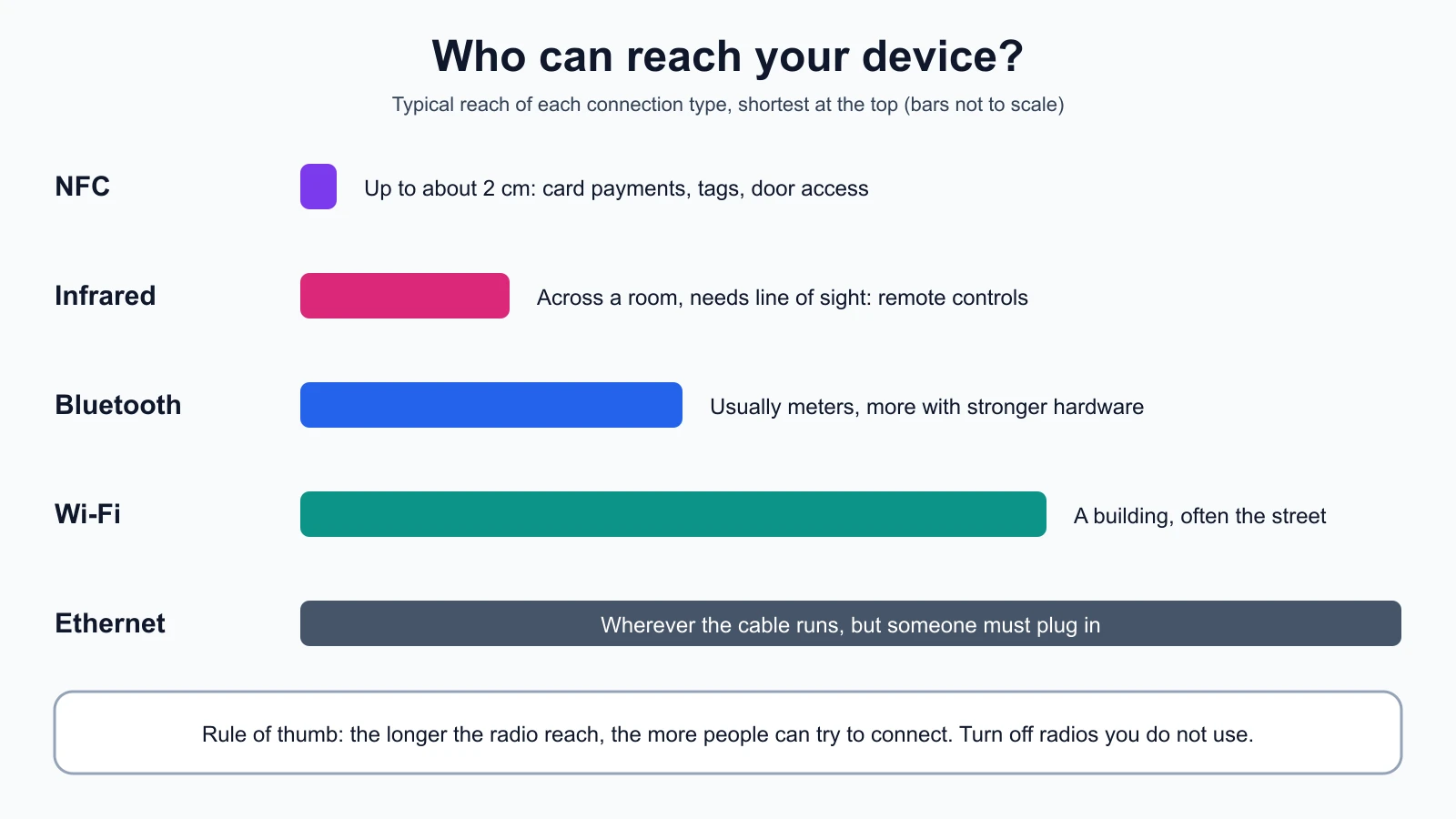
Here is the same comparison as a table you can reuse:
| Connection | Typical reach | Common use | Main security question |
|---|---|---|---|
| Ethernet cable | As far as the cable runs | PCs, printers, routers | Who can plug into a free port? |
| Wi-Fi | A building, often beyond | Laptops, phones, tills | Is the network password strong and the encryption current? |
| Bluetooth | Usually meters, can be more | Headsets, scanners, keyboards | Is it on when not needed, and who can pair? |
| NFC | Up to about 2 cm | Card payments, tags, door access | Can someone tamper with a tag or reader? |
| Infrared | A room, line of sight | Remote controls, older devices | Rarely a network risk today |
A simple rule follows from the table: switch off any radio you do not need. A phone with Bluetooth, Wi-Fi and NFC all permanently on has more ways to be reached than one that turns them on only when needed. At Harbor Books, the card reader and receipt printer may use Bluetooth or Wi-Fi to talk to the till, so the shop should know which, and who could connect to them.
A troubleshooting method that works anywhere
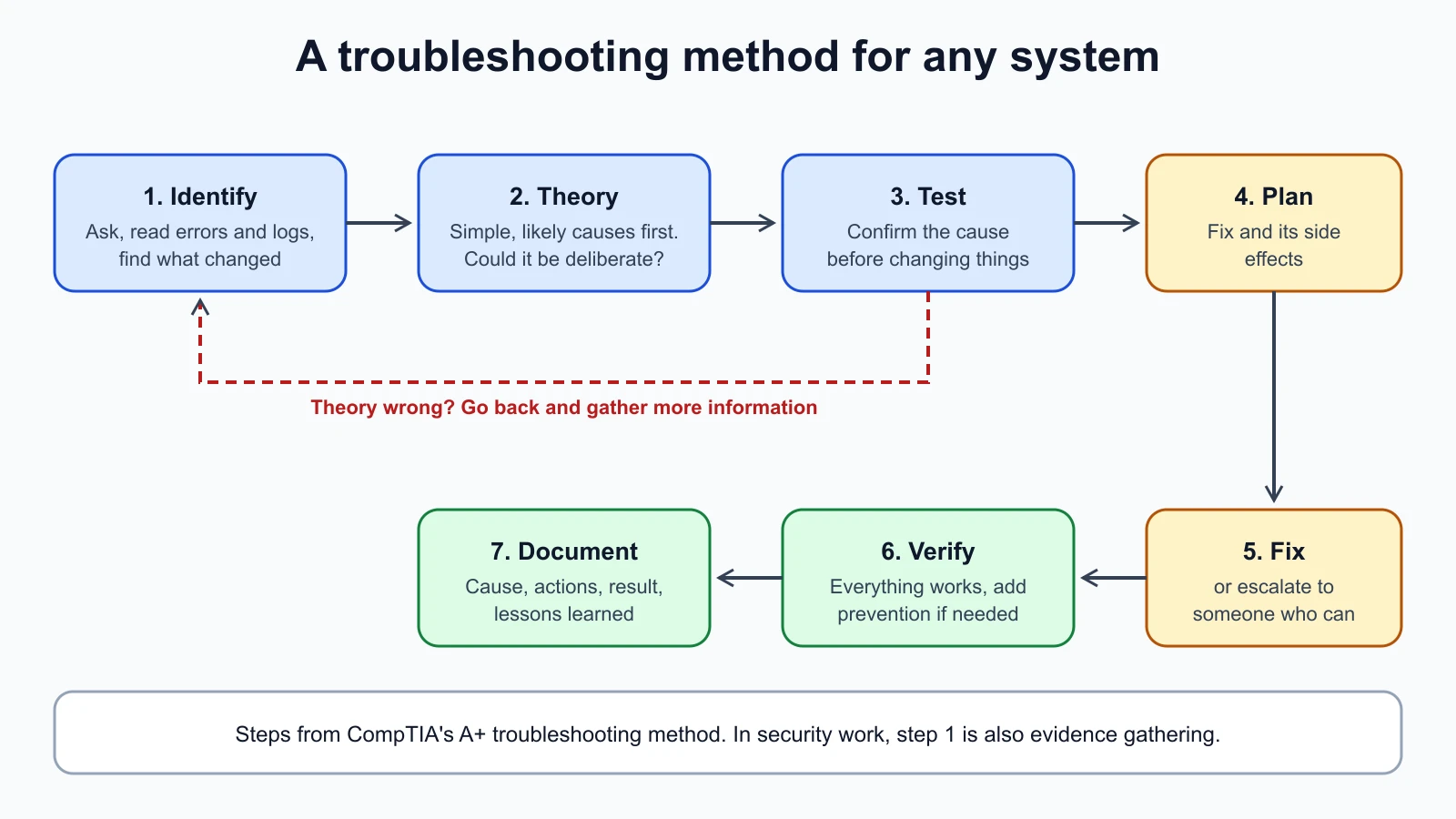
Troubleshooting means finding and fixing the cause of a problem. Beginners tend to change several settings at once until something works, and then cannot say what fixed it. Professionals follow a method. The one below is the method CompTIA teaches for its A+ certification, a common first IT qualification, as set out on CompTIA's own blog. It works on Windows, macOS, Linux, phones and network equipment because it is about thinking, not about any one system.
- Identify the problem. Gather information: ask the user what happened and when, read error messages and logs, and find out what changed recently. Narrow the scope. Is it one computer or all of them? One website or every website?
- Establish a theory of probable cause. Make an educated guess. Start with simple, likely causes (a cable, a power switch, an expired password) before complex ones. Question the obvious.
- Test the theory to determine the cause. Check whether the guess is right before changing anything important. If it is wrong, form a new theory or go back and gather more information.
- Establish a plan of action and identify potential effects. Decide the fix and what it might affect. Restarting the till during a sale has a cost.
- Implement the solution or escalate. Apply the fix, or hand the problem to someone with more access or knowledge, such as the card terminal supplier.
- Verify full system functionality. Check that everything works, not only the part that was broken, and add preventive measures if they apply.
- Document findings, actions, outcomes and lessons learned. Write down what happened, what you did and what fixed it.
Why this method matters for security
The same steps are the start of every security investigation. Step 1 is evidence gathering. Step 2 asks you to keep more than one explanation open, and in security one of those explanations should always be "someone did this on purpose". Step 7 builds the record you will need if the problem turns out to be an incident.
Here is a worked example at Harbor Books. On a Monday morning the front-office PC cannot reach the accounting website.
- Identify: Other websites load. The till and staff phones reach the accounting site without trouble. Nothing was installed over the weekend, according to the owner. The browser shows a certificate warning, a message that the site's identity could not be confirmed.
- Theory: The PC's clock could be wrong (a wrong date makes certificates look invalid), or something on the PC or network could be redirecting traffic.
- Test: The PC's clock shows a date two years in the past. That explains the warning.
- Plan and fix: Set the clock to update automatically from the internet, then reload the site.
- Verify: The site loads without a warning, and other sites still work.
- Document: Note the date, the symptom, the cause and the fix, and add "check the clock" to the shop's support notes.
The security lesson in this example is what the owner did not do: click through the certificate warning. A certificate warning can be a harmless clock problem or a sign that someone is intercepting the connection. The method found the real cause before anyone accepted the risk.
Popular suites and why accounts are targets
Most people and small businesses now run their working lives through one or two big account suites: Apple's iCloud, Google's accounts (Gmail, Drive, Docs) and Microsoft's accounts and Microsoft 365 (Outlook, OneDrive, Word, Excel). These suites store email, documents, photos, passwords, contacts and phone backups, and they sync them across every device the person signs in on.
That makes the account itself one of the most valuable assets anyone owns. Whoever controls the email account can usually reset the passwords of every other service, because most password reset links arrive by email. An attacker who takes over Harbor Books' email could reset the web shop admin password, read supplier invoices, and send convincing fake invoices to customers from a real address.
Ways these suites become an attack surface (the set of points where an attacker could try to get in):
- Account takeover. A stolen or guessed password, especially one reused from another site, gives full access unless a second sign-in step is required.
- Synced devices. Every phone, tablet and PC signed in to the account is a way in. An old laptop still signed in is a forgotten door.
- Sharing links. Documents shared with "anyone with the link" can be forwarded far beyond the people they were meant for.
- Recovery options. An old phone number or backup email on the account can be used to reset it.
- Office documents. Files received by email can carry malicious content, which is why Office shows warnings on files from the internet.
The main defense is multi-factor authentication (MFA), also called two-step verification: a second proof of identity on top of the password. CISA, the US Cybersecurity and Infrastructure Security Agency, advises turning MFA on for every account that offers it, starting with email and banking. All three suites offer it:
- Google offers passkeys (sign-in with your fingerprint, face or screen lock), Google prompts on a signed-in phone, authenticator app codes, security keys, and codes by text message. Google's help page notes that text and voice codes are more vulnerable to phone number-based attacks than the other options.
- Microsoft accounts support codes by email, phone or an authenticator app, and passwordless sign-in. Microsoft recommends keeping three pieces of security information on the account, warns that recovery can take up to 30 days if you lose access to them, and says it is phasing out text messages for sign-in and recovery on personal accounts.
- Apple iCloud encrypts data in transit and at rest. With the default setting, Apple holds the keys for most data, so it can help you recover it. The optional Advanced Data Protection setting makes most iCloud data end-to-end encrypted, so only your trusted devices hold the keys. The trade-off, as Apple's support page explains, is that Apple cannot help you recover that data if you lose access, so you must set up a recovery contact or recovery key first.
The Apple example shows a pattern you will see throughout security: stronger protection for confidentiality can reduce availability if you lose your keys. Neither choice is wrong. The right one depends on who uses the account and how well they keep recovery details.
Software updates are the other everyday defense. CISA recommends turning on automatic updates, because many updates fix security problems and attackers do not wait. For the suites, that means keeping the operating system, the browser and the Office or productivity apps updated on every signed-in device.
Put it together: a starter inventory for Harbor Books
An asset inventory is a list of the devices, software and accounts an organization depends on. Security teams need one because you cannot protect something you do not know you have. Here is a starter version for Harbor Books using what this lesson covered:
| Asset | Type | Connects by | Account or suite | Owner | First question to check |
|---|---|---|---|---|---|
| Front-office PC | Laptop | Wi-Fi, USB | Microsoft account | Owner | Is the drive encrypted? |
| Till | Point-of-sale PC | Ethernet, Bluetooth | Supplier account | Shop manager | Who can reach its USB ports? |
| Card reader | Payment device | Bluetooth, NFC | Payment provider | Shop manager | Is the firmware updated by the provider? |
| Staff phones | Phones | Wi-Fi, Bluetooth, NFC | Google or Apple | Each employee | Is MFA on the work email? |
| Shop email | Cloud account | Internet | Google Workspace | Owner | Which recovery phone and email are set? |
| Old laptop | Retired laptop | None | Still signed in? | Owner | Was it wiped before disposal? |
The table is fictional, like the shop. Copy the column headings for your own exercise below.
Mistakes beginners make
-
Changing several things at once while troubleshooting. If the problem goes away, you do not know which change fixed it, and you may have weakened a security setting along the way.
Fix: Test one theory at a time, and write down each change you make.
-
Clicking through security warnings to "make it work". A certificate warning or an unknown-device prompt is information, not an obstacle.
Fix: Treat every security warning as a symptom to explain in the identify step.
-
Assuming short-range radios are safe because they are short range. Bluetooth range depends on the hardware and can be far longer than expected.
Fix: Turn off radios you do not use and accept only pairing requests you started.
-
Throwing away or selling old devices without wiping them. Deleted files are often recoverable.
Fix: Sign out of all accounts, remove the device from each account's device list, and wipe or destroy the storage.
-
Protecting the device but not the account. A locked laptop does not help if the email account behind it has a reused password and no MFA.
Fix: Turn on MFA for email first, then every other account that offers it, and check the recovery options.
Recap and try it yourself
A computer is a processor, memory, storage, firmware, a TPM in modern PCs, network adapters and ports, and each part has a security angle: memory holds secrets while programs run, storage keeps data after deletion, firmware runs before security tools start, and every adapter or port is a way in. Devices connect by cable, Wi-Fi, Bluetooth, NFC and infrared, and range decides who can reach them. The seven-step troubleshooting method (identify, theorize, test, plan, fix or escalate, verify, document) works on any system and is also the start of a security investigation. iCloud, Google and Microsoft accounts hold so much that the account is often the most valuable asset, and MFA plus updates are the first defenses.
Try it: build a small inventory of your own household or workplace using the Harbor Books table headings. Include every device, how it connects, which account it is signed in to, and one question to check. Then pick your main email account and look at its security settings: is MFA on, which method does it use, and are the recovery phone number and email current? Change nothing you are unsure about, and make notes. You will use this inventory again when you learn about operating systems in the next lesson.
Sources checked on 12 November 2026: CompTIA troubleshooting methodology; NFC Forum, NFC technology; Bluetooth SIG, understanding range; Wi-Fi Alliance, discover Wi-Fi; Microsoft Windows 11 specifications; Google 2-Step Verification; Microsoft account two-step verification; Apple iCloud data security overview; CISA, turn on MFA; CISA, update software.