
DevOps course · lesson 3 of 24
- 1What Is DevOps?
- 2A Language and a Service to Operate
- 3Linux and the Terminal
- 4Bash Scripting for Ops
- 5Git and Collaboration
- 6Networking for DevOps
- 7Web Servers, Proxies and Load Balancers
- 8Docker for DevOps
- 9Docker Compose and Multi-Service Apps
- 10Cloud Providers: AWS, Azure and Google Cloud
- 11Serverless Functions and Platforms
- 12Terraform and Infrastructure as Code
- 13Ansible and Configuration Management
- 14Continuous Integration with GitHub Actions and GitLab CI
- 15Continuous Delivery and Deployment Strategies
- 16Secret Management
- 17Kubernetes Basics
- 18Kubernetes in Practice
- 19GitOps with Argo CD and Flux
- 20Service Mesh: Istio, Linkerd, Consul and Envoy
- 21Metrics and Alerting with Prometheus and Grafana
- 22Logs and Tracing with Loki, Elastic and OpenTelemetry
- 23Reliability, SLOs and Cloud Design Patterns
- 24Capstone: Pebble to Production
After this lesson, you will be able to find your way around a Linux server from the terminal, explain users, groups and file permissions, run Pebble as a systemd service that starts at boot and restarts after a crash, read its logs with journalctl, check processes, ports, memory and disk with standard tools, and pull answers out of log files with grep, sed, awk and jq. You will also see how the main Linux families differ, where Unix and BSD fit, and the PowerShell commands that do the same jobs on Windows.
Almost every server you deploy to in this course runs Linux: cloud virtual machines, container images and Kubernetes nodes. Even when a platform hides the operating system, the errors it shows you are Linux errors: "permission denied", "address already in use", "no space left on device". Knowing the terminal turns those messages from mysteries into clues.
In A Language and a Service to Operate you built Pebble and ran it in a terminal. That works on a laptop, but on a server the program must keep running after you log out, start again after a reboot, restart if it crashes, run without administrator rights and send its logs somewhere you can read them. That is this lesson's goal.
What you need
Use any machine running Ubuntu 26.04 LTS, the current long-term support release (published April 2026, with standard security maintenance until May 2031). A cloud virtual machine, a local virtual machine or Windows Subsystem for Linux with systemd enabled all work. The commands also work on Ubuntu 24.04 LTS and Debian 13, and mostly on other distributions with the package manager swapped as shown later.
You also need pebble.py from the previous lesson. Copy it to the server with scp, paste it into an editor, or clone it once you have it in Git.
The terminal and the shell
The terminal is the window you type into. The shell is the program inside it that reads your commands and runs them. Ubuntu's default shell is Bash, which you will script in the next lesson. When you see a prompt such as asha@web-1:~$, it tells you the user (asha), the machine (web-1), the current folder (~, short for your home folder) and that you are a normal user ($; a root shell shows #).
A few habits make the terminal far less frustrating:
- Tab completion. Type the start of a command or path and press Tab. The shell completes it or shows the options. It saves typing and catches spelling mistakes before you press Enter.
- History. The up arrow recalls earlier commands. Ctrl+R searches your history as you type.
- Help.
man lsopens the manual page forls. Most commands also accept--help. - Stopping things. Ctrl+C stops the running command. Ctrl+D ends your input or logs you out.
- Pipes. The
|character sends one command's output into the next command's input. You will chain several tools together later in this lesson.
The filesystem: everything has a place
Linux has one tree of folders starting at /, called the root directory. Disks, USB drives and network shares all appear somewhere inside that tree rather than as separate drive letters. The layout follows a long-standing convention, so the same paths mean the same things on almost every server:
| Path | What lives there | Pebble example |
|---|---|---|
/etc | System and application configuration, mostly text files | /etc/pebble/pebble.env, /etc/systemd/system/pebble.service |
/opt | Add-on software installed outside the package manager | /opt/pebble/pebble.py |
/var/lib | Data that programs keep between runs | /var/lib/pebble/pebble.db |
/var/log | Log files, including the systemd journal on Ubuntu | Pebble's logs in the journal |
/home | Personal folders for human users | Your copy of pebble.py before you install it |
/usr/bin | Programs installed by the package manager | /usr/bin/python3 |
/tmp | Temporary files, often cleared at reboot | Nothing important, ever |
/proc and /sys | Virtual files the kernel creates to describe running processes and hardware | Pebble's process information |
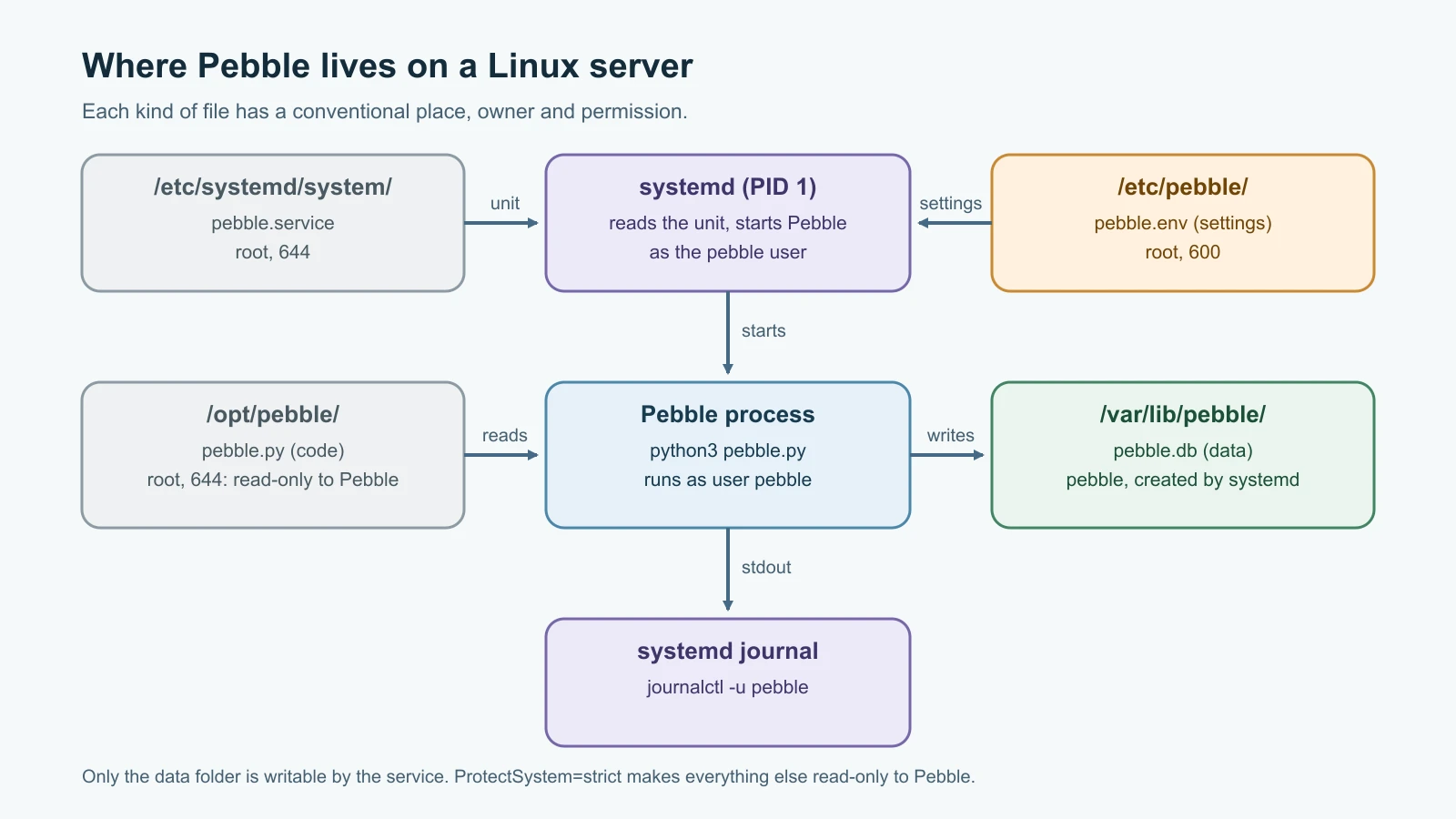
Moving around uses a handful of commands. pwd prints where you are. ls -l lists files with details. cd /etc changes folder. cat file prints a file, less file lets you scroll through a long one, and head and tail show its start and end. mkdir, cp, mv and rm create, copy, move and delete. Be careful with rm: there is no recycle bin, and rm -r deletes a folder and everything in it.
Users, groups and permissions
Every file belongs to one user and one group, and every process runs as a user. Linux decides what a process may do by comparing its user with the file's owner, group and permissions. The root user can do anything, which is exactly why services should not run as root: if an attacker takes over a root process, they own the whole machine.
ls -l shows permissions as ten characters, such as -rw-r-----. The first character is the type (- for a file, d for a directory). The next nine are three groups of three: what the owner, the group and everyone else may do. r means read, w means write and x means execute for a file, or "enter" for a directory. A dash means "not allowed".
Permissions are often written as three digits, where read is 4, write is 2 and execute is 1, added together for each group:
| Digits | Letters | Typical use |
|---|---|---|
755 | rwxr-xr-x | Folders and programs everyone may read and run, only the owner may change |
644 | rw-r--r-- | Ordinary files everyone may read, only the owner may change |
640 | rw-r----- | Files a service group may read but others may not |
600 | rw------- | Secrets only the owner may read |
chmod 640 file changes permissions, chown root:pebble file changes the owner and group, and sudo runs a single command as root. Use sudo for the specific command that needs it, not by opening a root shell and staying there.
For Pebble, the plan follows the principle of least privilege. A dedicated system user called pebble runs the service. The code in /opt/pebble belongs to root, so the running service cannot modify its own program, which limits what an attacker could change. The settings file belongs to root with mode 600, because systemd reads it as root before starting the service. Only the data folder belongs to pebble, because that is the one place it must write.
Packages and the Linux family tree
Linux is a kernel. A distribution combines the kernel with tools, a package manager, default settings and a support policy. DevOps engineers meet three families most often:
| Family | Examples | Package manager | Where you meet it |
|---|---|---|---|
| Debian | Debian 13 "trixie" (current stable, point release 13.7 on 12 September 2026), Ubuntu 26.04 LTS and 24.04 LTS | apt | Cloud images, container base images, developer laptops |
| Red Hat | Red Hat Enterprise Linux (RHEL) 10, the current major version, and rebuilds such as Rocky Linux and AlmaLinux; Fedora upstream | dnf | Enterprises that want long vendor support |
| SUSE | SUSE Linux Enterprise Server and openSUSE | zypper | Enterprises, especially in Europe and SAP environments |
The commands to install a package look different but do the same job: sudo apt install curl, sudo dnf install curl and sudo zypper install curl. Configuration paths and service names occasionally differ too; for example, the Apache web server package is apache2 on Debian and httpd on RHEL. Check the distribution's own documentation when a guide written for another family does not work.
Unix and BSD. Linux was written to behave like Unix, an older operating system family. The BSD systems, FreeBSD, OpenBSD and NetBSD, descend from Unix more directly and are used for some firewalls, storage appliances and network services. macOS is built on Darwin, which has BSD roots, which is why many terminal commands on a Mac look familiar but have slightly different options from their Linux versions. Most of what you learn here transfers to them.
For Pebble, install what this lesson uses:
1sudo apt update
2sudo apt install -y python3 curl jq
apt update refreshes the list of available packages; apt install installs them. Ubuntu 26.04 ships a supported Python 3 release, so Pebble's requirement of Python 3.11 or newer is met.
Run Pebble as a systemd service
systemd is the first program the kernel starts on Ubuntu and most other modern distributions. It starts and stops services, restarts them when they fail, and collects their logs in the journal. You describe a service in a short text file called a unit file, and systemd does the rest.
First, create the service user and put the files in place:
1sudo useradd --system --no-create-home --shell /usr/sbin/nologin pebble
2sudo install -d -m 0755 /opt/pebble
3sudo install -m 0644 pebble.py /opt/pebble/pebble.py
4sudo install -d -m 0755 /etc/pebble
useradd --system creates an account for a program rather than a person, with no home folder and a shell that refuses logins. install copies a file and sets its owner and mode in one step, which avoids a moment where the file exists with the wrong permissions.
Now create the settings file. nano is the friendliest editor for beginners:
1sudo nano /etc/pebble/pebble.envType these lines, then press Ctrl+O and Enter to save and Ctrl+X to exit:
1PEBBLE_HOST=127.0.0.1
2PEBBLE_PORT=8080
3PEBBLE_BASE_URL=http://localhost:8080
4PEBBLE_DB_PATH=/var/lib/pebble/pebble.db
Lock the file down, because later versions will hold secrets such as a database password:
1sudo chmod 600 /etc/pebble/pebble.envYou will meet Vim on almost every server, because it is installed nearly everywhere. If it opens unexpectedly, press i to start typing, Esc to stop, then type :wq and Enter to save and quit, or :q! to quit without saving. Emacs is another powerful editor with a loyal following. Pick one editor and learn its basics well; you will edit configuration files over SSH constantly.
Next, create the unit file:
1sudo nano /etc/systemd/system/pebble.service1[Unit]
2Description=Pebble URL shortener
3After=network-online.target
4Wants=network-online.target
5
6[Service]
7Type=simple
8User=pebble
9Group=pebble
10WorkingDirectory=/opt/pebble
11EnvironmentFile=/etc/pebble/pebble.env
12ExecStart=/usr/bin/python3 /opt/pebble/pebble.py
13Restart=on-failure
14RestartSec=2
15StateDirectory=pebble
16NoNewPrivileges=true
17ProtectSystem=strict
18ProtectHome=true
19PrivateTmp=true
20
21[Install]
22WantedBy=multi-user.targetEach line has a job:
User=andGroup=run Pebble as the unprivilegedpebbleaccount instead of root.EnvironmentFile=loads thePEBBLE_*settings, so the code and its configuration stay separate, as the twelve-factor principles recommend.ExecStart=is the command to run, with full paths, because services do not inherit your shell's search path.Restart=on-failureandRestartSec=2restart Pebble two seconds after it crashes or is killed unexpectedly, but not when you stop it on purpose.StateDirectory=pebbletells systemd to create/var/lib/pebble, owned by the service user, before starting. You never have to create or fix ownership of the data folder by hand.- The last four lines in
[Service]are hardening.NoNewPrivileges=truestops the process from gaining extra privileges.ProtectSystem=strictmakes the whole filesystem read-only for Pebble, except the state directory.ProtectHome=truehides users' home folders, andPrivateTmp=truegives it a private temporary folder. If Pebble were ever compromised, these limit the damage. WantedBy=multi-user.targetmeans "start this at boot, when the system is ready for normal use".
Tell systemd about the new file, then start the service and enable it at boot in one command:
1sudo systemctl daemon-reload
2sudo systemctl enable --now pebble
3systemctl status pebble
The status output should look like this; your process ID, times and memory figures will differ:
1● pebble.service - Pebble URL shortener
2     Loaded: loaded (/etc/systemd/system/pebble.service; enabled; preset: enabled)
3     Active: active (running) since Fri 2026-11-13 09:12:04 UTC; 5s ago
4   Main PID: 2417 (python3)
5      Tasks: 1 (limit: 4545)
6     Memory: 9.6M (peak: 9.8M)
7        CPU: 58ms
8     CGroup: /system.slice/pebble.service
9             └─2417 /usr/bin/python3 /opt/pebble/pebble.py
enabled means it will start at boot; active (running) means it is running now. Check that it answers, and that systemd created the data folder with the right owner:
1curl -s http://localhost:8080/healthz
2sudo ls -l /var/lib/pebble1{"status": "ok"}
2total 12
3-rw-r--r-- 1 pebble pebble 12288 Nov 13 09:12 pebble.dbRead the logs with journalctl
Because Pebble writes logs to standard output, systemd captures every line in the journal. You do not configure log files or rotation in the application at all.
1journalctl -u pebble -n 20 --no-pager-u pebble limits the output to the Pebble unit, -n 20 shows the last 20 lines, and --no-pager prints them directly instead of opening a scrollable view. The journal adds its own timestamp and the process name in front of each of Pebble's JSON lines. Other options you will use constantly:
journalctl -u pebble -ffollows new lines as they arrive, liketail -f. Press Ctrl+C to stop.journalctl -u pebble --since "10 minutes ago"limits the time range.journalctl -u pebble -p errshows only entries at error priority or above.journalctl -u pebble -o catprints only the message text, without the journal's prefix, which is handy for piping Pebble's JSON into other tools.
Processes: what is running and why
A process is a running program. Each has a process ID (PID), a parent process, an owner, and its own share of memory and CPU time. systemd is PID 1, the parent of every service.
1ps -u pebble -o pid,ppid,user,etime,cmd1 PID PPID USER ELAPSED CMD
2 2417 1 pebble 02:31 /usr/bin/python3 /opt/pebble/pebble.pyThis confirms Pebble runs as pebble, not root, that its parent is systemd (PPID 1), and how long it has been running. pgrep -u pebble -f pebble.py prints just the PID, which is useful in scripts.
Now test the restart policy. Simulate a crash by killing the process with signal 9, SIGKILL, which cannot be caught or handled:
1sudo kill -9 "$(pgrep -u pebble -f pebble.py)"
2sleep 3
3systemctl status pebble --no-pager | head -3
4journalctl -u pebble -n 5 --no-pager
The status shows active (running) again with a new PID and a fresh "since" time, and the journal contains lines saying the main process exited with status=9/KILL and that systemd scheduled a restart. That is self-healing at the smallest scale. Compare it with sudo systemctl stop pebble, which sends SIGTERM: Pebble logs shutting down and pebble stopped, and systemd leaves it stopped, because a clean, requested stop is not a failure. Start it again with sudo systemctl start pebble.
Ports and networking tools
A service that is running but not listening on the expected port is a common cause of "it's up but nobody can reach it". ss shows network sockets:
1sudo ss -ltnp 'sport = :8080'-l shows listening sockets, -t limits to TCP, -n shows numbers instead of names and -p shows the owning process, which needs sudo for other users' processes. The output shows a socket in the LISTEN state on 127.0.0.1:8080, owned by python3 with Pebble's PID. Because the address is 127.0.0.1, Pebble is reachable only from the server itself, which is what you want until a reverse proxy sits in front of it in the web servers lesson.
Other everyday networking tools are ip addr (the machine's addresses), ping (is a host reachable), curl (make an HTTP request), dig (look up DNS records) and traceroute (the path packets take). Networking for DevOps covers them properly.
Performance monitoring: is the machine healthy?
When a service is slow, check the machine before the code. Four questions cover most cases: is the CPU busy, is memory running out, is the disk full, and is something waiting on input and output?
| Command | What it answers |
|---|---|
uptime | How long the machine has run, and the load averages over 1, 5 and 15 minutes |
top | A live view of processes sorted by CPU use; press M to sort by memory, q to quit |
htop | A friendlier version of top, installed with sudo apt install htop |
free -h | Memory and swap use in human-readable units |
df -h | How full each filesystem is |
du -sh /var/lib/pebble | How much space one folder uses |
vmstat 1 5 | CPU, memory, swap and input/output activity sampled every second, five times |
The load average counts processes running or waiting to run. A rough guide is to compare it with the number of CPU cores (nproc): a load of 4 on a 4-core machine means the CPUs are fully used, while a load of 12 means work is queuing. In free -h, look at the "available" column, not "free": Linux uses spare memory as a disk cache and gives it back when programs need it. A full disk deserves special attention, because databases and logging stop working when they cannot write, and the resulting errors often look unrelated.
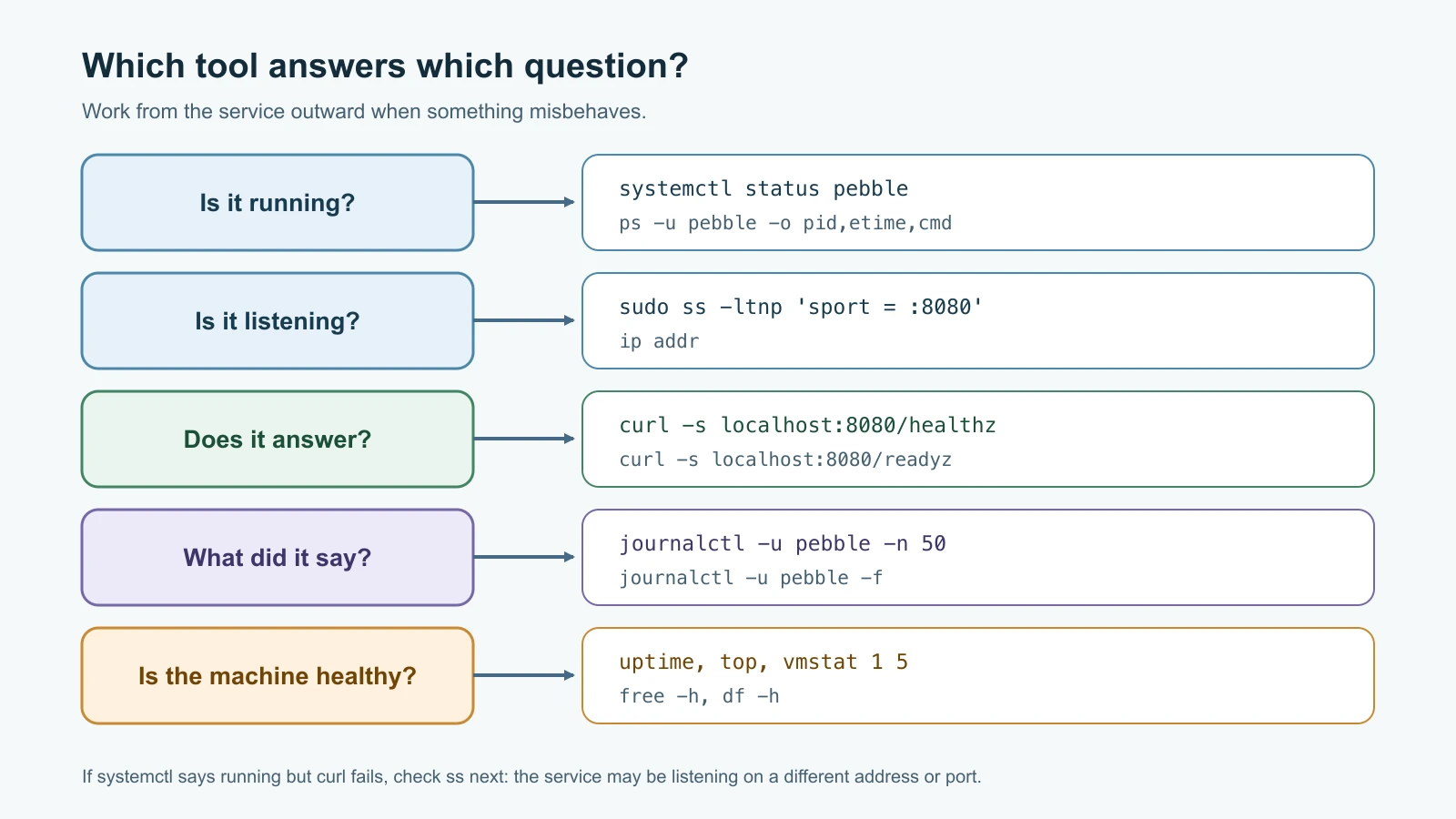
Text manipulation: get answers from logs
Logs and command output are text, and Linux has small tools that each do one thing to text. Chained with pipes, they answer questions in seconds. The examples below use a real Pebble log from a short session that included a few successful requests, a few failures and a bot-style probe for /wp-login.php. Save your own with journalctl -u pebble -o cat > pebble.log, or run Pebble in a terminal and redirect its output to a file.
grep finds lines. Count how many requests returned 404, then show every 4xx error:
1grep -c '"status": 404' pebble.log
2grep '"status": 4' pebble.log12
2{"time": "2026-11-13T07:58:35+00:00", "level": "info", "message": "request", "method": "GET", "path": "/favicon.ico", "status": 404}
3{"time": "2026-11-13T07:58:35+00:00", "level": "info", "message": "request", "method": "GET", "path": "/wp-login.php", "status": 404}
4{"time": "2026-11-13T07:58:35+00:00", "level": "info", "message": "request", "method": "POST", "path": "/api/links", "status": 400}Pebble is not a WordPress site, so the /wp-login.php request is an automated scanner looking for one. Any server on the internet sees requests like this within minutes. They are noise, but they are worth recognizing.
sort and uniq -c count things. grep -o prints only the matching part of each line:
1grep -o '"status": [0-9]*' pebble.log | sort | uniq -c | sort -rn1 6 "status": 302
2 3 "status": 201
3 2 "status": 404
4 2 "status": 200
5 1 "status": 400Read the pipeline left to right: extract the status from each line, sort so identical values sit together, count each run of identical lines, then sort numerically in reverse so the most common comes first.
sed edits text as it flows past. Extract the path from each request and find the busiest ones:
1sed -n 's/.*"path": "\([^"]*\)".*/\1/p' pebble.log | sort | uniq -c | sort -rn | head -21 5 /4r23nsn
2 4 /api/linksThe s/old/new/ expression replaces the whole line with just the captured path, -n with the p flag prints only lines where a replacement happened, and head -2 keeps the top two. One short link received five visits.
awk works with fields and arithmetic. It splits each line on a separator and can keep running totals:
1awk -F'"status": ' 'NF > 1 { split($2, s, "}"); if (s[1] >= 400) errors++; total++ }
2 END { printf "%d of %d requests failed (%.0f%%)\n", errors, total, 100 * errors / total }' pebble.log13 of 14 requests failed (21%)jq understands JSON. Text tools work on Pebble's logs because each line has a predictable shape, but they break if a field moves or a value contains an unexpected quote. Because Pebble writes JSON, jq can query fields directly, which is more reliable:
1jq -r 'select(.status >= 400) | "\(.time) \(.status) \(.method) \(.path)"' pebble.log12026-11-13T07:58:35+00:00 404 GET /favicon.ico
22026-11-13T07:58:35+00:00 404 GET /wp-login.php
32026-11-13T07:58:35+00:00 400 POST /api/linksUse grep, sed and awk for any text, and jq whenever the data is JSON. You will lean on all of them in Bash scripts and pipelines, and the log platforms in Logs and Tracing apply the same ideas at scale.
Windows and PowerShell for operations
Some teams run Windows servers, and many engineers work on Windows laptops. PowerShell is Microsoft's shell and scripting language. Its commands, called cmdlets, follow a verb-noun pattern and pass structured objects rather than plain text between them. The ideas match what you have just learned:
| Job | Linux | PowerShell |
|---|---|---|
| List processes | ps, top | Get-Process |
| Check a service | systemctl status pebble | Get-Service -Name <name> |
| Start or stop a service | systemctl start and stop | Start-Service, Stop-Service |
| Listening ports | ss -ltnp | Get-NetTCPConnection -State Listen |
| System logs | journalctl | Get-WinEvent -LogName System -MaxEvents 20 |
| Search text | grep | Select-String |
| Follow a log file | tail -f | Get-Content -Wait |
| Read JSON | jq | ConvertFrom-Json |
PowerShell 7 also runs on Linux and macOS, so you may meet it in cross-platform automation. Windows Subsystem for Linux lets you run Ubuntu, including everything in this lesson, on a Windows machine.
Mistakes beginners make
- Running services as root because it "just works", so any vulnerability gives away the whole server.
- Fixing a permission error with
chmod 777, which lets every user and process change the file. - Starting a service with
nohupor inside a terminal multiplexer instead of systemd, so it does not restart after a crash or reboot. - Forgetting
sudo systemctl daemon-reloadafter editing a unit file, then wondering why nothing changed. - Using relative paths or commands without full paths in
ExecStart=. - Writing logs to files inside the application on a systemd host, then filling the disk because nothing rotates them.
- Reading "free" memory instead of "available" and concluding the server is out of memory.
- Ignoring a nearly full disk until the database stops writing.
- Copying commands from a guide written for a different distribution without checking package names and paths.
- Parsing JSON with fragile
grepandsedpatterns whenjqis available.
Recap and try it yourself
Linux arranges everything in one tree, with configuration in /etc, add-on software in /opt, data in /var/lib and logs in the journal. Users, groups and permission bits control access, and services should run as dedicated, unprivileged users. Distributions differ mainly in package managers and support policies. systemd runs Pebble as a service: it starts at boot, restarts after a crash, runs as the pebble user in a hardened sandbox and logs to the journal. systemctl, journalctl, ps, ss, top, free and df tell you whether a service and its machine are healthy, and grep, sed, awk and jq turn logs into answers.
Try it yourself:
- Set up Pebble as a service on an Ubuntu machine using the steps above. Reboot the machine and confirm with
systemctl status pebblethat it came back on its own. - Change
PEBBLE_PORTto9090in/etc/pebble/pebble.env, restart the service withsudo systemctl restart pebble, and prove the change withssandcurl. Notice you did not touch the code. - Run
systemd-analyze security pebble. It rates how exposed the service is and lists further hardening options. Pick one, read about it in thesystemd.execmanual page, add it, and check that Pebble still works. - Create twenty short links and visit some of them several times. Then use one pipeline to list the three most visited codes, and write the same query with
jqusingjournalctl -u pebble -o catas the input.
Sources checked on 13 November 2026: Ubuntu release cycle; Debian releases; Red Hat Enterprise Linux life cycle; systemd manual pages for systemd.exec, systemd.service, systemctl and journalctl; the Filesystem Hierarchy Standard; the jq manual; Microsoft's PowerShell documentation; and the roadmap.sh DevOps roadmap. Pebble is fictional.