
DevOps course · lesson 5 of 24
- 1What Is DevOps?
- 2A Language and a Service to Operate
- 3Linux and the Terminal
- 4Bash Scripting for Ops
- 5Git and Collaboration
- 6Networking for DevOps
- 7Web Servers, Proxies and Load Balancers
- 8Docker for DevOps
- 9Docker Compose and Multi-Service Apps
- 10Cloud Providers: AWS, Azure and Google Cloud
- 11Serverless Functions and Platforms
- 12Terraform and Infrastructure as Code
- 13Ansible and Configuration Management
- 14Continuous Integration with GitHub Actions and GitLab CI
- 15Continuous Delivery and Deployment Strategies
- 16Secret Management
- 17Kubernetes Basics
- 18Kubernetes in Practice
- 19GitOps with Argo CD and Flux
- 20Service Mesh: Istio, Linkerd, Consul and Envoy
- 21Metrics and Alerting with Prometheus and Grafana
- 22Logs and Tracing with Loki, Elastic and OpenTelemetry
- 23Reliability, SLOs and Cloud Design Patterns
- 24Capstone: Pebble to Production
After this lesson, you will be able to put a project under Git, write commits that explain themselves, work on branches, open and review pull requests, choose between merge, rebase and squash, resolve a merge conflict calmly, undo mistakes safely, protect the main branch, and run tests automatically before every commit with a hook. You will also know how GitHub, GitLab and Bitbucket differ and which branching strategy suits a team that deploys often.
So far Pebble lives in a folder on your machine. If that disk fails, it is gone. If Pebble's two engineers both edit pebble.py, one of them will overwrite the other. Nobody can see what changed last week, who changed it, or why. Version control fixes all of this, and it is also the foundation of everything automated later in the course: CI pipelines run when commits arrive, infrastructure is applied from a repository, and GitOps tools deploy whatever is on the main branch. The first of the twelve-factor principles from A Language and a Service to Operate says it plainly: one codebase tracked in revision control, many deploys.
What Git is
Git is a distributed version control system. It records snapshots of your project, called commits, and keeps the full history on every developer's machine. "Distributed" means there is no single server you depend on to work: you can commit, branch and read history offline, then share your work with others when you choose. The latest Git release at the time of writing is 2.56.1, from 26 October 2026. The commands in this lesson work with any recent version; the output shown comes from Git 2.39 on macOS, and newer versions print the same information with occasional small wording differences.
Git has three places a change can be:
- The working tree: the files you see and edit.
- The staging area, also called the index: the changes you have chosen to include in the next commit.
- The repository: the history of commits, stored in the hidden
.gitfolder.
git add moves changes from the working tree to the staging area. git commit turns the staging area into a new commit. Staging lets you commit part of your work and keep the rest for later, so each commit can be one complete, coherent change.
Before your first commit, tell Git who you are. These details are stored in every commit you make:
1git config --global user.name "Asha Rao"
2git config --global user.email "asha@pebble.example"
3git config --global init.defaultBranch main
Asha and her teammate Ravi are Pebble's fictional engineers; use your own name and email.
Start the repository
Go to the folder with Pebble's files from the previous lessons: pebble.py, test_pebble.py, the two operations scripts and their tests. Create the repository:
1git init -b main1Initialized empty Git repository in /home/asha/pebble/.git/Before adding anything, decide what must never be committed. Pebble's SQLite database, backups and Python's cache files are generated locally, and environment files may hold secrets. Create a file called .gitignore:
1# Local data and backups never belong in Git
2*.db
3backups/
4# Python bytecode
5__pycache__/
6# Environment files can hold secrets
7*.env
Now look at what Git sees, stage everything, and look again:
1git status --short
2git add .
3git status --short1?? .gitignore
2?? pebble-backup.sh
3?? pebble-healthcheck.sh
4?? pebble.py
5?? test-scripts.sh
6?? test_pebble.py
7A .gitignore
8A pebble-backup.sh
9A pebble-healthcheck.sh
10A pebble.py
11A test-scripts.sh
12A test_pebble.py?? means untracked; A means staged as a new file. The folder also contained a pebble.db file and a __pycache__ folder, and neither appears: .gitignore is working. Make the first commit and view the history:
1git commit -m "feat: add Pebble service, tests and ops scripts"
2git log --oneline1636bd01 feat: add Pebble service, tests and ops scripts636bd01 is the start of the commit's hash, a unique identifier calculated from its contents. Yours will differ.
A word of warning that you will hear again in Secret Management: once a password or key is committed and pushed, assume it is compromised, even if you delete it in a later commit. It stays in the history. Ignoring *.env from day one is cheap insurance.
Write commits people can use
A commit message is a note to the next person who reads the history, very often you, months later, during an incident. Good messages answer "what changed and why". A common shape is a short subject line, around 50 characters, in the imperative mood ("add", "fix", not "added" or "fixes"), then a blank line and a body wrapped at about 72 characters explaining the reason when it is not obvious.
Many teams follow Conventional Commits (version 1.0.0), which adds a type prefix: type(optional scope): description. feat marks a new feature and fix a bug fix, and these map to minor and patch releases in semantic versioning. A ! after the type, as in feat!:, or a BREAKING CHANGE: footer marks a change that breaks compatibility. Other common types are docs, test, refactor and chore. The prefix makes history easy to scan and lets tools generate changelogs and version numbers automatically, which you will use in Continuous Delivery and Deployment Strategies.
Keep each commit to one logical change. "Add link info endpoint and its test" is one change. "Add endpoint, rename variables, fix typo in README" is three, and if one of them causes a problem, you cannot undo it without undoing the others.
Branches and pull requests
A branch is a movable pointer to a line of commits. The main branch holds the code that is, or is about to be, in production. Work happens on short-lived branches, so main stays stable while you experiment.
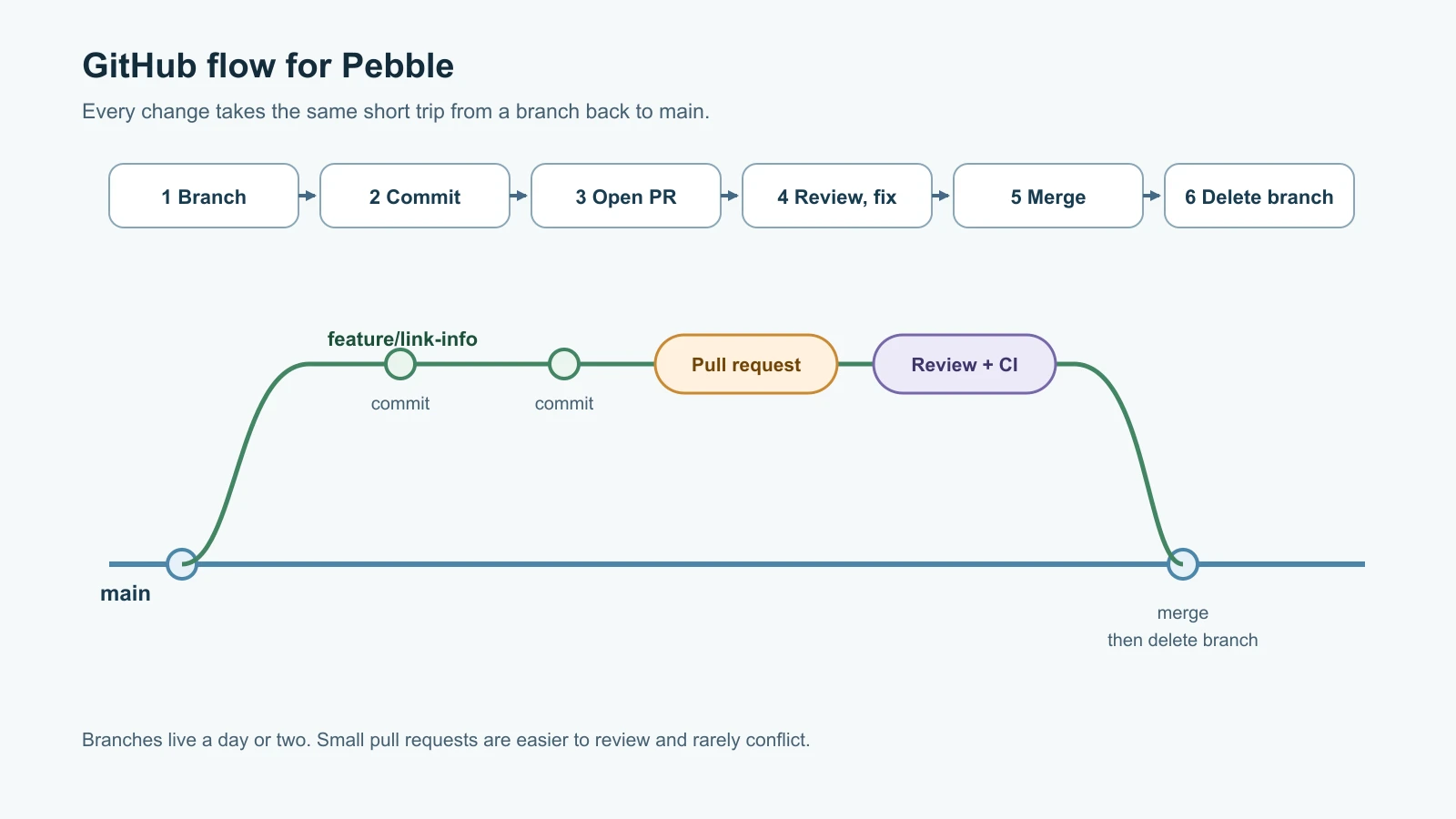
Asha adds a feature from the previous lesson's exercises: an endpoint that returns a link's details as JSON without redirecting. She starts a branch:
1git switch -c feature/link-info1Switched to a new branch 'feature/link-info'She adds six lines to do_GET in pebble.py, just after the readiness check, and a test to test_pebble.py:
1            if self.path.startswith("/api/links/"):
2                code = self.path.removeprefix("/api/links/")
3                url = store.lookup(code)
4                if url is None:
5                    return self.send_json(404, {"error": "unknown link"})
6 return self.send_json(200, {"code": code, "url": url})1 def test_link_info_returns_json(self):
2 created = json.loads(call(self.base + "/api/links", "POST", {"url": "https://example.com/info"})[2])
3 status, _, body = call(self.base + "/api/links/" + created["code"])
4 self.assertEqual(status, 200)
5 self.assertEqual(json.loads(body), {"code": created["code"], "url": "https://example.com/info"})
6 self.assertEqual(call(self.base + "/api/links/nope123")[0], 404)Before committing, she reviews her own change. git diff shows exactly what is about to be committed:
1git diff --stat
2git diff pebble.py1 pebble.py | 6 ++++++
2 test_pebble.py | 7 +++++++
3 2 files changed, 13 insertions(+)
4diff --git a/pebble.py b/pebble.py
5index f7f5183..a73f46b 100644
6--- a/pebble.py
7+++ b/pebble.py
8@@ -94,6 +94,12 @@ def make_handler(store, base_url):
9 except sqlite3.Error:
10 return self.send_json(503, {"status": "database unavailable"})
11 return self.send_json(200, {"status": "ready"})
12+ if self.path.startswith("/api/links/"):
13+ code = self.path.removeprefix("/api/links/")
14+ url = store.lookup(code)
15+ if url is None:
16+ return self.send_json(404, {"error": "unknown link"})
17+ return self.send_json(200, {"code": code, "url": url})
18 url = store.lookup(self.path.lstrip("/"))
19 if url is None:
20 return self.send_json(404, {"error": "unknown link"})Lines starting with + were added; lines starting with - would be removed. The tests pass, so she commits:
1python3 -m unittest -q test_pebble
2git add pebble.py test_pebble.py
3git commit -m "feat: add GET /api/links/<code> to show a link without redirecting"
On a team, the next step is a pull request (GitLab calls it a merge request): a request to merge the branch into main, with a page where teammates review the diff, comment on specific lines and approve it, and where automated checks report whether tests pass. Pull requests are where knowledge spreads through a team. The reviewer learns about the new endpoint; the author gets a second pair of eyes on the edge cases. You will create a real one on GitHub later in this lesson. When the pull request is approved, it is merged. Locally, the same result looks like this:
1git switch main
2git merge --no-ff -m "Merge pull request #1 from feature/link-info" feature/link-info
3git branch -d feature/link-info
4git log --oneline --graph1* 30c62d6 Merge pull request #1 from feature/link-info
2|\
3| * c40aa70 feat: add GET /api/links/<code> to show a link without redirecting
4|/
5* 636bd01 feat: add Pebble service, tests and ops scripts--no-ff forces a merge commit even when Git could simply move main forward, which keeps a visible record that the work arrived as one pull request. The merged branch is deleted, because its job is done. Its commits live on in main.
GitHub documents this pattern as GitHub flow: create a branch, make changes and commit them, open a pull request, address review comments, merge, and delete the branch.
Merge, rebase or squash
There are three common ways to bring a branch into main, and teams usually pick one as their default.
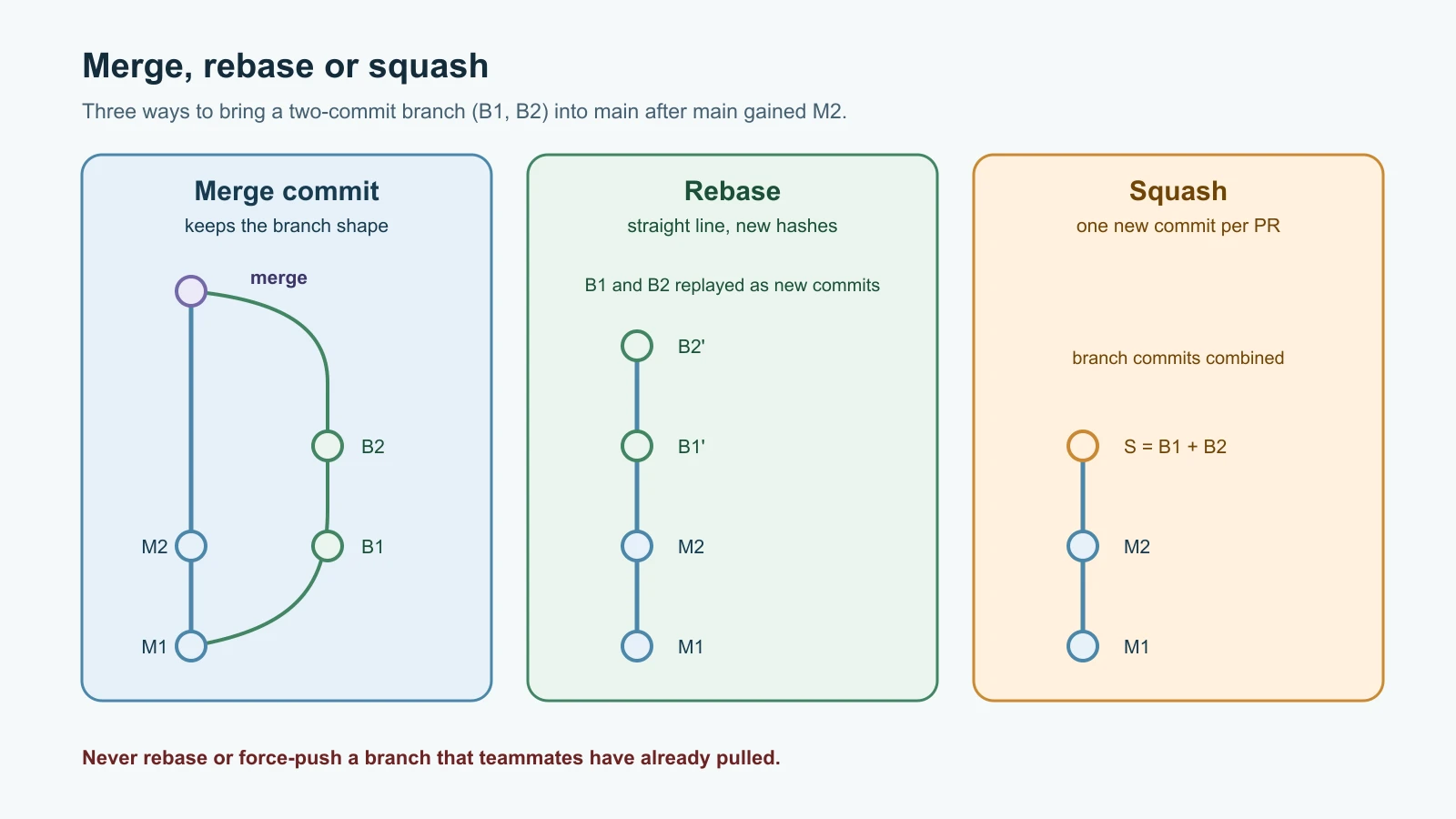
- Merge commit. Joins the two histories with a new commit that has two parents. Nothing is rewritten, and the history shows exactly how work happened, but it can become hard to read with many parallel branches.
- Rebase. Replays your branch's commits on top of the latest
main, creating new commits with new hashes, so the history is a straight line. It reads beautifully, but it rewrites history. - Squash. Combines all the branch's commits into one new commit on
main. The history shows one commit per pull request, at the cost of the individual steps.
The one rule that matters: never rebase a branch other people have based work on. Rebasing creates new commits, so anyone who had the old ones now has a history that no longer matches. Rebasing your own unpublished branch to catch up with main is fine and common.
Resolve a merge conflict
Git merges changes to different parts of a file automatically. When two branches change the same lines, it cannot know which version is right and asks you. That is a conflict, and it is a normal part of teamwork, not an error.
Here is a realistic one. Asha starts a branch that adds a version number to Pebble's startup log line. Meanwhile, Ravi merges a small change to main that adds the database path to the same line. The history has split:
1git log --oneline --graph --all1* 3b892dd feat: log the Pebble version at startup
2| * de00340 feat: log the database path at startup
3|/
4* 30c62d6 Merge pull request #1 from feature/link-info
5|\
6| * c40aa70 feat: add GET /api/links/<code> to show a link without redirecting
7|/
8* 636bd01 feat: add Pebble service, tests and ops scriptsBefore opening her pull request, Asha updates her branch by rebasing it onto the latest main:
1git switch feature/version-in-logs
2git rebase main1Auto-merging pebble.py
2CONFLICT (content): Merge conflict in pebble.py
3error: could not apply 3b892dd... feat: log the Pebble version at startup
4hint: Resolve all conflicts manually, mark them as resolved with
5hint: "git add/rm <conflicted_files>", then run "git rebase --continue".
6hint: You can instead skip this commit: run "git rebase --skip".
7hint: To abort and get back to the state before "git rebase", run "git rebase --abort".
8Could not apply 3b892dd... feat: log the Pebble version at startupGit has stopped and told her exactly what to do next. git status lists pebble.py under "Unmerged paths" as "both modified". Inside the file, Git has marked the conflict:
1<<<<<<< HEAD
2    log("info", "pebble started", host=config["host"], port=config["port"], db_path=config["db_path"])
3=======
4    log("info", "pebble started", host=config["host"], port=config["port"], version=VERSION)
5>>>>>>> 3b892dd (feat: log the Pebble version at startup)
The part between <<<<<<< and ======= is what is already on main (Ravi's change; during a rebase, HEAD is the branch you are rebasing onto). The part between ======= and >>>>>>> is Asha's commit being replayed. Neither is wrong; both fields are wanted. She edits the file so it contains the combined line and no markers:
1    log("info", "pebble started", host=config["host"], port=config["port"],
2        db_path=config["db_path"], version=VERSION)
Then she runs the tests, marks the conflict resolved and continues:
1python3 -m unittest -q test_pebble
2git add pebble.py
3git rebase --continue1[detached HEAD 977e429] feat: log the Pebble version at startup
2 1 file changed, 3 insertions(+), 1 deletion(-)
3Successfully rebased and updated refs/heads/feature/version-in-logs.Git may open your editor to confirm the commit message; save and close it. Because her branch now sits directly on top of main, merging it is a simple fast-forward and the history is a straight line:
1git switch main
2git merge --ff-only feature/version-in-logs
3git log --oneline --graph1Updating de00340..977e429
2Fast-forward
3 pebble.py | 4 +++-
4 1 file changed, 3 insertions(+), 1 deletion(-)
5* 977e429 feat: log the Pebble version at startup
6* de00340 feat: log the database path at startup
7* 30c62d6 Merge pull request #1 from feature/link-info
8|\
9| * c40aa70 feat: add GET /api/links/<code> to show a link without redirecting
10|/
11* 636bd01 feat: add Pebble service, tests and ops scriptsNotice that her commit's hash changed from 3b892dd to 977e429: rebasing created a new commit. If a conflict ever looks too tangled, git rebase --abort returns everything to how it was before you started. Small, frequent pull requests make conflicts rare and small, which is one of the strongest arguments for short-lived branches.
Undo mistakes safely
Git rarely loses anything you have committed, but the right undo depends on where the change is:
| Situation | Command | What it does |
|---|---|---|
| Edited a file and want the committed version back | git restore pebble.py | Discards uncommitted changes to that file |
| Staged something by accident | git restore --staged pebble.py | Unstages it; your edits stay in the file |
| A commit on a shared branch was wrong | git revert <hash> | Adds a new commit that reverses it; history stays intact |
| The last local commit, not yet pushed, was wrong | git reset HEAD~1 | Moves the branch back one commit and keeps the changes in your files |
| You think you lost a commit | git reflog | Lists everywhere HEAD has pointed recently, so you can find and restore it |
On shared branches, prefer git revert. It is the safe "undo" in production incidents, because it does not rewrite history that others already have, and a revert commit is itself reviewed, tested and deployed like any other change. Be careful with git reset --hard, which throws away uncommitted work with no recovery.
Run tests before every commit with a hook
Git hooks are scripts Git runs at certain moments. A pre-commit hook runs before each commit and can refuse it by exiting with a non-zero code. Save this as .git/hooks/pre-commit and make it executable with chmod +x .git/hooks/pre-commit:
1#!/usr/bin/env bash
2# Refuse the commit if Pebble's tests fail.
3set -euo pipefail
4log=$(mktemp)
5trap 'rm -f "$log"' EXIT
6if ! python3 -m unittest -q test_pebble > "$log" 2>&1; then
7  echo "pre-commit: tests failed, commit refused. Last lines:" >&2
8  tail -n 4 "$log" >&2
9  exit 1
10fi
11echo "pre-commit: tests passed"
It uses the habits from Bash Scripting for Ops: strict mode, a temporary file cleaned up by trap, and a meaningful exit code. To see it work, Asha changes the link info endpoint to drop the code field from its response, which breaks the test she wrote, and tries to commit:
1git commit -am "refactor: simplify link info response"
2echo "exit code: $?"1pre-commit: tests failed, commit refused. Last lines:
2----------------------------------------------------------------------
3Ran 9 tests in 3.604s
4
5FAILED (failures=1)
6exit code: 1The broken change never entered the history. git restore pebble.py puts the working version back. Hooks live in .git/hooks, which is not shared when others clone the repository, and anyone can skip them with git commit --no-verify. So treat local hooks as a convenience that gives fast feedback. The guarantee comes from running the same checks on the server for every pull request, which you will set up in Continuous Integration. Keep hooks fast, too: these tests take about four seconds, which is fine, but a hook that takes a minute trains people to skip it.
Share the code on GitHub
A remote is a copy of the repository on another machine, usually a hosting service. To publish Pebble on GitHub, create an empty repository named pebble in your account through the GitHub website, without a README or .gitignore so it has no history of its own. GitHub accepts pushes over HTTPS with a personal access token or over SSH with a key; SSH is convenient for daily work. If you do not have an SSH key yet, create one and add the public half, the .pub file, to your GitHub account under Settings, then SSH and GPG keys:
1ssh-keygen -t ed25519 -C "asha@pebble.example"
2cat ~/.ssh/id_ed25519.pub
Then connect the remote and push, replacing <your-account> with your GitHub username:
1git remote add origin git@github.com:<your-account>/pebble.git
2git push -u origin main
origin is the conventional name for the main remote. -u remembers that local main tracks origin/main, so later you can just type git push and git pull. From now on, the day-to-day loop is: git switch -c a branch, commit, git push -u origin <branch>, open a pull request on GitHub, get a review, merge, then git switch main and git pull to bring your local copy up to date.
Protect the main branch
If anyone can push directly to main, review is optional and a single mistaken git push --force can rewrite production history. Hosting services let you protect important branches. On GitHub, rulesets, found under the repository's Settings in the Rules section, are named sets of rules that apply to branches or tags; the older branch protection rules do a similar job, and when both apply, the most restrictive rule wins. For Pebble's main, a sensible starting set is:
- Require a pull request before merging, with at least one approval, so every change is reviewed.
- Require status checks to pass before merging, once CI exists, so broken tests cannot be merged.
- Block force pushes, so history on
maincannot be rewritten. - Restrict deletions, so nobody deletes
mainby accident. - Optionally, require linear history if the team has chosen rebase or squash merges.
Which options are available depends on your plan and whether the repository is public or private, so check GitHub's documentation for your account. GitLab offers the same idea as protected branches with configurable "allowed to merge" and "allowed to push" roles, and Bitbucket calls them branch restrictions. Protection is not about distrust; it makes the safe path the default, including for the most senior engineer having a bad day.
Branching strategies
How long branches live and where releases come from is a team decision. Three strategies come up constantly:
| Strategy | How it works | Best fit |
|---|---|---|
| Trunk-based development | Everyone integrates into one branch, the trunk, very frequently; short-lived branches exist only for review and CI; unfinished features hide behind feature flags | Teams deploying many times a day with strong automated tests |
| GitHub flow | Branch from main, open a pull request, review, merge, deploy main | Most web services and small teams; Pebble's choice |
| Git flow | Long-lived develop and main branches plus feature, release and hotfix branches | Software shipped as explicit versions, especially with several versions supported at once |
Git flow was published by Vincent Driessen in January 2010 and became very popular. In a note added in March 2020, Driessen himself recommends that teams doing continuous delivery adopt a much simpler workflow, such as GitHub flow, and keep git flow for explicitly versioned software. DORA's research, introduced in What Is DevOps?, also associates trunk-based development with higher delivery performance, and its guidance suggests three or fewer active branches and merging to trunk at least once a day. For Pebble, GitHub flow with branches that live a day or two is the right balance.
GitHub, GitLab and Bitbucket
All three host Git repositories and add collaboration features around them. The differences are in what else they include and how they are run:
| GitHub | GitLab | Bitbucket | |
|---|---|---|---|
| Review unit | Pull request | Merge request | Pull request |
| Built-in CI/CD | GitHub Actions | GitLab CI/CD | Bitbucket Pipelines |
| Branch protection | Rulesets and branch protection rules | Protected branches | Branch restrictions |
| Self-hosting | GitHub Enterprise Server | GitLab Self-Managed, including a free core edition | Bitbucket Data Center |
| Often chosen for | Open source and the largest developer community | An all-in-one DevOps platform, self-hosting | Teams already using Atlassian's Jira and Confluence |
The Git commands are identical everywhere; only the website and automation differ. This course uses GitHub for examples, and Continuous Integration compares GitHub Actions with GitLab CI side by side.
Mistakes beginners make
- Committing secrets, databases or generated files because there was no
.gitignore. - Writing messages such as "fix" or "update" that tell the next reader nothing.
- Making giant commits that mix unrelated changes, so nothing can be reverted cleanly.
- Keeping a feature branch alive for weeks, then facing a huge conflict.
- Rebasing or force-pushing a branch that teammates are using.
- Panicking at a conflict and running
git reset --hard, losing work, instead of reading Git's hints or usinggit rebase --abort. - Using
git reseton shared history instead ofgit revert. - Relying on local hooks as the only safety net.
- Pushing straight to an unprotected
main. - Copying git flow into a small team that deploys continuously.
Recap and try it yourself
Git records your project as a history of commits, and every clone carries the full history. Work moves from the working tree through the staging area into commits, and .gitignore keeps data and secrets out. Good commits are small, single-purpose and clearly described; Conventional Commits adds a scannable type prefix. Short-lived branches and pull requests let teams review every change, and merge, rebase and squash are three ways to combine them, with one firm rule: do not rewrite shared history. Conflicts are normal, and Git tells you how to resolve or abort them. git revert is the safe undo for shared branches, a pre-commit hook gives fast local feedback, and branch protection on the hosting service turns good intentions into rules. GitHub flow suits Pebble; trunk-based development suits teams that deploy constantly; git flow suits versioned releases.
Try it yourself:
- Put your own copy of Pebble under Git with the
.gitignoreabove, push it to a new GitHub repository, and add a ruleset that requires a pull request and blocks force pushes onmain. Then trygit push origin mainwith a new local commit and read the error. - Make a branch, add a
GET /api/versionendpoint that returns theVERSIONconstant, open a pull request, review your own diff on GitHub, and merge it with the squash option. Compare the result ingit log --oneline --graphwith the earlier merge commit. - Create a conflict on purpose: change the same line on two branches, then merge one into the other with
git mergeinstead ofgit rebase. Resolve it and notice how the result differs from the rebase. - Commit a deliberate mistake on
main, then undo it withgit revert. Usegit logandgit showto inspect both commits.
Sources checked on 13 November 2026: Git (latest release 2.56.1) and the Pro Git book; Conventional Commits 1.0.0; GitHub Docs on GitHub flow, rulesets, available rules and protected branches; GitLab's protected branches; Atlassian's Bitbucket branch permissions; Vincent Driessen's A successful Git branching model and its 2020 note; trunkbaseddevelopment.com; DORA's trunk-based development capability; Git hooks documentation; and the roadmap.sh DevOps roadmap. Pebble, Asha and Ravi are fictional.