
AI Product Builders course · lesson 4 of 25
- 1The AI Product-Building Loop: From Idea to Improvement
- 2Define the Problem Before You Choose a Solution
- 3Check the Idea Before You Build
- 4App Anatomy for Non-Engineers: What Happens Behind a Screen
- 5Scope the First Version: Choose What to Build Now
- 6Choose a Tech Stack That Fits Your Constraints
- 7Choose a Prototype Tool for Your Product and Team
- 8Build a Clickable Prototype in One Focused Flow
- 9Test a Prototype with Real People
- 10Decide Whether to Keep, Change, or Stop
- 11Move from a Prototype to Real Code
- 12Work with an AI Coding Tool on One Clear Task
- 13Learn the Web Basics Behind Your App
- 14Connect a Database Without Losing Control of Your Data
- 15Tell a Small Fix from a Structural Change
- 16Run a Refinement Loop That Keeps the Product Useful
- 17Make an AI-Built Product Easier to Use
- 18Review and Check Changes Before They Reach the Team
- 19Test an AI-Built Product in Layers
- 20Work with a Team and Stakeholders
- 21Choose Where to Deploy Your Product
- 22Go Live: A Launch Checklist for Your Product
- 23Measure and Improve Your Product After Launch
- 24Add an AI Feature to Your Product Carefully
- 25Capstone: Take a Product Idea to Launch
After this lesson, you will be able to name the main parts of a typical web app and explain what happens when someone saves information. Knowing this map helps you ask an AI tool better questions and notice when a design leaves out an important part. You do not need to become an engineer to use the map.
We will use ToolShelf, the fictional neighbourhood tool-sharing service from earlier lessons. Imagine a neighbour opens a page for a drill and sends a request to borrow it. The example describes one possible app design, not a tested product or a claim about real users.
A screen is only the part you can see
When you open a web app, the visible page is usually shown by a browser such as Chrome, Safari, or Firefox. The browser displays text, images, buttons, and forms. It can also run code that responds to your clicks, update part of the page, and send information elsewhere.
That visible side is often called the frontend. It includes the interface people use and the client-side behavior that runs in their browser. A browser is a client: software that asks another computer for a page or service. The computer or service that answers is called a server.
For many apps, the browser sends a request to a server, and the server returns a response. A request is a message asking for something or asking the app to do something. A response is the server’s answer. The Web’s common request-and-response rules are part of HTTP, which MDN describes as a client-server protocol. A browser may also make separate requests for the page’s images, styles, scripts, and other data.
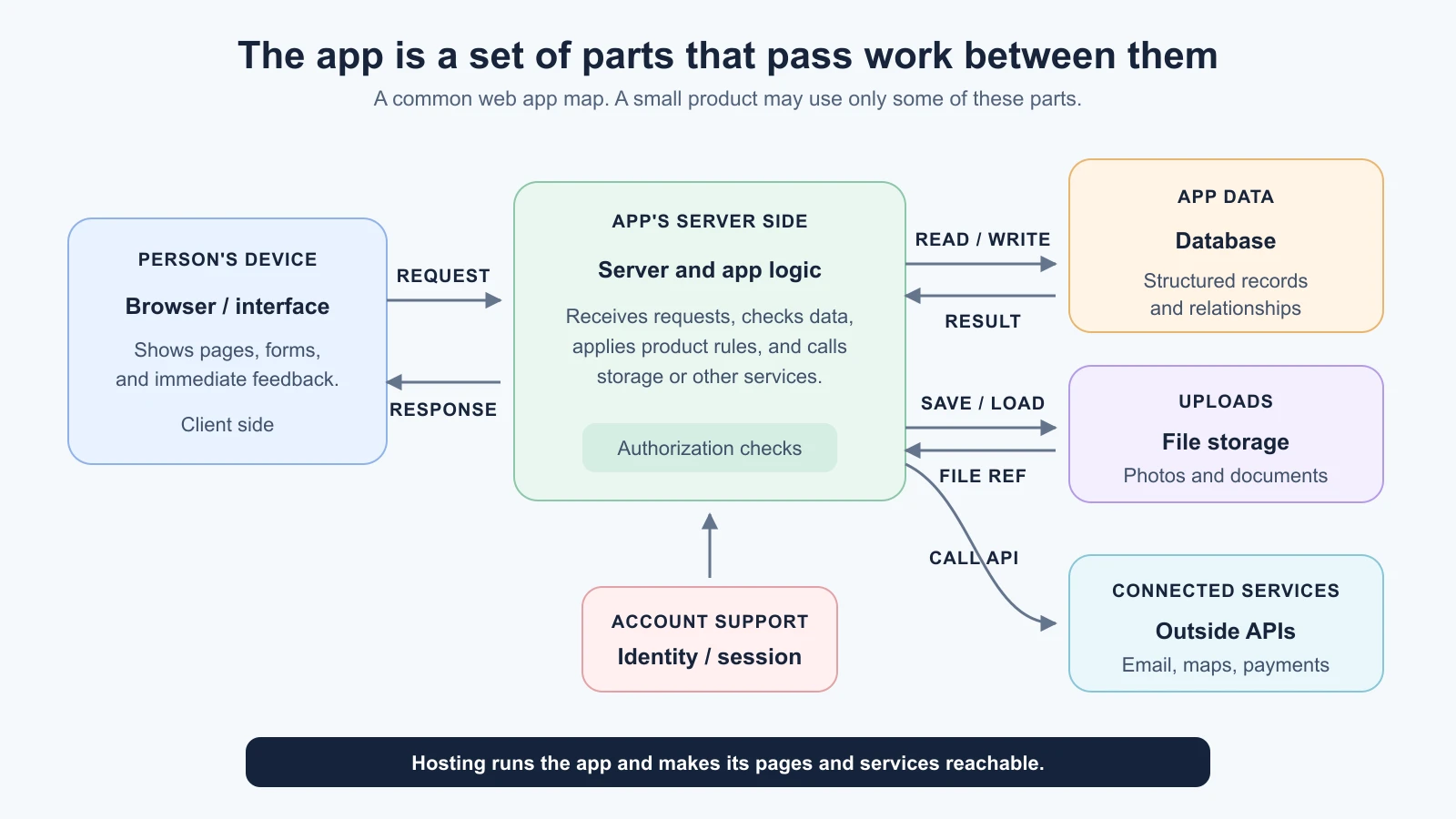
The main parts of a web app
An app can be arranged in many ways. Some products combine several parts into one service; others use a separate provider for each. This map gives you the jobs to look for, not a required shopping list.
1. The browser and interface
The browser displays the app and handles immediate interactions such as opening a menu or showing a message when a required field is blank. It may hold temporary information while a page is open. When a user submits something that must be saved, the browser usually sends a request to the app’s server.
Some app behavior happens on the browser, and some happens on the server. The exact split depends on the framework and product. For example, the current Next.js App Router documentation describes Server Components for work such as fetching data and keeping secrets on the server, and Client Components for interactions that need state, event handlers, or browser APIs. That is one framework’s current model; the general distinction is about where the work runs.
2. The server and app logic
The server is the place that receives requests and performs work that should not be trusted to the browser alone. It can check a request, decide what data the user may access, read or update records, call another service, and send back a result.
The app’s rules are often called business logic. That name sounds grand, but it means the decisions that define how the product behaves. In ToolShelf, a rule might say that a borrowing request must include a start date. Another rule might check that only the owner can edit a tool listing.
A web server and app server may be separate pieces of software or hidden behind one platform. You do not need to know the deployment diagram to ask the right questions: where does a request go, which rules are applied, and where is the resulting data stored?
3. The database
A database stores information in a form the app can find, change, and relate to other information. A ToolShelf database might contain tool listings, user accounts, and borrowing requests. A request could refer to both a listing and the person who made it.
The database is not usually a folder of documents that people open directly. The server uses a database connection to read and write records. The browser should not receive unrestricted access to the entire database. The app’s rules determine which records a user can see or change.
Not every product needs a database. A public page with fixed text and images may be served as static files. A product that remembers user-created listings needs some kind of persistent storage. Your product’s needs determine whether you need this part.
4. Sign-in, identity, and permissions
If an app has accounts, it must handle more than a sign-in screen. Authentication asks, “Who is this person?” Authorization asks, “What is this person allowed to do?” They are related, but they are different checks.
After sign-in, the app typically keeps track of the user across requests using a session or another credential. The server uses that information to connect an action with an account. It must also check authorization where access matters. For example, knowing that someone is signed in does not by itself mean they should be able to edit every ToolShelf listing.
An identity provider may handle part of sign-in, but your app still needs to decide what each signed-in person can access. Account and ownership rules belong in the architecture from the beginning, especially when people’s records are private.
5. File storage
Photos, documents, and videos are usually stored as files, not as ordinary text fields in a database. An app may place the file in a file storage service and keep a reference to it in the database. That reference can include information such as which user or listing the file belongs to.
If ToolShelf lets someone add a photo of a drill, the file and its description may live in different places. The app needs rules for who may upload it, who can view it, and what happens when the listing is removed. An image that appears on a page is not necessarily public just because it is an image.
6. Outside services and APIs
An API, or application programming interface, is a defined way for one piece of software to ask another piece of software for information or an action. Apps use APIs to connect to services such as maps, email delivery, payments, identity, or analytics.
The outside service may store or process some of your app’s data. For example, sending a sign-in email means an email provider receives the destination address and message. Before adding a service, ask what information it receives, what it returns, whether it is essential, and what happens if it is unavailable.
The app server often makes requests to outside services so that secret credentials stay on the server. A browser-visible key is not secret. The exact safe pattern depends on the provider and integration, so check the current documentation before connecting a real account.
7. Hosting and the network
Hosting is the service or infrastructure that makes the app available over the internet. A hosting provider may serve the browser files, run the app server, and connect to a database or file storage. Some products split those jobs among several providers.
When a person enters a web address, the browser needs to find the service that hosts the app and request the page. The network carries messages between the browser and the service. You do not need to memorize the networking layers for this course, but you should know that an app depends on services being reachable and correctly configured.
Hosting affects where the app runs, how it is updated, and which environment variables or credentials it needs. A deployment is a release of the app to a particular environment, such as a private preview or the live site. Later lessons cover how to choose a stack and where to deploy.
Follow one action from tap to saved data
Suppose a signed-in neighbour opens ToolShelf and submits a request to borrow a drill. The app might handle the action like this:
- The person fills in the form. The browser shows the listing and fields for the requested dates. It can catch simple mistakes early, such as a missing date.
- The browser sends a request. When the person presses “Send request,” the browser sends the relevant form data to the app server. The request may also carry session information so the server can identify the signed-in user.
- The server checks the request. It validates the data and confirms that the current user may request this item. Browser-side checks improve the experience, but the server still needs to check because a person can change a request before sending it.
- The server saves the record. If the request is valid, the server writes a new record to the database and connects it to the listing and requesting user.
- The server sends a response. It tells the browser whether the request succeeded. It may return the new request’s status or an error the app can display.
- The browser updates the page. The person sees a confirmation or a useful explanation of what needs attention.
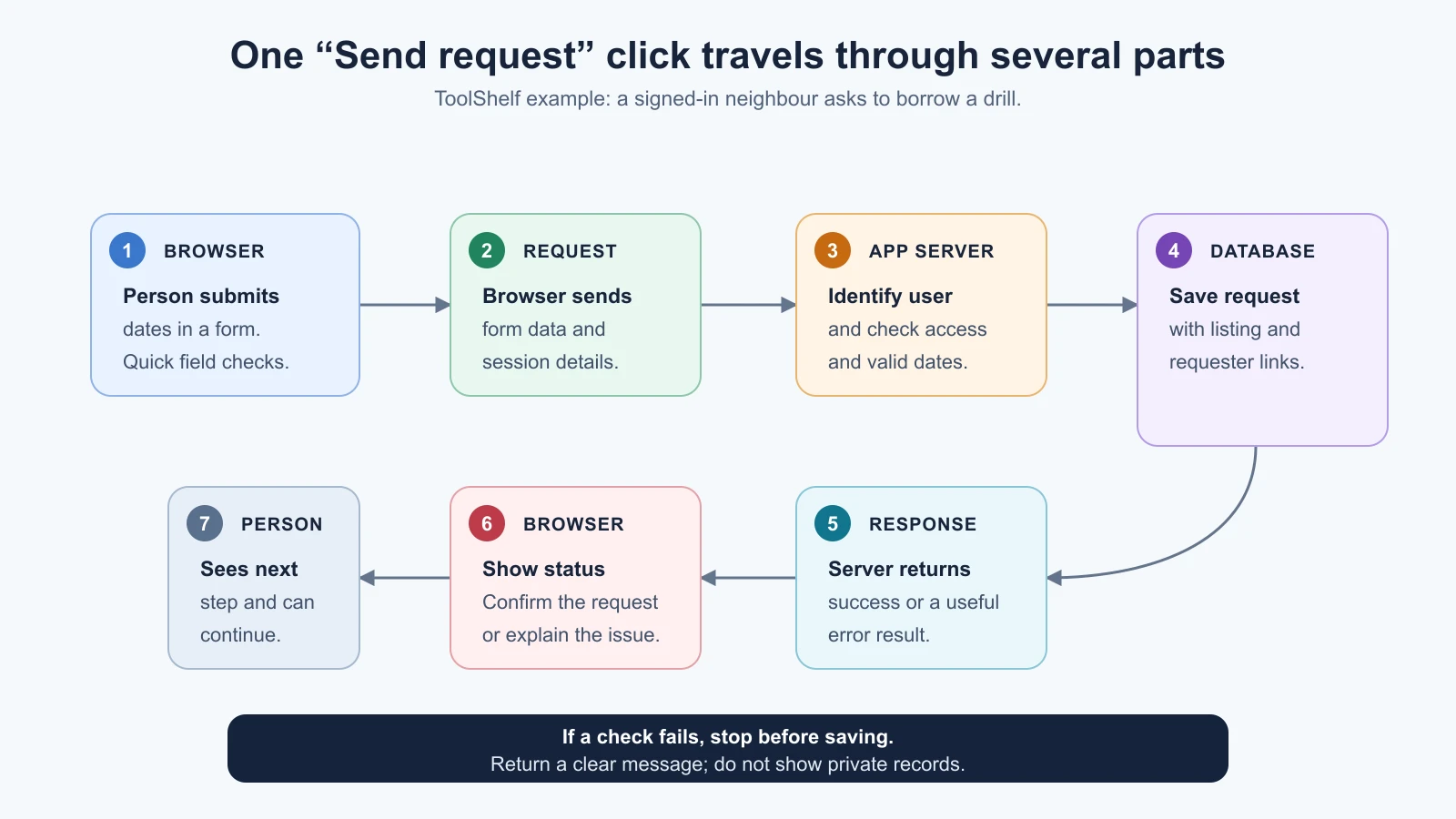
This is a simplified path. A real app may have a payment provider, send an email, write an audit record, or retry a failed database connection. The useful mental model stays the same: the browser asks, the server applies rules and coordinates work, storage keeps the result, and a response tells the browser what happened.
If a request fails, the app should not pretend it succeeded. A missing date might produce a helpful form message. A person without permission should not receive someone else’s private data. A network or service failure should give the person a safe way to try again or understand the problem. These are product decisions as well as technical ones.
What an AI builder may hide
An app builder can generate a polished interface and connect it to a managed database without showing every internal step. That can help you move faster, but the hidden pieces still matter when data, accounts, or outside services are involved.
When an AI tool proposes or generates an app, ask:
- Where does each part run? What runs in the browser, and what runs on a server?
- Where is data stored? Which service holds account details, listings, requests, and uploaded files?
- Who can access a record? How does the app check that one user cannot read or change another user’s private information?
- What leaves the app? Which outside services receive user data, and why?
- Where are credentials kept? Are private API keys restricted to server-side code and the provider’s secure settings?
- What happens when an action fails? Does the user see an error, and can they tell whether the data was saved?
- What happens to stored data later? Can a user remove a listing or file, and is there a backup or recovery plan?
You do not have to design every technical detail alone. You do need enough understanding to spot missing answers, ask the builder to explain the path, and have a qualified person review high-risk parts. The Vibe Coding guide to choosing a tech stack introduces the components you can select when you make those decisions.
Keep the map proportional to the product
The diagrams show several common pieces, but a small product may not need all of them. A personal page can be static. A simple tool with saved preferences may need a database but no accounts. A service with private user records needs clear identity and access rules. An app that stores photos needs to plan for file storage and permissions.
Do not add a component because a diagram contains it. Add it when the product needs the job it performs. At the same time, do not assume that an app builder has removed the job just because it has hidden the setup screen. Ask which provider handles it and what you remain responsible for.
Sources
- Client-server overview, MDN: browsers send requests, servers process them, and dynamic apps can use databases and templates.
- What is a web server?, MDN: static files, web servers, application servers, databases, and hosting.
- HTTP overview, MDN: the request/response model and the browser’s role as client.
- Server and Client Components, Next.js: current framework-specific examples of server-side data access and browser-side interactivity. The lesson’s overall app map is framework-neutral.
Mistakes beginners make
- Thinking the screen is the whole app. A button may depend on server rules, saved data, and a response before the action is complete.
- Mixing up authentication and authorization. Sign-in identifies a user; separate permission checks decide what that user may access.
- Assuming browser checks protect saved data. The server must validate important actions because the request can be changed before it arrives.
- Treating every image as public. File storage still needs ownership and access rules.
- Sending secrets to the browser. A credential visible in client code can be copied; check the provider’s recommended server-side pattern.
- Forgetting the outside services. Email, maps, payments, and analytics can receive data and can fail independently.
- Choosing infrastructure before understanding the job. First identify what the product needs to store, process, and protect.
Recap and try it yourself
A web app often combines a browser interface, server logic, data storage, identity and permissions, file storage, outside services, and hosting. A user action travels from the browser to the server, where the app checks the request and access rules, saves or retrieves data, and returns a response. The exact arrangement varies, and a small product may need only some of these parts.
Try it: choose a familiar app and pick one action, such as saving an item or changing a profile. Draw five boxes: browser, server, identity, storage, and outside service. Connect only the parts you think the action uses. Mark one assumption you are unsure about, then ask an AI tool to explain the likely flow. Check the explanation against the product’s own help or technical documentation. Next, we will decide which features belong in ToolShelf’s first version.