
AI Product Builders course · lesson 13 of 25
- 1The AI Product-Building Loop: From Idea to Improvement
- 2Define the Problem Before You Choose a Solution
- 3Check the Idea Before You Build
- 4App Anatomy for Non-Engineers: What Happens Behind a Screen
- 5Scope the First Version: Choose What to Build Now
- 6Choose a Tech Stack That Fits Your Constraints
- 7Choose a Prototype Tool for Your Product and Team
- 8Build a Clickable Prototype in One Focused Flow
- 9Test a Prototype with Real People
- 10Decide Whether to Keep, Change, or Stop
- 11Move from a Prototype to Real Code
- 12Work with an AI Coding Tool on One Clear Task
- 13Learn the Web Basics Behind Your App
- 14Connect a Database Without Losing Control of Your Data
- 15Tell a Small Fix from a Structural Change
- 16Run a Refinement Loop That Keeps the Product Useful
- 17Make an AI-Built Product Easier to Use
- 18Review and Check Changes Before They Reach the Team
- 19Test an AI-Built Product in Layers
- 20Work with a Team and Stakeholders
- 21Choose Where to Deploy Your Product
- 22Go Live: A Launch Checklist for Your Product
- 23Measure and Improve Your Product After Launch
- 24Add an AI Feature to Your Product Carefully
- 25Capstone: Take a Product Idea to Launch
After this lesson, you will be able to recognize the jobs HTML, CSS, and JavaScript do in a web page, explain what React and Node.js add, and use browser DevTools to collect clues about a screen that does not behave as expected. You do not need to learn every programming feature before you can guide an AI tool.
We will keep using ToolShelf, the fictional neighbourhood tool-sharing idea from earlier lessons. There is no real ToolShelf app. Examples here describe the kinds of files and clues you might meet in a web project, not code or test results from a live product.
Learn only what helps with the next decision
When an AI tool produces code, you may see unfamiliar file names, folders, and terminology. It can be tempting to study all of web development before touching the project. That is a large detour. Start with a question you need to answer: which part controls this screen, what might have caused this behavior, or what should I ask the coding tool to inspect?
A web page is built from several kinds of instructions that work together. HTML describes the page’s structure and meaning. CSS controls how that structure looks and fits on different screens. JavaScript adds behavior, such as reacting to a click or updating a message. These are separate roles, even when a project puts them in the same file or a framework hides the boundaries.
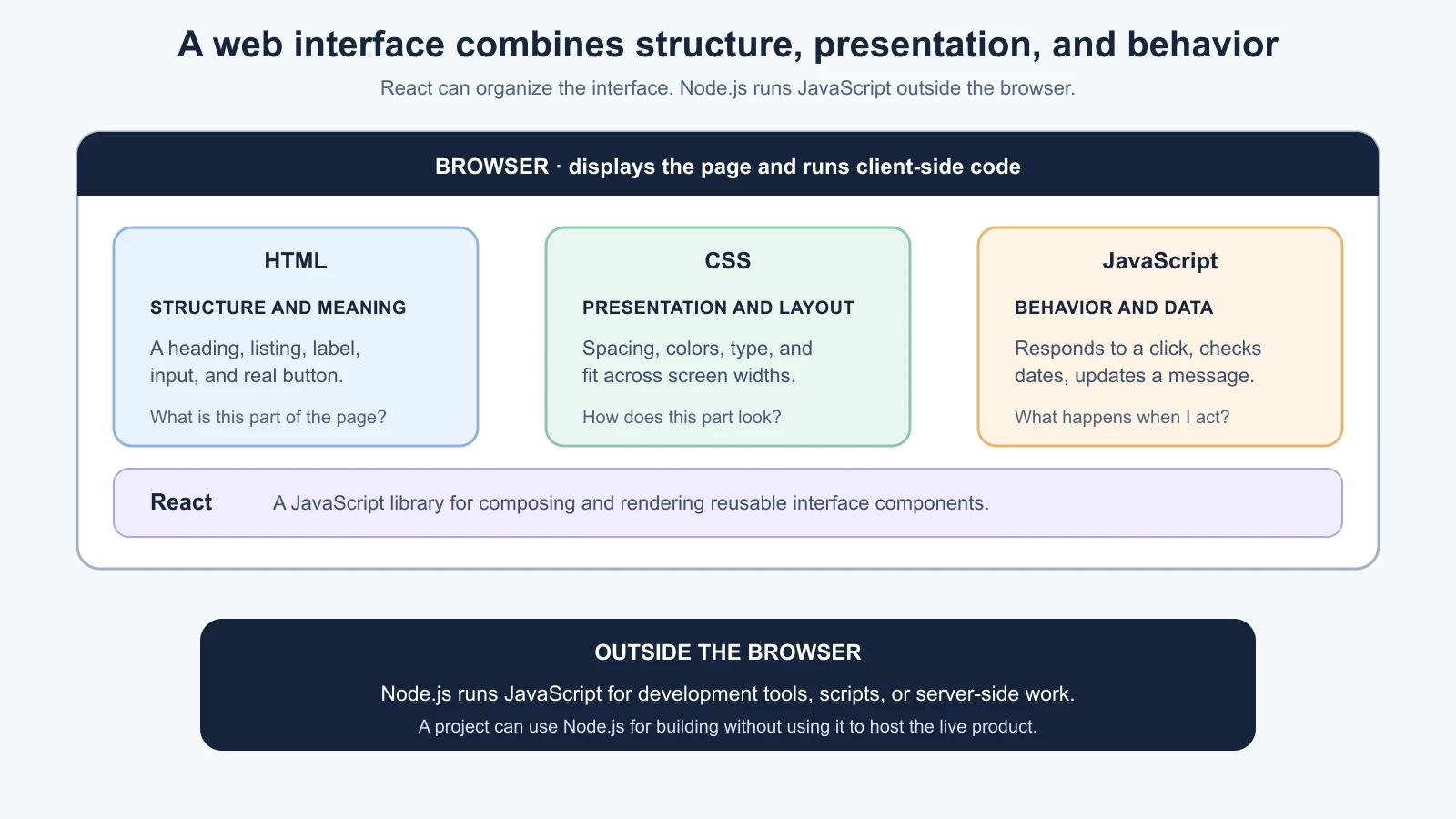
The drawing is a learning map, not a requirement that every app use five separate technologies. A simple page can use HTML, CSS, and JavaScript without React or Node.js. A framework can combine or generate parts of the page. The next useful step is to learn what each clue can tell you.
HTML gives the page structure and meaning
HTML, short for HyperText Markup Language, describes content and its structure. Tags such as a heading, paragraph, link, button, or input tell the browser what kind of thing each piece is. For ToolShelf, HTML might describe a tool listing, a request form, its labels, and the button that submits the sample dates.
The choice of element affects more than appearance. A real button can be reached and activated using a keyboard; a label can be connected to the input it describes; a heading helps people understand the page outline. If the AI made something that looks like a button from a styled div, ask whether it behaves like a button for a keyboard and assistive technology too. The browser’s Inspector may show the element that exists at runtime, though the source file can look different in a framework project.
You may not find a file named index.html. In a React or another framework project, the visible page can be assembled from components and transformed before the browser receives it. Use the file tree and the project’s conventions to locate the source instead of renaming files just to match a beginner example.
CSS controls how the page looks
CSS, or Cascading Style Sheets, describes visual presentation. It can set color, type size, spacing, borders, layout, and how a page responds to different viewport widths. In ToolShelf, CSS could make a sample listing fit beside its image on a wide screen and stack on a phone.
If a heading overlaps a button, a column is too narrow, or the text is hard to read against its background, CSS may be involved. It could also be caused by the content or HTML structure, so treat CSS as a place to investigate, not a diagnosis. In browser DevTools, the Inspector shows the styles applied to an element. Many browsers let you change a style there temporarily to see what happens; those experiments do not update the source file automatically.
A request to an AI tool like “make the screen look better” leaves it to guess which problem matters. Describe what you see and what should change: “At a narrow phone width, the date labels and input fields overlap. Keep the labels above each input and let the form use the available width. Do not change the form’s wording or behavior.” That gives the tool an observable problem and a boundary.
JavaScript adds behavior
JavaScript is a programming language used by browsers to add behavior to web pages. It can respond when someone selects a date, show a validation message, update a list, or send a request for data. On ToolShelf, clicking a sample “Review request” button could cause JavaScript to check the dates and show a demonstration result.
If a button does nothing, the issue may involve JavaScript, an event connection, a disabled control, an error, or code that never loaded. If the screen updates with the wrong message, the logic or the data passed to it may be wrong. You do not need to hunt through every function first. Reproduce the behavior, note what you expected and saw, and check the browser Console for an error before asking the coding tool to trace the relevant event.
JavaScript in the browser is not the same as every JavaScript file in the project. Some files run in the browser, and some run in a development tool or a server environment. The filename alone may not tell you where it runs. Ask the coding tool to identify the runtime and explain the path from the screen action to the result, citing the relevant files.
React organizes a user interface into components
React is a JavaScript library for rendering user interfaces. It lets a project describe parts of a screen as reusable components, such as a listing card, date field, navigation bar, or error message. A parent component can combine smaller ones, and data or settings can be passed to a component when it is used.
React projects often use JSX, a syntax that looks like HTML mixed into JavaScript. JSX is not a separate language; it is syntax that project tools transform so the app can render the interface. For example, a React file may contain a ToolCard component with heading markup and JavaScript values. That is why searching only for an HTML file may not find the screen you see.
When you ask an AI tool to change a React screen, name the visible component or user task if you know it, but do not invent filenames. Ask the tool to find where the text or component is defined and explain how it is used. If the same component appears in several places, state whether the change should apply everywhere or only in one context.
React does not replace HTML, CSS, or JavaScript. It uses JavaScript to organize and render interface pieces, while the browser still displays elements and styles. Project frameworks built around React may also decide which parts render on the server and which in the browser. If you see files with labels such as server and client components, follow that framework’s current documentation rather than assuming every component runs in the same place.
Node.js runs JavaScript outside the browser
Node.js is a runtime environment that runs JavaScript outside a web browser. Developers commonly use it to run project tools, development servers, scripts, and sometimes server-side application code. If a project’s setup guide says to install Node.js or run a command such as npm run dev, Node.js may be involved in starting the development environment.
Node.js is not the same thing as a browser, and its presence does not prove that the production app runs on a Node.js server. A project may use Node.js locally to build files that are then hosted somewhere else. A tool may also use Node.js to run a code formatter or testing utility even if the product uses a different runtime in production.
For a product builder, the practical clues are often enough: a setup file may list scripts, a terminal may show a local server starting, and a development URL may open in the browser. If the command fails, keep the complete error message and ask whether it is a missing dependency, the wrong runtime version, or an application error. Do not delete project files or reinstall packages just because a command is unfamiliar.
Use DevTools to look for evidence
Browser DevTools, short for developer tools, are panels built into browsers that help inspect the page, its styles, JavaScript errors, and network requests. They are useful even if you do not plan to write code. Open them from the browser’s menu or search for your browser’s current shortcut; shortcuts differ across browsers and operating systems.
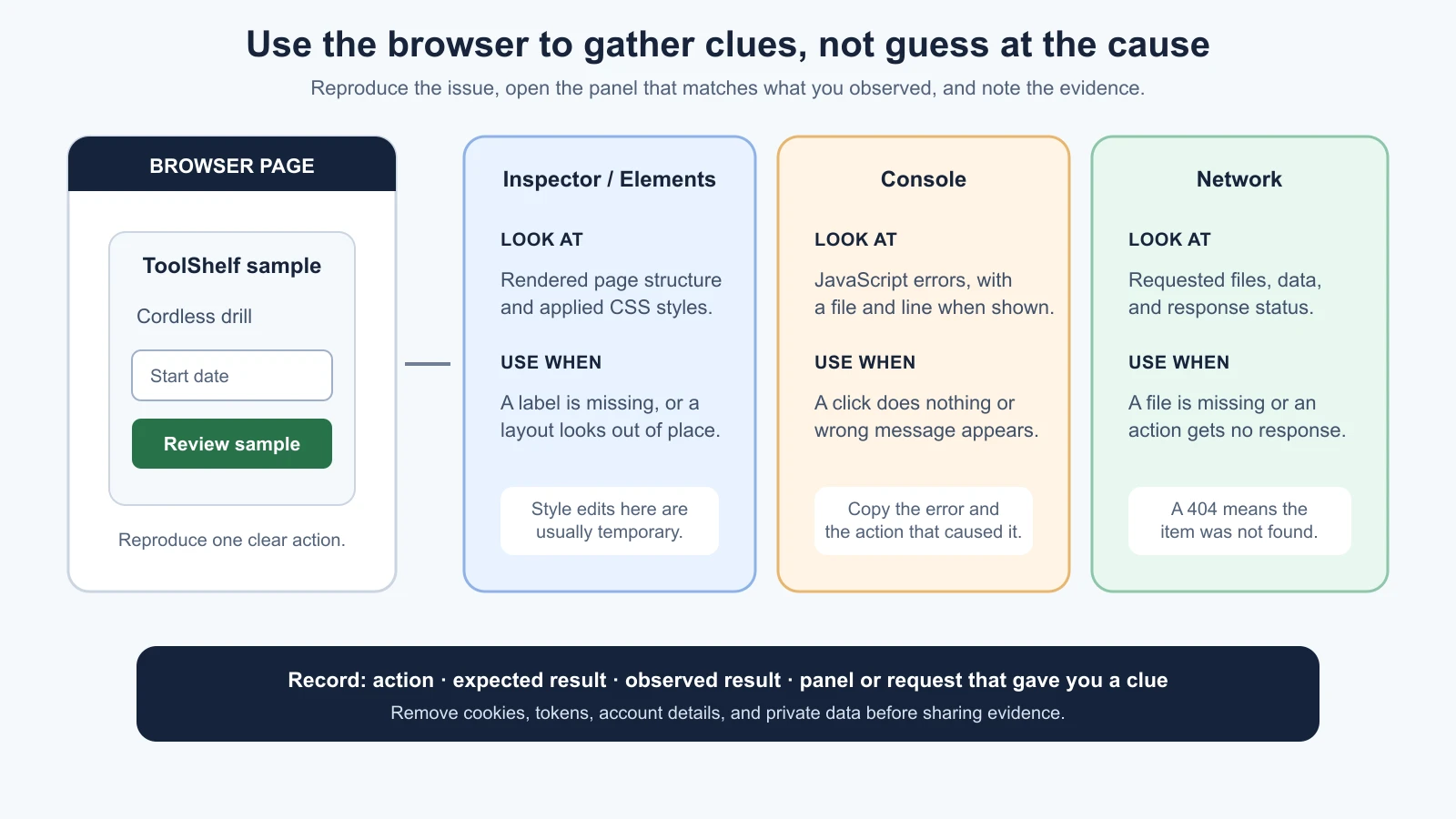
Start with the part that matches what you saw:
- Inspector or Elements: select the heading, input, button, or other visible part and inspect its runtime structure and applied styles. If you temporarily change a style to test an idea, remember that you are not editing the project file.
- Console: look for red error messages after reproducing the issue. A message may point to a file and line, but the text can be hard to interpret. Copy the full message and the action that caused it, then ask the coding tool to explain that path. Do not paste private values from the console into a public issue or model.
- Network: reload the page or repeat the action and inspect the requests. This view can show which files or data requests were made, their status, and whether a resource loaded. A missing image may show a
404; an API request may return an error even while the page itself loaded.
A successful 200 response means that the requested resource was returned, not that the app’s behavior is correct. A 404 means the requested item was not found at that address. A 500 indicates a server-side error response, but you may need server logs or more context to find its cause. Network details may include account identifiers or authentication information. Do not share cookies, authorization headers, tokens, or private participant data when asking for help.
Browser errors and terminal errors come from different places. If the page cannot start and your terminal reports a dependency or build error, begin there. If the page opens but a click produces an error, the browser Console and Network panels may help. If the visual layout is wrong with no request error, inspect the page element and styles first.
Match the clue to the next thing to learn
Use this table to decide what to inspect or ask about. Each symptom can have several causes; the “learn or inspect” column suggests a starting point, not a guaranteed diagnosis.
| What you notice | A useful place to look | A focused question for your AI tool |
|---|---|---|
| The page content or reading order is wrong | HTML or the component that renders it | “Which source defines this heading and the form order?” |
| Text overlaps or a panel does not fit on a phone | CSS layout and the viewport styles | “Which styles control this form at a narrow width?” |
| A click has no effect or shows the wrong message | JavaScript event, state, or browser Console | “Trace this button action from click to displayed result.” |
| A screen shows old or empty data | Data source, request, component state, and Network panel | “Where does this screen get its data, and what response did it receive?” |
| A page or image does not load | Network panel, requested address, and server response | “Which request failed, and what file or endpoint served it?” |
| The development command fails before the page opens | Terminal output, project scripts, and Node.js setup | “Explain this command and error. Do not change dependencies yet.” |
| A style change in DevTools disappears on reload | The project source for the matched style | “Which source file owns this style so I can make a durable change?” |
This is how you keep a technical conversation grounded. “It is broken” gives the model little to work with. “On the request screen, I choose a start and end date and press Review. The button does nothing. The Console shows this message, and the Network panel shows no request. Explain which client-side handler to inspect before you edit anything.” gives it an action, an expected result, and evidence.
Ask the AI to teach the code you need
You can use the coding tool as a guide while you learn. Ask it to explain one file or behavior in plain language, trace the user action through the project, or compare a proposed change with the current structure. Ask for file paths and evidence so that you can check the answer.
1I am trying to understand one behavior in this project.
2When I [describe the action], I expect [result], but I see [actual result].
3
4Please:
51. Trace the behavior from the visible control to the result.
62. Name the relevant files and what each one does.
73. Tell me whether the code runs in the browser, in Node.js, or both.
84. Explain any Console or Network evidence I provide.
95. Suggest the smallest part to inspect next.
10
11Do not edit files, install packages, or change project configuration.
12Mark any guesses as uncertain.
When you are ready for a code change, return to the workflow in working with an AI coding tool: use a small task, define checks, and review the diff. You do not have to understand every line before asking a useful question, but you should know what the proposed change does and how you will check it.
Further reading
We checked these links on 4 November 2026. Browser tools and documentation pages change, so confirm the details in the version you use.
- HTML basics, MDN Web Docs.
- CSS layout, MDN Web Docs.
- JavaScript guide, MDN Web Docs.
- React: Describing the UI, React documentation.
- Introduction to Node.js, Node.js Learn.
- What are browser developer tools?, MDN Web Docs.
- App anatomy for non-engineers, for how browser code connects to server, data, identity, and hosting.
Mistakes beginners make
- Trying to learn every language feature before one small task. Learn the concept that helps you inspect the current behavior.
- Calling every file in a React project HTML. JSX resembles HTML but lives in JavaScript source that project tools transform.
- Assuming Node.js means the live product runs on Node.js. It may only run the local development or build tools.
- Treating a temporary DevTools edit as a code fix. Change the project source and reload to check a lasting result.
- Assuming an error message identifies the root cause. It is a clue; trace the action and relevant request or file.
- Reading a 200 status as proof that a feature works. It only says that a particular request returned successfully.
- Sharing sensitive data while asking for help. Remove cookies, tokens, account details, and private records from logs.
- Asking the AI to fix a symptom without describing it. State the action, expected result, actual result, and evidence.
Recap and try it yourself
HTML describes page structure, CSS controls presentation, and JavaScript adds behavior. React helps organize a JavaScript interface into reusable components. Node.js runs JavaScript outside the browser and often supports development tools or server-side work. Browser DevTools help you inspect the rendered page, read JavaScript errors, and see requests and responses. Use the clues to ask a smaller, more useful question, then check the explanation against the source files and current documentation.
Try it: open a web app or your own project in a browser. Inspect one visible heading or button, find the Console and Network panels, and note one request and its status. Do not change the code yet. Write down what you expected, what you observed, and which files or concepts might explain the difference. Ask an AI tool to trace that behavior without editing anything, then check its file references yourself.