
OpenClaw course · lesson 11 of 22
- 1What Is OpenClaw, and Is It Right for You?
- 2OpenClaw vs Claude Code: Which Tool Fits the Task?
- 3How OpenClaw Works: Gateway, Sessions, and Agents
- 4OpenClaw Context and Memory: What Carries Forward?
- 5OpenClaw Workspace Files: Shape Your Agent Safely
- 6Where Should OpenClaw Run? Local, VPS, or Isolated
- 7Install OpenClaw and Start Its Gateway Safely
- 8Choose an OpenClaw Model and Provider
- 9Add Your First OpenClaw Channel Safely
- 10Choose Another OpenClaw Chat Channel Carefully
- 11Control OpenClaw Sessions and Commands
- 12Separate OpenClaw Agents and Route Messages
- 13Schedule OpenClaw Checks with Heartbeats and Automations
- 14Secure OpenClaw Hooks and Webhooks
- 15Use and Create OpenClaw Skills
- 16Vet OpenClaw Skills and Plugins Before Installing
- 17Extend OpenClaw with Plugins and MCP
- 18Understand the OpenClaw Security Model
- 19Secure an OpenClaw Gateway with Ten Checks
- 20Back Up, Update, and Troubleshoot OpenClaw
- 21Control OpenClaw Costs and Improve Reliability
- 22Capstone: Build a Safe OpenClaw Personal Assistant
Mira now has a private Telegram bot connected to her test Gateway. After a few conversations, the agent remembers earlier details, the context grows, and she is not sure whether to start over or just stop a reply that is taking too long. She also needs a reliable way to check whether the channel and Gateway are healthy.
This lesson explains sessions, the chat commands that manage a turn, and the command-line tools that inspect the system. We will keep the emphasis on the commands a new operator can use safely. Commands that change settings, install extensions, or manage access are called out as privileged actions rather than shortcuts to try casually.
OpenClaw's command names and behaviors were checked against the official documentation on 7 November 2026. Slash commands may be unavailable or behave differently depending on the channel, configuration, account permissions, and installed plugins. Use /help or /commands on your own installation and check the live CLI help before relying on an option.
Session, transcript, and context
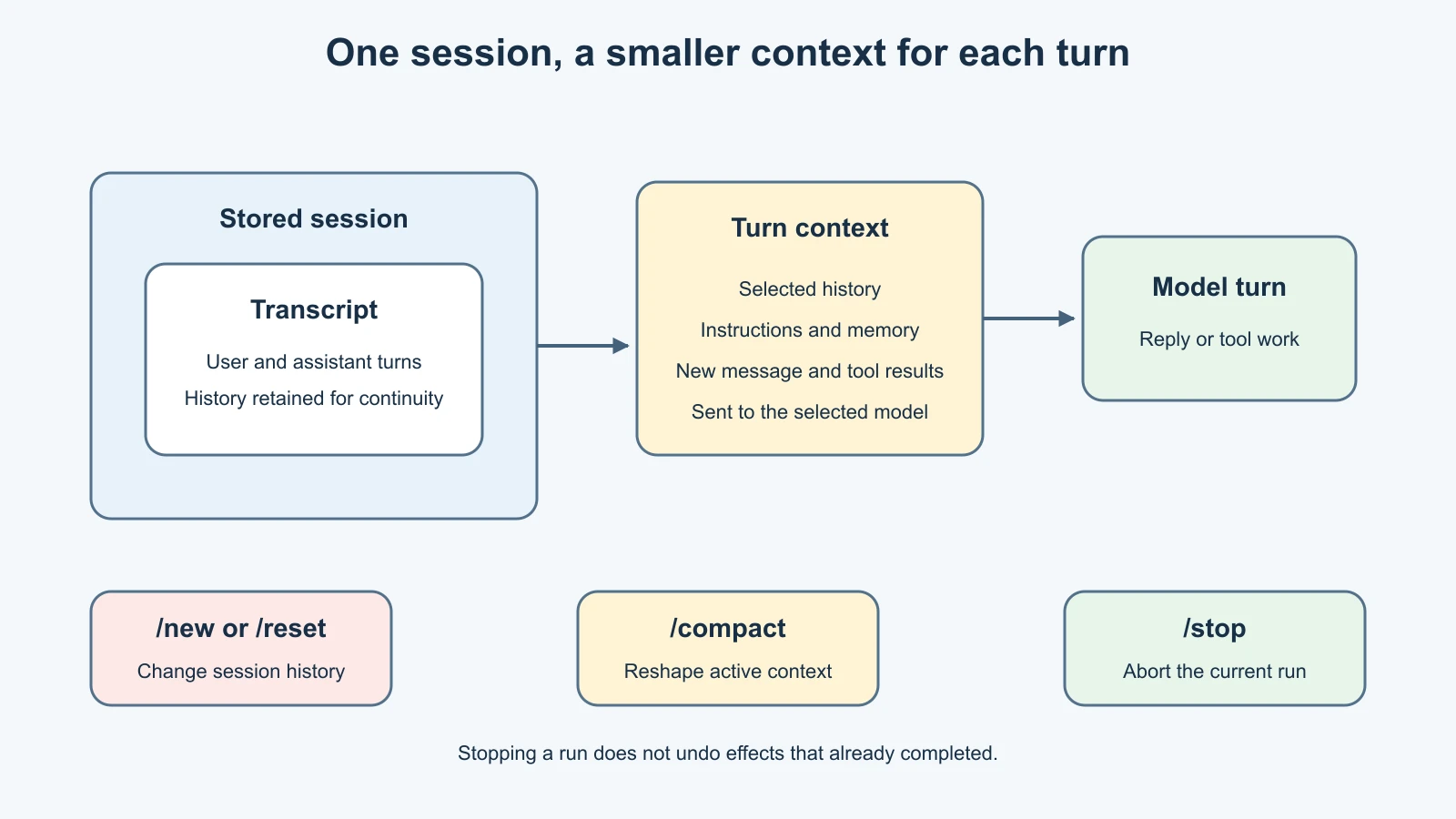
A session is the conversation state OpenClaw uses to continue a thread of work. It has a session identifier and stored history. A transcript is the recorded exchange associated with that session. The context is the subset of instructions, history, memory, and current message assembled for a particular model turn. These ideas are related, but they are not the same thing.
By default, OpenClaw reuses sessions and does not automatically reset them. Their active context can be compacted as conversation history grows. A daily or idle reset can be configured, but it is a choice you make in the session settings. Lesson 4 covers what the model sees in its context window and how durable memory files differ from conversation history.
OpenClaw also has a default DM scope called main: direct messages across channels can share one rolling session. If Mira writes to the agent in Telegram and later sends a DM from another connected channel, the histories may share context. This is convenient for a personal assistant, but it deserves review before multiple people or trust levels share an agent. Session scope controls conversation context; it does not replace sender authorization or tool policy.
Choose the right session command
OpenClaw provides several controls that can sound alike. Learn their effect before using them:
| Command | What it does | When Mira might use it |
|---|---|---|
/new | Archives the current session and starts a fresh one | Begin a separate topic without the old conversation context |
/reset | Resets the current session in place | Clear its active history and begin again on the same session route |
/compact | Summarizes or compacts session context | Keep useful history while reducing how much of it must fit into context |
/stop | Aborts the current model run | Cancel a reply or tool run that is still in progress |
These commands do not all erase the same information. A fresh session changes which conversation history is active; it does not necessarily delete every archived transcript or memory file. Compaction reduces or reshapes context; it is not a privacy wipe. /stop cancels the current run; it does not undo an action that already completed. If a tool has already sent a message or changed a file, stopping the response cannot roll that effect back.
In Control UI, typed /new may create and switch to a fresh dashboard session, while a main-session configuration can reset the main session in place. Native behavior can vary across channel surfaces. If preserving a session boundary matters, confirm the acknowledgment and check the session list afterward rather than assuming every client implements the command identically.
Example: a clean topic
Mira has been planning a fictional morning briefing, then wants a separate conversation about a recipe. She can send /new as its own chat message to create a fresh session. The new session will not automatically carry the old conversation transcript into context. If her workspace memory contains relevant facts, however, those files may still be available according to the agent's memory setup. A new session does not promise a blank agent.
Example: the context is getting large
If a long conversation still contains useful decisions, Mira can ask OpenClaw to compact the session. Compaction may summarize prior turns so later turns can proceed with less context. Review the result if the exact wording or details matter. Do not use compaction as a substitute for keeping a durable note of an important decision.
Example: a run should stop
If a run is still working, /stop asks OpenClaw to abort it. Mira should then check the response and logs to see whether an external action already occurred. If the run invoked a tool, inspect that tool's result before retrying. Repeating an uncertain action can create duplicates.
Basic chat commands
Most commands should be sent as a standalone message, with no extra request text on the same line. OpenClaw's docs distinguish commands, which the Gateway handles directly, from directives, which adjust how a following message is processed. Some channels also expose native command menus or buttons, and not every command appears everywhere.
| Command | Practical use |
|---|---|
/help | Show a short help summary for the current surface |
/commands | Show the generated command catalog available to this setup |
/status | See session/runtime details and, where available, model usage or quota |
/context | Inspect how context is assembled; /context list shows system-prompt contents |
/whoami | Display the sender identity the channel reports; useful when checking an allowlist |
/usage | Control the usage footer or request a local cost summary |
/status is not the same as a full connectivity probe. For a channel health check, the CLI has openclaw channels status --probe. Likewise, /context explains what goes into a turn but does not reveal every hidden server-side detail or prove that a provider retained nothing.
The usage command accepts modes such as /usage tokens, /usage full, /usage off, and /usage cost. Output can include token or cost information, so avoid sharing screenshots without reviewing them. Provider usage may not be available for every route, and a displayed estimate is not a billing statement.
Model and response directives
Directives let an authorized sender adjust the current request or session. Their exact options depend on the model and channel:
/modelshows or selects the model. By default, an unscoped model choice changes the current session. Explicit-aor-gscopes can update agent or global defaults and require owner or administrator authority./think <level>sets or clears a session's thinking level. The choices depend on the selected model./fast [status|auto|on|off|ultrafast|default]controls fast-mode preferences where the provider supports them. Selecting a mode does not guarantee that the provider offers or honors it./reasoning [on|off|stream]controls whether reasoning-related output is shown by the runtime. Keep it off in shared rooms; OpenClaw warns that reasoning, verbose, and trace output may expose internal or diagnostic details.
Use /model status or the model catalog to check which model is active. Changing models in the middle of a long session can change context limits, tool behavior, and output style. For a deliberate model change, consider starting a new session. Never assume a cheaper or faster choice is suitable for a turn with tools or untrusted content.
Directives are not magic natural-language hints. Send the command alone, read the acknowledgment, and then send the task. A command typed into the middle of a paragraph may be treated differently by a given channel. If it does not behave as expected, check /help instead of repeatedly trying variations.
Commands that change configuration
Some commands change persistent settings or system extensions. Their availability is restricted for a reason:
| Command | Why to treat it carefully |
|---|---|
/config | Reads or writes the on-disk OpenClaw configuration; disabled by default and owner-only when enabled |
/allowlist | Can change who may reach the agent; write actions require configuration capability and respect channel write policy |
/mcp | Manages OpenClaw MCP server configuration; disabled by default and owner-only |
/plugins | Inspects and can install, enable, or disable plugins; writes are owner-only and it is disabled by default |
Do not enable these command surfaces just to make the chat interface convenient. Make configuration changes from the intended Gateway host, review exactly which account and channel they affect, and keep an operator-only route for administrative actions. A multi-user chat should not grant every admitted sender owner access.
/config writes persist across restarts. /mcp can add a server that exposes tools. /plugins can install code into the Gateway process. /allowlist can broaden message access. Use the relevant lesson and official docs before changing any of them; never paste a token into a command value or public chat. Lessons 15 to 17 cover skills, plugins, and MCP in depth.
Chat command or CLI command?
Use chat commands to control the current interaction or inspect session-level state. Use the command-line interface (CLI) on the Gateway host to inspect operations and configuration across the installation. The CLI is usually clearer for maintenance and diagnostics, but it can also modify persistent state. Read-only does not mean harmless if the output contains private data.
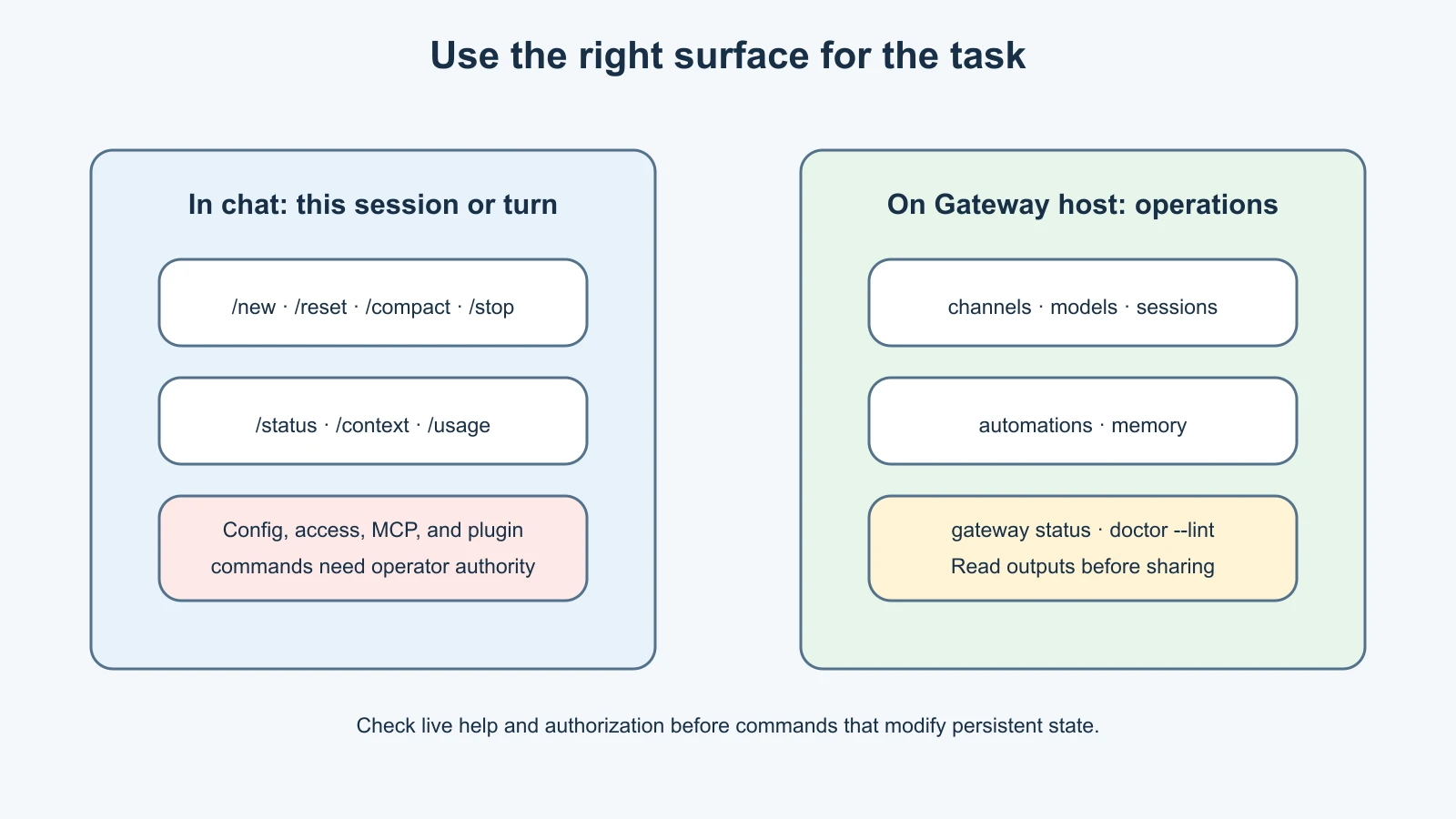
Here is a small operator reference. These commands are examples from the current official CLI documentation, checked on 7 November 2026:
| Task | Example CLI command | What to remember |
|---|---|---|
| List configured channels | openclaw channels list | Inventory, not a live channel test |
| Probe channel health | openclaw channels status --probe | Contacts the running Gateway and channel services |
| Inspect available models | openclaw models list | Catalog information may not prove a provider route works |
| Check model/auth status | openclaw models status | Inspect the configured route without requesting a completion |
| List sessions | openclaw sessions --limit 20 | Shows stored sessions; not a channel liveness check |
| List scheduled jobs | openclaw automations list | openclaw cron list remains an alias in the current docs |
| Check memory indexing | openclaw memory status | A deeper probe or repair may contact providers or write state |
| Check Gateway service | openclaw gateway status | Confirms service state; does not prove every feature works |
| Run a read-only configuration lint | openclaw doctor --lint | Reports findings without applying repairs |
For commands that create, edit, run, or remove scheduled jobs, the current automation CLI requires administrator authority and a running Gateway. Start by listing jobs; do not try a mutation as a health check. The command name cron is a supported alias, but the current docs present automations as the main spelling.
openclaw memory status can be a little more than a simple read. The standard status is quick, while deep/index/fix options can make provider calls or repair the index. Follow the documentation and Gateway ownership requirements before using maintenance options. Never delete the SQLite database to clear a memory problem; it also stores session and transcript data.
A calm troubleshooting sequence
If a reply does not arrive, resist the urge to reset the session or restart everything immediately. Mira uses this order:
- Check
/statusin the chat to confirm which session and model are active. - Check
openclaw gateway statuson the Gateway host. - Check
openclaw channels status --probeto test the chat connection. - Review
openclaw logs --followonly long enough to identify a specific error, then stop the stream and keep the output private. - Run
openclaw doctor --lintto inspect configuration without repair prompts. - If the run was active, use
/stopand verify whether any tool action completed before trying again.
The exact order can depend on the symptom. For example, if the Gateway itself is offline, a channel probe cannot succeed. If the channel is healthy but the model does not answer, inspect the provider route from lesson 8. If you see a configuration warning, use the relevant official guide before accepting a repair. Do not use /reset as a generic error fix; it changes conversation history and may not solve an infrastructure problem.
A simple routine for Mira
At the start of a new kind of task, Mira sends /new and checks /status. She uses /context when she needs to understand what information may be included in a turn. She uses /stop only to cancel work that is still underway, then checks for completed external actions. If context becomes unwieldy, she compacts it and records important decisions in the workspace through the reviewed process from lesson 5.
For an operational issue, she uses the CLI on the Gateway host: status first, then a channel probe, logs, and read-only Doctor lint. She does not share raw logs or session exports in a public chat. If troubleshooting requires a configuration change or a provider probe, she checks the change's impact and cost first.
Mistakes beginners make
Treating /new, /reset, and /compact as synonyms
They change session history in different ways. Read the acknowledgment and understand whether you are starting a new conversation, resetting a current one, or compacting its context.
Assuming /stop reverses completed work
Stopping ends an active run; it cannot undo a message already sent, a file already edited, or another external action already completed.
Assuming chat commands are available in every channel
Commands depend on channel support, configuration, authorization, and installed plugins. Use /help or /commands for the current surface.
Using owner commands from a group
Config, MCP, plugin, and access-control commands can change the whole system. Keep them private and restrict them to the operator.
Reading a session list as proof of connectivity
A saved session row only proves that conversation state exists. Use the channel probe to check a live transport.
Copying logs or status output without review
Operational output can include account IDs, paths, provider names, tool arguments, and other sensitive details. Redact before sharing.
Recap and try it yourself
A session stores a continuing conversation, while context is assembled for each model turn. /new creates a fresh session, /reset resets a session in place, /compact reduces or reshapes context, and /stop aborts a run without undoing effects already completed. Use /status, /context, /usage, and /help to inspect the current chat. Treat /config, /allowlist, /mcp, and /plugins as privileged configuration surfaces.
Try this on paper: imagine a harmless reply is stuck, a conversation is too long, and a channel is disconnected. For each symptom, choose one chat or CLI command and state what it can change, what it cannot prove, and what you would inspect before retrying. Do not run commands on a live system as part of the exercise.
For how message sources reach the agent, revisit How OpenClaw works. For what the model sees in each turn, review Context window and memory.
Sources, checked 7 November 2026
- OpenClaw, Slash commands
- OpenClaw, Session management
- OpenClaw, Sessions CLI
- OpenClaw, Channels CLI
- OpenClaw, Models CLI
- OpenClaw, Automations CLI
- OpenClaw, Memory CLI
- OpenClaw, Gateway CLI
- OpenClaw, Doctor CLI
- OpenClaw, Chat command configuration