
OpenClaw course · lesson 20 of 22
- 1What Is OpenClaw, and Is It Right for You?
- 2OpenClaw vs Claude Code: Which Tool Fits the Task?
- 3How OpenClaw Works: Gateway, Sessions, and Agents
- 4OpenClaw Context and Memory: What Carries Forward?
- 5OpenClaw Workspace Files: Shape Your Agent Safely
- 6Where Should OpenClaw Run? Local, VPS, or Isolated
- 7Install OpenClaw and Start Its Gateway Safely
- 8Choose an OpenClaw Model and Provider
- 9Add Your First OpenClaw Channel Safely
- 10Choose Another OpenClaw Chat Channel Carefully
- 11Control OpenClaw Sessions and Commands
- 12Separate OpenClaw Agents and Route Messages
- 13Schedule OpenClaw Checks with Heartbeats and Automations
- 14Secure OpenClaw Hooks and Webhooks
- 15Use and Create OpenClaw Skills
- 16Vet OpenClaw Skills and Plugins Before Installing
- 17Extend OpenClaw with Plugins and MCP
- 18Understand the OpenClaw Security Model
- 19Secure an OpenClaw Gateway with Ten Checks
- 20Back Up, Update, and Troubleshoot OpenClaw
- 21Control OpenClaw Costs and Improve Reliability
- 22Capstone: Build a Safe OpenClaw Personal Assistant
Mira's fictional assistant has been useful for a few weeks. It has a workspace, conversation history, a channel connection, and a small approved skill. She wants to update OpenClaw, but first she needs to know what could be lost, how to recover it, and where to look if the Gateway does not come back. This lesson gives her a repeatable routine for backups, updates, restore drills, and basic diagnosis.
OpenClaw's backup, update, rollback, Doctor, and troubleshooting documentation was checked on 7 November 2026. Commands and archive behavior can change; read the docs for your installed version before using them on a live system. Examples below use a test installation and a fresh restore target.
Know what you are protecting
An OpenClaw installation has more than one kind of state. Depending on your setup, it may include configuration, provider and channel credentials, session history, agent databases, memory, workspace files, skills, plugins, and references to other services. A backup can therefore contain secrets and personal information even when you only intended to save a few settings.
The official backup command creates an archive of state and configuration, credentials, agent directories, and by default workspaces. Exact inclusion can depend on options and the installed release. Read the archive manifest and the current backup guide before relying on a backup as your complete recovery plan. Keep it encrypted, restrict who can read it, and store a copy somewhere that will survive loss of the Gateway host. Do not put it in a public repository or an ordinary shared folder.
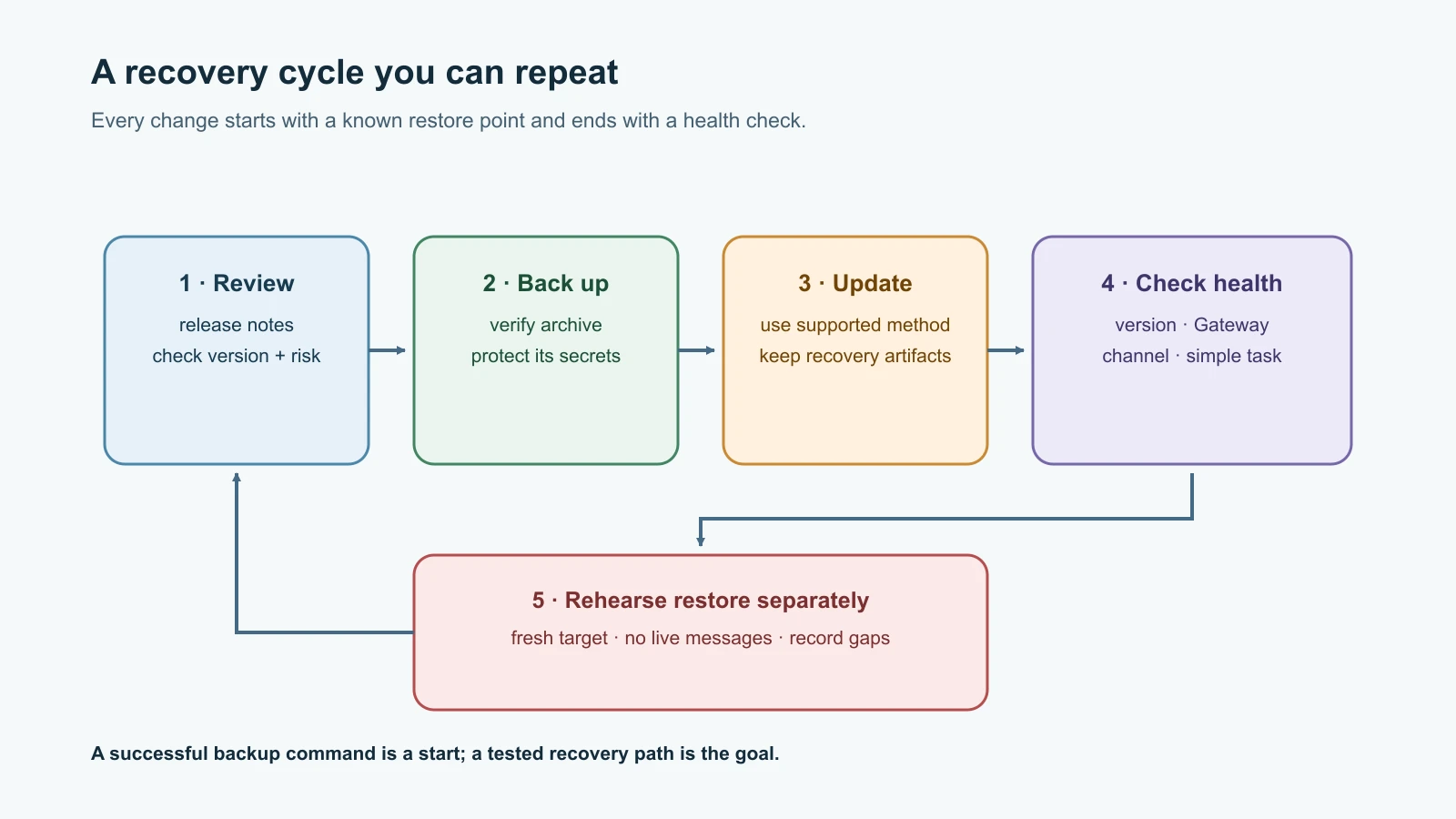
A backup is useful only if it can be read and restored. A successful command is a start, not a recovery test. Mira will create a verified archive, then practice restoring it to a separate empty directory. She will not use her live state directory as a drill target.
Create and verify a backup
On a regular host, Mira chooses a protected backup folder that is outside her OpenClaw state and workspace directories. She runs:
1openclaw backup create --output ~/Backups/openclaw --verifyThe command writes a timestamped archive and verifies its manifest and payload. Preserve the exact path printed by the command. The archive can include credentials, histories, and other sensitive records, so permissions on the destination matter as much as permissions on the live state directory. If using a backup destination or storage integration, confirm its encryption, retention, and access policy too.
Do not create a database backup by copying a live SQLite file with a file manager. SQLite may have committed data in its write-ahead log, and a raw copy of only the main file can be incomplete. Use OpenClaw's backup command or another supported SQLite-aware method. The backup documentation specifically warns against copying active .sqlite, -wal, .shm, or journal files as if they were a consistent snapshot.
Make the backup routine dependable
Pick a cadence based on how much recent work you could afford to lose. A personal test bot that changes rarely may need a manual backup before every update. A service that records useful daily work needs scheduled backups and monitoring. Keep more than one generation, and periodically test an older one. If every backup is on the same disk as the Gateway, a disk failure can take out both copies.
Write down the archive path, date, OpenClaw version, backup method, and whether verification succeeded. Keep credentials out of that record. If encryption is managed separately, record where the recovery key is kept without putting the key itself in the same archive.
Practice restore before you need it
A restore drill answers practical questions: can you locate the archive, decrypt it, restore into a new location, identify the restored configuration, and start a safe test instance? Mira first reviews the restore instructions and chooses an archive she created or otherwise trusts. She checks available disk space and makes sure the target does not exist, or is empty. The target must not be inside the live state directory or a configured live agent directory.
Her example command uses a shell variable for readability. Replace the sample filename with the real archive path and keep the target fresh:
1ARCHIVE=./2026-11-07-openclaw-backup.tar.gz
2openclaw backup restore "$ARCHIVE" --target ./restored-openclaw
This writes a staged restore; it does not overwrite live state in place. Do not activate it until you have reviewed the restored config, linked files, and credentials. Treat an archive from an unknown source as untrusted. Structural verification checks the archive layout; it does not prove who made the archive or make its contents safe.
For a drill, use a separate test environment and prevent it from contacting real channels or sending scheduled messages. If the restored configuration contains credentials, remember that starting the test Gateway may make those credentials usable. Disable or replace them before launch. Check that the workspace and agent data are present, inspect the configuration, and confirm the test Gateway's health. Document what was missing or unclear, then remove the drill copy using your normal secure data-handling process.
Restore is not the same as rollback. A full restore returns state from a particular archive and can discard newer changes if you activate it carelessly. An update rollback concerns the installed runtime and the state migrations that may have occurred. Keep the concepts separate and follow the update recovery instructions for the exact failure.
Update deliberately
OpenClaw updates may include bug fixes, security fixes, configuration migrations, or changes to plugins and runtime requirements. Read the updating guide and relevant release notes before a production update. Use the supported openclaw update flow when available; it can manage the update, restart, and readiness checks. Manual package replacement may not run the same recovery path.
Before updating an installation with state you care about:
- Check the current version and whether the Gateway is healthy.
- Review the target release and any migration notes.
- Create and verify a protected backup.
- Stop other processes that could write the same OpenClaw state, when the release instructions require it.
- Update using the documented method for your install type.
- Verify the version, Gateway, channels, and a simple representative task.
Do not update several unrelated components at once if you are trying to identify a failure. If an update fails, preserve the updater's recovery snapshots and diagnostic output. Do not delete recovery files or edit database schema markers to force an older version to start. Newer state may not be readable by older code. The rollback and recovery guide explains the limits and recovery sequence; it recommends preserving current state while repairing the installed code first, and restoring a verified pre-update backup only when needed.
Avoid turning off automatic updates just because an update caused a problem once. First understand which updater is configured, how it reports and verifies changes, and whether the host has a tested recovery path. If you pin a version for compatibility, set a review date and a plan to install security fixes.
Start diagnosis with evidence
When Mira's bot stops replying, she avoids changing settings at random. She writes down what changed and checks the system from the Gateway host. The troubleshooting guide is the current index; command output and version-specific docs should guide the next step.
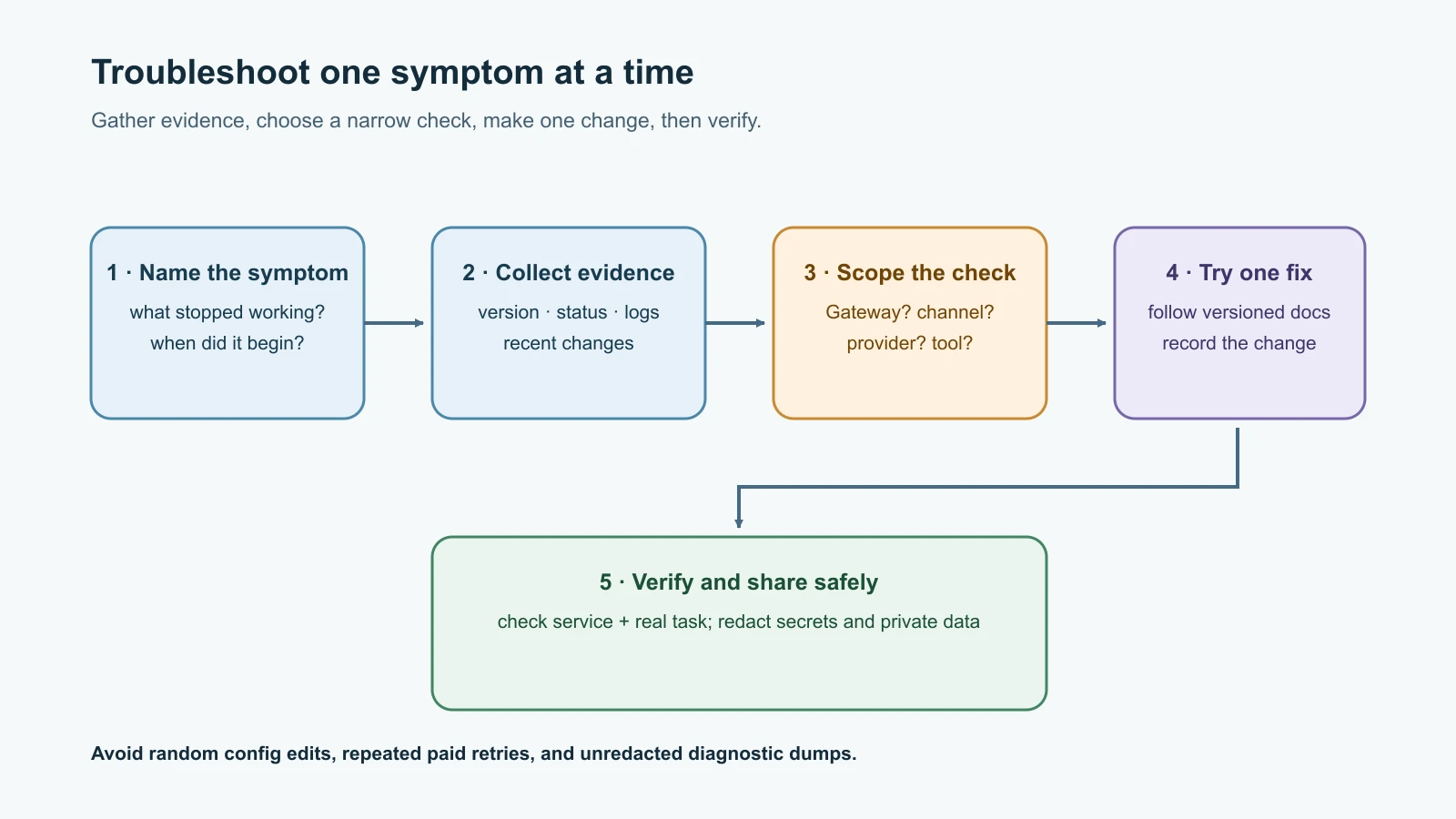
Start with a compact evidence set:
1openclaw --version
2openclaw status
3openclaw gateway status --deep
4openclaw channels status --probe
5openclaw logs --follow
Commands and flags can differ by version. If one is unavailable, consult the installed CLI help and docs rather than trying a guessed replacement. status gives a broad view, Gateway status checks the service and its connection, channel probing checks live transport where possible, and following logs can reveal repeating errors. Stop the log tail with Ctrl-C after collecting the relevant lines.
Before sharing diagnostics, remove tokens, passwords, private messages, personal data, and raw configuration. Logs and transcripts can contain more sensitive information than a status summary. Use a small excerpt around the timestamp of the failure, and record your OpenClaw version and install method.
Use Doctor for configuration and service checks
The basic Doctor command can identify configuration migrations, access-policy issues, and Gateway health problems:
1openclaw doctorThe deeper inspection adds more diagnostics, but the exact checks depend on the version. Run the form documented for your release, commonly:
1openclaw doctor --deepRead the output before choosing a repair. Doctor's --fix mode can change configuration or repair state, so do not run it as a generic first response. Back up valuable state first and follow the specific warning or error. After a repair, rerun the relevant status and health checks. For security-sensitive config changes, use the security audit from lesson Secure an OpenClaw Gateway with ten checks.
Match common symptoms to a narrow check
Gateway does not start
Check the startup output, openclaw gateway status, recent config edits, and whether another process owns the configured port or state. Look for a specific parse error or missing credential. Avoid deleting the state directory or reinstalling as a first step; those actions can destroy evidence or data without explaining the cause.
Gateway runs but a channel is offline
Check openclaw channels status --probe, channel-specific logs, and whether the channel credential expired or was revoked. Confirm the channel configuration is still enabled and that account or platform access has not changed. Do not paste a token into chat to test it.
The assistant answers but a tool is missing
Check the effective tool profile and agent-specific overrides, plugin availability, and the relevant logs. A narrow profile may intentionally hide tools. Confirm the tool is needed and permitted before widening access; do not switch to a full profile just to see whether the error goes away.
Model calls fail
Inspect provider authentication, quota or rate-limit messages, model selection, and provider status. A 401 often points toward stale or invalid authentication; a timeout may be connectivity or provider availability. Check recent credential changes and update only the affected credential through the supported flow. Avoid repeatedly retrying a failing paid request without understanding the failure.
An update leaves the Gateway down
Preserve the update report and recovery files. Check openclaw update status --json and openclaw gateway status --deep, then follow the update troubleshooting page for the reported phase. Some failures require openclaw update repair or Doctor, but use the exact command the installed version documents. Do not mix state from different backup generations or force a downgrade over migrated data.
A short recovery record
Use a small table for every meaningful backup, update, restore drill, or repair. It helps the next person see what was done without exposing secrets.
| Time | Version and action | Backup or recovery artifact | Health check | Open item and owner |
|---|---|---|---|---|
| YYYY-MM-DD HH:MM TZ | Example: updated stable release | Verified archive path, access restricted | Gateway, channel, test task | Follow-up, person, due date |
Do not record token values, raw environment output, full transcripts, or an unredacted config. Protect archive paths too; in some environments they reveal host layout or contain sensitive filenames.
Mistakes beginners make
- Treating
backup createsuccess as proof a restore will work. - Saving the only backup beside the Gateway's live state.
- Forgetting that backups can contain credentials, transcripts, workspaces, and memory.
- Copying a live SQLite database file without its consistent snapshot mechanism.
- Restoring into a live directory or letting a drill instance send real messages.
- Updating without reviewing release notes or preserving the recovery artifacts.
- Deleting updater snapshots because they look temporary.
- Downgrading after a migration without checking whether the older release can read the new state.
- Running repair flags without understanding the changes they make.
- Sharing raw logs or transcripts while asking for help.
- Changing several settings at once and losing track of which change fixed the symptom.
Recap and try it yourself
Protect backups as carefully as the live installation because they can contain credentials and private history. Create verified archives with the supported backup command, store them separately, and rehearse a restore in a fresh isolated target. Before an update, review release notes and preserve a verified backup. Afterward, check the version, Gateway, channel, and a representative task. For failures, collect versioned status and relevant redacted logs, use Doctor deliberately, and follow the recovery guide for the exact error.
Try this with a fictional installation: write a recovery record for a verified backup, a planned update, and a restore drill. Then pretend the Gateway is running but Telegram is offline. List the first three commands or checks you would use, what evidence each provides, and what secret information you would redact before sharing it. Do not connect a real account just to complete the exercise.
For practical hardening before recovery planning, revisit the OpenClaw security checklist. For an end-to-end practice project, the capstone will combine a safe setup with a backup and restore drill.