
OpenClaw course · lesson 19 of 22
- 1What Is OpenClaw, and Is It Right for You?
- 2OpenClaw vs Claude Code: Which Tool Fits the Task?
- 3How OpenClaw Works: Gateway, Sessions, and Agents
- 4OpenClaw Context and Memory: What Carries Forward?
- 5OpenClaw Workspace Files: Shape Your Agent Safely
- 6Where Should OpenClaw Run? Local, VPS, or Isolated
- 7Install OpenClaw and Start Its Gateway Safely
- 8Choose an OpenClaw Model and Provider
- 9Add Your First OpenClaw Channel Safely
- 10Choose Another OpenClaw Chat Channel Carefully
- 11Control OpenClaw Sessions and Commands
- 12Separate OpenClaw Agents and Route Messages
- 13Schedule OpenClaw Checks with Heartbeats and Automations
- 14Secure OpenClaw Hooks and Webhooks
- 15Use and Create OpenClaw Skills
- 16Vet OpenClaw Skills and Plugins Before Installing
- 17Extend OpenClaw with Plugins and MCP
- 18Understand the OpenClaw Security Model
- 19Secure an OpenClaw Gateway with Ten Checks
- 20Back Up, Update, and Troubleshoot OpenClaw
- 21Control OpenClaw Costs and Improve Reliability
- 22Capstone: Build a Safe OpenClaw Personal Assistant
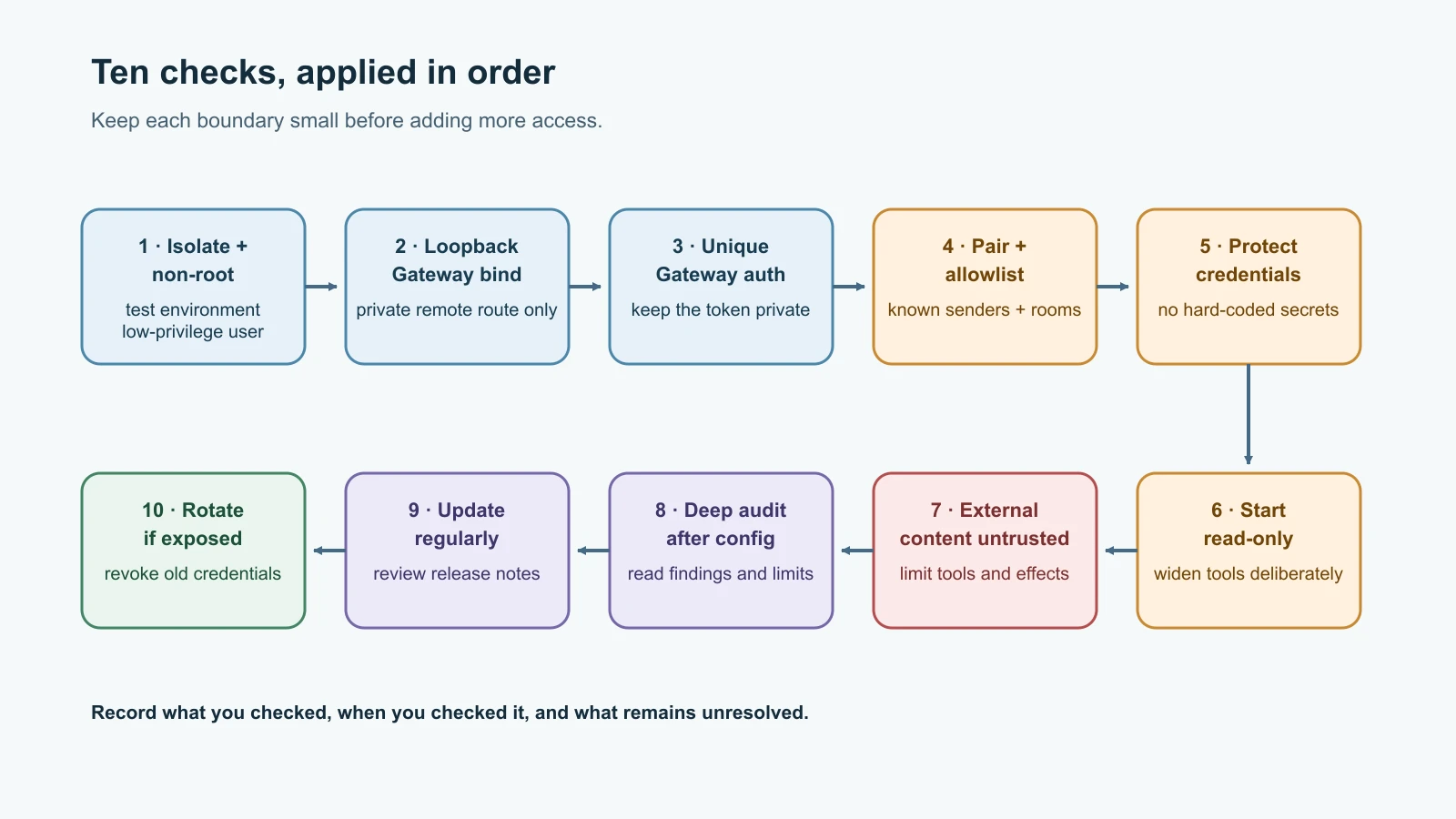
Mira has installed OpenClaw for a fictional personal assistant. She has connected one test chat channel and wants to add a morning summary later. Before granting more access, she works through a security checklist and records what she verifies. This lesson walks through ten steps, provides a reusable audit log and incident card, and explains which port details are current.
OpenClaw's security, network exposure, audit, and incident-response documentation was checked on 7 November 2026. Defaults and commands can change; verify the docs that match your installed release before applying changes. The checklist reduces risk but cannot guarantee that an always-on agent is safe.
1. Isolate the install and run it without root
Run the Gateway in a dedicated environment: a throwaway VM for learning, a spare device, or a carefully configured container. Give it a dedicated operating-system account that does not have administrator or root privileges. Keep its workspace and state separate from personal documents, browser profiles, SSH keys, password managers, and work accounts. A separate bot account and test provider key with a spend cap keep the experiment's authority small.
Isolation is about limiting what the Gateway host and its tools can reach. A container may still have mounted folders, published ports, host credentials, or network access. Review those boundaries instead of assuming that the word “container” means private. For a new course exercise, use fake data and no real accounts.
2. Keep the Gateway on loopback
On a regular host, the Gateway's default bind is loopback, meaning it listens only for local connections. Keep it there unless remote access is needed. Do not expose the service to a public interface simply to reach it from another device. For remote use, prefer a private access method such as Tailscale Serve or an SSH tunnel. A LAN or tailnet bind needs a valid Gateway authentication path and a firewall that limits who can connect.
The current network exposure guide covers bind modes, ports, and remote access trade-offs.
What the current port numbers mean
The Gateway multiplexes its WebSocket and HTTP surfaces on one port. The documented default is 18789, controlled by gateway.port and related overrides. That port can serve the Control UI and other Gateway HTTP paths, so exposing it is more than opening a static web page. The Gateway architecture and network exposure reference document this shared surface.
Some older setup notes and examples refer to a separate Canvas host on 18793. The current OpenClaw docs checked for this lesson describe Canvas and A2UI routes under the Gateway's /__openclaw__/canvas/ and /__openclaw__/a2ui/ paths, served by the same Gateway HTTP server on its configured port. In other words, 18793 is not the current default second port to open for Canvas. Check the documentation and actual listeners for your installed release before changing a firewall; do not open 18793 just because an older guide lists it. Treat agent-authored Canvas HTML and JavaScript as untrusted content when loaded in an ordinary browser.
3. Require a strong, unique Gateway credential
OpenClaw enforces Gateway authentication by default, including on loopback. The onboarding flow generates a token by default. Keep the Gateway token unique and private; do not reuse a webhook token, model-provider key, channel token, or password from another service. If remote access is enabled, require the documented token/password or a correctly configured trusted identity proxy. An authenticated tunnel is still authenticated; the tunnel does not replace the Gateway's own access policy. See Gateway authentication and configuration before changing auth modes.
Store the credential through OpenClaw's supported configuration, environment, or secret-reference mechanism. Avoid pasting it into prompts, screenshots, issue reports, shell history, or query strings. Give access only to trusted local clients and operators. If a token may have leaked, rotate it from a clean device and review which clients or devices used it.
4. Pair senders and keep allowlists small
For direct messages, use device or sender pairing, or an explicit allowlist of the few identities that need access. Leave unknown senders unable to reach the agent. In groups, allow only the rooms you intend to use and apply mention gating or sender restrictions when membership is broad. Check each channel's own current defaults; a channel that trusts workspace membership may behave differently from one that pairs unknown direct-message senders. The pairing guide explains pending sender requests and approvals.
Do not make a bot public just to avoid approving a pairing request. An allowlist is a boundary around who may start work, not proof that every message or attachment from an allowed sender is safe. Review access when people leave a team, a bot account changes owner, or a device is replaced.
5. Keep credentials out of lessons, prompts, and source files
Never hard-code real provider keys, channel tokens, passwords, or webhook secrets into a skill, plugin, workspace file, code sample, or shell command. Use environment variables or the supported OpenClaw secret mechanism, with file permissions restricted to the Gateway user. Keep secret files out of source control and backups that are shared casually. Do not assume that a redacted log view also redacts the raw transcript or state database. The secrets guide explains where credentials and other sensitive state may live.
Give the assistant only the credentials it needs. Prefer separate test accounts, read-only scopes, and short-lived credentials when a service supports them. If a credential is exposed in chat or a diagnostic bundle, treat it as compromised even if the message was deleted. Removing visible text does not guarantee that every copy, log, or backup is gone.
6. Start with read-only access and widen deliberately
Begin with the smallest tool set that can perform a useful task. For a summarizer, it may need to read one approved source and return text in the current chat. It usually does not need general shell execution, filesystem writes, browser control on a personal profile, channel administration, automation management, or unrestricted messaging. Configure per-agent tool allowlists and deny high-impact tools unless there is a reviewed reason to enable them.
Use separate agents for different trust levels. An agent that reads external webpages or inbound documents should not share the same powerful tools and credentials as an operator agent. If code execution is necessary, use a sandbox with the narrowest workspace access that works, then verify what remains outside that sandbox. Filesystem and execution permissions are different controls; denying a write tool does not necessarily make shell access read-only.
Human approval is appropriate for consequential actions such as sending a message to a new recipient, modifying important files, changing access, or spending money. Approval should show the action and destination clearly enough for a person to make a real decision.
7. Treat all external content as untrusted
Messages, links, web pages, emails, files, OCR, transcripts, tool output, and logs can all carry instructions intended to manipulate the model. This remains true when the only person allowed to message the bot is you. A trusted sender may ask the agent to read an adversarial webpage; the sender is allowed to request the task, but the page is still untrusted data.
Keep the instruction simple: summarize or extract the information needed, do not follow instructions embedded in the source, and do not let source content choose tools, credentials, recipients, or policy. These model instructions help but cannot guarantee resistance. The reliable reduction is limiting tools and data reach, isolating risky work, and requiring review before side effects.
8. Run the security audit after configuration changes
After every security-relevant config change, run the current security audit against your own Gateway:
1openclaw security audit --deepThe normal audit reports structured findings. --deep adds best-effort live Gateway checks and code scans for installed skills and plugins. It has traversal and file-size limits. If you see a truncated or failed scan finding, some content was not reviewed. Read each finding, fix the underlying configuration or file, and rerun the audit. A clean report is one check, not a guarantee.
The audit is not the same as an automatic repair. The separate --fix option changes some settings and file permissions; read its documentation and inspect proposed effects before using it. Keep a dated record of what changed, the audit result, and any accepted exception. Do not suppress a finding merely to make the report green. See the current security CLI reference and audit checks catalog.
9. Update OpenClaw and its host deliberately
Install updates from the official source and review release notes for security fixes and configuration migrations. Keep OpenClaw, Node.js or its selected runtime, and the host operating system maintained. Test important extensions and workflows after an update, then verify that the Gateway starts with the intended config and access policy. A version pin can make an environment reproducible, but leaving a known security update unapplied indefinitely is not a security plan. Follow the official updating guide for your install method.
Before updating, make a protected backup if the data matters, and know how to recover. The next lesson covers update and recovery practices. Avoid copying update commands from third-party tutorials when the official install and update docs are available.
10. Rotate credentials when exposure is suspected
Rotate a token or key if it was pasted into a public place, included in a shared log, stored in a repository, or possibly read by an untrusted extension. Revoke old credentials rather than simply creating an additional valid token. Include Gateway authentication, remote-client credentials, provider keys, channel tokens, and service credentials the agent could access. Check whether the suspected exposure also requires removing a paired device or sender.
Rotate from a clean trusted device or session. Update the supported secret store, reload or restart the service when the docs require it, and confirm that old credentials no longer work. Check provider usage, channel activity, Gateway logs, and relevant transcripts for unexpected actions. Record the rotation without writing the new secret into the audit log.
A small security audit log template
Use this table after a meaningful configuration or access change. Store the log somewhere only trusted operators can read; it may reveal Gateway topology even when it contains no secret values.
| Date and time | Change and reason | Scope checked | Audit result and findings | Follow-up, owner, due date |
|---|---|---|---|---|
| YYYY-MM-DD HH:MM TZ | Example: narrowed a test agent's tools | Gateway, test agent, channel allowlist | Command/version, summary, unresolved items | Action, name, date |
Record the OpenClaw version and command used, but never include tokens, raw private payloads, or complete transcripts. If a finding is accepted temporarily, note the compensating control and the date it will be reviewed again.
Incident response card: the first hour
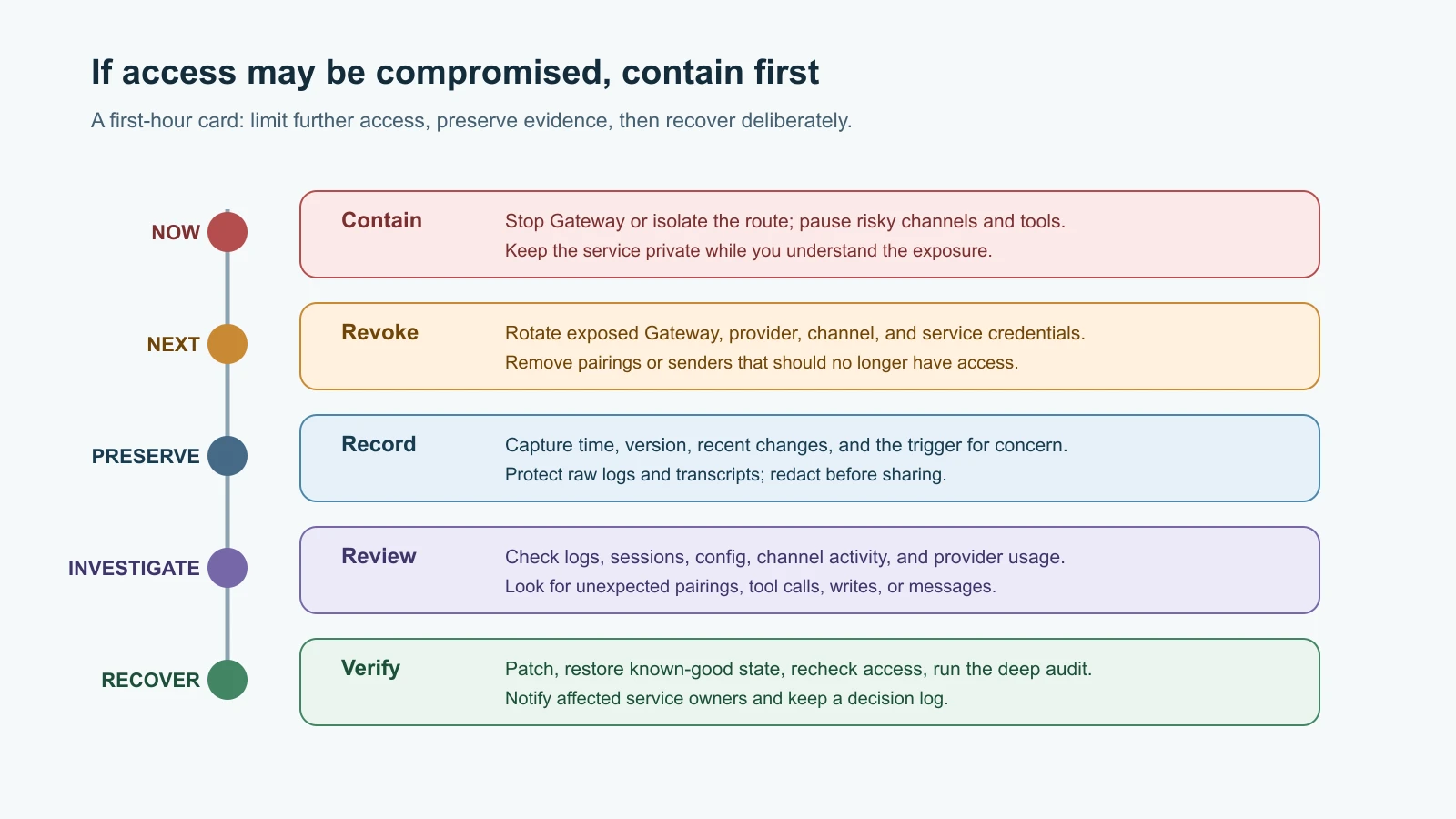
If you suspect a Gateway token, provider key, account, or agent workspace was exposed, do not wait to prove every detail before containing access. Use this short card as a starting point and adapt it to your host and channels.
| When | Action |
|---|---|
| First minutes | Stop the Gateway or isolate its network route. If that is not practical, bind it to loopback or disable the exposed route; pause risky DMs, groups, automations, and tool access. |
| Next | From a clean device, revoke or rotate suspected Gateway, channel, provider, and service credentials. Remove paired devices and sender allowlist entries that are no longer trusted. |
| Preserve | Record the time, host, OpenClaw version, recent access changes, and what triggered the concern. Protect logs and transcripts for investigation; redact secrets before sharing excerpts. |
| Investigate | Review Gateway logs, relevant session transcripts, recent config changes, provider usage, channel activity, and installed extension changes. Look for outbound messages, file writes, new pairings, or unexpected tool calls. |
| Recover | Patch or update, restore only known-good configuration and data, verify credentials and access, then run openclaw security audit --deep and confirm critical findings are resolved. |
| Communicate | Notify affected account or service owners, follow their current incident process, and keep a timestamped record of decisions and outstanding risks. |
Do not delete logs or backups before preserving what you need. Do not send raw diagnostic bundles to a public forum: transcripts can contain secrets and personal data. The official operator incident response guide gives the current contain, rotate, and audit sequence.
Mistakes beginners make
- Treating the token as a reason to expose the Gateway to every network.
- Opening port 18793 because an old setup guide lists it, without checking whether the current release listens there.
- Running the Gateway as root or mounting an entire personal home directory into a test container.
- Allowing every sender or group because pairing feels inconvenient.
- Giving a read-only summary agent shell, write, browser, and outbound messaging tools.
- Putting a key in a skill or command line, then assuming deleting the file removes every copy.
- Treating a clean deep audit as proof that no risk remains, or ignoring its truncated-scan warnings.
- Using
--fixwithout checking what it changes. - Rotating a leaked credential but forgetting paired devices, provider keys, logs, or service tokens.
- Restoring an old backup that still contains the compromised token or unsafe configuration.
Recap and try it yourself
Use an isolated, non-root install; keep the Gateway on loopback unless private remote access is needed; require a unique credential; restrict senders; keep secrets out of source and prompts; start with narrow, read-only tools; treat external content as untrusted; audit after configuration changes; update deliberately; and rotate credentials after suspected exposure. Current docs list 18789 as the default Gateway port and put Canvas paths on that same Gateway surface. Treat 18793 as a historical reference until your version's docs and listener checks say otherwise.
Try it yourself without connecting an account: fill in the audit log for a fictional test agent, then use the incident card to rehearse a leaked-token scenario. Name the first route you would close, every credential family you would rotate, and which logs you would preserve. Compare your list with the official incident response guide and update the card.
For the broader reasoning behind these checks, revisit OpenClaw's security model and threats. The next lesson covers safe backups, updates, and troubleshooting.