
OpenClaw course · lesson 15 of 22
- 1What Is OpenClaw, and Is It Right for You?
- 2OpenClaw vs Claude Code: Which Tool Fits the Task?
- 3How OpenClaw Works: Gateway, Sessions, and Agents
- 4OpenClaw Context and Memory: What Carries Forward?
- 5OpenClaw Workspace Files: Shape Your Agent Safely
- 6Where Should OpenClaw Run? Local, VPS, or Isolated
- 7Install OpenClaw and Start Its Gateway Safely
- 8Choose an OpenClaw Model and Provider
- 9Add Your First OpenClaw Channel Safely
- 10Choose Another OpenClaw Chat Channel Carefully
- 11Control OpenClaw Sessions and Commands
- 12Separate OpenClaw Agents and Route Messages
- 13Schedule OpenClaw Checks with Heartbeats and Automations
- 14Secure OpenClaw Hooks and Webhooks
- 15Use and Create OpenClaw Skills
- 16Vet OpenClaw Skills and Plugins Before Installing
- 17Extend OpenClaw with Plugins and MCP
- 18Understand the OpenClaw Security Model
- 19Secure an OpenClaw Gateway with Ten Checks
- 20Back Up, Update, and Troubleshoot OpenClaw
- 21Control OpenClaw Costs and Improve Reliability
- 22Capstone: Build a Safe OpenClaw Personal Assistant
Mira has a fictional assistant that often receives short project updates. She wants it to use the same clear summary format each time, without adding a tool or granting the agent access to her files. In this lesson, you will learn what an OpenClaw skill is, where skills are discovered, how to install and update one from ClawHub, and how to write a small local skill of your own.
OpenClaw's current skills reference, Skills CLI guide, skill creation guide, and ClawHub quickstart were checked on 7 November 2026. Skill commands and folder behavior can change between releases. The examples here show the current documented command shapes; they were not run against an installed OpenClaw instance.
A skill is an instruction pack
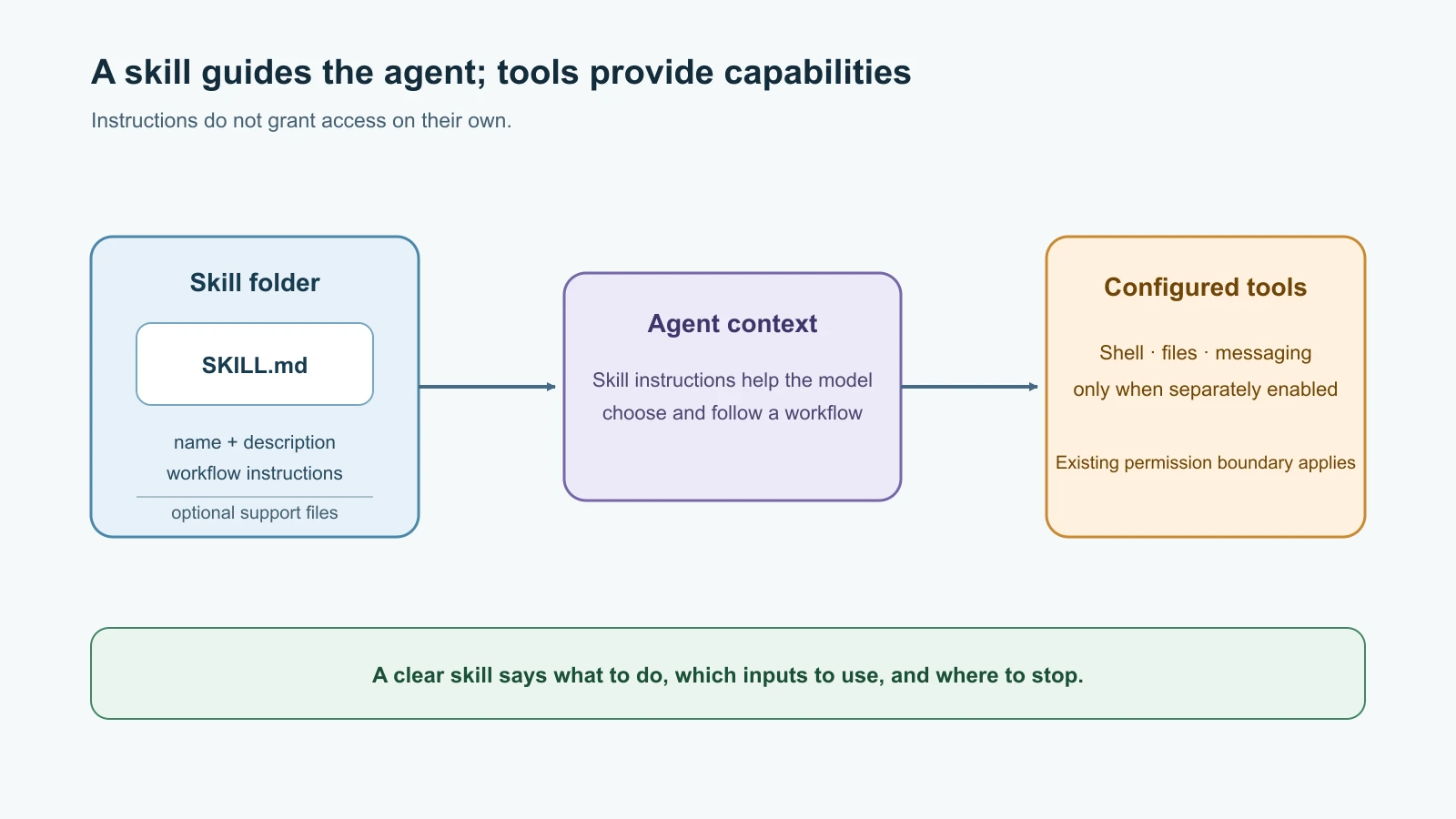
An OpenClaw skill is a directory that contains a SKILL.md file. The file has YAML frontmatter for the skill's name and description, followed by Markdown instructions for when and how the agent should use it. A skill can also include supporting documents, scripts, and other assets in its directory. OpenClaw loads eligible skill instructions into the agent context so the model can decide when they apply.
This means a skill is not automatically a new capability. It does not itself register a tool, create a connection, or grant permission to read a folder. If the instructions say “read the project file,” the agent still needs an available tool and permission to do that. Likewise, if a skill describes a shell command, that command can only run if the agent has an execution tool with the needed access. The distinction matters: instructions can guide existing capabilities, while tools provide the ability to act.
Skills can help an agent follow a repeatable workflow, remember a preferred output format, or explain when to choose a particular tool. They are useful when the same procedure appears in multiple conversations. They are a poor place for secrets, one-off private data, or a long list of rules that should apply to every request. Keep general operating rules in workspace guidance and keep a skill focused on one job.
Where OpenClaw looks for skills
The simplest place for a skill belonging to one agent is the skills/ directory inside that agent's workspace. For example, if the workspace is /srv/openclaw/workspace, the skill directory might be /srv/openclaw/workspace/skills/project-summary/, containing SKILL.md. The actual workspace path depends on the installation; use the path configured for the agent rather than assuming every computer uses Mira's example.
OpenClaw also has other sources, including project agent skills, personal agent skills, a shared managed skills folder, and skills shipped with the installation. If two discovered skills have the same name, source precedence affects which copy wins. That can make a local skill appear to be ignored: a higher-priority copy with the same name may be taking precedence. Keep names unique where possible, and inspect the skill list and details if behavior does not match the file you edited.
Workspace skills are convenient for a single-agent setup and can be backed up with the workspace. A shared managed skill can make sense when several local agents should use the same reviewed instructions. A per-agent skill is better when its workflow or trust needs differ. Do not install globally merely because it is the shortest command; wider visibility expands which agents can use the instructions and referenced files.
OpenClaw discovers SKILL.md under configured skill roots. A new or edited file may not appear in an already-running conversation's context immediately. The skill watcher normally observes changes, but an existing session can retain its earlier skill list. Start a fresh session or follow the current reload guidance when you need to confirm that a change has loaded. Check with read-only commands before assuming it worked:
1openclaw skills list
2openclaw skills info project-summary
3openclaw skills check
These inspect local state; they do not install a new skill. On a shared Gateway, personal skills have a separate ownership and activation model in the Plugins → Skills interface. Do not confuse that personal library with files in an agent workspace: they have different storage, owners, and sharing behavior.
Find and install from ClawHub
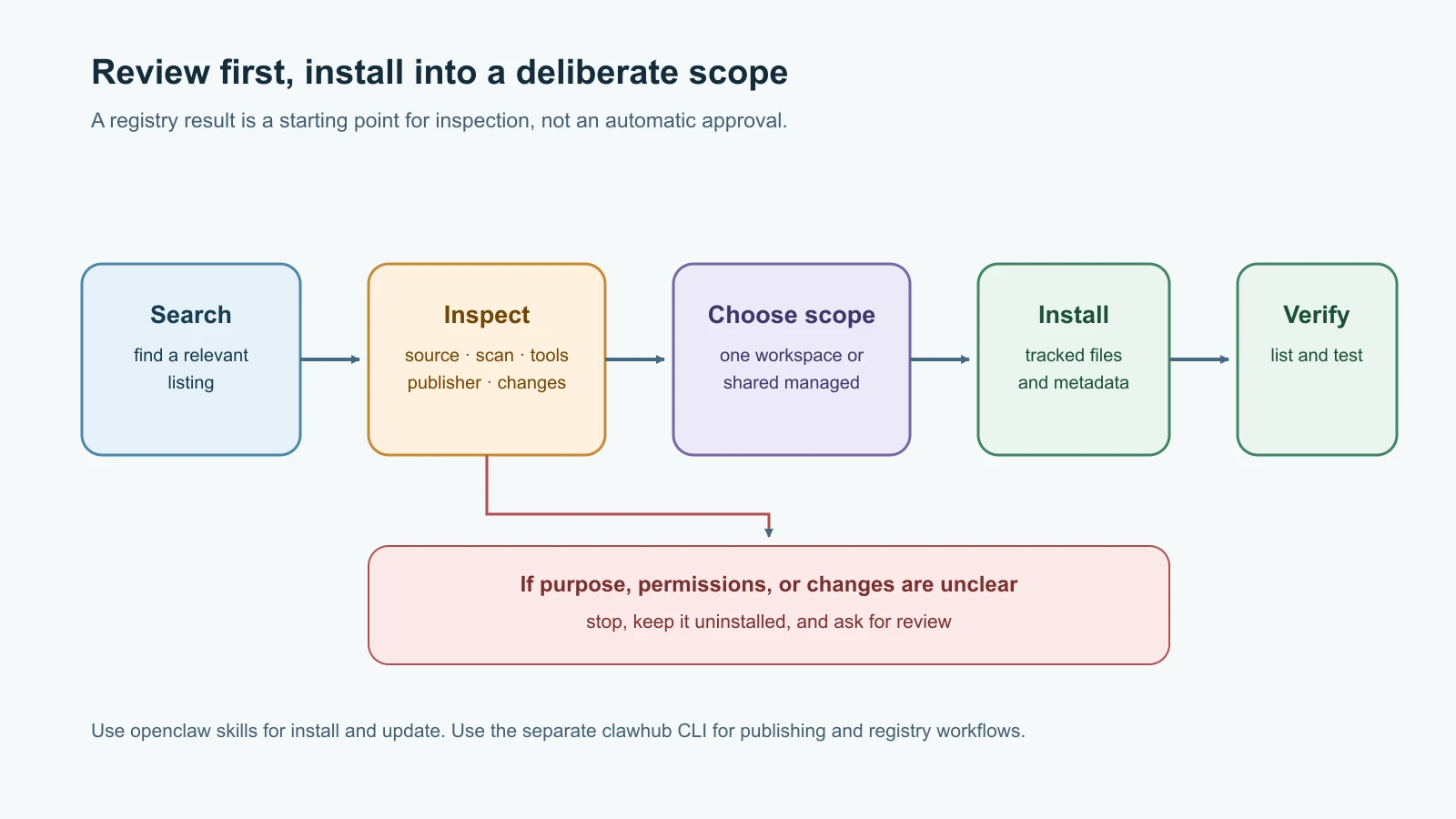
ClawHub is OpenClaw's public registry for skills and plugins. For installing a skill into OpenClaw, use the OpenClaw CLI. Start with a search, read the listing and its current scan information, then install an owner-qualified skill reference into the intended workspace:
1openclaw skills search "project summary"
2openclaw skills install @publisher/project-summary
3openclaw skills list
@publisher/project-summary is a placeholder, not a recommendation or real skill. Do not install a random listing just to follow an example. Use a disposable VM, spare device, or container with a new test agent and no access to personal data while learning. Review the skill's contents and source, understand which tools its instructions expect, and check the publishing identity and available scan report. A scan is useful information, not a guarantee that future updates are harmless.
By default, openclaw skills install places the skill in the active agent workspace's skills/ folder. The --global option targets a shared managed skills directory, so the skill may be visible to multiple agents. The --agent <id> option selects a specific configured agent. Decide the target before installing; a skill can behave differently when another agent has broader tools or access to different workspace files.
OpenClaw records ClawHub tracking information in .clawhub/lock.json at the workspace level and in .clawhub/origin.json inside an installed skill. That metadata helps identify the source and version for later updates or verification. Keep it with the workspace and skill files when backing them up. Current documentation says old .clawdhub metadata is not read by newer versions; migrations should be deliberate, because overwriting existing lock metadata may lose tracking details.
Update and remove with the right tool
Use the OpenClaw command to update ClawHub-tracked skills:
1openclaw skills update @publisher/project-summary
2openclaw skills verify @publisher/project-summary
You can also update all tracked skills in a selected workspace with openclaw skills update --all. Pause before doing that on an agent with real access: an update changes instructions that may influence later tool use. Review what changed, check the release and verification information, and confirm that the installed version is still appropriate for the agent. openclaw skills update tracks ClawHub installs; a skill copied from a local directory or Git source needs to be updated from that source by its owner.
OpenClaw's skills CLI is distinct from the standalone clawhub CLI. Use openclaw skills to search, install, list, verify, and update skills for an agent. The separate clawhub program is primarily for registry-specific work such as signing in, publishing your own skill, syncing your listings, or uninstalling a ClawHub-tracked skill. Follow the current tool's guidance to choose the same workspace or managed root where the skill was installed when removing it. A removal changes files and lock metadata, so inspect the target first and keep a backup if the skill contains work you want to retain.
Do not use --force as a routine fix for an install or update problem. It can replace local modifications. If a command reports that the installed files differ, inspect the changes and decide whether they are intentional before choosing a replacement. If an update is declined or blocked by a policy check, understand the finding; do not treat a bypass flag as a substitute for review.
Write a small skill of your own
A custom skill can be as simple as an instruction file. The frontmatter needs a lowercase name and a short description. Keep the directory and the skill name aligned, use a name with lowercase letters, numbers, and hyphens, and explain what kinds of requests should trigger the workflow. The description helps the agent discover the skill, so make it specific rather than promotional.
For a harmless example, Mira wants pasted status notes summarized in a consistent format. This skill does not require tools and should not access files or contact anyone. Create the following directory under the selected agent's workspace, then save the content as SKILL.md:
1skills/project-summary/SKILL.md1---
2name: project-summary
3description: Summarize project status notes supplied in the current conversation.
4---
5
6# Project summary
7
8Use this workflow when the user asks for a concise summary of project notes they provided in the conversation.
9
101. Use only the notes included in the current request.
112. Do not claim to have checked files, tickets, or services.
123. Separate completed work, open questions, and next steps.
134. Keep names, dates, and numbers as written. If a detail is unclear, say so.
145. Do not send the summary anywhere. Return it in the current conversation.The steps are short, clear, and bounded. They say what information the skill may use and what it must not claim or do. There are no scripts, credentials, or network actions. A skill that does use a tool should name the intended action and respect the agent's existing permission boundary; vague instructions such as “do whatever is needed” are difficult to review and unsafe to interpret.
Once the file is saved, inspect what OpenClaw sees:
1openclaw skills list
2openclaw skills info project-summary
If it does not show up, check the exact workspace, frontmatter formatting, the name, and whether a same-named skill takes precedence. Start a fresh test session if the current one still has its earlier skill context. Try it with fictional notes and check whether the output follows the requested sections. This is a local authoring example, not a claim that commands were executed while drafting this lesson.
Publish only when sharing is intended
Publishing a skill makes it available through a public registry, so first remove personal data, credentials, and machine-specific paths. Review every instruction and supporting file. Confirm that the skill name, description, examples, and version accurately describe what it does. The standalone ClawHub CLI has publishing and sync workflows; consult its current documentation for account setup and the required package shape. This lesson does not ask you to publish anything.
Keep ownership and maintenance in mind. If a skill solves only your own workflow, a workspace-local file may be enough. If others should use it, include a clear purpose, explain any tool assumptions, test with harmless examples, and plan to review future changes. A skill that has no maintainer can become stale as tools and product behavior change.
Skills can also be created or revised through OpenClaw's Skills Workshop and shared Gateway library surfaces. Those flows have their own revision and ownership rules. For this lesson, the workspace file is the easiest starting point because it is visible as an ordinary directory and can be reviewed before use. Use a managed library when you specifically need operator ownership, sharing, or revision controls.
Mistakes beginners make
- Treating a skill as a new tool or permission. It provides instructions; the agent's configured tools determine what it can actually do.
- Installing every useful-looking registry result directly into a global skills folder.
- Assuming a registry scan means a skill or every future update is safe.
- Forgetting that a higher-precedence skill with the same name may shadow a local file.
- Editing a skill and testing in a session that still has old context.
- Updating all installed skills without reviewing what changed or which agent will receive the update.
- Mixing personal information or secrets into a skill that may later be published.
- Using force options to overwrite local changes without first inspecting them.
Recap and try it yourself
An OpenClaw skill is a SKILL.md instruction pack with optional supporting files. It can guide an agent's use of tools, but it does not grant those tools. Choose a workspace or managed scope deliberately, use openclaw skills for installation and updates, and treat ClawHub content as code-adjacent material that needs review. A small local skill can make a repeatable workflow clear without needing scripts or extra access.
Try it yourself in a disposable environment: write a local skill that formats fictional meeting notes into decisions, open questions, and follow-ups. Check its frontmatter and make sure it cannot claim to read a calendar or send messages. Inspect it with the skills list and info commands, then ask a test agent to summarize sample notes. Before changing the file, write down which workspace owns it and how you would remove it. Do not install or publish a community skill for this exercise.
The next lesson covers how to inspect skills and plugins for risky behavior before installing them. For the agent permission model, revisit Workspace settings, agents, and routing.