
OpenClaw course · lesson 9 of 22
- 1What Is OpenClaw, and Is It Right for You?
- 2OpenClaw vs Claude Code: Which Tool Fits the Task?
- 3How OpenClaw Works: Gateway, Sessions, and Agents
- 4OpenClaw Context and Memory: What Carries Forward?
- 5OpenClaw Workspace Files: Shape Your Agent Safely
- 6Where Should OpenClaw Run? Local, VPS, or Isolated
- 7Install OpenClaw and Start Its Gateway Safely
- 8Choose an OpenClaw Model and Provider
- 9Add Your First OpenClaw Channel Safely
- 10Choose Another OpenClaw Chat Channel Carefully
- 11Control OpenClaw Sessions and Commands
- 12Separate OpenClaw Agents and Route Messages
- 13Schedule OpenClaw Checks with Heartbeats and Automations
- 14Secure OpenClaw Hooks and Webhooks
- 15Use and Create OpenClaw Skills
- 16Vet OpenClaw Skills and Plugins Before Installing
- 17Extend OpenClaw with Plugins and MCP
- 18Understand the OpenClaw Security Model
- 19Secure an OpenClaw Gateway with Ten Checks
- 20Back Up, Update, and Troubleshoot OpenClaw
- 21Control OpenClaw Costs and Improve Reliability
- 22Capstone: Build a Safe OpenClaw Personal Assistant
In the last lesson, Mira chose a model provider and confirmed that her Gateway works. Now she wants to send it a message from Telegram. We will connect one new bot account, allow only Mira's sender identity, and test the connection with a harmless prompt. We will leave group chats and powerful tools out of scope.
This example assumes you already have an isolated test host, a running Gateway, and a test model credential with a usage limit. Use a new Telegram bot created for this exercise, not a bot tied to work or an existing personal workflow. A bot token can control the bot, so treat it like a password. Nothing in this lesson requires pasting a real token into a command, a source file, or this chat.
OpenClaw's Telegram setup and access-control instructions were checked against its official documentation on 7 November 2026. Provider behavior and command details can change, so revisit those pages before configuring a real account.
What the channel adds
A channel is a connection between OpenClaw's Gateway and a messaging service. Telegram sends a bot message to the Gateway; the Gateway applies its access rules, routes an accepted message to an agent, and sends the reply back through Telegram.
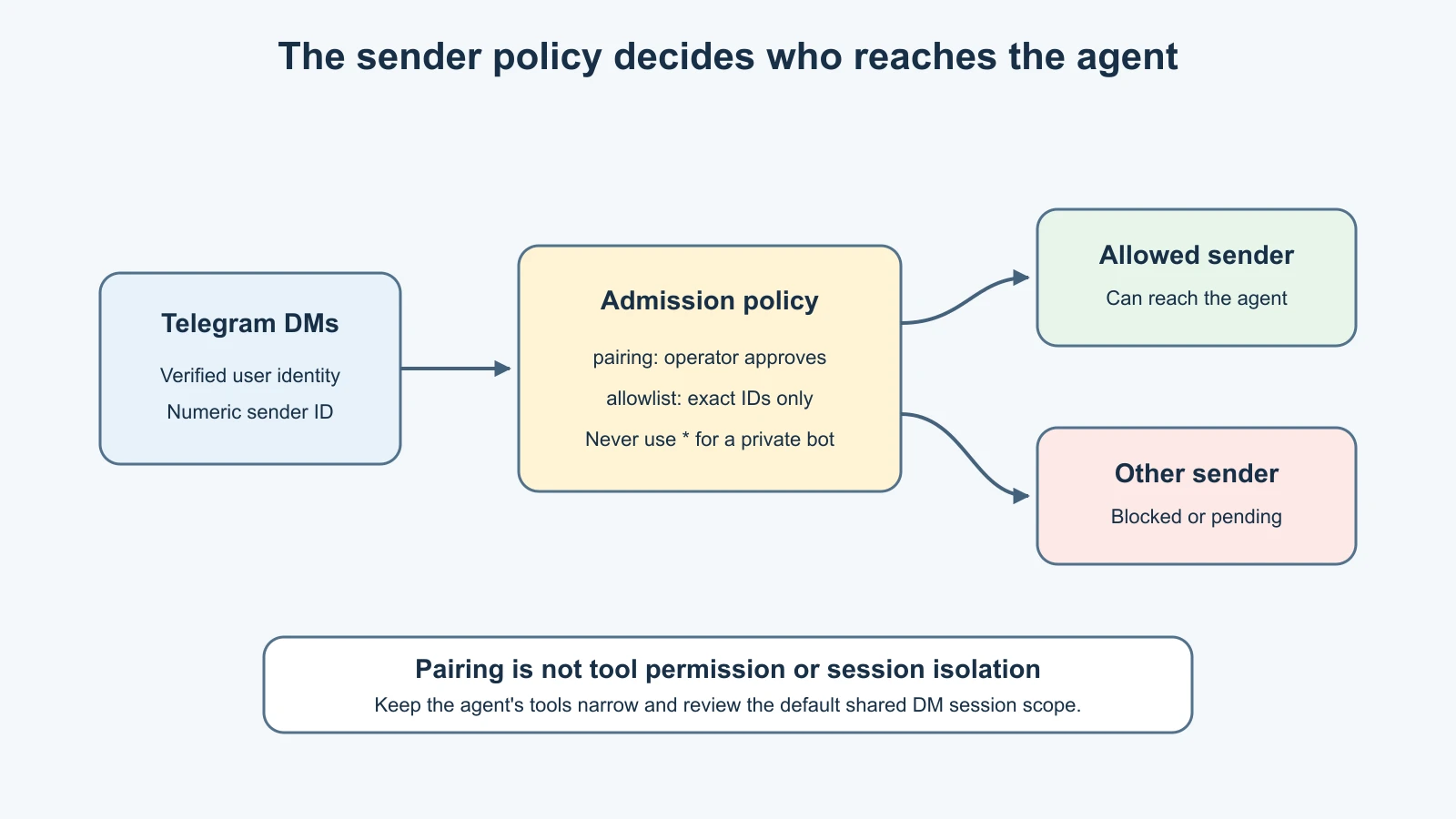
The bot token authenticates the bot to Telegram. It does not decide which people may use the bot. The DM policy controls who may message it, while an allowlist names senders that are permitted. Keep these decisions separate: a valid token can connect a bot that still refuses every unknown sender.
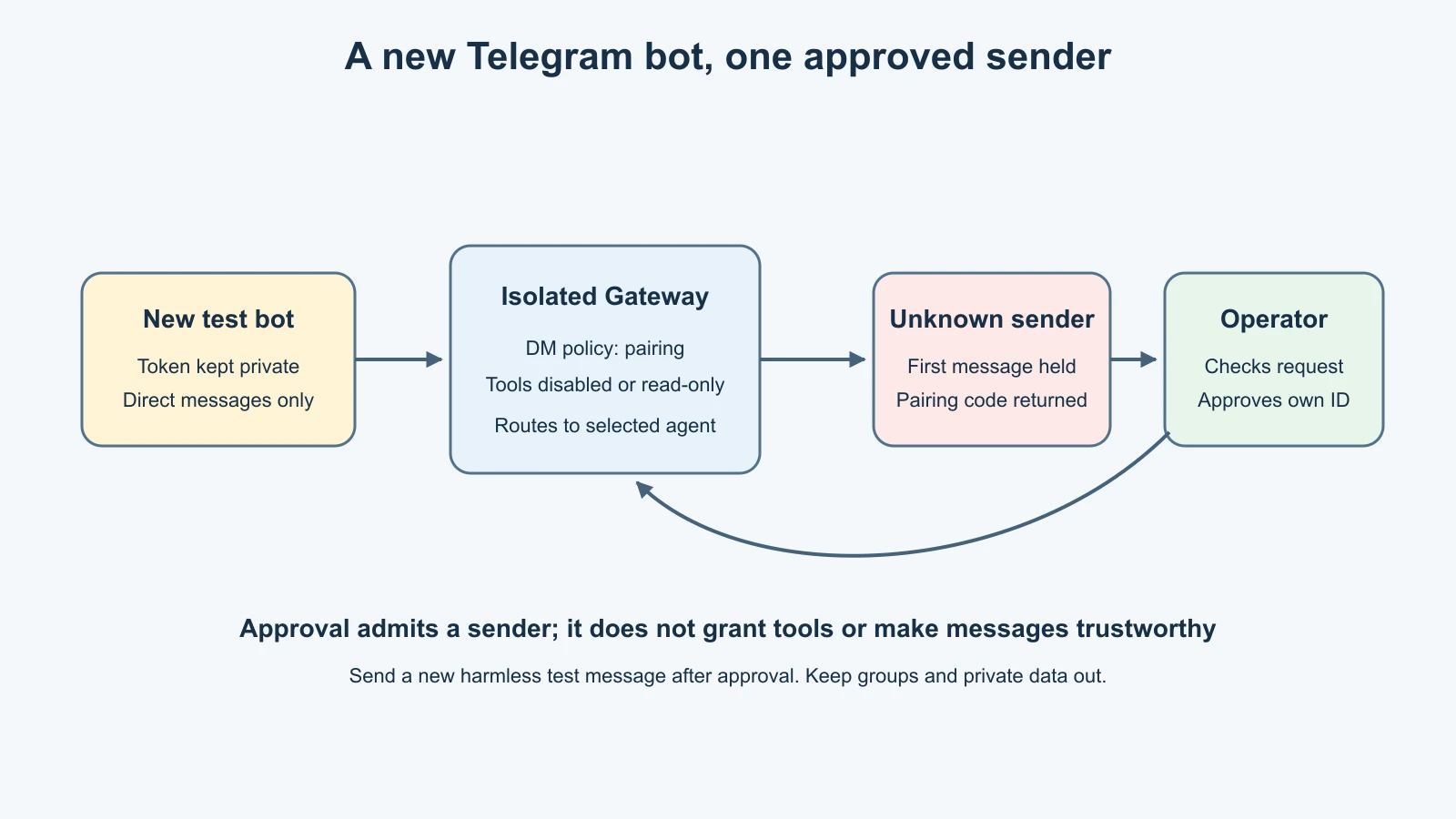
For this first connection, use direct messages only. Do not add the bot to a group. Group chats introduce other people, room-level admission rules, and mention behavior that deserve a separate review. Lesson 10 compares the other supported channels and group risks.
Prepare before opening Telegram
Mira checks a few things before connecting anything:
- The Gateway is on the isolated test host and running under the normal user she created for it.
- The model provider uses a test credential and a usage cap or alert.
- The Gateway is not exposed directly to the public internet.
- She has no work messages, private files, or production accounts in this test environment.
- She knows how to stop the Gateway and where its configuration and logs are stored.
These checks matter because an approved Telegram sender can reach the agent through the configured channel. The agent may process the message with the model provider and may have tools enabled. Pairing restricts who can initiate a conversation; it does not make every message trustworthy or limit what the agent can do. Keep tools disabled or read-only during this first test.
Create a new bot using Telegram's official BotFather flow. Open the account verified as @BotFather, choose /newbot, and follow its prompts for a display name and username. The username must follow Telegram's bot naming rules. Save the returned token in a password manager or another private credential store. Do not take a screenshot of the token, put it in a note that syncs publicly, or send it to anyone helping with the lesson.
If you suspect BotFather was impersonated, stop. Do not paste the token into OpenClaw. Confirm the official account through Telegram's own verification and restart bot creation there. A token copied from the wrong account is not a credential you should test.
Add Telegram to the Gateway
On the Gateway host, start the guided channel setup:
1openclaw channels add --channel telegramIn the interactive prompts, select the default account unless you have a deliberate multi-account plan, and enter the new bot token only in the credential prompt. Read the prompt before entering anything. If your version offers a supported environment-backed or secret-store option, use it only after confirming that the background Gateway can read that value. Avoid --token <value> in a real terminal: literal arguments can remain in shell history or be visible to local process inspection. The angle-bracket notation in documentation is a placeholder, never a token to paste as written.
Telegram does not use openclaw channels login telegram; the official setup reference says to configure its token through channel setup or a supported environment variable. Do not create or hand-edit a config value containing the real token for this exercise. If the wizard asks whether to make the bot public or allow any sender, decline. The desired first state is private direct messages with pairing enabled.
After setup, inspect the summary and verify that it names the expected Telegram account and Gateway. The configured channel may hot-reload. If the Gateway is stopped, start the managed service using the method from lesson 7. For channel connectivity, the current CLI offers:
1openclaw channels status --probeThis is a live status check. It contacts the channel service and may expose operational details in its output, so run it on the Gateway host and keep its logs private. A successful probe indicates that the channel connection is responding; it does not prove that DM access is restricted correctly or that the agent's behavior is safe.
Pair your own Telegram account
Find the bot you just created by its exact username and open a private conversation. Send a short, harmless message such as “hello from my test account.” With the default pairing DM policy, an unknown sender is not sent to the model. The bot returns a one-time pairing code for the operator to review. OpenClaw documents that these codes expire after one hour.
On the Gateway host, list pending requests:
1openclaw pairing list telegramCheck the request before approving it. Confirm that it arrived at the time you sent your message and belongs to the account you control. Then approve the code:
1openclaw pairing approve telegram <PAIRING_CODE>Replace <PAIRING_CODE> with the short code returned by your bot. It is not the bot token. Never share either value in a screenshot or public support request. If you do not recognize a request, do not approve it. Pairing codes are temporary access requests, not proof of a person's identity by themselves; you must compare the request with the message you initiated.
After approval, send another harmless direct message. The first message was held for approval; send a new one to test the admitted route. Ask for a short response that does not require tools or private data. Check that the reply appears in the intended bot conversation. Do not ask it to read files, send messages to others, or perform a real-world action as a connectivity test.
Pairing and an explicit sender allowlist
Pairing is a good admission gate for a small personal test: unknown senders need an operator's approval before their messages reach the agent. For a one-owner bot, OpenClaw's current Telegram access guide recommends an explicit allowlist with the owner's numeric Telegram user ID. That makes the allowed identity visible in configuration and avoids relying only on past pairing approvals.
You can learn your numeric user ID without using a third-party lookup bot. With pairing enabled, your own pairing reply identifies your Telegram user ID. The official guide also describes reading the senderUserId in the corresponding pairing log entry. If you use logs, inspect only the relevant line and close the log stream afterward; logs may contain unrelated private message metadata.
When you set up an explicit allowlist, use the numeric user ID, not a username, phone number, group ID, or the bot's own ID. Keep the policy set to allowlisted direct messages and include only the one test sender. Do not use the wildcard *: the combination of an open policy and a wildcard allows anyone who finds or guesses the bot's username to message it. This example has no reason to make a public bot.
Pairing and allowlisting have different effects. Pairing is an approval workflow for a pending sender. An explicit allowlist is a durable configuration rule. A Telegram DM approval does not automatically authorize the sender in every group, grant every owner-only command, or change tool permissions. If you later enable groups, configure group IDs and allowed members separately, and require a mention while you test.
One additional detail is easy to miss: OpenClaw's default session.dmScope is main. That means direct messages from Telegram and other connected channels may share the same rolling conversation context. A Telegram message could therefore have context from a separate DM channel. For a solo test this may be intentional, but for a shared or multi-user setup the session scope must be reviewed. The session and routing lesson explains how to separate conversation histories; pairing alone does not isolate them.
What can reach the model
An admitted message can include more than the words you typed. Telegram may send message metadata, and an agent turn may include relevant conversation history, workspace instructions, memory, attachments, or tool results. The Gateway sends the needed context to the selected model provider. Read the provider's data-handling and retention terms before using private information.
Keep this channel test fictional and minimal. Do not send personal health details, work information, passwords, private links, or other people's messages. Do not conclude that a local Gateway means the message stays local; lesson 8 explains where hosted and local inference happen.
An allowlist only filters senders. It does not filter malicious instructions inside a message from an approved sender, or hostile text included in a forwarded post or attachment. Later lessons cover prompt injection and tool permissions. For now, disable tools that can write files, execute commands, browse, or send outbound messages. A strong model and a private bot name are not substitutes for those limits.
Verify the finished setup
Before calling the setup complete, review these items on the test host:
- The channel status probe reports the expected Telegram account as connected.
- The DM policy is pairing or a narrow allowlist, never open access.
- The allowlist contains only the numeric ID you intended to approve.
- No groups are configured for the bot, and it has not been added to a group.
- The bot token is not visible in command history, screenshots, notes, source control, or the workspace.
- The Gateway remains on its private host and does not have broader tools than this test needs.
- A new, harmless DM from your account receives a reply; an unapproved sender remains pending or blocked.
Do not recruit someone else to test access from their account unless you have prepared a separate test and explicitly want to handle another person's data. You can verify your setup from the configuration and pending pairing list without making another person part of the experiment.
Remove the channel when you finish
If this was a temporary exercise, disable or remove the Telegram account from the Gateway when you are done. The CLI's channel management docs distinguish disabling from deleting: a non-delete removal flow keeps configuration, while --delete removes the account configuration. Review the prompt and choose deliberately. The documented delete form is:
1openclaw channels remove --channel telegram --deleteThis removes the selected account configuration, but it does not revoke a token already issued by Telegram. If the token may have been exposed, revoke it through the official BotFather controls and replace it before reconnecting. Also inspect private logs and local backups, since channel credentials and message metadata can be retained in operational state. Lesson 20 covers backup handling.
Do not delete a shared channel account if another agent or workflow depends on it. Check the selected account and its routes first. If you want to keep the setup, leave the channel disabled until you are ready to review its policies again. Removing a channel is not the same as deleting your Telegram account or bot.
Mistakes beginners make
Pasting the bot token into a command
The command line is not a secret store. Use the guided credential prompt or a supported secret mechanism that reaches the Gateway service. If a token appears in history, treat it as exposed and rotate it.
Approving an unfamiliar pairing request
Only approve a code that corresponds to a message you just sent from your own test account. An unknown request can remain unapproved. A pairing code should never be forwarded to someone else.
Treating a bot username as access control
A hard-to-guess username may reduce discovery, but it does not replace a pairing policy or an allowlist. Assume that a bot can be found.
Assuming pairing separates conversations
Pairing controls who can send an admitted DM. The default DM session may still be shared with other channels. Review session.dmScope before connecting more senders or services.
Testing with a real task and powerful tools
A live channel test needs only a harmless prompt and a short response. Start with no tools or read-only access. Add capabilities later, one at a time, after learning their impact.
Forgetting the token after removing the channel
Deleting local channel configuration does not invalidate a Telegram bot token. Revoke it with BotFather if it is exposed or no longer needed.
Recap and try it yourself
A Telegram channel gives a Gateway a route to messages sent to a bot. The bot token connects that bot to Telegram; pairing and a sender allowlist determine who can reach it. For a safe first connection, create a new test bot, keep the token private, approve only your own sender, and test with a short message while tools are disabled. Check channel status, confirm there are no group routes, and remember that DMs may share the main session across channels by default.
On paper, write a small channel access plan for Mira: which test host runs the Gateway, which bot is used, where its token will be stored, which numeric sender ID is allowed, what the bot must not access, and how she will remove or rotate the credential. Do not include real tokens, phone numbers, or private messages in your plan.
For background on the Gateway message path, see How OpenClaw works. For the provider route and where model requests are processed, revisit Models and providers. The planned lessons on sessions and other channels will build on these foundations.
Sources, checked 7 November 2026
- OpenClaw, Telegram setup
- OpenClaw, Telegram access control
- OpenClaw, Access control and allowlists
- OpenClaw, Pairing
- OpenClaw, Channel routing
- OpenClaw, Channels CLI
- OpenClaw, Telegram troubleshooting