
OpenClaw course · lesson 6 of 22
- 1What Is OpenClaw, and Is It Right for You?
- 2OpenClaw vs Claude Code: Which Tool Fits the Task?
- 3How OpenClaw Works: Gateway, Sessions, and Agents
- 4OpenClaw Context and Memory: What Carries Forward?
- 5OpenClaw Workspace Files: Shape Your Agent Safely
- 6Where Should OpenClaw Run? Local, VPS, or Isolated
- 7Install OpenClaw and Start Its Gateway Safely
- 8Choose an OpenClaw Model and Provider
- 9Add Your First OpenClaw Channel Safely
- 10Choose Another OpenClaw Chat Channel Carefully
- 11Control OpenClaw Sessions and Commands
- 12Separate OpenClaw Agents and Route Messages
- 13Schedule OpenClaw Checks with Heartbeats and Automations
- 14Secure OpenClaw Hooks and Webhooks
- 15Use and Create OpenClaw Skills
- 16Vet OpenClaw Skills and Plugins Before Installing
- 17Extend OpenClaw with Plugins and MCP
- 18Understand the OpenClaw Security Model
- 19Secure an OpenClaw Gateway with Ten Checks
- 20Back Up, Update, and Troubleshoot OpenClaw
- 21Control OpenClaw Costs and Improve Reliability
- 22Capstone: Build a Safe OpenClaw Personal Assistant
Before installing OpenClaw, choose the machine and environment that will host its Gateway. This decision affects when the assistant is available, what files it can reach, who maintains the host, and how difficult it is to recover after a mistake.
Mira, our fictional learner, wants an assistant she can message during the day. She is considering three places: her everyday laptop, a small computer at home, or a virtual server rented from a cloud provider. She has also heard that Docker makes everything safe. Each option solves a different problem, and Docker is a way to package and run software rather than a location by itself.
This lesson gives you a way to choose without treating any one setup as best for everyone. We will compare availability, isolation, operations, network exposure, data handling, and total cost. We will finish with an installation plan you can fill out before installing anything.
Start with the role of the Gateway host
The Gateway is the long-running OpenClaw service that owns channel connections, sessions, and state. The machine running it needs to be powered on and connected whenever you expect the assistant to respond. A laptop that sleeps cannot serve as an always-available Gateway while it is asleep.
The Gateway host and the model provider are separate choices. Running OpenClaw on your own machine does not automatically mean the model runs locally. The Gateway may send requests to a hosted provider, or you can configure a local model if the machine and setup support it. Likewise, renting a VPS does not mean your workspace and credentials are public, but it does mean you must trust and secure that host.
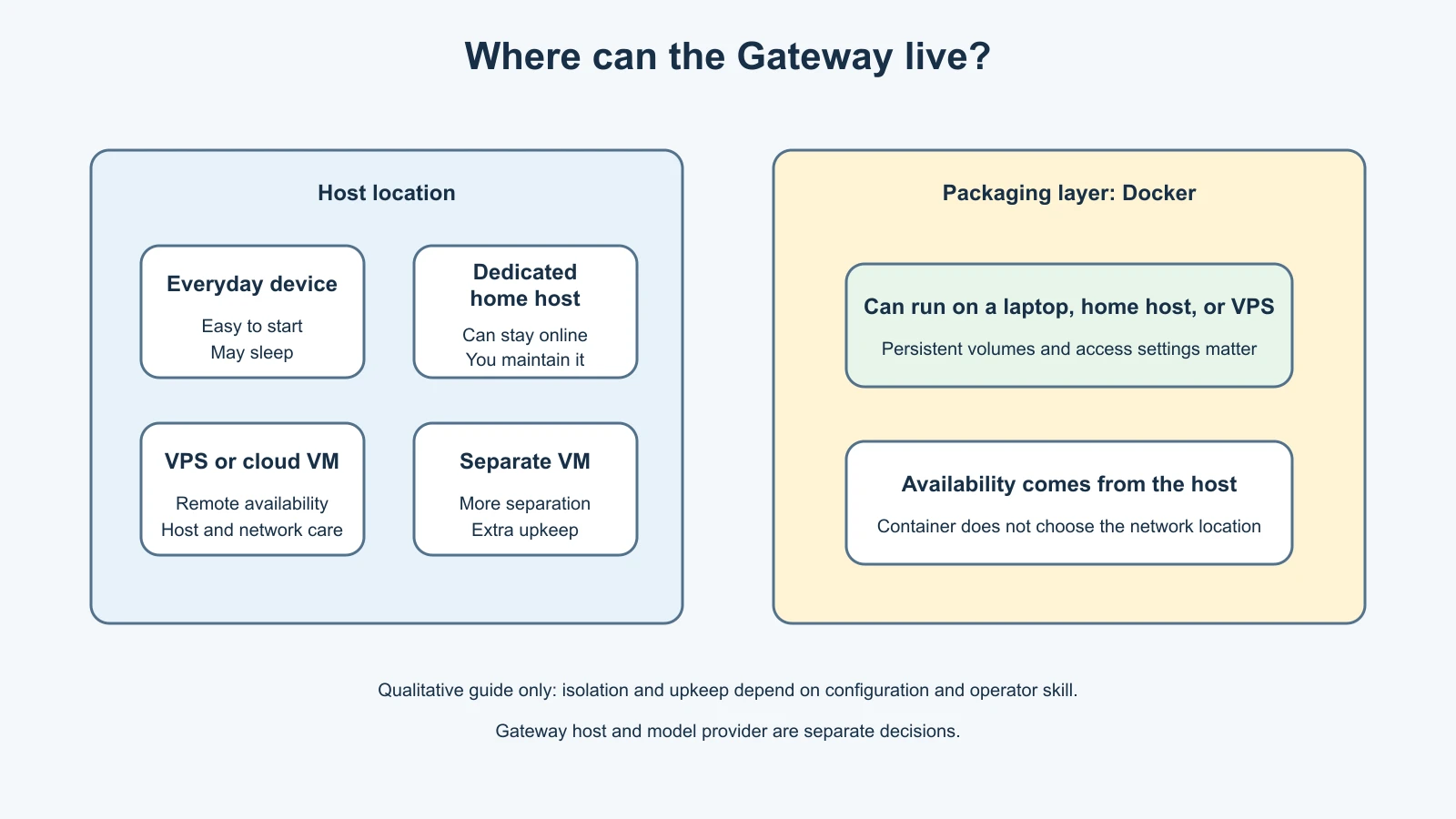
The official OpenClaw installation and hosting guide lists local installs, containers, self-hosted hardware, and cloud hosting options. The remote access guide describes the Gateway as a single service on a host, with clients connecting to it.
Option 1: Your everyday computer
Running the Gateway on a laptop or desktop is convenient for learning. You already have a screen and keyboard, you can inspect files easily, and you do not need to rent another machine. A personal computer may be a good place to explore the product with a new test account and tightly limited access.
The trade-off is availability and blast radius. If you close the lid, reboot, lose power, or disconnect from the network, the Gateway may stop responding. More importantly, an everyday computer may contain work files, personal documents, browser sessions, and credentials. If the agent has broad file or command access, a mistake can reach the same machine you use for other things.
For Mira, the laptop is a reasonable learning environment only if she uses a separate workspace, does not grant access to her home folder, keeps the Gateway local during initial setup, and avoids connecting important accounts. It is not a good choice for “always on” availability if she regularly shuts it down or carries it away.
Option 2: A dedicated computer at home
A small computer such as a Raspberry Pi or Mac mini can stay powered on and run a personal Gateway without keeping a daily laptop open. It keeps the system physically near you and may make local storage and home network access straightforward.
Dedicated does not mean isolated. A machine on the same home network may still have access to other devices or shared folders, depending on its accounts and configuration. You remain responsible for operating system updates, backups, power, storage, network access, and checking that the Gateway is healthy. A low-power device can reduce ongoing electricity use compared with leaving a large desktop running, but actual costs depend on the device and local energy rates.
This option suits someone who wants an always-on service at home and is comfortable maintaining a small computer. It is less attractive if the home internet or power is unreliable, if you do not want to manage another device, or if the agent needs capabilities that the device cannot support. Remember that model inference may still use a hosted service even when the Gateway itself runs locally.
Option 3: A VPS or cloud host
A virtual private server (VPS) is a rented virtual machine in a provider's data center. It can remain online while your personal devices are off, which is useful for an assistant that should receive messages throughout the day. You can connect to the host remotely for maintenance.
That availability comes with an ongoing bill and more operational responsibility. You must manage host access, updates, firewall rules, monitoring, backups, storage, and recovery. The Gateway may hold credentials, workspace files, memory, and session state, so account security at the cloud provider matters. A server exposed to the internet also attracts network traffic. Do not make the Gateway's control interface publicly reachable as a shortcut to remote access.
OpenClaw's remote access documentation describes keeping the Gateway bound to loopback by default and reaching it through a trusted LAN or tailnet, or an SSH tunnel. The exact access method and authentication should follow the current official guide. A VPS can be a sensible always-on host, but it is not “set and forget.”
If a cloud platform uses temporary or replaceable instances, check its storage behavior before relying on it. Your Gateway state and workspace need persistent storage and a tested backup plan. Recreating an instance without its persistent data can mean losing sessions, configuration, or memory.
Option 4: Docker as a packaging layer
Docker packages the Gateway and its dependencies into a container. It can help create a repeatable environment or a disposable test setup, and it can run on a laptop, dedicated computer, or VPS. Docker does not answer where the host lives; it changes how software is packaged on that host.
Containers can improve separation, but a container is not automatically a complete security boundary. OpenClaw's Docker guide says Docker is optional and notes that its agent sandbox is off by default. Host folders mounted into a container can expose those files to the application. Persistent volumes are also needed for state that must survive container replacement. A careless volume mount can erase much of the separation you expected.
Choose Docker when you understand images, persistent volumes, updates, and the host/container boundary, or when you need a throwaway environment. If containers are unfamiliar, begin by reading the current setup docs and decide whether the added layer makes maintenance easier or harder for you.
Option 5: A virtual machine or isolated environment
A virtual machine (VM) runs a guest operating system with a boundary around its files and processes. A separate VM can limit how much of your everyday computer is directly reachable if the agent or a tool behaves unexpectedly. A disposable VM is especially useful for learning and testing.
Isolation depends on configuration. Shared folders, clipboard integration, USB devices, host networking, and mounted credentials can bridge the boundary. A VM also needs its own updates, backups, and enough resources. Restoring an old snapshot can reintroduce outdated software or credentials, so snapshots complement but do not replace updates and backups.
Containers and VMs are not a simple “safe” and “unsafe” pair. They have different boundaries and operational costs. A container shares the host kernel and can be configured with narrow mounts. A VM includes a guest operating system but can still have risky host integrations. Choose the boundary you can configure and maintain correctly.
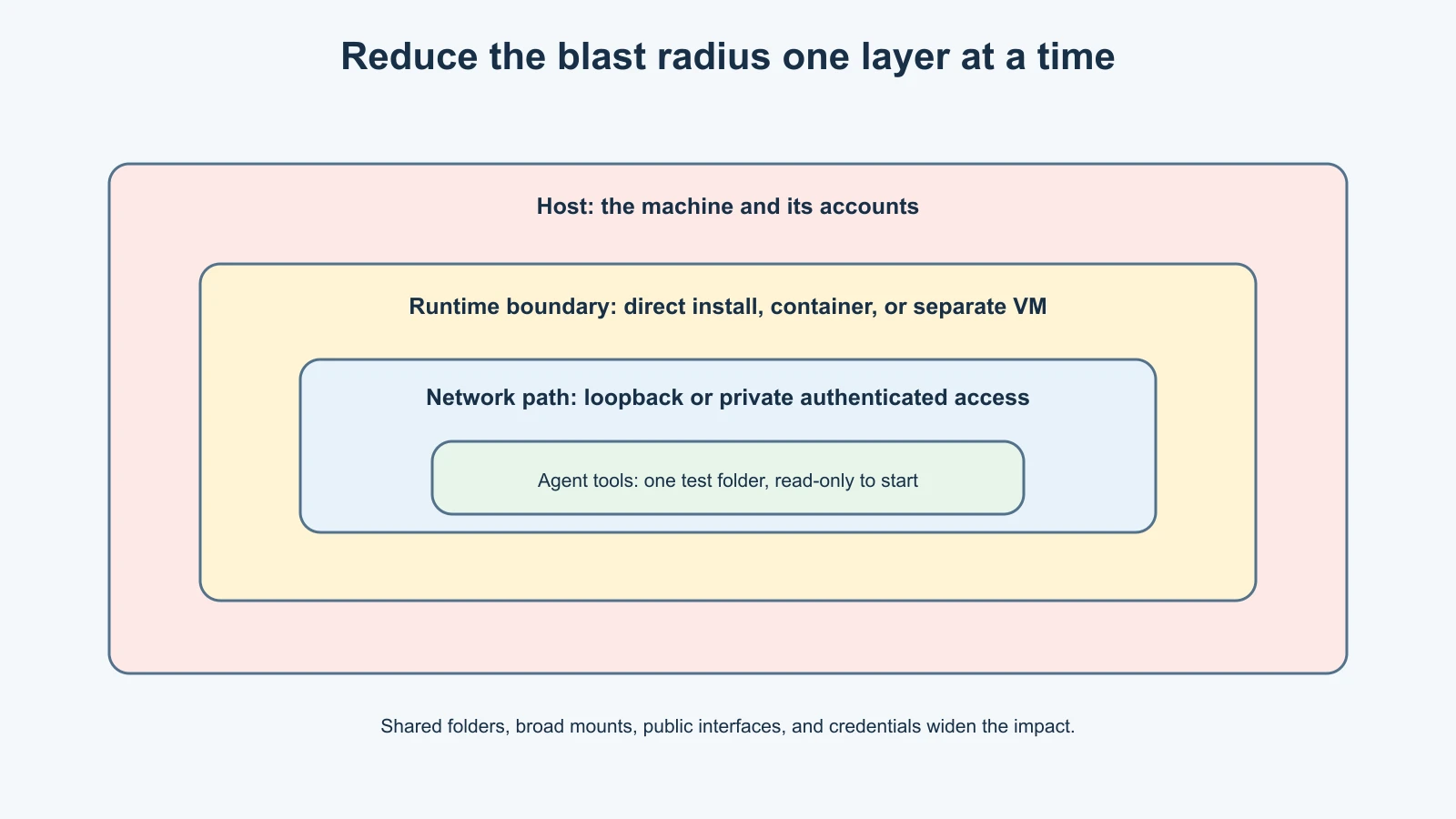
For a deeper comparison of isolation techniques and their limits, see Claude Code sandboxing, secrets, and dev containers. The examples there focus on a coding agent, but the general lesson applies: inspect what the boundary allows through, not just what the boundary is called.
Compare the trade-offs
| Setup | Availability | Separation from everyday files | Ongoing work | Usually fits |
|---|---|---|---|---|
| Everyday laptop or desktop | Only while awake and connected | Often low unless you restrict access | Low to moderate | Learning and occasional use |
| Dedicated home device | High while powered and online | Moderate; depends on accounts and permissions | Moderate | Always-on use at home |
| VPS or cloud VM | High, provider-dependent | Separate host, but still your responsibility | Moderate to high | Remote access and continuous uptime |
| Docker on any host | Inherits host availability | Depends on mounts and runtime settings | Moderate | Repeatable or disposable environments |
| Separate VM | Depends on its host | Can be stronger if integrations are limited | Moderate to high | Testing or reducing host exposure |
These are relative tendencies, not guarantees. A well-maintained everyday machine with narrow permissions can be safer than a badly configured VPS with an exposed control panel. An isolated VM with a shared home folder and copied credentials may provide little practical separation.
Choose by what matters most
Ask yourself these questions before picking a location:
- Does it need to answer while my personal devices are off? If yes, choose a machine that stays powered and connected, such as a dedicated home host or VPS.
- What files and accounts could the agent reach? Start with the smallest workspace and fewest integrations possible. Avoid your everyday account if you can.
- Who will maintain it? A remote server needs patching, monitoring, access control, backups, and recovery. A home device needs the same attention, plus reliable power and internet.
- How will I reach it remotely? Prefer authenticated, private access such as a trusted tailnet or SSH tunnel. Keep the Gateway's control interface off the public internet unless you understand and deliberately configure the full security boundary.
- Where will state persist? Identify the persistent workspace, configuration, credentials, and session data. Confirm backups include what you need and exclude anything you should not copy.
- What will it cost? Include hardware or monthly hosting, electricity, storage, backups, and model-provider usage. Pricing changes, so check current provider rates rather than relying on a general estimate.
- Can I rebuild it? Write down the recovery path and test it before trusting the setup with important accounts or memory.
Mira decides she wants an assistant that stays available, but she is still learning. She chooses a spare home computer rather than her daily laptop, creates a separate user account, keeps it on her home network, and postpones connecting personal messaging accounts. She can later move the Gateway to a VPS if she needs remote availability outside the home, after she understands backups and private access. This is one reasonable path, not a universal recommendation.
A pre-install plan
Use this short checklist before moving to lesson 7. It is a planning template, not a set of commands.
1Purpose: What should this Gateway do?
2Host: Which machine or service will run it?
3Availability: When must it be online?
4Isolation: What separate OS account, VM, or container boundary will I use?
5File access: Which one test folder can the agent access first?
6Network: How will I keep the control interface private?
7Accounts: Which new test account will I connect first?
8Credentials: Where will provider and channel credentials be stored?
9Persistence: Which data must survive a restart or rebuild?
10Backups: What will be backed up, where, and how will I restore it?
11Maintenance: Who will apply updates and review logs?
12Stop condition: What will make me pause and disconnect the setup?
For a first test, use a disposable environment, a new bot or test account, and credentials with a spend cap where available. Start with read-only access and one narrow folder. Do not connect your work chat, primary personal accounts, or production credentials while you are still learning how the host and permissions behave.
The plan is deliberately modest. You do not need a permanent server, multiple agents, or a complex container stack to learn the basics. You do need to know where the Gateway runs, what it can reach, how you connect to it, and how to stop or recover it.
Mistakes beginners make
Assuming local means always available
A Gateway on a laptop stops being reachable when the laptop sleeps, disconnects, or shuts down. Match the host to the hours you expect the assistant to work.
Assuming local means local model processing
The Gateway's location and the model provider are separate decisions. A local install can still send request context to a hosted model provider. Review provider settings and data handling.
Treating Docker as automatic isolation
Containers can share host files through mounts, and the agent sandbox is a separate control. Inspect the mounts and runtime settings rather than assuming the word Docker means safe.
Exposing a control interface for convenience
Remote access needs an intentional private path and authentication. Follow the current OpenClaw remote access guide and avoid casually exposing administrative interfaces to the internet.
Forgetting persistent storage and backups
A container or cloud instance can be replaced. Know which volumes contain important state and how you would restore them before relying on the Gateway.
Choosing the most complicated setup first
Every extra layer adds settings to understand. Start with a simple environment that has a small blast radius, then add complexity only when you have a reason and a maintenance plan.
Recap and try it yourself
The host determines where the Gateway runs and when it can respond. The model provider is a separate choice. A laptop is convenient but may sleep and may hold many personal files. A dedicated home device can stay online but still needs updates, backups, and narrow access. A VPS offers remote availability while adding hosting and network responsibilities. Docker is a packaging layer that can run on different hosts; it does not automatically provide a complete security boundary. A VM can add separation, depending on its integrations.
Before installing, choose the host, decide how you will access it privately, identify which data persists, and write down a backup and recovery plan. Start with a disposable setup, a new test account, and read-only access to one limited folder. Do not connect your important accounts until the boundaries are clear.
Try filling in the pre-install plan for two possible hosts: your current computer and a spare machine or VPS. Compare which files each could reach, how often it would be online, who would maintain it, and what happens if it stops working. Choose the environment whose boundaries and upkeep you can explain in a few sentences.
Sources, checked 7 November 2026
- OpenClaw, Install and hosting
- OpenClaw, Remote access
- OpenClaw, Docker
- OpenClaw, Linux host guidance
- Claude Code course, Sandboxing, secrets, and dev containers