I once crashed a client's testing server with a single search bar.
It was early in my career. I was building an e-commerce site with a "live search" feature. You know the type: you type "iPhone," and products appear instantly. I hooked up an event listener to the input field so that every time the user pressed a key, it fired an AJAX request to the backend.
It worked beautifully on my local machine. Then we deployed it.
A tester typed "Samsung Galaxy S21 Ultra" quickly. That is roughly 25 keystrokes. In less than two seconds, my frontend fired 25 separate network requests. The server tried to process them all simultaneously, the database locked up, and the entire application ground to a halt.
I stared at the network tab, watching a waterfall of red "500 Internal Server Error" responses.
That was the day I learned why Debouncing and Throttling are not just "nice-to-have" optimizations—they are mandatory survival skills for modern web development.
If you have ever had a scroll event lag your page, or a search bar that flickers uncontrollably, you are missing these two concepts.
In this article, we are going to dismantle the confusion. We won't just memorize definitions; we will build these utilities from scratch, visualize how they control the flow of time, and look at the actual code running inside the browser engine.
The Simple Explanation (Plain English)
Both techniques stop functions from running too often, but they use different logic to do it.
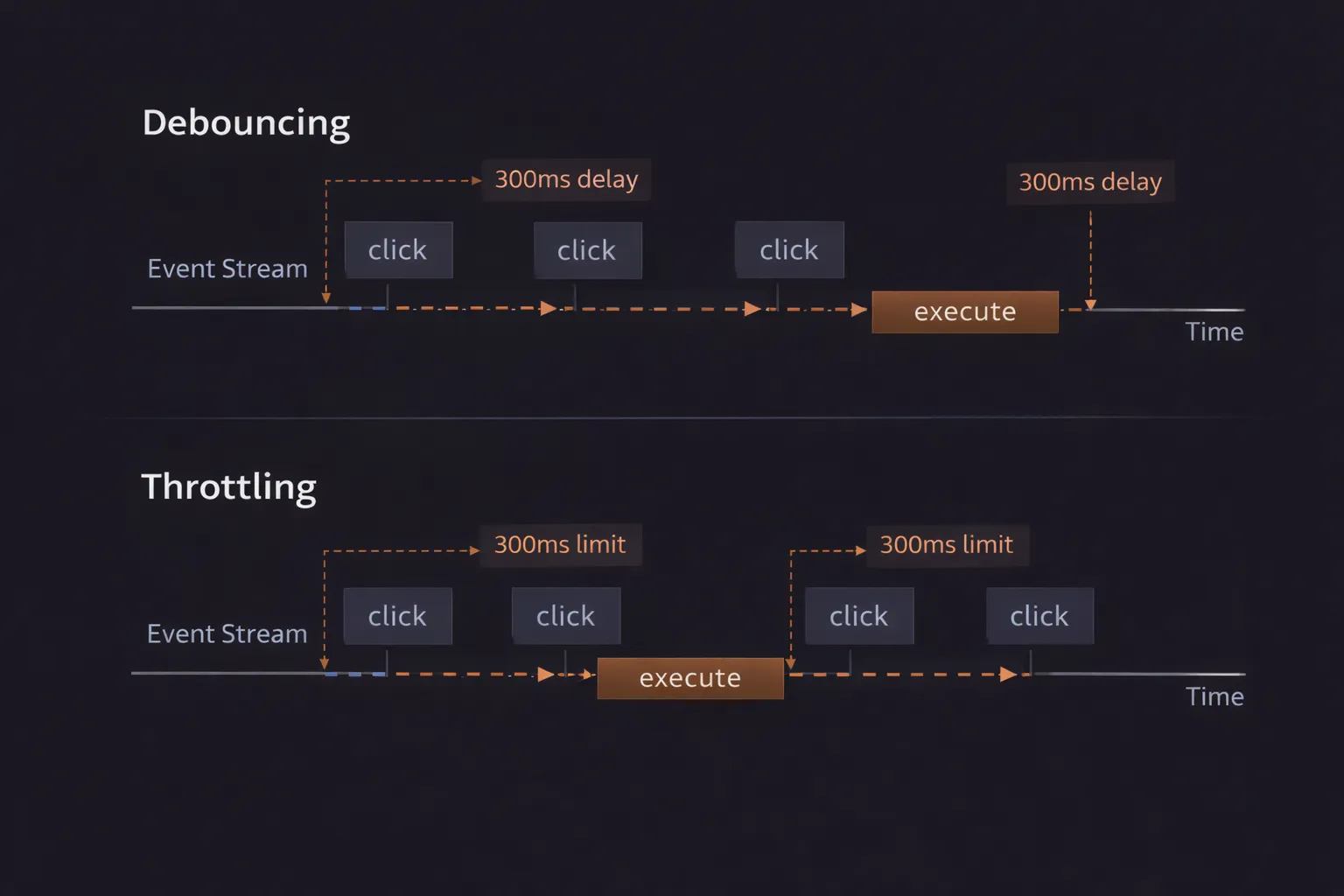
Debouncing is like saying, "Wait until the user stops doing this action for X milliseconds, then run the function." It groups a burst of events into a single execution at the end.
Throttling is like saying, "Run this function at most once every X milliseconds." It guarantees a steady flow of execution at a set speed, regardless of how fast the user is acting.
The Mental Models: Visualizing the Flow
To keep these straight in my head during interviews and architecture meetings, I use two specific analogies.
1. The Debounce Analogy: The Elevator
Imagine you are in an elevator. The doors begin to close. Suddenly, someone runs towards the elevator and puts their hand in the door. The doors re-open and the timer resets.
If another person runs up, the timer resets again. The elevator will only close its doors and move (execute the function) once nobody has tried to enter for a full 3 seconds.
If 100 people enter one by one, the elevator doesn't move 100 times. It moves once at the very end.
2. The Throttle Analogy: The Automatic Machine Gun
Imagine a machine gun that can only fire one bullet every 200 milliseconds, no matter how fast you pull the trigger.
If you hold the trigger down continuously (like scrolling a mouse), the gun will fire rhythmically: Bang... (wait 200ms)... Bang... (wait 200ms)... Bang.
It doesn't wait for you to stop pulling the trigger. It just enforces a strict speed limit.
Step-by-Step Code Execution: Building Debounce
Let’s solve the "Search Bar" problem I mentioned in the intro. We need a function that waits for the user to stop typing.
We will write a debounce utility function. This is often asked in senior interviews.
1// The Factory Function
2function debounce(func, delay) {
3  // 1. Private Variable (Closure)
4  let timer;
5
6  // 2. The Return Function (What actually gets called)
7  return function(...args) {
8    // 3. Reset the Logic
9    if (timer) clearTimeout(timer);
10
11    // 4. Set the new schedule
12    timer = setTimeout(() => {
13      func.apply(this, args);
14    }, delay);
15  };
16}
17
18// USAGE
19const searchAPI = (query) => console.log(`Searching for: ${query}`);
20
21// Create a debounced version
22const efficientSearch = debounce(searchAPI, 500);
23
24// SIMULATING TYPING "Hello"
25efficientSearch("H");
26efficientSearch("He");
27efficientSearch("Hel");
28efficientSearch("Hell");
29efficientSearch("Hello");
30
What is happening internally?
Let's walk through the execution when the user types "Hello".
- Creation Phase: We call
debounce(searchAPI, 500). This creates a Closure. The variabletimeris created in memory and set toundefined. The function returns the inner function, which we save asefficientSearch. - Keystroke 1 ("H"):
efficientSearch("H")runs.- Is
timerdefined? No. setTimeoutis scheduled for 500ms.timeris now ID#1.
- Keystroke 2 ("He") (happens 100ms later):
efficientSearch("He")runs.- Crucial Step: It sees
timeris#1. It callsclearTimeout(#1). The first scheduled search is killed. It never happens. - A new
setTimeoutis scheduled.timeris now ID#2.
- Keystrokes 3, 4: The same process repeats. The previous timer is killed, and a new one is set.
- Keystroke 5 ("Hello"):
efficientSearchruns.- Clears timer
#4. - Sets timer
#5.
- The Pause: The user stops typing.
- Execution: 500ms passes. No one cleared timer
#5. It fires.searchAPIruns once with "Hello".
Step-by-Step Code Execution: Building Throttle
Now, let's look at Throttling. This is used for things like scrolling or resizing, where you do want updates while the action is happening, just not too many.
There are two ways to write this (timestamp vs. timer). I prefer the Flag Method for beginners as it's easier to visualize.
1function throttle(func, limit) {
2  // 1. State Flag (Closure)
3  let inThrottle = false;
4
5  return function(...args) {
6    // 2. The Gatekeeper
7    if (!inThrottle) {
8      // 3. Execute Immediately
9      func.apply(this, args);
10
11      // 4. Close the Gate
12      inThrottle = true;
13
14      // 5. Re-open the Gate after the limit
15      setTimeout(() => {
16        inThrottle = false;
17      }, limit);
18    }
19  };
20}
21
22// USAGE
23const logScroll = () => console.log("User is scrolling...");
24const efficientScroll = throttle(logScroll, 1000);
25
26// User scrolls like crazy for 5 seconds
27window.addEventListener('scroll', efficientScroll);
28
What is happening internally?
- Creation Phase:
inThrottleis set tofalse. - Scroll Event 1 (0ms):
efficientScrollruns.!inThrottleis true.- We run
logScrollimmediately. - We set
inThrottle = true. - We set a timer for 1000ms to turn
inThrottleback tofalse.
- Scroll Event 2 (50ms):
efficientScrollruns.!inThrottleis false (gate is closed).- The function does nothing and exits.
- Scroll Event 3 (500ms):
- Gate is still closed. Function exits.
- Timer Fires (1000ms):
- The
setTimeoutcallback runs.inThrottleis set tofalse. The gate is open.
- Scroll Event 4 (1001ms):
efficientScrollruns.- Gate is open! It executes
logScrolland closes the gate again.
How It Works Internally: Closures and The Event Loop
To understand why these functions work, you have to understand Closures.
Notice that timer and inThrottle are defined outside the returned function.
If we defined let timer inside the returned function, it would be re-created as undefined every single time the user typed a key. We wouldn't be able to clear the previous timer because we would have lost the reference to it.
By placing them in the outer function scope, we create a persistent memory reference that survives across multiple function calls. The inner function "remembers" the state of timer or inThrottle because of the closure created when debounce was first called.
The Event Loop's Role
Both techniques rely on the Event Loop. setTimeout doesn't pause code execution; it offloads the callback to the Macrotask Queue.
- Debounce keeps removing the task from the queue before the Event Loop can pick it up.
- Throttle ignores requests to add tasks to the queue until a specific time has passed.
Common Mistakes Developers Make
I have reviewed code where developers tried to implement these and failed silently.
1. Creating the Debounced Function Inside Render
This is the most common bug in React.
1// DON'T DO THIS IN REACT
2function SearchComponent() {
3  const handleSearch = debounce((text) => apiCall(text), 500);
4
5  return <input onChange={(e) => handleSearch(e.target.value)} />;
6}
7
Why it fails:
Every time the component re-renders (which happens when you type!), the SearchComponent function runs again.
It creates a brand new debounce function with a brand new timer variable.
The previous timer is never cleared because the new function doesn't know about it. The result? No debouncing at all.
The Fix: Use useCallback or useMemo to keep the same debounced function across renders.
2. Confusing Debounce and Throttle
"I want the search to fire while I'm typing so the user sees results." If you use Throttle for a search bar, the user will see results update while they are typing halfway through a word (e.g., searching for "Sam" while typing "Samsung"). This usually results in bad UX and jittery results. Search almost always requires Debounce.
3. Not Cleaning Up
If a debounced function is scheduled to run in 500ms, but the user navigates away from the page (unmounts the component) at 200ms, the timer is still ticking.
When it fires, it might try to update the state of a component that no longer exists.
The Fix: Always implement a .cancel() method on your utility or clear timers in the cleanup phase (useEffect return).
Real-World Use Cases
When should you use which? Here is my cheat sheet.
Use DEBOUNCE when:
You care about the final result. You don't need intermediate updates.
- Search Bars: Wait until typing stops.
- Window Resizing: Wait until the user finishes resizing the window to recalculate a complex layout or chart.
- Form Autosave: Save the draft only when the user pauses writing.
Use THROTTLE when:
You need intermediate updates, but you want to limit the frequency to save resources.
- Infinite Scrolling: Check "Am I at the bottom of the page?" every 200ms, not every pixel.
- Gaming Input: A player can mash the "Fire" button 10 times a second, but the character can only shoot twice a second.
- Window Resizing (Specific): If you need to rearrange UI elements fluidly as the window shrinks, throttle the resize handler so it looks smooth but doesn't crash the browser.
Interview Perspective
If I am interviewing you, I won't just ask for the definition. I will ask you to implement it on a whiteboard.
The "Leading Edge" Trap I might ask: "Can you make the debounce function fire immediately on the first click, and then wait?" This is called Leading Edge Debounce. Standard debounce is "Trailing Edge" (fires at the end). Leading Edge is useful for buttons like "Submit Payment." You want the click to register instantly (so the UI feels responsive), but you want to ignore any subsequent clicks for 3 seconds to prevent double charges.
The Trick Question: "What happens if I throttle a function to 100ms, but the function itself takes 500ms to run?" Answer: The JavaScript call stack will be blocked for 500ms. Throttling controls how often you call the function, but it cannot make the function execute faster. If the main thread is blocked, the next throttle cycle will be delayed regardless of your timer settings.
TL;DR / Key Takeaways
- Debounce: "Group it." Runs only once after a period of silence. Best for Search inputs.
- Throttle: "Pace it." Runs at a regular interval. Best for Scrolling and resizing.
- Mechanism: Both use Closures to remember state (
timerID orflag). - React Trap: Don't define them inside the render body; memoize them.
FAQ
Q: Can I use Lodash for this?
A: Yes! In production, I highly recommend using lodash.debounce and lodash.throttle. They handle edge cases (like leading/trailing options and argument passing) much better than a custom utility. However, you must understand how to write them yourself for debugging and interviews.
Q: Does requestAnimationFrame replace Throttle?
A: For animations and scroll events, yes. requestAnimationFrame is essentially the browser throttling a function to match the screen refresh rate (usually 60fps or ~16ms). It is more performant than throttle for visual updates.
Q: What is the optimal delay time? A: It depends on UX.
- Search Bar: 300ms - 500ms. (Fast enough to feel responsive, slow enough to save server load).
- Double Click prevention: 400ms.
- Scroll logging: 100ms - 200ms.
Conclusion
Debouncing and Throttling are the traffic controllers of your application. Without them, your code is just shouting at the browser, overwhelming it with requests it cannot handle.
The next time you are building a feature that involves user input—whether it's typing, scrolling, or clicking—pause for a second. Ask yourself: "Do I need to handle every single event, or do I just need the result?"
Visualizing the Elevator (Debounce) and the Machine Gun (Throttle) has saved me from countless performance bugs. Once you integrate these patterns into your muscle memory, you stop writing "jittery" apps and start building professional, polished experiences.
Now, go take a look at your scroll event listeners. They probably need a throttle.