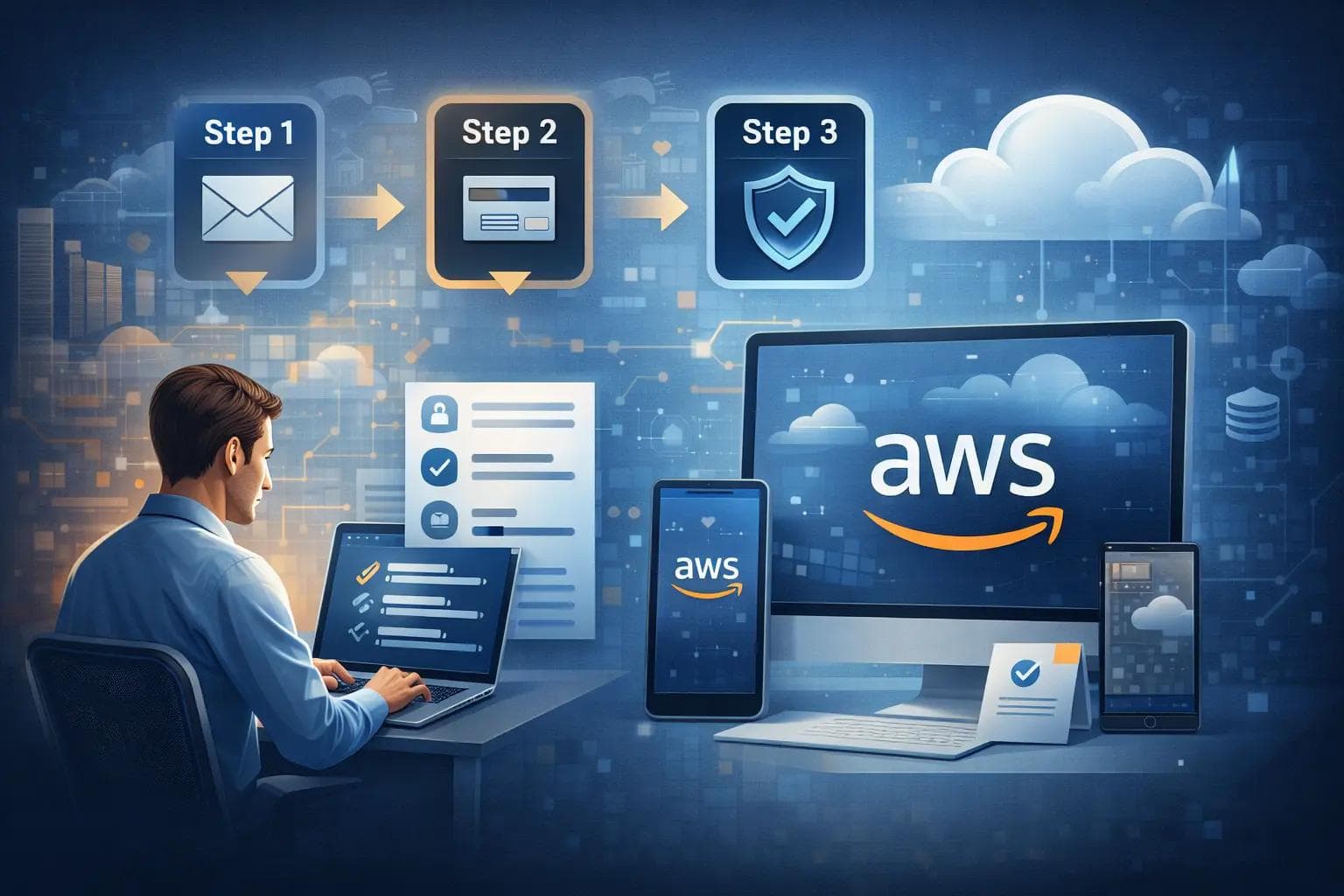
I still remember the first time I tried to host a web application. I was using a tiny local server that crashed every time more than three people visited the site. A senior developer told me, "Just put it on the cloud."
At the time, the "cloud" felt like a mysterious place that only big tech companies could access. I felt intimidated by the thought of Amazon Web Services (AWS). I worried about hidden costs, complex configurations, and the sheer number of services available.
What I discovered was that AWS is actually very accessible once you get past the initial setup. Creating an AWS account is the gateway to using the same infrastructure that powers Netflix and Airbnb. Whether you are a student, a freelance developer, or a startup founder, knowing how to navigate this platform is a fundamental skill in modern tech.
In this guide, I will walk you through the process of setting up your account correctly from day one. We aren't just clicking buttons; we are setting up a secure, professional environment.
Why You Need an AWS Account Right Now
The tech industry has shifted entirely toward cloud computing. If you are building a React app, a Python backend, or a simple WordPress site, hosting it on AWS gives you scalability that local hosting cannot match.
By creating an account, you get access to the AWS Free Tier. This is a generous offer that lets you use dozens of services for free for the first 12 months. It is the best way to learn by doing without spending a fortune.
However, I have seen many developers make the mistake of creating an account and leaving it "wide open." They ignore security settings and end up with a surprise bill or a hacked account. We are going to avoid those pitfalls together.
Prerequisites: What You Need Before You Start
Before we head to the AWS homepage, make sure you have these three things ready. Having them on hand will make the 10-minute sign-up process much smoother.
- A Unique Email Address: Use an email you check regularly. This will be your "Root" user email.
- A Credit or Debit Card: AWS requires this for identity verification and to cover any costs if you exceed the Free Tier limits. They usually do a small temporary hold (around $1 USD) to verify the card.
- A Phone Number: You will need to complete an automated identity verification call or text.
Step 1: The Initial Registration
First, navigate to the official AWS website and look for the button that says "Create an AWS Account."
You will be asked for your email address and an account name. I usually recommend choosing an account name that is professional, like "MyProject-Dev-Account." You can change this later, but it helps to stay organized from the start.
AWS will send a verification code to your email. Check your inbox, enter the code, and set a strong password.
Expert Tip: This password is for your Root user. This user has ultimate power over your account. Use a long, complex password and do not share it with anyone.
Step 2: Choosing Your Account Type
Next, AWS will ask if you are creating a "Professional" or "Personal" account.
If you are a solo developer, a student, or just experimenting, choose Personal. There is no difference in the services you can access or the price you pay. The only difference is the information AWS asks for. For a personal account, you won't need to provide company registration details.
Fill in your contact information honestly. Make sure your address matches the billing address on your credit card to avoid verification issues.
Step 3: Billing and Identity Verification
This is the part that makes most beginners nervous: the credit card screen.
AWS uses this primarily to prevent people from creating thousands of accounts for malicious purposes. As long as you stay within the Free Tier limits, you will not be charged. Later in this guide, I will show you how to set up an alarm so you never get a surprise bill.
After entering your card details, you will move to the identity verification step. You will enter your phone number, and AWS will send you a 4-digit code. Type that code into the website to prove you are a human.
Step 4: Selecting a Support Plan
AWS will offer you several support plans. Unless you are running a high-traffic production application for a large company, choose the Basic Support - Free plan.
The Basic plan gives you access to the Resource Center, Service Health Dashboard, and documentation. Most importantly, it costs $0 per month. You can always upgrade later if your project grows.
Step 5: The "First Login" Checklist (Crucial)
Once you finish the sign-up, you will be redirected to the AWS Management Console. Most people stop here and start launching servers. Do not do that.
Your account is currently in its most vulnerable state. You are logged in as the "Root" user. If someone steals these credentials, they can delete your entire infrastructure or run up a $50,000 bill in hours.
I always follow these three steps immediately after creating a new account:
1. Enable Multi-Factor Authentication (MFA)
Go to the IAM (Identity and Access Management) dashboard. Look for "Add MFA for root user." Use an app like Google Authenticator or Authy on your phone. This adds a second layer of security so that even if someone knows your password, they can't get in.
2. Create an IAM User
In my experience, you should never use your Root user for daily work. Instead, create an "Admin" user within the IAM dashboard. Give this user administrative permissions, and use this account for your coding and configuration tasks. Lock your Root user credentials away in a password manager and only use them for billing changes.
3. Set a Billing Alarm
This is the single most important step for peace of mind.
- Search for "CloudWatch" in the AWS console.
- Click on "Alarms" and then "Create Alarm."
- Select the metric "Billing -> Total Estimated Charge."
- Set the threshold to $5 (or whatever amount you are comfortable with).
- Configure an email notification.
Now, if you accidentally leave a high-powered server running, AWS will email you the moment your bill hits $5.
Understanding the AWS Free Tier
The Free Tier is not just one thing. It is actually split into three different types of offers. I’ve seen many developers get confused and think everything is free forever. Let’s clear that up:
- Always Free: These services never expire. For example, AWS Lambda gives you 1 million free requests per month forever.
- 12 Months Free: These start the day you sign up. This includes popular services like Amazon EC2 (virtual servers) and Amazon S3 (storage).
- Trials: Short-term free trials for specific services, like 2 months of Amazon LightSail.
How AWS is Used in Real Projects
To give you an idea of why this account matters, let’s look at a common project workflow.
Imagine you are building a portfolio website.
- Storage: You upload your images and static files to Amazon S3.
- Computing: You run your Node.js backend on an Amazon EC2 instance.
- Database: You store your user data in Amazon RDS.
- Content Delivery: You use Amazon CloudFront to make your website load fast for people all over the world.
Because you are in your first year, you can run all of these components for a small site completely within the Free Tier limits.
Practical Example: Launching Your First Instance
Once your account is set up and secured, you might want to test it. The most common first step is launching an EC2 instance (a virtual computer).
- Open the EC2 Dashboard.
- Click Launch Instance.
- Select the Amazon Linux 2023 AMI (it is Free Tier eligible).
- Choose the t3.micro or t2.micro instance type.
- Create a "Key Pair" so you can log in securely via SSH.
- Click Launch.
Within minutes, you have a real server running in an Amazon data center.
Common Mistakes to Avoid
I have seen even experienced developers get tripped up by these simple errors.
1. Leaving Resources Running
AWS charges by the hour or second. If you launch a server to "test" something and forget about it for a month, you will be charged. If you aren't using it, stop it or terminate it.
2. Hardcoding Access Keys
When you start writing code that interacts with AWS, you will get "Access Keys." Never commit these keys to GitHub. I have seen bots scan GitHub and find AWS keys within seconds. Those bots then launch massive crypto-mining servers on the victim's account. Use Environment Variables or IAM Roles instead.
3. Ignoring Regions
AWS has data centers all over the world (US East, Europe, Asia, etc.). Sometimes a service is free in one region but not another. Also, if you launch a server in North Virginia but your console is set to Oregon, you won't see your server. Always check your region in the top-right corner.
FAQ: Common Questions from New Users
Do I have to pay anything to sign up?
No. The sign-up is free. You only pay for the resources you use beyond the Free Tier limits.
Can I use a debit card?
Yes, most international debit cards (Visa, Mastercard) work. However, some local-only debit cards might be rejected by the verification system.
What happens after the 12-month Free Tier ends?
The "12 Months Free" services will start charging you at the standard rate. The "Always Free" services will remain free. AWS usually sends an email reminder before your 12 months are up.
How do I close my account if I don't like it?
You can go to the "Account" section in the billing console and scroll to the bottom to close the account. Make sure to delete all your running resources first to avoid a final partial bill.
Conclusion: Your Cloud Journey Starts Here
Creating an AWS account is more than just a registration process; it is a commitment to learning the infrastructure that runs the modern world.
We have covered a lot today:
- How to navigate the sign-up process without errors.
- Why the "Personal" account type is usually the best start.
- The essential security steps like MFA and IAM users.
- How to set up a "safety net" with billing alarms.
The cloud can be intimidating, but so was learning to code. The best way to master AWS is to get inside the console and start building. Now that your account is secure and your billing alarm is set, you have the freedom to experiment and learn without fear.
What should you do next? I recommend heading to the AWS Training and Certification site. They offer free digital courses that will teach you the basics of "Cloud Practitioner" concepts.
About the Author

Suraj - Writer Dock
Suraj Kumar is a writer, entrepreneur, and the CEO and founder of this website, sharing simple and practical insights on business, creativity, and personal growth. With experience building digital projects, they enjoy helping others learn, grow, and succeed online.