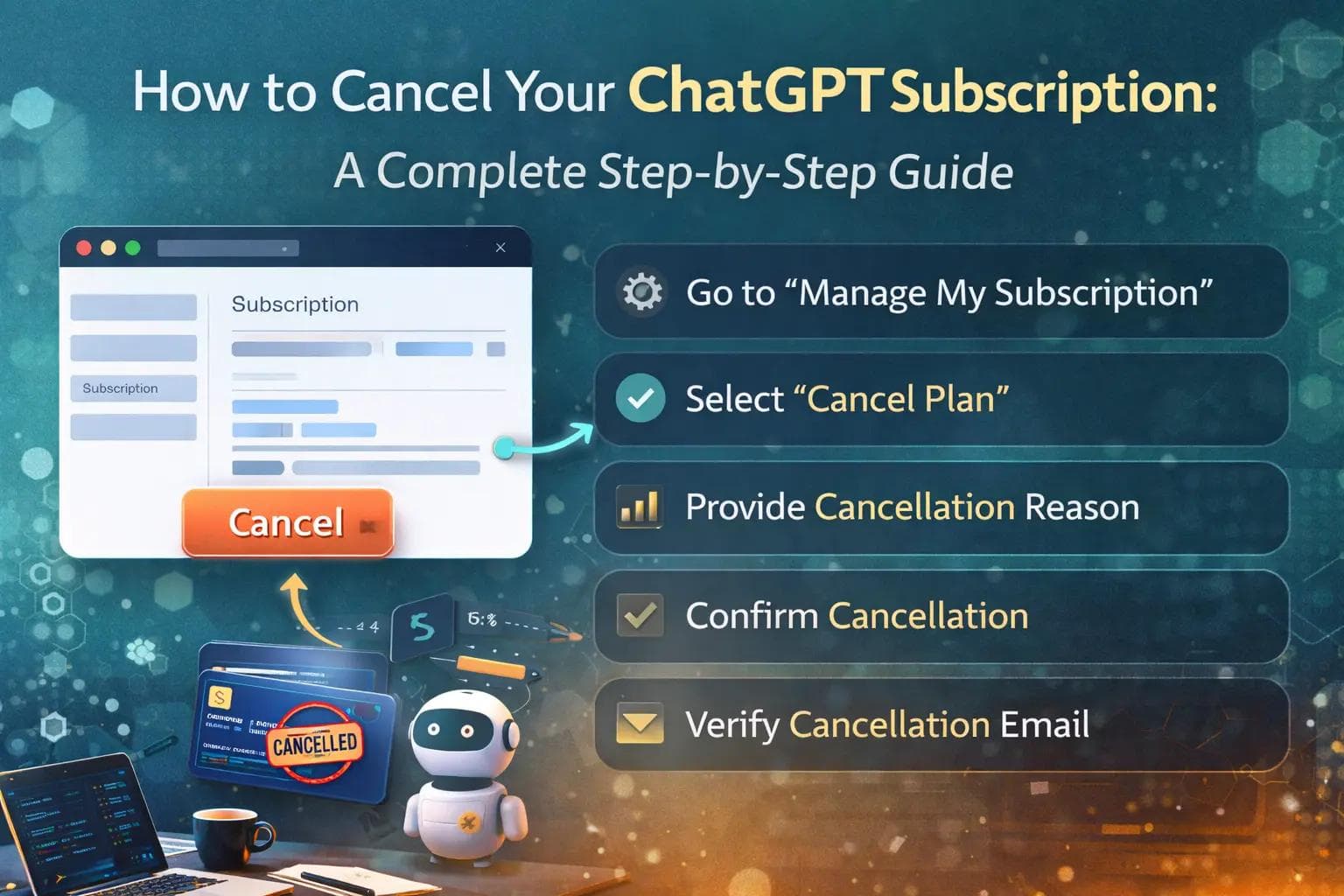
You signed up for the premium plan, enjoyed the advanced features, and now you are ready to take a break. Managing digital subscriptions should be easy, but finding the right button can sometimes feel like a maze. If you are wondering how to cancel your ChatGPT subscription quickly and securely, you are in the right place.
Taking control of your monthly expenses is a smart financial habit. Many users upgrade to premium plans for specific projects, only to realize they no longer need the extra processing power once the project ends. Fortunately, ending your billing cycle is a straightforward process once you know where to look.
Whether you use a desktop computer, an iPhone, or an Android device, the cancellation process takes just a few minutes. This guide will walk you through the exact steps for every platform. We will also cover what happens to your account and data once your premium plan ends.
Important Things to Know Before You Cancel
Before you hit the cancellation button, it helps to understand how the billing cycle actually works. When you cancel your paid plan, the changes do not happen immediately. You are simply turning off the auto-renewal feature.
This means you will keep your premium access until the end of your current billing period. For example, if you paid for a full month on the fifth of the month, and you cancel on the tenth, you still get to use the premium features until the fifth of the following month.
Your account will not be deleted when you cancel. Downgrading only reverts your profile back to the free version. All your saved conversations, custom instructions, and account settings will remain safely intact in your history.
How to Cancel ChatGPT Subscription on a Web Browser
If you signed up for the paid plan using your computer, you must cancel it through the web browser. You cannot cancel a web-based subscription through a mobile app. Here is how to do it safely and securely.
Step 1: Log Into Your Account
Open your preferred web browser and go to the official website. Enter your email address and password to log in. Make sure you are using the exact account tied to your paid subscription, as many users accidentally log into alternative free accounts.
Step 2: Open Your Settings
Look at the bottom left corner of your screen. You will see your profile name or your account icon. Click on your name to open a pop-up menu that contains several account management options.
Step 3: Access the Plan Details
From the pop-up menu, select the option labeled "My Plan." This will open a new window showing your current subscription status, your next billing date, and the specific features you currently have access to.
Step 4: Manage Your Subscription
Click on the link that says "Manage my subscription." This action redirects you to a secure billing page hosted by Stripe. Stripe is the secure payment gateway that handles all the billing for the service.
Step 5: Cancel the Plan
On the billing page, look for the "Cancel Plan" button. Click it, and follow the on-screen prompts to confirm your decision. Once confirmed, you will see a message stating that your plan will not renew for the next month.
How to Cancel Your Subscription on an iPhone or iPad
Apple manages all subscriptions purchased through applications on its devices. If you upgraded to the paid tier using the iOS app, you must cancel it through your Apple ID settings. The website will not let you cancel an Apple-managed plan.
Step 1: Open the Settings App
Unlock your iPhone or iPad and open the default Settings app. This is the app with the gray gear icon located on your primary home screen.
Step 2: Tap Your Apple ID
At the very top of the Settings menu, you will see your name and profile picture. Tap on your name to access your Apple ID, iCloud data, and media purchases.
Step 3: Select Subscriptions
Look down the list of options and tap on "Subscriptions." This screen displays every active and expired subscription tied to your personal Apple account.
Step 4: Find the Service
Scroll through your active list until you find the ChatGPT app. Tap on it to open the specific details, billing dates, and renewal prices for this recurring charge.
Step 5: Confirm Cancellation
Tap the red "Cancel Subscription" button at the bottom of the screen. A pop-up will appear asking you to confirm your choice. Once you confirm, Apple will stop billing your credit card for the next cycle.
How to Cancel Your Subscription on an Android Device
Similar to Apple, Google handles the billing for any upgrades purchased through the Google Play Store. If you used your Android phone to subscribe, you must use the Play Store to end the billing cycle.
Step 1: Open the Google Play Store
Grab your Android device and open the Google Play Store app. Make sure you are logged into the same Google account you used to purchase the premium plan originally.
Step 2: Access Your Profile
Tap on your profile picture located in the top right corner of the screen. A menu will drop down with several account management and settings options.
Step 3: Go to Payments and Subscriptions
Select "Payments & subscriptions" from the menu. On the next screen, tap on "Subscriptions" to view all your active recurring payments managed by Google.
Step 4: Cancel the Plan
Find the specific app in your list and tap on it. Scroll to the bottom of the details page and tap "Cancel subscription." Google will ask you for a reason for leaving; you can select any option or choose not to answer. Confirm your choice to finish the process.
Troubleshooting Common Cancellation Issues
Sometimes, things do not go exactly as planned. If you are struggling to cancel your account, it usually comes down to a few common mistakes. Here is how to troubleshoot them.
If you do not see a cancel button on the website, you likely purchased the plan on your phone. Companies restrict where you can cancel based on where you bought it. Check your Apple or Google subscriptions list instead.
If you have multiple email addresses, you might be logged into the wrong account. Many people use a work email for their paid plan and a personal email for a free plan. Verify the email address on your billing receipt and log in with that exact address.
If your credit card recently expired, your subscription might be in a suspended state. You generally still need to formally cancel the plan to ensure you are not charged if your bank automatically updates your card details.
What Happens After You Cancel?
Many users worry about losing their work when they downgrade. Fortunately, the transition is completely seamless. Once your billing cycle ends, your account simply reverts to the standard free tier without any interruptions.
You will lose access to premium perks. This includes priority access during peak hours, faster response times, and the ability to use the most advanced features available exclusively to paying members.
However, your account remains fully functional. You can still log in, ask questions, and review your entire chat history. Nothing you created during your premium period gets deleted or locked away.
Understanding the Refund Policy
A common question is whether you can get your money back if you cancel early. Generally, the subscription fee is entirely non-refundable. Since it is a digital service, you pay for the time you have access, regardless of how often you actually log in.
There are a few rare exceptions based on local consumer protection laws. For example, residents of the European Union or the United Kingdom have a specific right of withdrawal within a 14-day window of their initial purchase.
If you live in one of these regions and want a refund, you must contact customer support directly through the official help center. Otherwise, expect to simply use out the rest of the days you have already paid for.
Frequently Asked Questions (FAQ)
Will I lose my custom instructions when I downgrade?
No. Your custom instructions and profile settings remain saved in your account. You can continue to use them even after you return to the free tier.
How do I delete my account entirely?
Canceling a subscription does not delete your account. If you want to permanently erase your profile and all your data, you must go to your account settings, select "Data controls," and click the "Delete account" button.
Can I resubscribe later if I change my mind?
Absolutely. You can upgrade back to the premium plan at any time. Just log into your account and select the upgrade option, and your premium features will unlock instantly upon payment.
Can I pause my subscription instead of canceling?
Currently, there is no native option to pause a subscription for a month or two. If you need a break, your only option is to cancel the plan and resubscribe when you are ready to use the premium features again.
Will I still get billed if I delete the app from my phone?
Yes. Deleting the application from your iPhone or Android device does not cancel your subscription. You must go into your device's subscription settings to formally stop the recurring payments.
Final Thoughts on Managing Your Subscription
Keeping a close eye on your digital subscriptions is the best way to avoid unnecessary expenses. Whether you are cutting costs or simply not using the service enough to justify the monthly price, ending your subscription is a hassle-free process.
By following the steps outlined above, you can turn off auto-renewal in just a few clicks. Remember to check exactly where you originally purchased the plan, as that detail determines which cancellation method you need to follow.
The best part is that the door is always open. Your data remains safe, your account stays active on the free tier, and you can always choose to upgrade again in the future if your workload increases or your needs change.
About the Author

Suraj - Writer Dock
Suraj Kumar is a writer, entrepreneur, and the CEO and founder of this website, sharing simple and practical insights on business, creativity, and personal growth. With experience building digital projects, they enjoy helping others learn, grow, and succeed online.