Imagine you are building a search feature for an e-commerce website. You want the user to see results instantly as they type. So, you attach an event listener to the input field that calls your API every time a key is pressed.
You test it, and it seems fine. But then you look at your network tab. If a user types "iPhone 15 Pro Max" quickly, your browser just fired off 18 separate API requests in less than two seconds. The server is getting hammered, the UI is stuttering, and the user’s data plan is being wasted.
This is a classic frontend performance disaster. The browser can handle events like keystrokes, scrolling, and mouse movements much faster than your code can process them.
The solution lies in two essential techniques: Debouncing and Throttling.
While they sound similar, they solve this problem in fundamentally different ways. This guide will break down exactly how they work, how to implement them from scratch, and how to decide which one to use for your specific project.
The Core Problem: Excessive Event Firing
To understand the solution, we first need to appreciate the scale of the problem.
In JavaScript, certain user actions trigger events at a massive rate.
- Scroll events: Can fire 30–60 times per second while scrolling.
- Resize events: Fire continuously as you drag the browser window handle.
- Mousemove events: Fire every time the cursor moves a single pixel.
If you attach a heavy function—like a complex DOM calculation or a network request—to these events, you will freeze the main thread. The browser tries to execute your heavy function 60 times a second, creating a bottleneck that results in "jank" or laggy scrolling.
Debouncing and throttling are strategies to limit the rate at which a function is executed, giving your browser room to breathe.
What is Debouncing?
Debouncing is a strategy that says: "Wait until the user stops doing something before running this function."
It groups multiple sequential calls into a single execution. No matter how many times the event fires, the function will only run once, after a specified period of silence.
The Real-World Analogy: The Elevator
Think of an elevator with a sensor on the door.
- A person walks in. The elevator waits for 5 seconds before closing the doors.
- Just as the doors are about to close, another person walks in.
- The timer resets. The elevator waits another 5 seconds.
- This continues until no new person enters for a full 5 seconds. Only then do the doors close and the elevator moves.
In this analogy, "moving the elevator" is your function execution. The "people walking in" are the user events (keystrokes).
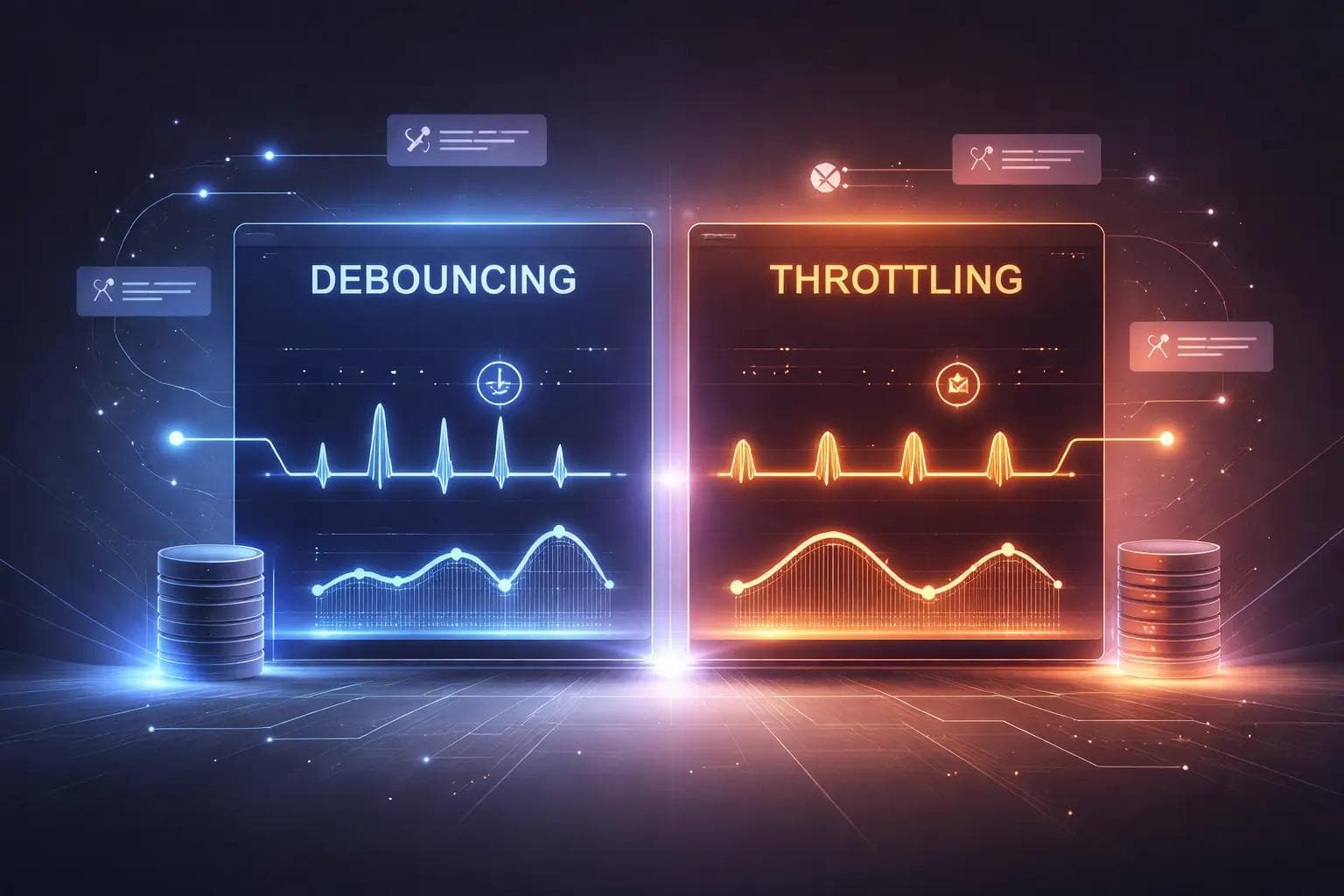
Visualizing Debounce
If you look at a timeline of events, debouncing looks like this:
- User types 'H'... (timer starts)
- User types 'e'... (timer resets)
- User types 'l'... (timer resets)
- User stops typing.
- ... Wait 300ms ...
- Function Fires.
How to Implement Debounce in JavaScript
You don't need a heavy library to write a debounce function. It is a great example of using Closures and setTimeout.
Here is a simple implementation:
1function debounce(func, delay) {
2  let timer; // Closure variable to hold the timer ID
3
4  return function(...args) {
5    // If a timer is already running, cancel it
6    if (timer) clearTimeout(timer);
7
8    // Set a new timer
9    timer = setTimeout(() => {
10      func.apply(this, args);
11    }, delay);
12  };
13}
How it works:
- timer variable: This variable persists between function calls because of the closure.
- clearTimeout: Every time the user triggers the event (e.g., types a letter), we cancel the previous timer. This effectively says, "Ignore the previous attempt, we are starting over."
- setTimeout: We schedule the function to run in the future (e.g., 300ms).
Practical Use Case: The Search Bar
This is the most common use case for debouncing. You do not want to search for "A", then "Ap", then "App", then "Appl", then "Apple". You only want to search for "Apple."
1const searchInput = document.getElementById('search');
2
3function performSearch(query) {
4  console.log(`Searching API for: ${query}`);
5}
6
7const debouncedSearch = debounce((e) => {
8  performSearch(e.target.value);
9}, 500);
10
11searchInput.addEventListener('input', debouncedSearch);
In this example, the API is only called if the user stops typing for half a second.
What is Throttling?
Throttling is a strategy that says: "Execute this function at most once every X milliseconds."
Unlike debouncing, throttling guarantees that the function runs regularly. It enforces a strict speed limit. If you set a throttle time of 1000ms, the function will run at 0ms, 1000ms, 2000ms, and so on, no matter how frantically the user clicks or scrolls.
The Real-World Analogy: The Machine Gun
Think of an automatic weapon in a video game. Even if you hold the trigger down permanently, the gun only fires bullets at a specific rate (fire rate).
Alternatively, think of a subway turnstile. It allows one person through, then locks for a few seconds. Even if 10 people are pushing against it, only one gets through every few seconds.
Visualizing Throttle
On a timeline, throttling looks like this during a continuous event:
- User starts scrolling...
- Function Fires (Time: 0ms)
- User is still scrolling... (Ignored)
- User is still scrolling... (Ignored)
- Function Fires (Time: 100ms)
- User is still scrolling... (Ignored)
- Function Fires (Time: 200ms)
How to Implement Throttle in JavaScript
Throttling is slightly more complex than debouncing because we need to track the "last execution time."
1function throttle(func, limit) {
2  let inThrottle; // Closure variable to track status
3
4  return function(...args) {
5    if (!inThrottle) {
6      func.apply(this, args); // Execute immediately
7      inThrottle = true; // Set the flag
8
9      setTimeout(() => {
10        inThrottle = false; // Reset flag after the limit
11      }, limit);
12    }
13  };
14}
How it works:
- inThrottle flag: This boolean tells us if we are currently in the "cooldown" period.
- First Call: If inThrottle is false, we run the function immediately and set the flag to true.
- Subsequent Calls: If the user tries to trigger the event again while inThrottle is true, nothing happens. The code simply ignores the request.
- Reset: After the limit (e.g., 1000ms) has passed, the setTimeout runs and sets inThrottle back to false, allowing the function to fire again.
Practical Use Case: Infinite Scrolling
When implementing an "infinite scroll" feature (like on Twitter or Instagram), you need to check if the user has reached the bottom of the page.
If you check this on every single pixel scroll, the browser will lag. However, you cannot use Debounce here. If you used Debounce, the user would have to stop scrolling entirely for the new content to load. That is a bad user experience.
You want the check to happen regularly while they are scrolling.
1function checkScrollPosition() {
2  if (window.innerHeight + window.scrollY >= document.body.offsetHeight) {
3    console.log("Load more content!");
4  }
5}
6
7const throttledScroll = throttle(checkScrollPosition, 200);
8
9window.addEventListener('scroll', throttledScroll);
Here, we check the scroll position 5 times a second (every 200ms). This is frequent enough to feel responsive but infrequent enough to save the CPU.
Debounce vs. Throttle: The Comparison
It is easy to mix these up. Let’s look at a direct comparison to clarify when to use which.
| Feature | Debounce | Throttle |
|---|---|---|
| Logic | "Wait for a pause." | "Run at a steady pace." |
| Execution Frequency | Variable. Only runs once at the very end of a burst of events. | Fixed. Runs regularly at specific intervals. |
| Best For | Events where the intermediate states don't matter (e.g., typing). | Events where you need updates while the action happens (e.g., scrolling/resizing). |
| User Experience | The user sees the result after they finish acting. | The user sees updates progressively. |
Leading vs. Trailing Edges
Both techniques have nuances regarding "Leading" and "Trailing" edges.
- Leading Edge: The function runs immediately when the event starts.
- Trailing Edge: The function runs after the delay is over.
A standard Debounce is usually "Trailing" (waits for the end). A standard Throttle is often "Leading" (runs immediately, then waits), but robust implementations like Lodash allow you to configure both.
Why Not Just Use CSS?
Sometimes developers try to use CSS transitions to smooth out UI changes instead of throttling JavaScript. While CSS is great for animations, it cannot control logic.
If your scroll handler is calculating complex math or making database calls, CSS cannot help you. You must limit the JavaScript execution itself.
Should I Write My Own or Use a Library?
In the examples above, I wrote simple implementations to explain the concept. However, for production applications, I highly recommend using a battle-tested utility library like Lodash or Underscore.
Why? Because handling edge cases is difficult.
- What if the this context gets lost?
- What if you want to cancel a pending debounce manually?
- What if you want both the leading AND trailing edge to fire?
Lodash provides robust versions:
1import { debounce, throttle } from 'lodash';
2
3// Lodash handles all the edge cases for you
4const myHandler = debounce(myFunction, 300, {
5  'leading': true,
6  'trailing': false
7});
Using a library ensures your code works consistently across different browsers and scenarios without you having to debug timing issues.
Common Pitfalls to Avoid
1. Re-creating the Function on Every Render (React)
In React, a common mistake is creating the debounced function inside the component body.
1// BAD PRACTICE
2function SearchBar() {
3  // This creates a NEW debounce function on every render!
4  const handleChange = debounce(apiCall, 300);
5
6  return <input onChange={handleChange} />;
7}
Because React re-renders components frequently, a new debounce timer is created every time the user types. The previous timer is lost in memory (but still running), and the debounce fails to actually block the calls.
The Fix: Use the useCallback or useMemo hook to memoize the function.
1// GOOD PRACTICE
2function SearchBar() {
3  const handleChange = useCallback(
4    debounce((value) => apiCall(value), 300),
5    []
6  );
7
8  return <input onChange={(e) => handleChange(e.target.value)} />;
9    }
2. Setting the Delay Too Long or Too Short
- Too Short: If you debounce for only 50ms, you might barely save any performance. The average typist is slower than that.
- Too Long: If you debounce a search bar for 2000ms (2 seconds), the app will feel broken and unresponsive.
Recommended Defaults:
- Search Bar: 300ms – 500ms
- Window Resize: 100ms – 200ms
- Scroll (Throttling): 100ms – 200ms
3. Throttling Network Requests
Be careful throttling network requests. While it limits the rate, it doesn't cancel stale requests.
If a user clicks a "Save" button 5 times, throttling might let 2 requests through. You might actually want Debouncing (only save the last click) or specific logic to disable the button after the first click.
FAQ
Q: Can I use both debounce and throttle together? A: It is rare, but possible. However, it usually adds unnecessary complexity. It is better to pick the one that fits the user interaction model best.
Q: Does requestAnimationFrame replace throttling? A: For animations, yes. requestAnimationFrame is essentially the browser's native way of throttling a function to the screen's refresh rate (usually 60fps). If you are doing visual updates on scroll, requestAnimationFrame is often better than a manual throttle.
Q: Is debouncing relevant for backend Node.js code? A: Yes! It is often used to prevent "thundering herd" problems. For example, if a database record updates, you might want to debounce the "save to disk" operation so you don't write to the hard drive 100 times a second.
Conclusion
Understanding the difference between Debouncing and Throttling is a milestone in a developer's journey from junior to intermediate. It shows you are thinking about performance and the user experience, not just making the code work.
Remember the simple rules:
- Use Debouncing when you want to group a burst of events into a single action (like a search bar).
- Use Throttling when you want to guarantee execution at a steady pace (like infinite scrolling).
By mastering these two tools, you can ensure your applications remain buttery smooth, even when your users are typing at lightning speed or scrolling frantically. Stop letting the browser drown in events; take control of the flow.
About the Author

Suraj - Writer Dock
Suraj Kumar is a writer, entrepreneur, and the CEO and founder of this website, sharing simple and practical insights on business, creativity, and personal growth. With experience building digital projects, they enjoy helping others learn, grow, and succeed online.