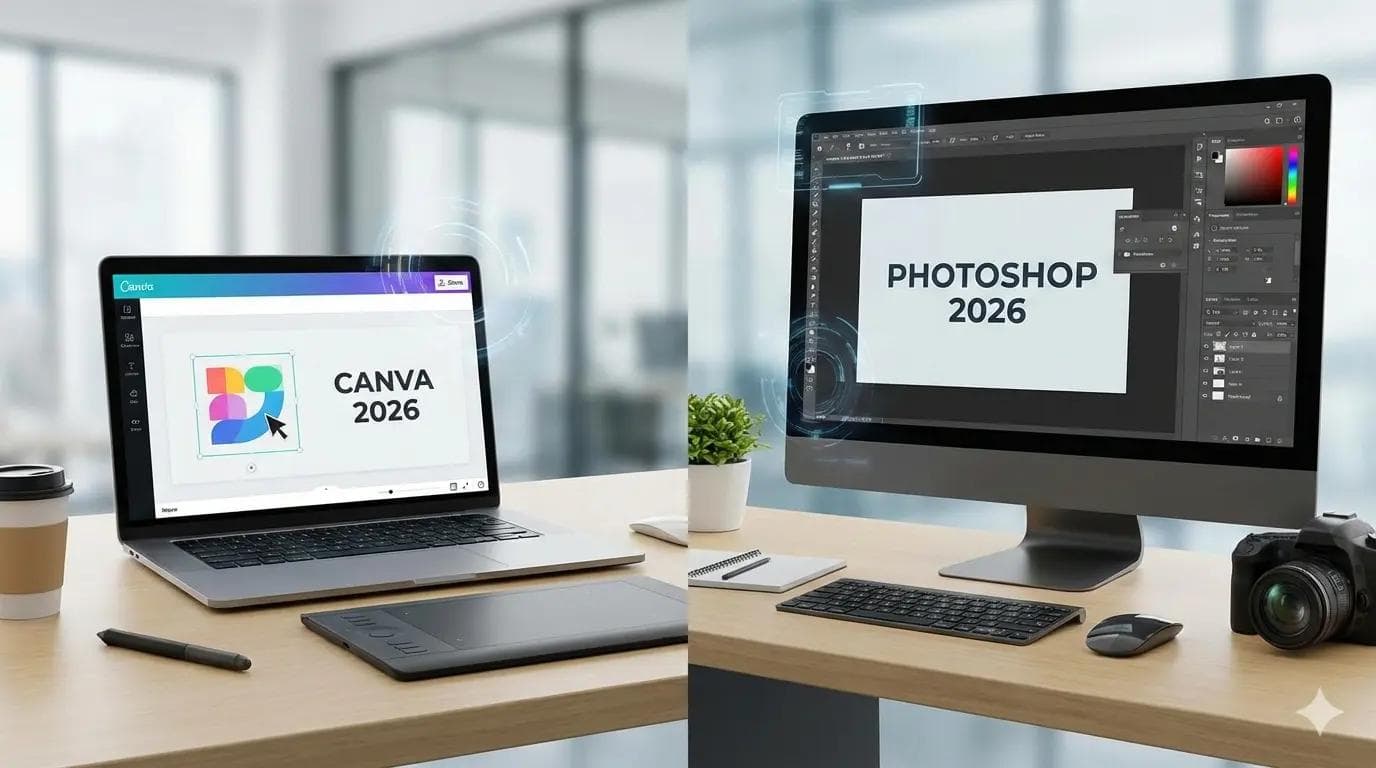
The landscape of digital creation has shifted dramatically over the last few years. Not long ago, the choice was simple: if you were a professional, you used Photoshop; if you were a hobbyist, you might dabble in web-based tools. In 2026, those lines have blurred.
Today, choosing between Canva vs Photoshop is no longer just about your skill level; it is about your specific goals, your timeframe, and your technical requirements. One is a powerhouse of precision that defines the industry standard, while the other is an agile, template-driven ecosystem that has revolutionized how businesses communicate visually.
This guide provides a comprehensive comparison to help you determine which is better: Canva or Photoshop for your unique workflow. We will dive deep into the features, pricing, and real-world performance of both platforms to ensure you make the most informed decision for your creative toolkit.
Canva vs Photoshop: Quick Comparison Table
| Feature | Canva | Adobe Photoshop |
|---|---|---|
| Ease of Use | High (Drag-and-drop) | Moderate to Low (Complex UI) |
| Best For | Social media, marketing, speed | Photo retouching, complex art, print |
| Learning Curve | Minutes to hours | Weeks to months |
| Key Features | 100M+ assets, Magic Studio AI | Layer masks, RAW editing, Generative Fill |
| Platform Support | Web, iOS, Android, Desktop App | Windows, macOS, iPadOS |
| AI Features | Magic Design, Magic Media | Firefly, Generative Expand, Neural Filters |
What is Canva?
Canva is a web-based graphic design platform that prioritizes accessibility and efficiency. Since its inception, it has evolved from a simple social media post maker into a full-scale visual suite. It is designed to empower non-designers to produce high-quality visuals without needing to master the technicalities of "pixels" or "vectors."
Key Features
- Massive Asset Library: Access to over 100 million photos, videos, and graphics.
- Brand Kits: Centralized storage for logos, colors, and fonts to ensure consistency.
- Magic Studio: A suite of AI-powered tools for background removal, image generation, and instant resizing.
- Video & Presentations: Integrated tools for basic video editing and cinematic slide decks.
Strengths
The primary strength of Canva is speed. You can go from a blank canvas to a finished, professional-looking Instagram post or business proposal in under five minutes. Its cloud-native architecture also makes it the king of collaboration, allowing teams to edit the same file simultaneously.
Limitations
While powerful, Canva is not a pixel-level editor. You cannot perform deep photo retouching, such as removing fine wrinkles or complex color grading. It also lacks advanced vector control, making it less ideal for high-end logo design that requires infinite scalability.
What is Photoshop?
Adobe Photoshop remains the undisputed industry standard for image manipulation and digital art. It is a raster-based program, meaning it operates at the pixel level, giving users absolute control over every dot of color on the screen.
Core Features
- Advanced Layering: Complex masking, blending modes, and non-destructive adjustment layers.
- Generative AI (Firefly): Powerful ability to add, extend, or remove objects with photorealistic accuracy.
- Camera RAW: Professional-grade photo processing for photographers.
- Extensibility: Support for thousands of third-party brushes, plugins, and actions.
Strengths
Photoshop’s strength lies in precision and depth. If you can imagine it, you can create it in Photoshop. It is the tool of choice for high-resolution print media, movie posters, and detailed digital illustrations where "good enough" isn't an option.
Limitations
The learning curve is the biggest hurdle. New users are often overwhelmed by the dense interface and technical terminology. Furthermore, it requires a powerful computer with significant RAM and a dedicated GPU to run smoothly, unlike Canva, which runs on almost any browser.
Feature-by-Feature Comparison
Ease of Use
Canva is the clear winner here. Its interface is intuitive, using a "what you see is what you get" philosophy. Photoshop, by contrast, is a professional instrument. Much like learning a piano, you must practice before you can perform.
Design Flexibility
Photoshop offers near-infinite flexibility. You are not limited by templates or pre-set elements. While Canva alternatives often try to mimic its simplicity, Photoshop remains the choice for those who want to build something entirely unique from scratch.
Templates & Assets
Canva dominates this category for the average user. It provides hundreds of thousands of pre-made templates for everything from resumes to TikTok ads. Photoshop does offer some templates via Adobe Stock, but they are often an afterthought rather than the core experience.
Advanced Editing
This is Photoshop’s home turf. From frequency separation in skin retouching to complex 3D compositing, Canva simply cannot compete. For professionals, the ability to manipulate pixels with such granularity is essential.
AI Capabilities
In 2026, both tools have integrated AI. Canva’s AI (Magic Studio) is built for "creation through conversation"—you tell it what you want, and it builds a layout. Photoshop’s AI (Adobe Firefly) is more focused on "augmentation"—helping you expand a landscape or change the lighting of a photo with surgical precision.
Collaboration
Canva was built for the modern, remote-first world. Multiple people can work on a design in real-time. Adobe has improved its cloud collaboration, but it still feels like a "file-sharing" workflow rather than a "live-editing" one.
Pricing Comparison
When comparing Canva pricing vs Photoshop pricing, the value proposition depends on how many tools you need.
- Canva Free: Excellent for hobbyists; includes basic templates and 5GB cloud storage.
- Canva Pro: Approximately $15/month (or $120/year). Unlocks the entire asset library and all AI features.
- Adobe Photoshop: Generally starts at $22.99/month for a single-app subscription.
- Photography Plan: Often the best value at $19.99/month, including Photoshop and Lightroom.
Pro Tip: If you are a student or a teacher, Adobe offers a significant discount on the "All Apps" plan, which can bring the price closer to Canva's territory.
Real-World Testing: My Personal Perspective
After testing both tools for various projects over the past year, I’ve noticed a distinct shift in my own workflow.
In my experience, when I need to create a dozen social media assets for a client launch, I reach for Canva every single time. The "Magic Resize" tool alone saves me hours of work that would have been spent manually adjusting layouts in Photoshop. I can create a post, hit a button, and instantly have versions for Instagram, LinkedIn, and X (Twitter).
However, while editing high-resolution images for a print magazine last month, Canva simply didn't cut it. I needed to remove a complex shadow and match the grain of the film. In Photoshop, I used the Generative Fill to extend the background and the Healing Brush for the fine details. The level of control over color profiles and export settings (like CMYK for print) is something I still don't trust Canva to handle for high-stakes professional work.
Speed is the ultimate factor for me. If a project requires a 2-hour turnaround, Photoshop is a liability. If a project requires "flawless" quality, Canva is a risk.
Pros and Cons
Canva
Pros:
- Virtually no learning curve for beginners.
- Excellent mobile app for on-the-go editing.
- Huge library of royalty-free stock photos and videos.
- Built-in scheduling for social media platforms.
Cons:
- Limited ability to create unique, custom shapes.
- Cannot work offline effectively.
- Designs can sometimes look "generic" if templates aren't customized.
Photoshop
Pros:
- Absolute creative freedom and pixel-perfect precision.
- Industry-standard for print and high-end digital media.
- Powerful AI integration for photorealistic edits.
- Works offline on desktop.
Cons:
- Expensive monthly subscription.
- Requires high-performance hardware.
- Can take months to achieve proficiency.
Canva vs Photoshop for Different Users
For Beginners
Canva vs Photoshop for beginners is a one-sided fight. If you have no design background, Canva is your best friend. It guides you through the process with "smart guides" and pre-set layouts that prevent you from making common design mistakes.
For Social Media Creators
Canva is the gold standard here. Its integration with content calendars and its mobile-friendly interface make it perfect for the fast-paced world of social media.
For Professional Designers
Canva vs Photoshop for professionals is more of a "both/and" situation. Most pros use Photoshop for the heavy lifting—creating the brand assets, the logos, and the hero images—and then upload those assets to Canva so their clients or marketing teams can use them easily.
For Businesses and Agencies
Agencies often prefer Photoshop for its "source file" capabilities (PSD files), which are the standard for handoffs. However, small businesses almost always prefer Canva for its cost-effectiveness and ease of use.
Top Alternatives to Consider
If neither of these feels like a perfect fit, consider these Canva alternatives or Photoshop alternatives:
- Affinity Photo: A powerful, one-time-purchase alternative to Photoshop.
- Adobe Express: Adobe’s direct answer to Canva, which integrates well with Photoshop assets.
- Figma: While primarily for UI/UX, it is an excellent collaborative tool for vector-based layouts.
- Pixlr: A browser-based photo editor that sits somewhere between the two in complexity.
FAQ: People Also Ask
Is Canva replacing Photoshop?
No. While Canva is taking over the "quick-turnaround marketing" space, it cannot replace the deep technical capabilities required for high-end photography, digital painting, and complex compositing that Photoshop provides.
Is Photoshop worth it in 2026?
Yes, for anyone looking to make a career in design or photography. The addition of AI-powered tools has made it faster and more powerful than ever, keeping it relevant despite the rise of simpler tools.
Can Canva do professional work?
Absolutely. Many professional marketers and small business owners use Canva for "professional" output like pitch decks, annual reports, and ad campaigns. However, it is not suitable for "professional" image manipulation.
Which is better for logo design?
Technically, neither. Professional logos should be created in a vector program like Adobe Illustrator. However, if you must choose between the two, Photoshop is slightly better for creating unique shapes, though Canva is easier for simple, icon-based logos.
Final Verdict: Which One Should You Choose?
In the debate of Canva vs Photoshop, there is no single "winner"—only the right tool for the job.
Choose Canva if: You are a small business owner, social media manager, or student who needs to create beautiful content quickly. If you value your time more than pixel-level control, Canva is the best investment you can make. It democratizes design and allows you to look like a pro without the four-year degree.
Choose Photoshop if: You are a photographer, digital artist, or a professional designer who needs total control over your work. If your projects involve high-resolution printing, detailed retouching, or complex creative compositions, Photoshop is the only tool that will meet your standards.
My Final Recommendation: Don't feel like you have to pick a side. In my own business, I use Photoshop to create the "soul" of the brand—the custom textures, the retouched photos, and the unique elements—and I use Canva to deploy those elements into daily content. By using both, you get the precision of a master craftsman and the speed of a modern creator.
About the Author
Suraj - Writer Dock
Suraj Kumar is a writer, entrepreneur, and the CEO and founder of this website, sharing simple and practical insights on business, creativity, and personal growth. With experience building digital projects, they enjoy helping others learn, grow, and succeed online.